- Search Results
You can now download and install LineageOS 16 for Moto E4 Mediatek. Here is how to install LineageOS 16 on Moto E4 Mediatek, with a step-by-step guide. This Moto E4 Mediatek LineageOS 16 build is brought to you by developer koDE_61 (iykeDROID) also known as Izaq Kull.
Follow the links to get other LineageOS 16 and Android Pie ROM builds.
DONATION TO DEVELOPER(S)/PROJECT:
If you like this ROM then do consider for a contribution to koDE_61 (iykeDROID) and LineageOS project:
– Donate to iykeDROID (koDE_61)
– Donate to LineageOS project
[su_note note_color=”#F9D9D9″ text_color=”#AA4343″ radius=”3″ class=”” id=””]DISCLAIMER:
THIS IS AN INITIAL BUILD OF LineageOS 16 FOR Moto E4 Mediatek, WHICH MAY HAVE BUGS.
MAKE SURE TO BACKUP ALL DATA OF YOUR PHONE.
FLASH AT YOUR OWN RISK.[/su_note][su_note note_color=”#FBF4DD” text_color=”#A38C68″ radius=”3″ class=”” id=””]Installing a custom ROM may require an unlock bootloader on Moto E4 Mediatek, which may VOID your warranty and may delete all your data. Before proceeding further you may consider backup all data on the phone.
You are the only person doing changes to your phone; neither the developer nor I can be held responsible for the mistakes done by you.[/su_note]Status of the Moto E4 Mediatek LineageOS 16 ROM:
WHAT’S WORKING:
– UnknownKNOWN ISSUES:
– UnknownREQUIRED GUIDES AND DOWNLOADS TO INSTALL LineageOS 16 ON Moto E4 Mediatek:
- TWRP for Moto E4 Mediatek (woods) for this Moto E4 Mediatek LineageOS 16 ROM
- How to install TWRP recovery
- Moto E4 Mediatek unlock bootloader guide – required to install TWRP recovery
- ROM Download link for Moto E4 Mediatek LineageOS 16
- MindTheGApps for LineageOS 16 or Open GApps for LineageOS 16
- How to Root LineageOS 16
HOW TO DOWNLOAD AND INSTALL LineageOS 16 ON Moto E4 Mediatek – Android 9 Pie CUSTOM ROM:
[su_note note_color=”#D7E3F4″ text_color=”#728095″ radius=”3″ class=”” id=””]
Following are the two sub-sections of this Moto E4 Mediatek LineageOS 16 guide:- First time installation of LineageOS 16 on Moto E4 Mediatek
- Upgrading LineageOS 16 on Moto E4 Mediatek from a previous build of LineageOS 16 ROM
[/su_note]
Flashing LineageOS 16 on Moto E4 Mediatek for the first time:
[su_note note_color=”#FBF4DD” text_color=”#A38C68″ radius=”3″ class=”” id=””]
Points to NOTE:- Try to avoid restoring apps backup using Titanium Backup. It may break things up.
- Don’t restore system data using Titanium Backup! It will definitely break the current installation.
- It is also discouraged to Restoring Apps + Data using Titanium Backup.
[/su_note]
- Download and Copy the LineageOS 16 Gapps and the Moto E4 Mediatek LineageOS 16 Android Pie ROM ZIP file to your phone.
- Boot into the TWRP custom Recovery to install this LineageOS 16 on Moto E4 Mediatek.
[su_note note_color=”#D7E3F4″ text_color=”#728095″ radius=”3″ class=”” id=””]- Make sure to have a Custom recovery like a TWRP recovery or any other custom recovery.
– If not then download the TWRP recovery from Downloads link and follow the Custom Recovery Installation Guide (it’s a generic guide which will work for TWRP as well as any other recovery)[/su_note] - Wipe the data partition (or do a factory reset), Cache partition, Dalvik Cache or ART cache and Format the System partition.
[su_note note_color=”#D7E3F4″ text_color=”#728095″ radius=”3″ class=”” id=””]- Here is a guide explaining how to wipe using TWRP recovery.[/su_note]
[su_note note_color=”#FBF4DD” text_color=”#A38C68″ radius=”3″ class=”” id=””]This will delete all your data on your phone. You may consider complete backup of your phone data or take a NANDROID backup of the current ROM
– How to backup all data on your Android Device
– how to take NANDROID backup using TWRP recovery[/su_note] - Install the Moto E4 Mediatek LineageOS 16 ROM file that you have copied into the phone.
[su_note note_color=”#D7E3F4″ text_color=”#728095″ radius=”3″ class=”” id=””]- Here is a post explaining how to install LineageOS[/su_note] - Then install the Android Pie MindTheGapps for LineageOS 16 package.
[su_note note_color=”#D7E3F4″ text_color=”#728095″ radius=”3″ class=”” id=””]- Here is a post explaining how to install GApps using TWRP recovery.[/su_note] - Reboot and Enjoy the Android 9 Pie LineageOS 16 on Moto E4 Mediatek.
Upgrading from earlier version of LineageOS 16 on Moto E4 Mediatek (woods):
- Copy the latest ROM zip file of LineageOS 16 for Moto E4 Mediatek, LineageOS 16 GApps and/or Magisk ROOT package to the phone
- Boot into Recovery to flash the updated LineageOS 16 on Moto E4 Mediatek
- Format or wipe the system partition from the custom recovery menu.
- Install the LineageOS 16 for Moto E4 Mediatek.
[su_note note_color=”#D7E3F4″ text_color=”#728095″ radius=”3″ class=”” id=””]- Here is a post explaining how to install LineageOS[/su_note] - Reboot and see you have the GApps and ROOT access or NOT.
[su_note note_color=”#D8F1C6″ text_color=”#769958″ radius=”3″ class=”” id=””]- Gapps is built in such a way that it will sustain across ROM updates.[/su_note] - If you don’t have GApps after upgrading the LineageOS 16 on Moto E4 Mediatek, then flash the GApps.
[su_note note_color=”#D7E3F4″ text_color=”#728095″ radius=”3″ class=”” id=””]- Here is a post explaining how to flash GApps using TWRP recovery.[/su_note] - If you don’t have ROOT after upgrading the LineageOS 16 on Moto E4 Mediatek, then flash the SuperSU or Magisk or the Lineage SU binary.
[su_note note_color=”#D7E3F4″ text_color=”#728095″ radius=”3″ class=”” id=””]- Here is a post explaining How to Enable ROOT on LineageOS 16 ROM[/su_note] - Once everything is done, reboot and Enjoy the LineageOS 16 on Moto E4 Mediatek.
[su_note note_color=”#D8F1C6″ text_color=”#769958″ radius=”3″ class=”” id=””]Complete the initial setup and enjoy Android 9 Pie with LineageOS 16 on Moto E4 Mediatek.[/su_note]
After installing LineageOS 16 on Moto E4 Mediatek you may want to install Google Camera (GCam) or enable ROOT access on your phone and here is how you can do that:
– How to ROOT LineageOS 16
– GCam for Android Pie (this page contains a huge list of GCam for all available devices)[su_note note_color=”#D7E3F4″ text_color=”#728095″ radius=”3″ class=”” id=””]If there is no ROOT access for some reason even after installing the LineageOS SU binary, then you can try SuperSU rooting guide to enable ROOT access.[/su_note]
Stay tuned or Subscribe to the Moto E4 Mediatek (woods) LineageOS forum For other Android Pie, Android Oreo ROMs, Nougat ROMs, or other ROMs and all other device specific topics.TWRP for BLU Grand Mini is now available to download from TWRP builder as an unofficial build and this post guides you how to install TWRP on BLU Grand Mini and ROOT BLU Grand Mini (using TWRP recovery).
After installing TWRP recovery on BLU Grand Mini you can install many android mods such as google camera (gcam), enable navigation gesture, enable face unlock, viper4android audio enhancement etc. and many more.
[su_note note_color=”#F9D9D9″ text_color=”#AA4343″ radius=”3″ class=”” id=””]DISCLAIMER:
THIS IS AN UNOFFICIALLY BUILD TWRP FOR BLU Grand Mini. FLASH AT YOUR OWN RISK.
INSTALLING THE TWRP RECOVERY AND ROOT BLU Grand Mini NEEDS AN UNLOCK BOOTLOADER ON YOUR PHONE.
DURING THE BOOTLOADER UNLOCK PROCESS ALL THE PHONE DATA WILL BE ERASED. MAKE SURE TO BACKUP EVERYTHING.
[/su_note]

Content structure:
- Required downloads to install TWRP recovery for BLU Grand Mini
- How to install TWRP recovery on BLU Grand Mini
- What you can do after installing TWRP on BLU Grand Mini
- Required downloads and guides for BLU Grand Mini ROOT
- Step-by-Step guide on BLU Grand Mini ROOTING guide
- How to check if BLU Grand Mini is ROOTED or NOT
DOWNLOAD LINK OF TWRP FOR BLU Grand Mini, OTHER DOWNLOADS AND REQUIRED GUIDES:
- Unlocked bootloader on BLU Grand Mini
- TWRP recovery download for BLU Grand Mini
- USB drivers for Mediatek
- ADB and Fastboot download
– 15 Seconds ADB Installer for Windows
– Minimal ADB and Fastboot for Windows - Latest MTK Droid Root and tools
- Latest MTK SP Flash Tool for Windows
- Install ADB and fastboot on Linux PC
- Latest MTK SP Flash Tool for Linux 64-bit
- Latest MTK SP Flash Tool for Linux 32-bit
REQUIRED DOWNLOADS IF YOU ARE USING A WINDOWS PC:
REQUIRED DOWNLOADS IF YOU ARE USING A LINUX PC:
STEP BY STEP GUIDE OF HOW TO INSTALL TWRP FOR BLU Grand Mini:
Follow the below step by step guide to install the TWRP for BLU Grand Mini
Before installing TWRP you may require an unlocked bootloader on BLU Grand Mini.
Installing TWRP on BLU Grand Mini requires a scatter file to be created.
A scatter file of a Mediatek device is what tells about the presence of different partition and the start address of each partition.[su_note note_color=”#D7E3F4″ text_color=”#728095″ radius=”3″ class=”” id=””]
Either you can download the scatter file from the downloads section or you can create it by yourself using the following guide.
[/su_note]How to create scatter file for BLU Grand Mini:
This guide need the Droid MTK Tool. With the help of Droid MTK Tool we will create the scatter file for BLU Grand Mini.
- Download the Droid MTK Tool from the above Downloads section.
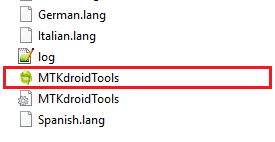
- It’s in a zip file, so extract that file or open using WinRar or some application and then open the MTKDroidTools.exe file.

- Enable USB Debugging under Developer Options on the BLU Grand Mini; to make the device accessible via ADB.
– If you don’t know how to do this then here is How to Enable Developer Options and How to Enable USB Debugging and OEM unlock.
- Then connect the phone using the USB cable to the PC.
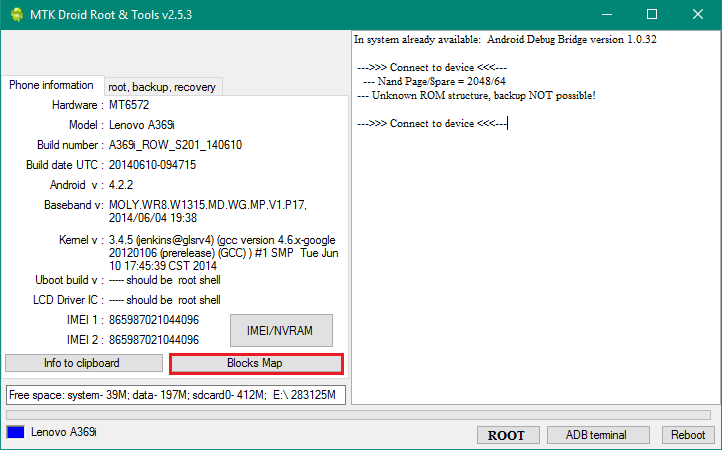
– When you connect the phone to the PC, MTKDroidTool will show all the information about your phone.

- On the below portion of the screen you will see a Blocks Map button. Click on the button
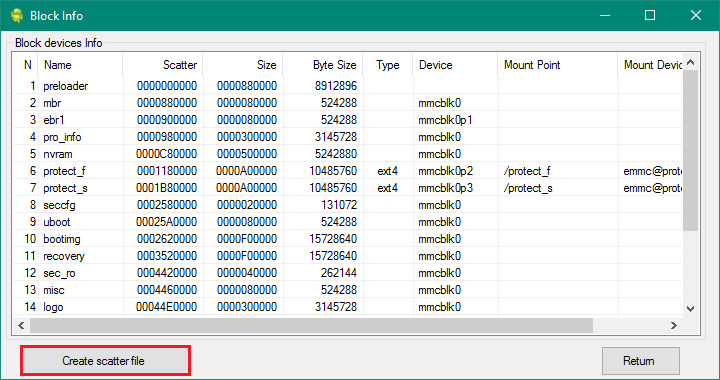
- On the next screen you have all the partition information and starting address of all the partitions of BLU Grand Mini.
On the bottom of the screen you see a Create scatter file button.– Click on the button to create scatter file for BLU Grand Mini.

- Save the scatter file for BLU Grand Mini in a location which you can remember and access easily.
Now Install TWRP on BLU Grand Mini using SP Flash Tool:
TWRP recovery download to a Mediatek phone is done by SP Flash tool, which uses a scatter file to know which address the recovery partition starts.
Make sure you have downloaded the SP Flash tool and created the scatter file for BLU Grand Mini.Follow the below steps to install the TWRP on BLU Grand Mini using the scatter file.
- Open the SP Flash tool zip file and then open the flash_tool.exe file.
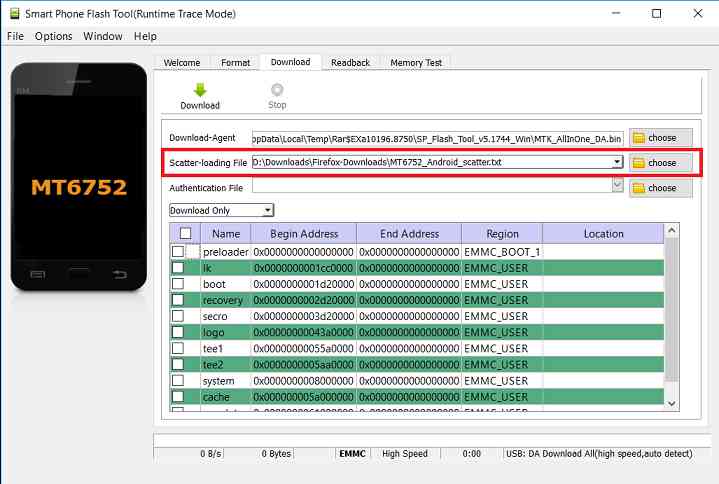
- Click browse on the the scatter-loading file section and select the BLU Grand Mini scatter file you created earlier using the MTKDroid Tool.
After selecting the scatter file, the SP Flash tool application automatically find available partitions and other details.

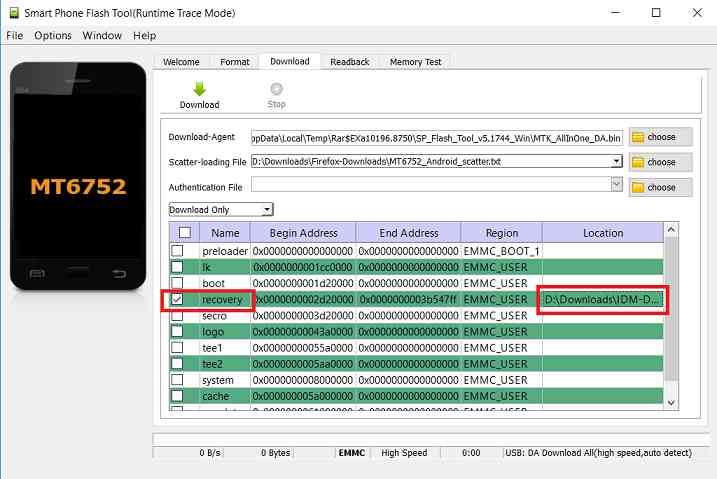
- Now select the location next to the Recovery partition and select the TWRP for BLU Grand Mini, which is in .img format.

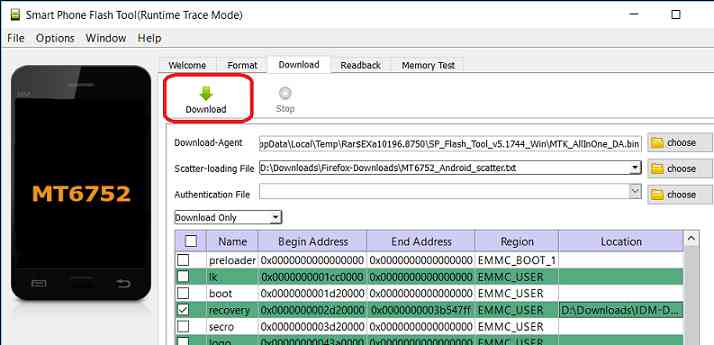
- Then click on the Download button to start downloading/flashing of the TWRP recovery on BLU Grand Mini as shown in the picture.

- After clicking on the download button you will see a red bar on the bottom followed by a yellow bar.
When the TWRP is downloaded to BLU Grand Mini, the SP Flash tool will alert you saying Download is done.
That’s all.
What to do after you install TWRP for BLU Grand Mini:
- You can root the BLU Grand Mini
- You can install one of the custom ROMs available for BLU Grand Mini
- You can install some of the mods available on BLU Grand Mini
Well, this isn’t it. You can install customized themes, sound mods, Xposed modules etc. after installing the TWRP for BLU Grand Mini.
TWRP recovery is the gateway to many goodies for your phone.Now, if you want to ROOT BLU Grand Mini then below is a step-by-step by guide for the same.
[su_note note_color=”#F9D9D9″ text_color=”#AA4343″ radius=”3″ class=”” id=””]
ROOTING BLU Grand Mini MAY BRICK THE PHONE.
MAKE SURE YOU READ THE ADVANTAGES AND DISADVANTAGES OF ROOTING BEFORE YOU PROCEED FURTHER.
Before proceeding further you may consider backup all data on the phone.
You are the only person making changes to your phone and I cannot be held responsible for the mistakes done by you.
[/su_note]REQUIRED DOWNLOADS OR GUIDES FOR BLU Grand Mini ROOTING:
- Make sure you have already unlocked the bootloader and installed TWRP for BLU Grand Mini
– Well, this is a very important aspect of this SuperSU ROOT process. The SuperSU zip file is developed in a way to be installed via a TWRP recovery or other custom recovery. Stock recovery may not be able install this SuperSU or Magisk ROOT zip file.
- Download the latest SuprSU ROOT for BLU Grand Mini or one of the following:
- Download link for Latest SuperSU zip file
- Download link for STABLE SuperSU zip file
- Download link for SuperSU BETA zip file
- Download link to SuperSU APK Free version
- Download link to SuperSU APK Pro version
- Download link to Magisk ROOT zip file RECOMMENDED
IMPORTANT NOTE:- Your phone will not be rooted just by installing the SuperSU APK file on your Android phone.
- SuperSU APK Free or Pro version is just a SuperSU ROOT management application.
- The SuperSU APK Free or Pro app will ONLY work if you have already ROOTED your Android Phone.
Step-by-Step guide on how to ROOT BLU Grand Mini using SuperSU or Magisk zip file:
- Download and copy the SuperSU or Magisk ROOT file to BLU Grand Mini. (I hope you have already downloaded the files from the above downloads section)
- Now restart the BLU Grand Mini to boot into TWRP recovery.
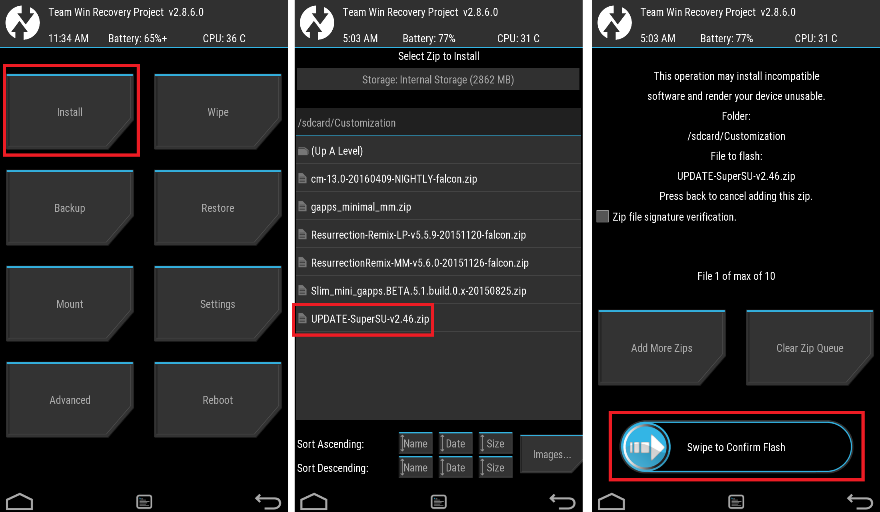
- Then, Select the Install from TWRP home screen, then select the SuperSU ROOT zip file from the file browser.
- Flash or install the SuperSU or Magisk for BLU Grand Mini, by Sliding the Swipe to Confirm Flash on TWRP screen.
- Wait for TWRP to flash the SuperSU or the Magisk. Once the flashing is done just reboot your device.
- Profit!!! You should now have a BLU Grand Mini ROOT enabled phone.
How to check if ROOT is enabled on BLU Grand Mini or NOT?
Install the ROOT checker app from the Play Store and verify if your phone is ROOTED or not.
Here is a screenshot how to flash the SuperSU ROOT binary via TWRP:

If you face any problems on this guide to install TWRP for BLU Grand Mini then, you can login and reply here. Either me or some other user on this forum will revert back to your query as soon as possible.
Stay tuned or Subscribe to the BLU Grand Mini forum For other Android Custom ROMs, LineageOS ROMs, and all other device specific topics.LineageOS 14.1 for Doogee X5 Max Pro has come via an unofficial build. If you want the OFFICIAL update or some more Lineage ROMs then stay tuned to the Android Nougat LineageOS page or the latest LineageOS 15 Android O devices list page. This X5 Max Pro LineageOS 14.1 is brought to you by Keng Natan.
DONATION TO DEVELOPER(S):
NO donation link found for Keng Natan.
DISCLAIMER:
THIS IS AN INITIAL BUILD WHICH MAY NOT BOOT AT ALL OR EVEN IF IT BOOTS IT MAY HAVE MANY BUGS. HAVE A BACKUP OF THE CURRENT ROM BEFORE FLASHING THIS ROM AND TRY AT YOUR OWN RISK. Installing a custom ROM on a Doogee X5 Max Pro requires to unlock bootloader on X5 Max Pro, which may VOID your warranty and may delete all your data. Before proceeding further you may consider backup all data on the phone. You are the only person doing changes to your phone and I cannot be held responsible for the mistakes done by you.Status of LineageOS 14.1 for Doogee X5 Max Pro Nougat 7.1 ROM:
WHAT’S WORKING:
– Not KnownKNOWN ISSUES:
– Not Known
REQUIRED LINKS AND FILES FOR LineageOS 14.1 for X5 Max Pro NOUGAT CUSTOM ROM:
- TWRP for Doogee X5 Max Pro
– Here is: Mediatek Recovery Guide
– This TWRP recovery guide requires an unlocked bootloader on the X5 Max Pro. - ROM Download link of Doogee X5 Max Pro LineageOS 14.1
- LineageOS Nougat GApps download link for LineageOS 14.1 for Doogee X5 Max Pro Nougat 7.1 ROM
Root binary is NOT inbuilt in LineageOS 14.1, so you may need a separate SuperSu package or LineageOS su binary to install to gain ROOT access. Here is LineageOS Rooting guide
If there is no in-built ROOT or it does not work for some reason then you can try SuperSU rooting guide to enable ROOT access.HOW TO INSTALL/DOWNLOAD/FLASH/UPDATE Doogee X5 Max Pro LineageOS 14.1 NOUGAT CUSTOM ROM:
Follow this if you are flashing LineageOS 14.1 for X5 Max Pro for the first time, or coming from another ROM:
Points to NOTE:
– Try to avoid restoring apps backup using Titanium Backup. It may break things up.
– Don’t restore system data using Titanium Backup! It will definitely break the current installation.
– It is also discouraged to Restoring Apps + Data using Titanium Backup.- Boot into Recovery. Make sure to have a Custom recovery like CWM or TWRP or any other custom recovery. If not then follow the Recovery Installation Guide for Mediatek devices (it’s a generic guide which will work for TWRP as well as CWM recovery or any other recovery)
- Wipe data factory reset, Cache partition, Dalvik Cache and Format the System partition.
– Here is a guide explaining how to wipe data using TWRP.This will delete all your data on your phone. You may consider complete backup of your phone data or take a NANDROID backup of the current ROM
– backup all data on your Android phone
– Take NANDROID backup using TWRP recovery - Go to “Mount”, “Enable MTP” (if it says “Disable MTP” then no need to do anything and you are good to go from here), and connect the device to your PC.
- Copy the GApps and LineageOS 14.1 for Doogee X5 Max Pro ROM ZIP to your phone using MTP file transfer mode.
- First flash the Doogee X5 Max Pro LineageOS 14.1 ROM ZIP from device.
– Here is a post explaining how to flash a custom ROM using TWRP recovery. - DO NOT REBOOT YET. Now flash the LineageOS 14.1 GApps package.
– Here is a post explaining how to flash GApps using TWRP recovery. - Reboot and Enjoy the Nougat 7.1 LineageOS 14.1 ROM for Doogee X5 Max Pro.
Upgrading from earlier version of LineageOS 14.1 for Doogee X5 Max Pro:
- Copy the latest LineageOS 14.1 for Doogee X5 Max Pro ROM ZIP file to your phone.
- Boot into Recovery.
- Flash the latest LineageOS ROM ZIP from your phone.
– Here is a post explaining how to flash a custom ROM using TWRP recovery. - Then flash the Android Nougat GApps package.
– Here is a post explaining how to flash GApps using TWRP. - Reboot and Enjoy
Complete the initial setup and enjoy Android Nougat 7.1 with LineageOS 14.1 for Doogee X5 Max Pro. After the installation of X5 Max Pro LineageOS 14.1 you may want to enable ROOT access on your phone and here is how you can do that:
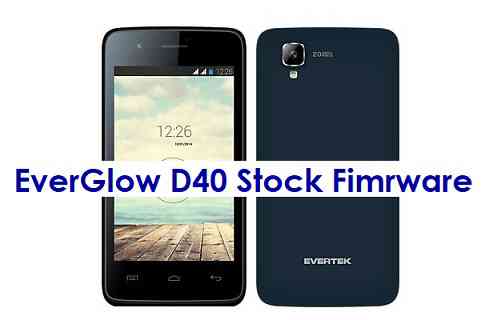
How to ROOT LineageOS 14.1.Stay tuned or Subscribe to the Doogee X5 Max Pro LineageOS forum For other Android Nougat ROMs, LineageOS 14.1 ROMs, other ROMs and all other device specific topics.Stock ROM or stock Firmware for EverGlow D40 is now available to download. Here is how to flash stock firmware on EverGlow D40 using Mediatek SP Flash Tool.
Although I will make a very clean beginner’s step by step guide, but it is also advisable for you to go through all the steps in detail, so that you understand what are you doing.

[su_note note_color=”#F9D9D9″ text_color=”#AA4343″ radius=”3″ class=”” id=””]
DISCLAIMER:
THIS STOCK ROM FLASHING IS ONLY FOR EverGlow D40 WHICH IS MEDIATEK MT6572 CHIPSET BASED DEVICE.
DON’T TRY TO FLASH ON OTHER MT6572 BASED DEVICES OR ANY OTHER DEVICE TYPE.
[/su_note][su_note note_color=”#FBF4DD” text_color=”#A38C68″ radius=”3″ class=”” id=””]FLASHING A STOCK ROM ON EverGlow D40 WILL DELETE ALL DATA.
– IT ALWAYS A GOOD IDEA TO KEEP A BACKUP OF ALL DATA SUCH AS: SMS, PHONE CALL, CONTACT, MUSIC, IMAGES, etc.
– ALSO BACKUP THE IMEI AND NVRAM DATA OF YOUR PHONE.
[/su_note]Required Guides and Downloads to Install Stock ROM/Firmware on EverGlow D40:
- Mediatek VCOM Driver
- SP Flash Tool
- ROM Download link of stock firmware for EverGlow D40
- Install stock ROM using SP Flash Tool
Why to flash Stock Firmware/ROM on EverGlow D40:
There could be various reasons why you may want to flash a stock firmware on EverGlow D40 to make it a new like phone. Following are some of the key benefits you get by flashing a stock firmware on EverGlow D40:
- Flashing a stock ROM on EverGlow D40 will make the phone new like at least from software point of view.
- If your phone has become too slow or lagging in performance after a prolonged period of usage, then installing a stock ROM/firmware may bring back the speed.
- If you have rooted your Android phone, then flashing a stock ROM will help you to restore your phone software to original state.
[su_note note_color=”#D7E3F4″ text_color=”#728095″ radius=”3″ class=”” id=””]Sometimes software factory reset from Android settings does not help you get rid of ROOT.
In that case, you must flash a stock Firmware to bring back the phone to original state.[/su_note] - Phone warranty will be VOID if you have ROOT on Android phone or have a custom ROM on Android phone. Flashing a stock Firmware/ROM will bring back the software to original state and will restore your warranty.
How to Flash Stock Fimrware / ROM on EverGlow D40 using Mediatek SP Flash Tool:
- Download and extract the EverGlow D40 stock firmware files.
- Download and install the VCOM driver on your PC.
[su_note note_color=”#D7E3F4″ text_color=”#728095″ radius=”3″ class=”” id=””]VCOM driver is required for the SP Flash Tool to recognize your EverGlow D40 Phone to be able to download stock Fimrmware.[/su_note]
- Download and extract the Mediatek SP Flash Tool zip file.
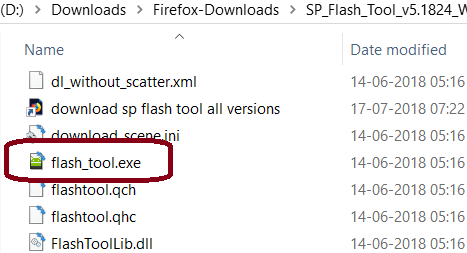
- Go to the extracted SP Flash Tool folder and open the flash_tool.exe file, which is the actual SP Flash Tool application.
See the below screenshot:

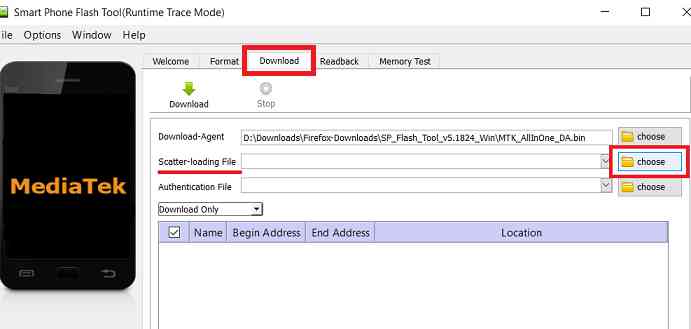
- By default the SP Flash Tool would have opened with the Download Tab open. If not then click on the Download Tab and then click on the choose button to load the EverGlow D40 stock ROM scatter file.
[su_note note_color=”#D7E3F4″ text_color=”#728095″ radius=”3″ class=”” id=””]- You will find a scatter file with a name of somewhat MT6572_Android_scatter.txt in the EverGlow D40 stock firmware package.
– This scatter file contains all the partition information of EverGlow D40 Mediatek phone and which binary file to flash on a which partition and address.[/su_note]See the screenshot below:

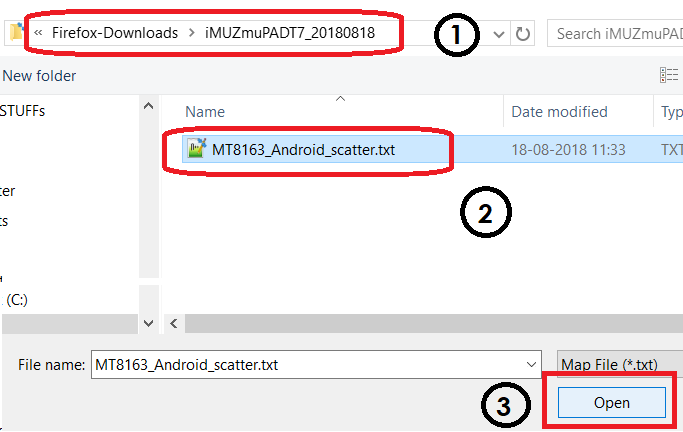
- After that a file browser will be opened to find and select the EverGlow D40 stock ROM scatter file.
Go to the EverGlow D40 stock firmware folder where you have extracted, select the Scatter file (somewhat MT6572_Android_scatter.txt) from there and click on Open.See the screenshot below:

- After loading the scatter file, click on the Download button to start downloading the stock firmware to EverGlow D40.
[su_note note_color=”#FBF4DD” text_color=”#A38C68″ radius=”3″ class=”” id=””]Firmware download does not start just by clicking the Download button. You need to connect the phone in download mode, which we will be doing that in the later step.[/su_note]
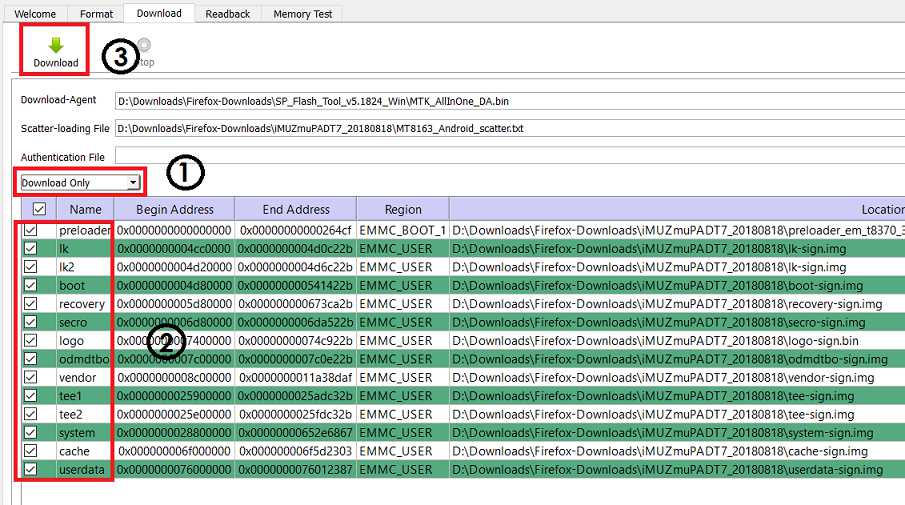
[su_note note_color=”#D7E3F4″ text_color=”#728095″ radius=”3″ class=”” id=””]- SP Flash Tool automatically takes all the information and will show you the details of partition and binary file information. Verify all the details before start flashing the stock ROM or the stock firmware on your Mediatek phone.
– Verify the download mode before flashing (marked by number 1 in the screenshot).
– Verify which all partitions are being flashed (marked by number 2 in the screenshot). MAKE SURE THERE IS NO NVRAM OR IMEI PARTITION SELECTED HERE.[/su_note]See the screenshot below:

- Now turn off your Mediatek Phone and wait for few seconds.
Then you hold both the volume up and Volume Down button and connect the phone PC using a USB cable.– You see in the SP Flash tool, it will start downloading the firmware to the Mediatek Phone automatically.
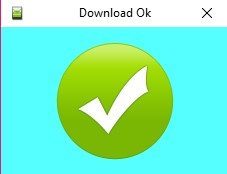
- After the stock ROM is flashed successfully on EverGlow D40, you will see a Download OK confirmation on SP Flash Tool.
See the screenshot below:

After being successfully install stock firmware or the stock ROM on EverGlow D40, you can disconnect the phone and restart if it does not restart automatically.
If you face any problem installing the stock firmware on EverGlow D40 using SP Flash Tool, then leave a reply on this thread. I will reply back as early as possible.
[su_note note_color=”#D7E3F4″ text_color=”#728095″ radius=”3″ class=”” id=””]Stay tuned or Subscribe to the EverGlow D40 forum for recovery, rooting, custom ROM guides etc. and all other device specific topics.[/su_note]
TWRP for Chuwi Hi9 Plus is now available from an unofficial build and this post guides you how to install TWRP for Chuwi Hi9 Plus and ROOT Chuwi Hi9 Plus (using TWRP recovery).
This TWRP download for Chuwi Hi9 Plus is brought to you by developer(s) deadman96385

DONATION TO DEVELOPER(S) AND PROJECT:
If you like this ROM then do consider for a contribution to deadman96385 and TWRP project:
– Donate to deadman96385
– Donate to TWRP’s Lead developer[su_note note_color=”#F9D9D9″ text_color=”#AA4343″ radius=”3″ class=”” id=””]
DISCLAIMER:
THIS IS AN UNOFFICIALLY BUILD TWRP FOR Chuwi Hi9 Plus. FLASH AT YOUR OWN RISK.[/su_note]
[su_note note_color=”#FBF4DD” text_color=”#A38C68″ radius=”3″ class=”” id=””]INSTALLING THE TWRP RECOVERY AND ROOT Chuwi Hi9 Plus NEEDS AN UNLOCK BOOTLOADER ON YOUR PHONE.
DURING THE BOOTLOADER UNLOCK PROCESS ALL THE PHONE DATA WILL BE ERASED.[/su_note][su_note note_color=”#F9D9D9″ text_color=”#AA4343″ radius=”3″ class=”” id=””]ROOTING Chuwi Hi9 Plus MAY BRICK THE PHONE.
MAKE SURE YOU READ THE ADVANTAGES AND DISADVANTAGES OF ROOTING BEFORE YOU PROCEED FURTHER.
Before proceeding further you may consider backup all data on the phone.
You are the only person making changes to your phone and I cannot be held responsible for the mistakes done by you.[/su_note]
Content structure:
- Required downloads to install TWRP recovery for Chuwi Hi9 Plus
- How to install TWRP recovery on Chuwi Hi9 Plus
- What you can do after installing TWRP on Chuwi Hi9 Plus
- Required downloads and guides for Chuwi Hi9 Plus ROOT
- Step-by-Step guide on Chuwi Hi9 Plus ROOTING guide
- How to check if Chuwi Hi9 Plus is ROOTED or NOT
INFORMATION OF THIS TWRP FOR Chuwi Hi9 Plus:
– TWRP version: 3.x.x
– Built from: OmniROM AOSP sourcesDOWNLOAD LINK OF TWRP FOR Chuwi Hi9 Plus, OTHER DOWNLOADS AND REQUIRED GUIDES:
- Mediatek bootloader unlock
- USB drivers for Mediatek
- 15 Seconds ADB Installer or Minimal ADB and Fastboot for Windows
- Latest MTK Droid Root and tools
- Latest MTK SP Flash Tool for Windows
- Install ADB and fastboot on Linux PC
- Latest MTK SP Flash Tool for Linux 64-bit
- Latest MTK SP Flash Tool for Linux 32-bit
- TWRP recovery download for Chuwi Hi9 Plus
REQUIRED DOWNLOADS IF YOU ARE USING A LINUX PC:
STEP BY STEP GUIDE OF HOW TO INSTALL TWRP FOR Chuwi Hi9 Plus:
[su_note note_color=”#D7E3F4″ text_color=”#728095″ radius=”3″ class=”” id=””]- Before installing TWRP you may require an unlocked bootloader on Chuwi Hi9 Plus
– Installing TWRP on Chuwi Hi9 Plus requires a Mediatek Scatter file.
– A scatter file of a Mediatek device contains information about different partitions such as the start address, size etc. of each partition.
[/su_note]How to create scatter file for Chuwi Hi9 Plus:
This guide need the Droid MTK Tool. With the help of Droid MTK Tool we will create the scatter file for Chuwi Hi9 Plus.
- Download the Droid MTK Tool from the above Downloads section.
- It’s in a zip file, so extract that file or open using WinRar or some application and then open the MTKDroidTools.exe file.
- Enable USB Debugging under Developer Options on the Chuwi Hi9 Plus, to make the device accessible via ADB.
[su_note note_color=”#D7E3F4″ text_color=”#728095″ radius=”3″ class=”” id=””]- If you don’t know how to do this then here is How to Enable Developer Options and How to Enable USB Debugging and OEM unlock[/su_note]
- Then connect the phone using the USB cable to the PC.
[su_note note_color=”#D7E3F4″ text_color=”#728095″ radius=”3″ class=”” id=””]- When you connect the phone to the PC, MTKDroidTool will show all the information about your phone[/su_note]
- On the below portion of the screen you will see a Blocks Map button. Click on the button
- On the next screen you have all the partition information and starting address of all the partitions of Chuwi Hi9 Plus.
[su_note note_color=”#D7E3F4″ text_color=”#728095″ radius=”3″ class=”” id=””]- On the bottom of the screen you see a Create scatter file button.
– Click on the button to create scatter file for Chuwi Hi9 Plus.[/su_note] - Save the scatter file for Chuwi Hi9 Plus in a location which you can remember and access easily.
Now Install TWRP on Chuwi Hi9 Plus using SP Flash Tool:
[su_note note_color=”#D7E3F4″ text_color=”#728095″ radius=”3″ class=”” id=””]- The TWRP flashing on a Mediatek phone is done by SP Flash tool, which uses a scatter file to know which address the recovery partition starts.
– Make sure you have downloaded the SP Flash tool and created the scatter file for Chuwi Hi9 Plus.[/su_note]Follow the below steps to install the TWRP on Chuwi Hi9 Plus using the scatter file.
- Open the SP Flash tool zip file and then open the flash_tool.exe file.
- Click browse on the the scatter-loading file section and select the Chuwi Hi9 Plus scatter file you created earlier using the MTKDroid Tool.
[su_note note_color=”#D7E3F4″ text_color=”#728095″ radius=”3″ class=”” id=””]- After selecting the scatter file, the SP Flash tool application automatically find available partitions and other details[/su_note]
- Now select the location next to the Recovery partition and select the TWRP for Chuwi Hi9 Plus, which is in .img format.
- Then click on the Download button to start downloading/flashing of the TWRP recovery on Chuwi Hi9 Plus as shown in the picture.
- After clicking on the download button you will see a red bar on the bottom followed by a yellow bar.
When the TWRP is downloaded to Chuwi Hi9 Plus, the SP Flash tool will alert you saying Download is done.
[su_note note_color=”#D8F1C6″ text_color=”#769958″ radius=”3″ class=”” id=””]That’s all. You should have the TWRP recovery flashed on Chuwi Hi9 Plus.[/su_note]
What to do after you install TWRP for Chuwi Hi9 Plus:
- You can root the Chuwi Hi9 Plus
- You can install one of the custom ROMs available for Chuwi Hi9 Plus
- You can install some of the mods available on Chuwi Hi9 Plus
Well, this isn’t it. You can install customized themes, sound mods, Xposed modules etc. after installing the TWRP for Chuwi Hi9 Plus.
TWRP recovery is the gateway to many goodies for your phone.Now, if you want to ROOT Chuwi Hi9 Plus then below is a step-by-step by guide for the same.
REQUIRED DOWNLOADS OR GUIDES FOR Chuwi Hi9 Plus ROOTING:
[su_note note_color=”#D7E3F4″ text_color=”#728095″ radius=”3″ class=”” id=””]Make sure you have already installed TWRP for Chuwi Hi9 Plus and hence unlocked the bootloader.
– Well, this is a very important aspect of Rooting Chuwi Hi9 Plus process.
– The SuperSU or the Magisk zip file is developed in a way to be installed via a TWRP recovery or other custom recovery.
– Stock recovery may not be able install this SuperSU or Magisk ROOT zip file.[/su_note]- Download the latest SuprSU ROOT for Chuwi Hi9 Plus or one of the following:
- Download link for Latest SuperSU zip file
- Download link for STABLE SuperSU zip file
- Download link for SuperSU BETA zip file
- Download link to SuperSU APK Free version
- Download link to SuperSU APK Pro version
- Download link to Magisk ROOT zip file
IMPORTANT NOTE:- Your phone will not be rooted just by installing the SuperSU APK file on your Android phone.
- SuperSU APK Free or Pro version is just a SuperSU ROOT management application.
- The SuperSU APK Free or Pro app will ONLY work if you have already ROOTED your Android Phone.
Step-by-Step guide on how to ROOT Chuwi Hi9 Plus using SuperSU or Magisk zip file:
- Download and copy the SuperSU or Magisk ROOT file to Chuwi Hi9 Plus. (I hope you have already downloaded the SuperSU zip file from the above downloads section)
- Now restart the Chuwi Hi9 Plus to boot into TWRP recovery.
- Then, Select the Install from TWRP home screen, then select the SuperSU ROOT zip file from the file browser.
- Flash or install the SuperSU or Magisk for Chuwi Hi9 Plus, by Sliding the Swipe to Confirm Flash on TWRP screen.
- Wait for TWRP to flash the SuperSU or the Magisk. Once the flashing is done just reboot your device.
- Profit!!! You should now have a Chuwi Hi9 Plus ROOT enabled phone.
How to check if ROOT is enabled on Chuwi Hi9 Plus or NOT?
Install the ROOT checker app from the Play Store and verify if your phone is ROOTED or not.
Here is a screenshot how to flash the SuperSU ROOT binary via TWRP:
If you face any problems on this guide to install TWRP for Chuwi Hi9 Plus then, you can login and reply here. Either me or some other user on this forum will revert back to your query as soon as possible.
Stay tuned or Subscribe to the Chuwi Hi9 Plus forum For other Android Custom ROMs, LineageOS ROMs, and all other device specific topics.Android Marshmallow ROM, LineageOS 13 for P55 Novo has now arrived via a development build. This LineageOS 13 based on Marshmallow for P55 Novo is brought to you by thakurfazer55.
DONATION TO DEVELOPER:
No donation link found for thakurfazer55.
If you want some more LineageOS ROM builds then stay tuned to the LineageOS 13 ROM page and LineageOS 14.1 ROM or the latest LineageOS 15 ROMs page.
DISCLAIMER:
THIS IS AN INITIAL BUILD WHICH MAY NOT BOOT AT ALL. HAVE A BACKUP BEFORE FLASHING THIS AND TRY AT YOUR OWN RISK. Installing a custom ROM on a P55 Novo may require the bootloader to be unlocked, which may VOID your warranty and may delete all your data. Before proceeding further you may consider backup all data on the phone. You are the only person doing changes to your phone and I cannot be held responsible for the mistakes done by you.Status of LineageOS 13 for P55 Novo Marshmallow ROM:
WHAT’S WORKING:
– Not KnownKNOWN ISSUES:
– Not known
REQUIRED LINKS AND FILES FOR LineageOS 13 for P55 Novo MARSHMALLOW CUSTOM ROM:
- TWRP for P55 Novo
– Here is: TWRP update Guide P55 Novo
- ROM download link of LineageOS 13 for P55 Novo
- LineageOS 13 GApps for P55 Novo LineageOS 13 Marshmallow ROM
Root binary is NOT inbuilt in LineageOS 13, so you may need a separate SuperSu package or LineageOS su binary to install to gain ROOT access. Here is How to Enable ROOT on LineageOS 13
If there is no in-built ROOT or it does not work for some reason then you can try SuperSU ROOT to gain ROOT access.HOW TO INSTALL/DOWNLOAD/FLASH/UPDATE P55 Novo LineageOS 13 MARSHMALLOW CUSTOM ROM:
Follow this if you are flashing LineageOS 13 for P55 Novo for the first time, or coming from another ROM:
Points to NOTE:
– Try to avoid restoring apps backup using Titanium Backup. It may break things up.
– Don’t restore system data using Titanium Backup! It will definitely break the current installation.
– It is also discouraged to Restoring Apps + Data using Titanium Backup.- Download and keep the ROM zip file and the GApps file ready before start flashing.
- Boot into Recovery. Make sure to have a Custom recovery like CWM or TWRP or any other custom recovery. If not then follow the Mediatek recovery update guide (it’s a generic guide which will work for TWRP as well as CWM recovery or any other recovery)
- Wipe data factory reset, Cache partition, Dalvik Cache and Format the System partition.
– Here is a guide explaining How to clear data using TWRP.This will delete all your data on your phone. You may consider complete backup of your phone data or take a NANDROID backup of the current ROM
– Take backup of data
– Take a ROM backup - Then Copy the GApps and LineageOS 13 for P55 Novo ROM ZIP to your phone.
- First flash the P55 Novo LineageOS 13 ROM ZIP from device. Then flash the GApps zip from your device memory.
– Here is a post explaining how to install LineageOS. - DO NOT REBOOT yet. Then flash the LineageOS 13 GApps package.
– Here is a post explaining flashing Marshmallow GApps. - Reboot and Enjoy the Marshmallow LineageOS 13 ROM for P55 Novo.
Upgrading from earlier version of P55 Novo LineageOS 13:
- Copy the latest LineageOS 13 for P55 Novo ROM ZIP file to your phone.
- Boot into Recovery.
- Flash the latest LineageOS ROM ZIP from your phone.
– Here is a post explaining LineageOS installation precodeure. - Then flash the LineageOS Marshmallow GApps package.
– Here is a post explaining Install GApps using recovery. - Reboot and Enjoy
Complete the initial setup and enjoy Android Marshmallow with LineageOS 13 for P55 Novo. After the installation of P55 Novo LineageOS 13 ROM you may want to enable ROOT access on your phone and here is how you can do that:
How to ROOT LineageOS 13.Stay tuned or Subscribe to the Panasonic P55 Novo forum For other Android Custom ROMs, LineageOS 13 ROMs, other ROMs and all other device specific topics.Android Nougat MIUI 9 for Redmi Note 4 Mediatek is available to download. The MIUI 9 for Redmi Note 4 MTK (nikel) is the brand new BETA ROM released by Xiaomi. This is an update guide of Nougat based MIUI 9 BETA ROM for Redmi Note 4 Mediatek.
NOTE:
This is a manual flashing guide. If you have already rooted or installed some other ROM on your Xiaomi Redmi Note 4 Mediatek then this guide will be handy for you. If you are already on stock ROM then just wait patiently, because most likely you are going to get official OTA update of MIUI 9 on your device.
REQUIRED DOWNLOADS AND LINKS TO INSTALL MIUI 9 for Redmi Note 4 Mediatek BETA ROM MANUALLY:
- Unlocked bootloader
- MIUI 9 Fastboot ROM zip download for Redmi Note 4 Mediatek (version 7.10.12) (updated through fastboot)
- MIUI 9 Recovery ROM zip download for Redmi Note 4 Mediatek (version 7.10.12) (updated through recovery)
- MIUI 9 Fastboot Update Guide
- MIUI 9 recovery Update Guide (through recovery)
- Backup all data on your phone (it’s your choice to backup or not to)
HOW TO UPDATE MIUI 9 for Redmi Note 4 MTK BETA NOUGAT ROM MANUALLY (Fastboot Method):
- Download the MIUI 9 Fastboot zip file to a PC installed with MiFlash tool.
- Backup all data on your phone (This update may delete all the data on your phone)
- Follow the MIUI 9 Fastboot ROM flashing guide using MiFlash utility and update the Redmi Note 4 Mediatek to MIUI 9.
HOW TO INSTALL Redmi Note 4 Mediatek (nikel) MIUI 9 BETA NOUGAT ROM MANUALLY (Recovery Method):
- Download and copy the MIUI 9 zip file to the phone’s internal storage and copy it inside a folder name: “downloaded_rom”.
If the directory is not present then create it. - Backup all data on your phone (This update may delete all the data on your phone)
- Follow the MIUI 9 ROM flashing guide using recovery method.
That’s all !! If you have done things correctly then your Redmi Note 4 Mediatek would now have updated to Android Nougat based MIUI 9 BETA ROM !! If you face any problem while installing then just login and place your concerns here, I will try to help you out.
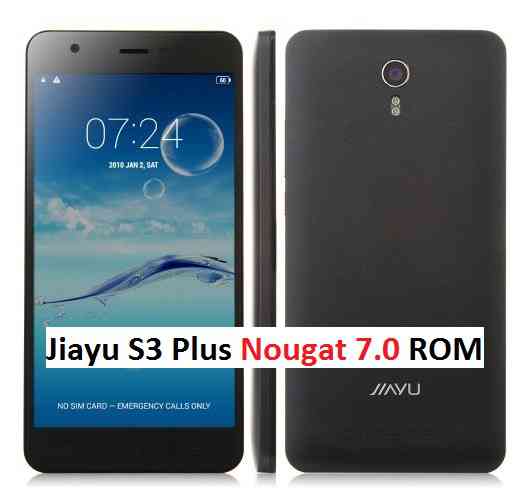
For more Custom ROMs like: LineageOS, Resurrection Remix ROM or any other ROM, TWRP Recovery Installation guide, Rooting Guide you can have a look at the Redmi Note 4 Mediatek forum and also you can subscribe to stay updated for this device specific topics.Jiayu S3 Plus Nougat ROM 7.0 AOSP is an UNOFFICIAL Android Nougat build for Jiayu S3 Plus (device codename: n560a). This jiayu S3 plus Nougat ROM (7.0 AOSP) is brought to you by developer fire855 and karthick111. This is an ALPHA status ROM which means there are still many things broken on this ROM and hence it is strongly recommended that you take either a NANDROID backup or a complete sync of your phone data.
THIS IS JUST AN ALPHA ROM AND CANNOT BE USED AS A DAILY DRIVER SOFTWARE. CHECK THE WORKING AND NON-WORKING LIST BEFORE FLASHING AND PROCEED AT YOUR OWN RISK.
DISCLAIMER:
Installing custom ROM requires a custom recovery to be installed on your device, which in-turn may require the bootloader to be unlocked which may VOID your warranty and may delete all your data. Before proceeding further you may consider backup your all data. You are the only person making changes on your phone and neither we nor the developer can be held responsible for the mistakes done by YOU.Status of fire855’s Jiayu S3 Plus Nougat ROM:
WHAT’S WORKING:
– Audio
– Wi-Fi
– Bluetooth
– Network (Calls, SMS, Mobile Datal)
– Sensors (accelerometer,compass,light,proximity)
– LightKNOWN ISSUES:
– You need to disable the adaptive brightness to use the brightness slider
– Camera
– GPS
– Hardware encoding/decoding
REQUIRED DOWNLOADS AND GUIDES FOR JIAYU S3 PLUS NOUGAT ROM (7.0, AOSP ROM) FLASHING:
- Unlocked bootloader and a custom recovery on Jiayu S3 Plus
- ROM Download link | MIRROR LINK of Jiayu S3 Plus Nougat ROM [UPDATED 10/09/2016]
- Google Apps download link for the Nougat ROM on Jiayu S3 Plus (choose arm64 in opengapps while downloading)
- Enable ROOT on Jiayu S3 Plus Nougat ROM
Make sure you have a Linux/Windows PC or a MAC installed with Fastboot and adb binaries. If not then you can follow one of the following guides based on your PC OS:
– 15 Seconds ADB Installer for Windows
– Minimal ADB and Fastboot for Windows
– ADB Fastboot Installation guide for Linux or MACJIAYU S3 PLUS NOUGAT ROM (7.0, AOSP ROM) INSTALLATION GUIDE:
Make sure that you have unlocked the bootloader and installed a custom recovery on your Jiayu S3 Plus (device codename: n560a). If not then you can try this generic Bootloader unlock guide for any Android device.
For recovery installation you can download the TWRP from above download link and follow this guide: How to install recovery on a Mediatek device.
- Download the Jiayu S3 Plus Nougat ROM zip file and a suitable Nougat Gapps zip file from the above download link and copy both the files to phone.
- Boot into Recovery by one of the following method:
– Power off the phone and keep pressing key combinations to enter into recovery.
– If you have enabled USB debugging and you have ADB utility installed on your PC then you can execute the following command on a console or command prompt:adb reboot recovery
- Wipe data factory reset, Cache partition, Dalvik Cache and Format the System partition using the recovery.
– Here is a guide explaining how to wipe data using TWRP recovery.This will delete all your data on your phone. IGNORE IF YOU DON’T WANT TO OR IF YOU HAVE ALREADY DONE THIS. You may consider complete backup of your phone data or take a NANDROID backup of the current ROM.
– How to backup all data on your Android Device.
– how to take NANDROID backup using TWRP recovery. - First flash the Jiayu S3 Plus Nougat ROM ZIP from device.
– Here is a post explaining how to flash a custom ROM using TWRP recovery. - Now flash the Google Apps package.
– Here is a post explaining how to flash GApps using TWRP recovery.
Upgrading from earlier version of Nougat 7.0 AOSP ROM on Jiayu S3 Plus:
- Copy the Jiayu S3 Plus Nougat ROM ZIP file to your phone.
- Boot into Recovery.
- Flash the latest Jiayu S3 Plus Nougat ROM ZIP from your phone.
– Here is a post explaining how to flash a custom ROM using TWRP recovery. - Reboot your phone. If your GApps are removed after the flashing then follow the next step.
- After that flash the Google Apps package.
– Here is a post explaining how to flash GApps using TWRP recovery.
Reboot your phone, Complete the initial setup and enjoy Android Nougat 7.0 AOSP on Jiayu S3 Plus. For any concerns or bugs on this guide or this ROM, just login and place your comment to get an instant help.
Here is a Jiayu S3 Plus CyanogenMod 13 ROM. If you are interested to try then you can have a look on that.
Stay tuned or Subscribe to the Jiayu S3 Plus forum For other Android Nougat ROMs, CyanogenMod 14 ROMs, other ROMs and all other device specific topics.Here is the development thread for Jiayu S3 Plus Nougat ROM.
TWRP for Oukitel Coosea K3 is now available from an unofficial build and this post guides you how to install TWRP for Oukitel Coosea K3 and ROOT Oukitel Coosea K3 (using TWRP recovery).
This TWRP download for Oukitel Coosea K3 is brought to you by developer(s) CANALLA
DISCLAIMER:
THIS IS AN UNOFFICIALLY BUILD TWRP FOR Oukitel Coosea K3. FLASH AT YOUR OWN RISK.
INSTALLING THE TWRP RECOVERY AND ROOT Oukitel Coosea K3 NEEDS AN UNLOCK BOOTLOADER ON YOUR PHONE.
DURING THE BOOTLOADER UNLOCK PROCESS ALL THE PHONE DATA WILL BE ERASED.
ROOTING Oukitel Coosea K3 MAY BRICK THE PHONE.
MAKE SURE YOU READ THE ADVANTAGES AND DISADVANTAGES OF ROOTING BEFORE YOU PROCEED FURTHER.
Before proceeding further you may consider backup all data on the phone.
You are the only person making changes to your phone and I cannot be held responsible for the mistakes done by you.
DOWNLOAD LINK OF TWRP FOR Oukitel Coosea K3, OTHER DOWNLOADS AND REQUIRED GUIDES:
REQUIRED DOWNLOADS IF YOU ARE USING A LINUX PC:
STEP BY STEP GUIDE OF HOW TO INSTALL TWRP FOR Oukitel Coosea K3:
Follow the below step by step guide to install the TWRP for Oukitel Coosea K3
Before installing TWRP you may require an unlocked bootloader on Oukitel Coosea K3.
Installing TWRP on Oukitel Coosea K3 requires a scatter file to be created.
A scatter file of a Mediatek device is what tells about the presence of different partition and the start address of each partition.How to create scatter file for Oukitel Coosea K3:
This guide need the Droid MTK Tool. With the help of Droid MTK Tool we will create the scatter file for Oukitel Coosea K3.
- Download the Droid MTK Tool from the above Downloads section.
- It’s in a zip file, so extract that file or open using WinRar or some application and then open the MTKDroidTools.exe file.
- Enable USB Debugging under Developer Options on the Oukitel Coosea K3; to make the device accessible via ADB.- If you don’t know how to do this then here is How to Enable Developer Options and How to Enable USB Debugging and OEM unlock.
- Then connect the phone using the USB cable to the PC.- When you connect the phone to the PC, MTKDroidTool will show all the information about your phone.
- On the below portion of the screen you will see a Blocks Map button. Click on the button
- On the next screen you have all the partition information and starting address of all the partitions of Oukitel Coosea K3.
On the bottom of the screen you see a Create scatter file button.- Click on the button to create scatter file for Oukitel Coosea K3. - Save the scatter file for Oukitel Coosea K3 in a location which you can remember and access easily.
Now Install TWRP on Oukitel Coosea K3 using SP Flash Tool:
TWRP recovery download to a Mediatek phone is done by SP Flash tool, which uses a scatter file to know which address the recovery partition starts.
Make sure you have downloaded the SP Flash tool and created the scatter file for Oukitel Coosea K3.Follow the below steps to install the TWRP on Oukitel Coosea K3 using the scatter file.
- Open the SP Flash tool zip file and then open the flash_tool.exe file.
- Click browse on the the scatter-loading file section and select the Oukitel Coosea K3 scatter file you created earlier using the MTKDroid Tool.After selecting the scatter file, the SP Flash tool application automatically find available partitions and other details.
- Now select the location next to the Recovery partition and select the TWRP for Oukitel Coosea K3, which is in .img format.
- Then click on the Download button to start downloading/flashing of the TWRP recovery on Oukitel Coosea K3 as shown in the picture.
- After clicking on the download button you will see a red bar on the bottom followed by a yellow bar.
When the TWRP is downloaded to Oukitel Coosea K3, the SP Flash tool will alert you saying Download is done.
That’s all.
What to do after you install TWRP for Oukitel Coosea K3:
- You can root the Oukitel Coosea K3
- You can install one of the custom ROMs available for Oukitel Coosea K3
- You can install some of the mods available on Oukitel Coosea K3
Well, this isn’t it. You can install customized themes, sound mods, Xposed modules etc. after installing the TWRP for Oukitel Coosea K3.
TWRP recovery is the gateway to many goodies for your phone.Now, if you want to ROOT Oukitel Coosea K3 then below is a step-by-step by guide for the same.
REQUIRED DOWNLOADS OR GUIDES FOR Oukitel Coosea K3 ROOTING:
- Make sure you have already unlocked the bootloader and installed TWRP for Oukitel Coosea K3
– Well, this is a very important aspect of this SuperSU ROOT process. The SuperSU zip file is developed in a way to be installed via a TWRP recovery or other custom recovery. Stock recovery may not be able install this SuperSU or Magisk ROOT zip file. - Download the latest SuprSU ROOT for Oukitel Coosea K3 or one of the following:
- Download link for Latest SuperSU zip file
- Download link for STABLE SuperSU zip file
- Download link for SuperSU BETA zip file
- Download link to SuperSU APK Free version
- Download link to SuperSU APK Pro version
- Download link to Magisk ROOT zip file
IMPORTANT NOTE:- Your phone will not be rooted just by installing the SuperSU APK file on your Android phone.
- SuperSU APK Free or Pro version is just a SuperSU ROOT management application.
- The SuperSU APK Free or Pro app will ONLY work if you have already ROOTED your Android Phone.
Step-by-Step guide on how to ROOT Oukitel Coosea K3 using SuperSU or Magisk zip file:
- Download and copy the SuperSU or Magisk ROOT file to Oukitel Coosea K3. (I hope you have already downloaded the SuperSU zip file from the above downloads section)
- Now restart the Oukitel Coosea K3 to boot into TWRP recovery.
- Then, Select the Install from TWRP home screen, then select the SuperSU ROOT zip file from the file browser.
- Flash or install the SuperSU or Magisk for Oukitel Coosea K3, by Sliding the Swipe to Confirm Flash on TWRP screen.
- Wait for TWRP to flash the SuperSU or the Magisk. Once the flashing is done just reboot your device.
- Profit!!! You should now have a Oukitel Coosea K3 ROOT enabled phone.
How to check if ROOT is enabled on Oukitel Coosea K3 or NOT?
Install the ROOT checker app from the Play Store and verify if your phone is ROOTED or not.
Here is a screenshot how to flash the SuperSU ROOT binary via TWRP:
If you face any problems on this guide to install TWRP for Oukitel Coosea K3 then, you can login and reply here. Either me or some other user on this forum will revert back to your query as soon as possible.
Stay tuned or Subscribe to the Oukitel Coosea K3 forum For other Android Custom ROMs, LineageOS ROMs, and all other device specific topics.Android Marshmallow ROM, LineageOS 13 for Redmi Pro has now arrived via an UNOFFICIAL build. Here we also have the LineageOS 14.1 for Redmi Pro. If you want some more LineageOS ROMs or wanna taste the OFFICIAL LineageOS build then stay tuned to the LineageOS Marshmallow page and LOS 14.1 Nougat ROMs. This Redmi Pro LineageOS 13 is brought to you by developer OrdunaLagarma.
DONATION TO DEVELOPER(S):
If you like this ROM then consider a donation to OrdunaLagarma, the developer of this ROM.
DISCLAIMER:
THIS IS AN INITIAL TEST BUILD WHICH BOOTS BUT HAS MANY MORE BUGS THAN YOU CAN IMAGINE. HIS CANNOT BE USED AS A DAILY DRIVER IN ANYWAY. HAVE A BACKUP BEFORE FLASHING THIS AND TRY AT YOUR OWN RISK. Installing a custom ROM may require unlocking the bootloader on Redmi Pro, which may VOID your warranty and may delete all your data. Before proceeding further you may consider backup all data on the phone. You are the only person making changes to your phone and I cannot be held responsible for the mistakes done by you.Status of LineageOS 13 for Redmi Pro (omega) Marshmallow ROM:
WHAT’S WORKING:
– WLAN
– Audio
– Network and data
– Camera but it is not focusing
– OTG
– Bluetooth
– Home button (hardware buttons removed)KNOWN ISSUES:
– Camera focus
– RIL reset on outgoing calls
– Not charging while being off.
– Fingerprint sensor
REQUIRED LINKS AND FILES FOR LineageOS 13 FOR REDMI PRO MARSHMALLOW CUSTOM ROM:
- TWRP link for Redmi Pro (by daohoa24)
– Here is: Mediatek Recovery Installation Guide
– This TWRP recovery guide requires an unlocked bootloader on the Redmi Pro. - LineageOS 13 ROM for Redmi Pro (omega)
- Lineage 13 GApps for Redmi Pro LineageOS 13 Marshmallow ROM
Root binary is NOT inbuilt in LineageOS 13, so you may need a separate SuperSu package or LineageOS su binary to install to gain ROOT access. Here is how to ROOT LineageOS 13
If there is no in-built ROOT or it does not work for some reason then you can try installing SuperSU binary to gain ROOT access.HOW TO INSTALL/DOWNLOAD/FLASH/UPDATE Redmi Pro LineageOS 13 MARSHMALLOW CUSTOM ROM:
Follow this if you are flashing LineageOS 13 for Redmi Pro (omega) for the first time, or coming from another ROM:
Points to NOTE:
– Try to avoid restoring apps backup using Titanium Backup. It may break things up.
– Don’t restore system data using Titanium Backup! It will definitely break the current installation.
– It is also discouraged to Restoring Apps + Data using Titanium Backup.- Download and Copy the GApps and LineageOS 13 for Redmi Pro ROM ZIP to your phone.
- Boot into Recovery. Make sure to have a Custom recovery like CWM or TWRP or any other custom recovery. If not then follow the Mediatek recovery guide. (it’s a generic guide which will work for TWRP as well as CWM recovery or any other recovery)
- Wipe data factory reset, Cache partition, Dalvik Cache and Format the System partition.
– Here is how to Erase data using TWRP.This will delete all your data on your phone. You may consider complete backup of your phone data or take a NANDROID backup of the current ROM
– Data backup on Phone
– Backup using TWRP recovery - First flash the Redmi Pro LineageOS 13 ROM ZIP from device. Then flash the GApps zip from your device memory.
– Here is a post explaining how to install LineageOS. - DO NOT REBOOT yet. Then flash the Marshmallow GApps package.
– Here is how to install GApps on Marshmallow ROM. - Reboot and Enjoy the Marshmallow LineageOS 13 ROM for Redmi Pro (omega).
Upgrading from earlier version of Redmi Pro LineageOS 13 (omega):
- Copy the latest LineageOS 13 for Redmi Pro ROM ZIP file to your phone.
- Boot into Recovery.
- Flash the latest LineageOS ROM ZIP from your phone.
– Here is a post explaining how to install LineageOS. - Then flash the LineageOS 13 GApps package.
– Here is a post explaining how to flash GApps using recovery. - Reboot and Enjoy
Complete the initial setup and enjoy Android Marshmallow with LineageOS 13 for Redmi Pro (omega). After the installation of Redmi Pro LineageOS 13 ROM (omega) you may want to enable ROOT access on your phone and here is how you can do that:
How to Enable ROOT on LineageOS 13.Stay tuned or Subscribe to the Redmi Pro (omega) forum For other Android Custom ROMs, LineageOS 13 ROMs, other ROMs and all other device specific topics.If you have any queries or concerns using this ROM, then go to the Lineage ROM thread for Redmi Pro LineageOS 13.