- Search Results
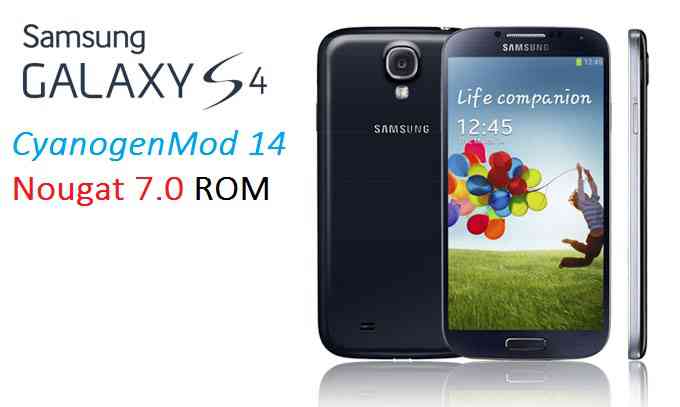
Here is the much awaited Nougat 7.0 ROM for Galaxy S4 CyanogenMod 14 (CM14). We also have the Lineage 14.1 for Galaxy S4. For latest updates, stay tuned to the Lineage OS device list page. Since Google released Android Nougat Source code we have updated a big device list of CM14/CyanogenMod 14 Nougat 7.0 ROMs and many are yet to come. We have the CyanogenMod 14 for Galaxy S4 Value Edition, Galaxy S4 LTE CM14 ROM and now we have the Galaxy S4 CM14 Nougat ROM brought to you by developer srisurya95.
DISCLAIMER:- I DON’T KNOW THE STATUS OF THIS ROM YET. THIS COULD BE AN INITIAL ALPHA ROM OR JUST A DEVELOPMENT ROM. IT MAY NOT BOOT AT ALL OR IF AT ALL IT BOOTS THEN IT MAY NOT BE USABLE AS A DAILY DRIVER. I JUST FOUND THE ROM AND POSTED HERE. TRY AT YOUR OWN RISK. ALSO MAKE SURE TO TAKE NANDROID BACKUP OF YOUR CURRENT ROM.
- I don’t want to waste your time and my time too and hence I basically verify the system/build.prop and/or updater-script to get the build details at the first place before posting any ROM. I may be wrong at times and hence it is your responsibility to verify once more about the legitimacy of the ROMs.
- Installing a custom ROM on a the Galaxy S4 may require the bootloader to be unlocked and a Custom Recovery on the Galaxy S4, which may VOID your warranty and may delete all your data. Before proceeding further you may consider backup all data on the phone. You are the only person doing changes to your phone and I cannot be held responsible for the mistakes done by you.
Status of Galaxy S4 CyanogenMod 14 Nougat ROM build:
WHAT’S WORKING:
– Not KnownKNOWN ISSUES:
– Not Known
REQUIRED DOWNLOADS AND LINKS FOR GALAXY S4 CM14 (CYANOGENMOD 14) NOUGAT ROM UPDATE GUIDE:
- TWRP recovery link for Galaxy S4 (jfltexx)
– Download the .tar extension TWRP file which can be flashed with ODIN. Follow this guide: How to Install TWRP on Samsung using Odin for the .tar TWRP file.
– If you already have an unlocked bootloader then you can download the .img file extension. Then follow this guide: How to flash TWRP using fastboot.
- ROM download link of Cyanogenmod 14 for Galaxy S4 [THIS ROM DOES NOT WORK FOR S4 AND SO THE LINK IS REMOVED]
- CyanogenMod 14 Nougat GApps download link for this Galaxy S4 CM14 ROM
Root binary is inbuilt since CyanogenMod 12, so you don’t need a separate SuperSu package to install to gain ROOT access. Here is How to Enable ROOT on CM14/CyanogenMod 14
HOW TO INSTALL/FLASH/UPDATE CM14 ON GALAXY S4 (CYANOGENMOD 14 NOUGAT ROM):
Follow these steps if you are flashing CyanogenMod 14 on Galaxy S4 (jflte) for the first time, or coming from another ROM:
Points to NOTE on BACKUP:
– Try to avoid restoring apps backup using Titanium Backup. It may break things up.
– Don’t restore system data using Titanium Backup! It will definitely break the current installation.
– It is also discouraged to Restoring Apps + Data using Titanium Backup.- Download and Copy the Nougat GApps and CyanogenMod 14 Nougat ROM ZIP to your S4 phone.
- Boot into Recovery. Make sure to have a Custom recovery like CWM or TWRP or any other custom recovery.
- Wipe data factory reset, Cache partition, Dalvik Cache and Format the System partition.
– Here is a guide explaining how to wipe data using TWRP recovery.This will delete all your data on your phone. You may consider complete backup of your phone data or take a NANDROID backup of the current ROM.
– How to backup all data on your Android Device.
– how to take NANDROID backup using TWRP recovery. - First flash the (jflte) S4 CM14 ROM ZIP from device.
– Here is a post explaining how to flash a custom ROM using TWRP recovery. - Then reboot into recovery (don’t skip this) and flash the CM14 Nougat Google Apps package.
– Here is a post explaining how to flash GApps using TWRP recovery. - Reboot and Enjoy the CyanogenMod 14 Nougat ROM on S4 (jflte).
Upgrading from earlier version of S4 CM14 Nougat ROM:
- Copy the CM14 ROM ZIP file to your phone.
- Boot into Recovery.
- Flash the latest CM14 ROM ZIP from your phone.
– Here is a post explaining how to flash a custom ROM using TWRP recovery. - Then flash the CM14 Nougat Google Apps package.
– Here is a post explaining how to flash GApps using TWRP recovery. - Reboot and Enjoy
Complete the initial setup and enjoy Android Nougat 7.0.0_r1 with CyanogenMod 14 On S4 (codename: jflte). After this CM14 installation you may want to enable ROOT access on your phone and here is how you can do that:
How to Enable ROOT on CM14/CyanogenMod 14.Stay tuned or Subscribe to the S4 (jflte) forum For other Android Nougat ROMs, CyanogenMod 14 ROMs, other ROMs and all other device specific topics.Resurrection Remix Oreo for Galaxy NOTE 3 Korea is now available to download via a development version. Supported devices on this LineageOS 15.1, are: (SM-N900S, N900L, N900K). This Resurrection Remix v6.0.0 Android Oreo 8.1 ROM for Galaxy NOTE 3 Korea (hltekor) is brought to you by developer vidwhal.
DONATION TO DEVELOPER:
– No donation link found for vidwhal.
If you want the OFFICIAL Resurrection Remix update or some more Android Oreo Custom ROMs then stay tuned to the LineageOS 15 Download page or the AOSP Oreo ROMs Download devices list page.
DISCLAIMER:
THIS IS AN INITIAL BUILD OF RESURRECTION REMIX ANDROID OREO (8.1), WHICH MAY HAVE MANY BUGS. BACKUP THE CURRENT ROM BEFORE FLASHING. TRY AT YOUR OWN RISK.
Installing a custom ROM on a the Galaxy NOTE 3 Korea requires a custom recovery to be installed, which may VOID your warranty and may delete all your data. Before proceeding further you may consider backup all data on the phone. You are the only person making changes to your phone and I cannot be held responsible for the mistakes done by you.Content structure:
- Status of Resurrection Remix Android 8.1 Oreo ROM for Galaxy NOTE 3 Korea
- Required Downloads of Resurrection Remix Android 8.1 Oreo ROM for Galaxy NOTE 3 Korea
- How to Install Resurrection Remix Android 8.1 Oreo ROM on Galaxy NOTE 3 Korea
- Rooting the Resurrection Remix Android 8.1 Oreo ROM on Galaxy NOTE 3 Korea
Status of Galaxy NOTE 3 Korea Resurrection Remix Oreo ROM Download:
WHAT’S WORKING:
– UnknownKNOWN ISSUES:
– Camera is still not 100% working (use Footej Camera instead)
REQUIRED DOWNLOADS AND LINKS TO UPDATE Galaxy NOTE 3 Korea RESURRECTION REMIX OREO ROM:
- TWRP recovery download link for Galaxy NOTE 3 Korea Resurrection Remix Oreo ROM
– Follow this guide: Flash TWRP using Odin
- ROM Download link to Resurrection Remix Oreo ROM for Galaxy NOTE 3 Korea
- Oreo GApps Download Link for Galaxy NOTE 3 Korea Resurrection Remix Oreo ROM
- Rooting guide for RR Oreo
HOW TO INSTALL/FLASH/UPDATE RESURRECTION REMIX OREO ROM FOR Galaxy NOTE 3 Korea (ANDROID OREO 8.1, RR v6.0.0 ROM):
Follow this to Install Resurrection Remix Android Oreo on Galaxy NOTE 3 Korea for the first time or coming from another Android ROM:
Points to NOTE on BACKUP before updating:
– Try to avoid restoring apps backup using Titanium Backup. It may break things up.
– Don’t restore system data using Titanium Backup! It will definitely break the current installation.
– It is also discouraged to Restoring Apps + Data using Titanium Backup.- Boot into Recovery by one of the following method:
– Power off the phone and keep pressing key combinations while turning on your phone.
– If you have enabled USB debugging and you have ADB utility installed on your PC then you can execute the following command on a console or command prompt:adb reboot recovery
- Wipe data factory reset, Cache partition, Dalvik Cache and Format the System partition using the recovery.
– Here is a guide explaining how to wipe data using TWRP recovery.This will delete all your data on your phone. IGNORE IF YOU DON’T WANT TO OR IF YOU HAVE ALREADY DONE THIS. You may consider complete backup of your phone data or take a NANDROID backup of the current ROM.
– How to backup all data on your Android Device.
– how to take NANDROID backup using TWRP recovery. - Download the Galaxy NOTE 3 Korea Android Oreo ROM zip file from the above download link and copy the files to phone.
- Flash the Galaxy NOTE 3 Korea RR Oreo ROM zip from device.
– Here is a post explaining how to flash a ROM zip using TWRP.
Upgrading from earlier version of RR Android 8.1 Oreo ROM on Galaxy NOTE 3 Korea:
- Copy the latest Resurrection Remix Oreo ROM ZIP file to your phone.
- Boot into Recovery.
- Flash the latest RR Oreo ROM ZIP from your phone and wait till it finishes flashing.
– Here is a post explaining how to flash a custom ROM using TWRP recovery. - Reboot and Enjoy
Reboot to system after flashing is done completely. Do the required initial setup and enjoy the Android Oreo ROM for Galaxy NOTE 3 Korea. If you face any problem following this guide or post installation then just login and leave a comment to get an instant reply.
Rooting Resurrection Remix Android Oreo ROM on Galaxy NOTE 3 Korea:
There is no inbuilt ROOT functionality available on this ROM.
Here is how to How to ROOT RR Oreo ROM, a step-by-step guide !!!The above link is for LineageOS 15.1 Rooting guide, because RR Oreo is based on LineageOS 15.1.
Stay tuned or Subscribe to the Galaxy NOTE 3 Korea custom ROMs forum For other Android Oreo ROMs, Android Nougat ROMs, LineageOS ROMs, Resurrection Remix ROM, Omni ROM, AICP ROM, crDroid ROM, and all other device specific topics.If you have found any BUG or have any issues on this ROM then here is the source thread by the dev on xda where you can place your concerns.
Android 10 based Lineage OS 17.1 for Galaxy S6 Edge Plus is now available to download. This article explains how to install Galaxy S6 Edge Plus Lineage OS 17.1 ROM based on Android 10, with a step-by-step guide.
This build of Lineage OS 17.1 for Galaxy S6 Edge Plus is brought to you by developer ripee. For other Android 10 based custom ROM builds you can always visit this Android 10 Download page for supported devices.
DONATION TO DEVELOPER(S)/PROJECT:
If you like this ROM then do consider for a contribution to ripee and LineageOS project:
– Donate to ripee
– Donate to LineageOS project
[su_note note_color=”#F9D9D9″ text_color=”#AA4343″ radius=”3″ class=”” id=””]DISCLAIMER:
THIS IS AN INITIAL BUILD. TRY AT YOUR OWN RISK.Installing custom ROM will delete all data on your phone. Make sure you copy all important data.
You are the only person making changes to your phone; neither the developer nor I can be held responsible for the mistakes done by you.
[/su_note]Known Issues on this Lineage OS 17.1 build?
WHAT’S WORKING:
• Boots
• RIL (Calls, SMS, Data)
• Camcorder
• Video Playback
• Audio
• Sensors
• Torch
• NFC
• Fingerprint
• Wi-Fi (Hotspot too)
• LED
• HWC
• GPS
• Bluetooth (Headsets too)
• Microphone
• Camera
• Capacitive buttonsKNOWN ISSUES:
– Unknown[su_note note_color=”#D8F1C6″ text_color=”#769958″ radius=”3″ class=”” id=””]
Where to Download Lineage OS 17.1 for Galaxy S6 Edge Plus?
- Lineage OS 17.1 Download for Galaxy S6 Edge Plus G928F-FD/C/G/I/S/K/L/7C
- Lineage OS 17.1 Download for Galaxy S6 Edge Plus T-mobile G928T/W8
- Galaxy S6 Edge Plus TWRP – required to install this ROM
- Lineage OS 17.1 GApps
- Lineage OS 17.1 Rooting
- Download ADB to sideload this build
– 15 Seconds ADB Installer for Windows
– Minimal ADB and Fastboot for Windows
– ADB Fastboot for Linux and MAC
[/su_note]
How to Install Lineage OS 17.1 on Galaxy S6 Edge Plus?
[su_note note_color=”#D7E3F4″ text_color=”#728095″ radius=”3″ class=”” id=””]Following are the two sub-sections of this Galaxy S6 Edge Plus Lineage OS 17.1 update guide:
- Installing Lineage OS 17.1 for the first time
- Upgrading from existing Lineage OS 17.1 ROM build
[/su_note]
First Time Installation of Galaxy S6 Edge Plus Lineage OS 17.1 –
[su_note note_color=”#D8F1C6″ text_color=”#769958″ radius=”3″ class=”” id=””]This ROM update process requires few guides to be followed and few files to be downloaded. Everything referred in the below guide is provided in the above downloads section.[/su_note]
- Boot into the TWRP Recovery to install this Galaxy S6 Edge Plus Lineage OS 17.1 Android 10 based custom ROM.
[su_note note_color=”#D7E3F4″ text_color=”#728095″ radius=”3″ class=”” id=””]- Make sure to have a Custom recovery like a TWRP recovery or any other custom recovery.
– If not then download the TWRP recovery from Downloads link and follow how to install TWRP on Samsung using ODIN (it’s a generic guide which will work for TWRP as well as any other recovery)[/su_note][su_note note_color=”#FBF4DD” text_color=”#A38C68″ radius=”3″ class=”” id=””]IMPORTANT NOTE:
Use Odin without “Auto Reboot” option to flash the TWRP.
After flashing TWRP via Odin, manually reboot to TWRP recovery by holding the key combination of Vol UP + Home + Power. Don’t reboot to the stock image which restores the stock recovery.[/su_note] - Wipe the data partition, Cache partition, and system partition.
[su_note note_color=”#D7E3F4″ text_color=”#728095″ radius=”3″ class=”” id=””]- Here is a guide explaining how to wipe using TWRP recovery.[/su_note]
[su_note note_color=”#FBF4DD” text_color=”#A38C68″ radius=”3″ class=”” id=””]This will delete all your data on your phone. You may consider taking a complete backup of your phone data or take a backup of all relevant partitions.
– How to backup data on Android
– how to take NANDROID backup using TWRP recovery[/su_note] - ADB Sideload the Lineage OS 17.1 zip file.
[su_note note_color=”#D7E3F4″ text_color=”#728095″ radius=”3″ class=”” id=””]- Here is a post explaining how to do ADB sideload using TWRP[/su_note] - Once done, reboot into the TWRP recovery again.
- Then install the Lineage OS 17.1 GApps package.
[su_note note_color=”#D7E3F4″ text_color=”#728095″ radius=”3″ class=”” id=””]- Here is a post explaining how to install GApps using TWRP recovery.[/su_note] - Reboot and Enjoy the Android 10 based Lineage OS 17.1 for Galaxy S6 Edge Plus.
Upgrading from earlier Lineage OS 17.1 on Galaxy S6 Edge Plus:
- Boot into Recovery to flash the updated Lineage OS 17.1 for Galaxy S6 Edge Plus
- Wipe the system partition from the TWRP recovery menu.
- ADB Sideload the Lineage OS 17.1 zip file.
[su_note note_color=”#D7E3F4″ text_color=”#728095″ radius=”3″ class=”” id=””]- Here is a post explaining how to do ADB sideload using TWRP[/su_note] - Reboot and see you have the GApps and ROOT access or NOT.
[su_note note_color=”#D8F1C6″ text_color=”#769958″ radius=”3″ class=”” id=””]- Gapps is built in such a way that it will sustain across ROM updates.[/su_note] - If you don’t have GApps after upgrading the ROM on Galaxy S6 Edge Plus, then flash the GApps.
[su_note note_color=”#D7E3F4″ text_color=”#728095″ radius=”3″ class=”” id=””]- Here is a post explaining how to flash GApps using TWRP recovery.[/su_note] - If you don’t have ROOT after upgrading the Lineage OS 17.1 ROM, then flash the SuperSU or Magisk or the Lineage SU binary.
[su_note note_color=”#D7E3F4″ text_color=”#728095″ radius=”3″ class=”” id=””]- Here is a post explaining How to ROOT Lineage OS 17.1[/su_note] - Once everything is done, reboot and Enjoy the Lineage OS 17.1 on Galaxy S6 Edge Plus.
[su_note note_color=”#D8F1C6″ text_color=”#769958″ radius=”3″ class=”” id=””]Complete the initial setup and enjoy Android 10 with Lineage OS 17.1 on Galaxy S6 Edge Plus.[/su_note]
How to Root Lineage OS 17.1 on Galaxy S6 Edge Plus?
After installing Lineage OS 17.1 on Galaxy S6 Edge Plus you may want to enable ROOT access on your phone and here is how you can do that:
– How to ROOT Lineage OS 17.1[su_note note_color=”#D7E3F4″ text_color=”#728095″ radius=”3″ class=”” id=””]If there is no ROOT access for some reason even after installing the LineageOS SU binary, then you can try SuperSU rooting guide to enable ROOT access.[/su_note]
GCam for Lineage OS 17.1 or Android 10?
Any GCam 7.x version is compatible with Lineage OS 17.1 or any Android 10 ROM in general.
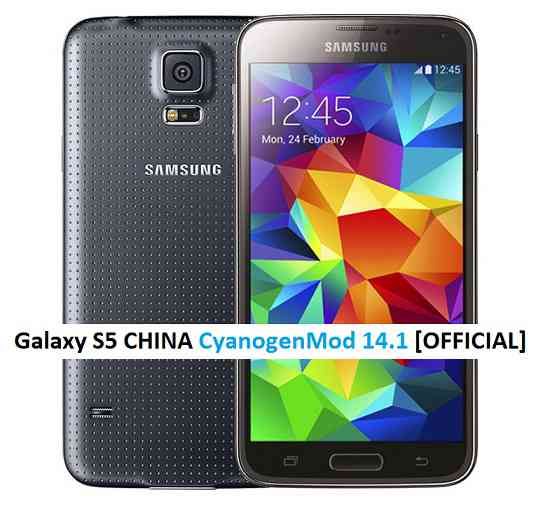
You can always look into the big list of Google Camera APK page for a compatible GCam for your phone.Stay tuned or Subscribe to the Galaxy S6 Edge Plus forum for other Android 10, or other custom ROMs and all other device specific topics.Here is the OFFICIAL CyanogenMod 14.1 (CM14.1) for Galaxy S5 CHINA (kltechn). You might know that CyanogenMod is now continued as Lineage OS. Stay tuned to the Lineage OS 14.1 Devices list page to get more updates on Lineage OS ROMs. This is an OFFICIAL CyanogenMod 14.1 NIGHTLY update for Galaxy S5 CHINA. In addition to this ROM we have update many OFFICIAL CM14.1 (CyanogenMod 14.1) for many supported devices and many Unofficial CyanogenMod 14/14.1 ROM updates.
DISCLAIMER:
Installing a custom ROM on a the Galaxy S5 CHINA may require the bootloader to be unlocked on Galaxy S5 CHINA and a Custom Recovery on Galaxy S5 CHINA, which may VOID your warranty and may delete all your data. Before proceeding further you may consider backup all data on the phone. You are the only person doing changes to your phone and I cannot be held responsible for the mistakes done by you. ALSO KNOW THAT THIS IS A DEVELOPMENT BUILD AND CONTAINS MORE BUGS THAN YOU CAN THINK.
REQUIRED DOWNLOADS AND LINKS FOR OFFICIAL GALAXY S5 CHINA CM14.1 (CYANOGENMOD 14.1) NOUGAT ROM UPDATE GUIDE:
- TWRP download link for Galaxy S5 CHINA (kltechn).
– here is a guide: Galaxy S5 CHINA TWRP recovery installation guide (for .tar or .tar.md5 file extension) and How to install Cyanogen recovery (or twrp in .img format) on Galaxy S5 CHINA
- ROM download link of OFFICIAL Cyanogenmod 14.1 for Galaxy S5 CHINA
- CyanogenMod 14.1 GApps download link for Galaxy S5 CHINA CyanogenMod 14.1 ROM
Root binary is inbuilt since CyanogenMod 12, so you don’t need a separate SuperSu package to install to gain ROOT access. Here is How to Enable ROOT on CM14.1/CyanogenMod 14.1
HOW TO INSTALL/FLASH/UPDATE CM14.1 FOR GALAXY S5 CHINA (CYANOGENMOD 14.1 NOUGAT ROM):
Follow these steps if you are flashing CM14.1 for Galaxy S5 CHINA for the first time, or coming from another ROM:
Points to NOTE on BACKUP:
– Try to avoid restoring apps backup using Titanium Backup. It may break things up.
– Don’t restore system data using Titanium Backup! It will definitely break the current installation.
– It is also discouraged to Restoring Apps + Data using Titanium Backup.- Download and Copy the Nougat GApps and CyanogenMod 14.1 Nougat ROM ZIP to Galaxy S5 CHINA (kltechn).
- Boot into Recovery. Make sure to have a Custom recovery like CWM or TWRP or any other custom recovery.
- Wipe data factory reset, Cache partition, Dalvik Cache and Format the System partition.
– Here is a guide explaining how to wipe data using TWRP recovery.This will delete all your data on your phone. You may consider complete backup of your phone data or take a NANDROID backup of the current ROM.
– How to backup all data on your Android Device.
– how to take NANDROID backup using TWRP recovery. - First flash the Galaxy S5 CHINA CM14.1 ROM ZIP from device.
– Here is a post explaining how to flash a custom ROM using TWRP recovery. - Then reboot into recovery (don’t skip this) and flash the CM14.1 Nougat Google Apps package.
– Here is a post explaining how to flash GApps using TWRP recovery. - Reboot and Enjoy the CyanogenMod 14.1 Nougat ROM on Galaxy S5 CHINA.
Upgrading from earlier version of Galaxy S5 CHINA CM14.1 Nougat ROM:
- Copy the Galaxy S5 CHINA CM14.1 ROM ZIP file to your phone.
- Boot into Recovery.
- Flash the latest CM14.1 ROM ZIP from your phone.
– Here is a post explaining how to flash a custom ROM using TWRP recovery. - Then flash the CM14.1 Nougat Google Apps package.
– Here is a post explaining how to flash GApps using TWRP recovery. - Reboot and Enjoy
Complete the initial setup and enjoy Android Nougat 7.0.0_r1 with CyanogenMod 14.1 On Galaxy S5 CHINA (codename: kltechn). After this CM14.1 installation you may want to enable ROOT access on your phone and here is how you can do that:
How to Enable ROOT on CM14.1/CyanogenMod 14.1.Stay tuned or Subscribe to the Galaxy S5 CHINA (kltechn) forum For other Android Nougat ROMs, CyanogenMod 14 ROMs, other ROMs and all other device specific topics.This is the Resurrection Remix Nougat ROM for Galaxy S3. We also have the official CM14.1 for Galaxy S3 and unofficial CM14.1 for Galaxy S3. We also have update many Android NOUGAT AOSP ROMs, also many UNOFFICIAL CyanogenMod 14 ROMs, OFFICIAL CM14.1 ROMs and Resurrection Remix Nougat ROMs. This Nougat Resurrection Remix ROM for Galaxy S3 is brought to you by developer non1979.
DISCLAIMER:
Installing a custom ROM on a the Galaxy S3 may require the bootloader to be unlocked on Galaxy S3 and a Custom Recovery on Galaxy S3, which may VOID your warranty and may delete all your data. Before proceeding further you may consider backup all data on the phone. You are the only person doing changes to your phone and I cannot be held responsible for the mistakes done by you.
REQUIRED DOWNLOADS AND LINKS FOR GALAXY S3 RESURRECTION REMIX NOUGAT CUSTOM ROM UPDATE GUIDE:
- TWRP download link | Cyanogenmod recovery for Galaxy S3 (i9300)
- Unlock the bootlaoder and install TWRP on Galaxy S3
- ROM download link of RR Nougat for Galaxy S3
- RR Nougat GApps download link for Galaxy S3 Resurrection Remix Nougat ROM
Root binary is inbuilt since CyanogenMod 12. As the Resurrection Remix ROM is based on CyanogenMod ROM, so you don’t need a separate SuperSu package to install to gain ROOT access. Here is How to Enable ROOT on CM14/CyanogenMod 14 based ROMsHOW TO INSTALL/FLASH/UPDATE RR NOUGAT ON GALAXY S3 (RESURRECTION REMIX NOUGAT ROM):
Points to NOTE on BACKUP:
– Try to avoid restoring apps backup using Titanium Backup. It may break things up.
– Don’t restore system data using Titanium Backup! It will definitely break the current installation.
– It is also discouraged to Restoring Apps + Data using Titanium Backup.Follow these steps if you are flashing Resurrection Remix Nougat on Galaxy S3 for the first time, or coming from another ROM:
- Download and Copy the Nougat GApps, Resurrection Remix Nougat ROM and the CM setup remover ZIP to Galaxy S3.
- Boot into Recovery. Make sure to have a Custom recovery like CWM or TWRP or any other custom recovery.
- Wipe data factory reset, Cache partition, Dalvik Cache and Format the System partition.
– Here is a guide explaining how to wipe data using TWRP recovery.This will delete all your data on your phone. You may consider complete backup of your phone data or take a NANDROID backup of the current ROM.
– How to backup all data on your Android Device.
– how to take NANDROID backup using TWRP recovery. - First flash the Galaxy S3 RR Nougat ROM ZIP from device.
– Here is a post explaining how to flash a custom ROM using TWRP recovery. - Then reboot into recovery (don’t skip this) and flash the RR Nougat Google Apps package.
– Here is a post explaining how to flash GApps using TWRP recovery. - Reboot and Enjoy the Resurrection Remix Nougat ROM on Galaxy S3.
Upgrading from earlier version of Galaxy S3 Resurrection Remix Nougat ROM:
- Copy the Resurrection Remix Nougat ROM ZIP file to your phone.
- Boot into Recovery.
- Flash the latest Resurrection Remix Nougat ROM ZIP from your phone.
– Here is a post explaining how to flash a custom ROM using TWRP recovery. - Then flash the Resurrection Remix Nougat Google Apps package.
– Here is a post explaining how to flash GApps using TWRP recovery. - Reboot and Enjoy
Complete the initial setup and enjoy Android Nougat 7.0.0_r1 with Resurrection Remix Nougat On Galaxy S3 (codename: i9300). After this Resurrection Remix Nougat ROM installation you may want to enable ROOT access on your phone and here is how you can do that:
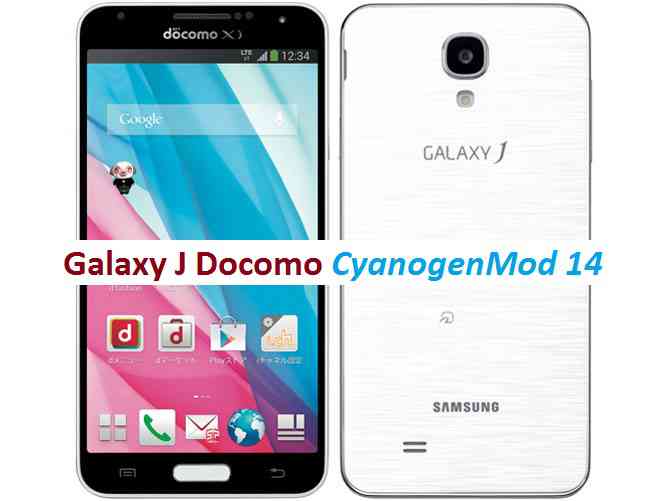
How to Enable ROOT on CyanogenMod 14 based Resurrection Remix ROM.Stay tuned or Subscribe to the Galaxy S3 (i9300) forum For other Android Nougat ROMs, CyanogenMod 14 ROMs, other ROMs and all other device specific topics.CM14 for Galaxy J Docomo CM14/CyanogenMod 14 has now arrived through an UNOFFICIAL build. For latest updates, stay tuned to the Lineage OS device list page. This Nougat 7.0 has come for Galaxy J LTE-A Docomo via CyanogenMod 14 ROM. Since Google released Android Nougat Source code, we have update many Android NOUGAT AOSP ROMs and also many CyanogenMod 14/CM14 ROMs updated and many are yet to come. This CyanogenMod 14/CM14 for Galaxy J Docomo (Japanese) is brought to you by developer kyasu.
DISCLAIMER:
THIS IS STILL AN EARLY BUILD. THIS MAY NOT BOOT AT ALL OR EVEN IT BOOTS THEN IT MAY HAVE MANY BUGS FOR WHICH IT MAY NOT BE USABLE AS A DAILY DRIVER. TRY AT YOUR OWN RISK. Installing custom ROM requires a custom recovery to be installed on your device, which may VOID your warranty and may delete all your data. Before proceeding further you may consider backup your all data. You are the only person doing changes to your phone and neither the developer(s) nor we can be held responsible for the mistakes done by you.Status of (js01lte, SC-02F) Japanese Galaxy J Docomo CM14/CyanogenMod 14 Nougat 7.0 ROM:
WHAT’S WORKING:
– Not knownKNOWN ISSUES:
– Not known
REQUIRED LINKS AND FILES FOR GALAXY J LTE-A Docomo CM14/CYANOGENMOD 14 NOUGAT 7.0 CUSTOM ROM:
- TWRP download link for Galaxy J LTE-A
– Here is: Custom Recovery Installation Guide for Samsung Galaxy J LTE-A (js01lte, SC-02F) (This guide is only for .tar file)
- Bootloader download link for Galaxy J LTE-A.
– If you are already on SC02FOMUGPG1(5.0) bootloader or even later then this is not required.
– Use the recovery flashing guide to flash this boot loader file. - ROM Download link to kyasu’s CM14 for Japanese Galaxy J Docomo Nougat 7.0 ROM (js01lte, SC-02F)
- Nougat GApps download link for Galaxy J LTE-A CM14 ROM
Root binary is inbuilt since CyanogenMod 12, so you don’t need a separate SuperSu package to install to gain ROOT access. Here is How to Enable ROOT on CM14/CyanogenMod 14
HOW TO INSTALL/DOWNLOAD/FLASH/UPDATE JAPANESE GALAXY J DOCOMO CM14/CYANOGENMOD 14 (js01lte, SC-02F) NOUGAT 7.0 CUSTOM ROM:
Follow this if you are flashing Galaxy J LTE-A Docomo CM14/CyanogenMod 14 for the first time, or coming from another ROM:
This will delete all your data on your phone. You may consider backing up your phone data or take a nandroid backup. Here is how to take NANDROID backup using TWRP recovery.
Points to NOTE:
– Try to avoid restoring apps backup using Titanium Backup. It may break things up.
– Don’t restore system data using Titanium Backup! It will definitely break the current installation.
– It is also discouraged to Restoring Apps + Data using Titanium Backup.- Download and Copy the GApps and Galaxy J LTE-A Docomo CM14/CyanogenMod 14 ROM ZIP to your phone.
- Boot into Recovery.
- Wipe data factory reset, Cache partition, Dalvik Cache and Format the System partition.
– Here is a guide explaining how to wipe data using TWRP recovery.This will delete all your data on your phone. You may consider complete backup of your phone data or take a NANDROID backup of the current ROM
– How to backup all data on your Android Device
– how to take NANDROID backup using TWRP recovery - First flash the CM14 ROM ZIP from device.
– Here is a post explaining how to flash a custom ROM using TWRP recovery. - Then reboot into recovery (don’t skip this) and flash the CyanogenMod 14 Nougat GApps package.
– Here is a post explaining how to flash GApps using TWRP recovery. - Reboot and Enjoy the CM14 for Galaxy J LTE-A Docomo.
Upgrading from earlier version of CyanogenMod 14/CM14 for Galaxy J LTE-A:
- Copy the latest Galaxy J LTE-A Docomo CM14/CyanogenMod 14 ROM ZIP file to your phone.
- Boot into Recovery.
- Flash the latest CM ROM ZIP from your phone.
– Here is a post explaining how to flash a custom ROM using TWRP recovery. - Then flash the CM14 Nougat GApps package.
– Here is a post explaining how to flash GApps using TWRP recovery. - Reboot and Enjoy
Complete the initial setup and enjoy Android Nougat 7.0.0 with CyanogenMod 14/CM14 for S5 (js01lte, SC-02F). After this CM14 installation you may want to enable ROOT access on your phone and here is how you can do that:
How to Enable ROOT on CM14/CyanogenMod 14.Stay tuned or Subscribe to the Galaxy J LTE-A Docomo (js01lte, SC-02F) forum For other Android Nougat ROMs, CyanogenMod 14 ROMs, other ROMs and all other device specific topics.The good news is that LineageOS 16 for Galaxy NOTE 9 (EXYNOS variants ONLY) is now available to download and install. This LineageOS 16 build is brought to you by developer Rainbow_Dash.
DONATION TO DEVELOPER(S)/PROJECT:
If you like this ROM then do consider for a contribution to Rainbow_Dash and LineageOS project:
– Donate to Rainbow_Dash
– Donate to LineageOS project[su_note note_color=”#D7E3F4″ text_color=”#728095″ radius=”3″ class=”” id=””]
Searching where to download LineageOS 16 for Galaxy NOTE 9?
Wondering how to install LineageOS 16 on Galaxy NOTE 9?
If you have one of the question for your Galaxy NOTE 9, then you are at the right place and here is where to download and how to install LineageOS 16 on Galaxy NOTE 9, with a step-by-step guide.
[/su_note]For more Pie ROM updates visit the LineageOS 16 and Android Pie ROM builds.

[su_note note_color=”#F9D9D9″ text_color=”#AA4343″ radius=”3″ class=”” id=””]DISCLAIMER:
THIS IS AN INITIAL BUILD OF Galaxy NOTE 9 LineageOS 16 WHICH MAY NOT BOOT AT ALL OR EVEN IF IT BOOTS, IT MAY HAVE MANY BUGS.
MAKE SURE TO BACKUP THE CURRENT ROM AND ALL DATA OF YOUR PHONE BEFORE INSTALLING.[/su_note][su_note note_color=”#FBF4DD” text_color=”#A38C68″ radius=”3″ class=”” id=””]Installing a TWRP recovery on Galaxy NOTE 9 may delete all your data. Before proceeding further you may consider backup all data on the phone.
You are the only person doing changes to your phone; neither the developer nor I can be held responsible for the mistakes done by you.[/su_note]
Status of Galaxy NOTE 9 LineageOS 16:
WHAT’S WORKING:
– Almost everythingKNOWN ISSUES:
– No known problem yetREQUIRED GUIDES AND DOWNLOADS TO INSTALL Galaxy NOTE 9 LineageOS 16 ANDROID 9 PIE ROM:
[styledlist style=”yes”]- Download TWRP for Galaxy NOTE 9 (crownlte) to install LineageOS 16
- Install TWRP recovery using ODIN
- CSA2 vendor image
[su_note note_color=”#D7E3F4″ text_color=”#728095″ radius=”3″ class=”” id=””]- Make sure your phone is already on CSA2 vendor and firmware.
– If not, download the CSA2 vendor image and flash it through fastboot[/su_note] - LineageOS 16 Download for Galaxy NOTE 9
- Download MindTheGApps for LineageOS 16
- How to Root LineageOS 16
/ Download GApps for LineageOS 16
[/styledlist]
HOW TO UPDATE/INSTALL LineageOS 16 FOR Galaxy NOTE 9 – Android 9 Pie CUSTOM ROM:
[su_note note_color=”#D7E3F4″ text_color=”#728095″ radius=”3″ class=”” id=””]
Following are the two sub-sections of this LineageOS 16 guide:- Fresh installation of Galaxy NOTE 9 LineageOS 16
- Updating a new Galaxy NOTE 9 LineageOS 16 on top of previous LineageOS 16[/su_note]
How to Install LineageOS 16 on Galaxy NOTE 9 for the first time:
[su_note note_color=”#FBF4DD” text_color=”#A38C68″ radius=”3″ class=”” id=””]
Points to NOTE:- Try to avoid restoring apps backup using Titanium Backup. It may break things up.
- Don’t restore system data using Titanium Backup! It will definitely break the current installation.
- It is also discouraged to Restoring Apps + Data using Titanium Backup.
[/su_note]
- Download and Copy the LineageOS 16 Gapps and the Galaxy NOTE 9 LineageOS 16 ROM ZIP file to your phone.
- Boot into the TWRP custom Recovery to install this LineageOS 16 for Galaxy NOTE 9.
[su_note note_color=”#D7E3F4″ text_color=”#728095″ radius=”3″ class=”” id=””]- Make sure to have a Custom recovery like a TWRP recovery or any other custom recovery.
– If not then download the TWRP recovery from Downloads link and follow how to install TWRP on Samsung using ODIN (it’s a generic guide which will work for TWRP as well as any other recovery)[/su_note] - Wipe the data partition (or do a factory reset), Cache partition, Dalvik Cache or ART cache and Format the System partition.
[su_note note_color=”#D7E3F4″ text_color=”#728095″ radius=”3″ class=”” id=””]- Here is a guide explaining how to wipe using TWRP recovery.[/su_note]
[su_note note_color=”#FBF4DD” text_color=”#A38C68″ radius=”3″ class=”” id=””]This will delete all your data on your phone. You may consider complete backup of your phone data or take a NANDROID backup of the current ROM
– How to backup all data on your Android Device
– how to take NANDROID backup using TWRP recovery[/su_note] - Install the Galaxy NOTE 9 LineageOS 16 ROM file that you have copied into the phone.
[su_note note_color=”#D7E3F4″ text_color=”#728095″ radius=”3″ class=”” id=””]- Here is a post explaining how to install LineageOS[/su_note] - Then install the Android Pie MindTheGapps for LineageOS 16 package.
[su_note note_color=”#D7E3F4″ text_color=”#728095″ radius=”3″ class=”” id=””]- Here is a post explaining how to install GApps using TWRP recovery.[/su_note] - Reboot and Enjoy the Galaxy NOTE 9 LineageOS 16 Android 9 Pie ROM.
Upgrading a new version of LineageOS 16 for Galaxy NOTE 9 (crownlte):
- Copy the latest ROM zip file of LineageOS 16 for Galaxy NOTE 9, LineageOS 16 GApps and/or Magisk ROOT package to the phone
- Boot into Recovery.
– Make sure you have a latest custom Recovery that should be able to install the LineageOS 16 update. - Format or wipe the system partition from the custom recovery menu.
- Install the LineageOS 16 on Galaxy NOTE 9.
[su_note note_color=”#D7E3F4″ text_color=”#728095″ radius=”3″ class=”” id=””]- Here is a post explaining how to install LineageOS[/su_note] - Reboot and see you have the GApps and ROOT access or NOT.- Gapps is built in such a way that it will sustain across ROM updates.
- If you don’t have GApps after upgrading the LineageOS 16 on Galaxy NOTE 9, then install the GApps.
[su_note note_color=”#D7E3F4″ text_color=”#728095″ radius=”3″ class=”” id=””]- Here is a post explaining how to install GApps using TWRP recovery.[/su_note] - If you don’t have ROOT after upgrading the LineageOS 16 on Galaxy NOTE 9, then install the SuperSU or Magisk or the Lineage SU binary.
[su_note note_color=”#D7E3F4″ text_color=”#728095″ radius=”3″ class=”” id=””]- Here is a post explaining How to Enable ROOT on LineageOS 16[/su_note] - Once everything is done, reboot and Enjoy the LineageOS 16 for Galaxy NOTE 9.
[su_note note_color=”#D8F1C6″ text_color=”#769958″ radius=”3″ class=”” id=””]Complete the initial setup and enjoy Android 9 Pie with LineageOS 16 on Galaxy NOTE 9.[/su_note]
After installing LineageOS 16 on Galaxy NOTE 9 you may want to install Google Camera (GCam) or enable ROOT access on your phone and here is how you can do that:
– LineageOS 16 ROOT
– GCam for Android Pie (this page contains a huge list of GCam for all available devices)[su_note note_color=”#D7E3F4″ text_color=”#728095″ radius=”3″ class=”” id=””]If there is no ROOT access for some reason even after installing the LineageOS SU binary, then you can try SuperSU rooting guide to enable ROOT access.[/su_note]
Stay tuned or Subscribe to the Galaxy NOTE 9 (crownlte) LineageOS forum For other Android Pie, Android Oreo ROMs, Nougat ROMs, or other ROMs and all other device specific topics.Android Oreo 8.1 ROM, LineageOS 15.1 for Galaxy NOTE 4 (trlte) has now arrived via a development build. This LineageOS 15.1 for Galaxy NOTE 4 (trlte) is brought to you by developer ripee and one more build is by _mone.
DONATION TO DEVELOPER:
If you like this ROM then do consider for a small contribution to devs and/or LineageOS project:
– Donate to ripee
– Donate to LineageOS project
– No donation link found for _mone.If you want the OFFICIAL LineageOS update or some more Android Oreo ROMs then stay tuned to the LineageOS 15 ROM page or the AOSP Android Oreo devices list page or the AICP 13 Oreo ROMs list.
DISCLAIMER:
THIS IS AN INITIAL BUILD WHICH MAY NOT BOOT AT ALL OR EVEN IF IT BOOTS IT MAY HAVE MANY BUGS. HAVE A BACKUP BEFORE FLASHING THIS LINEAGEOS ROM AND TRY AT YOUR OWN RISK. Installing a custom ROM on a Galaxy NOTE 4 (trlte) requires the bootloader to be unlocked on the Galaxy NOTE 4 (trlte) phone, which may VOID your warranty and may delete all your data. Before proceeding further you may consider backup all data on the phone. You are the only person doing changes to your phone and I cannot be held responsible for the mistakes done by you.Content structure:
Status of LineageOS 15.1 for Galaxy NOTE 4 Oreo 8.1 ROM Download:
WHAT’S WORKING:
– UnknownKNOWN ISSUES:
– Unknown
REQUIRED LINKS AND FILES FOR LineageOS 15.1 for Galaxy NOTE 4 OREO CUSTOM ROM:
- TWRP recovery link for Galaxy NOTE 4 (trlte)
– Here is the TWRP update guide for the Galaxy NOTE 4 (trlte).
- LineageOS 15.1 Download link for Galaxy NOTE 4 by ripee
- LineageOS 15.1 Download link for Galaxy NOTE 4 by _mone
- LineageOS 15.1 GApps download link for LineageOS 15.1 for Galaxy NOTE 4 Oreo 8.1 ROM
Root binary is NOT inbuilt in LineageOS 15.1, so you may need a separate SuperSu package or LineageOS su binary to install to gain ROOT access. Here is LineageOS Rooting guide
If there is no in-built ROOT or it does not work for some reason then you can try SuperSU rooting guide to enable ROOT access.HOW TO INSTALL/DOWNLOAD/FLASH/UPDATE LineageOS 15.1 FOR Galaxy NOTE 4 OREO CUSTOM ROM:
Follow this if you are flashing LineageOS 15.1 for Galaxy NOTE 4 for the first time, or coming from another ROM:
Points to NOTE:
– Try to avoid restoring apps backup using Titanium Backup. It may break things up.
– Don’t restore system data using Titanium Backup! It will definitely break the current installation.
– It is also discouraged to Restoring Apps + Data using Titanium Backup.- Boot into Recovery. Make sure to have a Custom recovery like CWM or TWRP or any other custom recovery. If not then follow the Custom Recovery Installation Guide for Galaxy NOTE 4 (it’s a generic guide which will work for TWRP as well as CWM recovery or any other recovery)
- Wipe data factory reset, Cache partition, Dalvik Cache and Format the System partition.
– Here is a guide explaining how to wipe data using TWRP recovery.This will delete all your data on your phone. You may consider complete backup of your phone data or take a NANDROID backup of the current ROM
– How to backup all data on your Android Device
– how to take NANDROID backup using TWRP recovery - Download and Copy the LineageOS 15.1 GApps and the Android Oreo based LineageOS 15.1 for Galaxy NOTE 4 ROM ZIP file to your phone.
- First flash the LineageOS 15.1 for Galaxy NOTE 4 Oreo ROM ZIP from device. Then flash the GApps for LineageOS 15.1 zip from your device memory.
– Here is a post explaining how to install LineageOS - Then reboot into recovery (don’t skip this) and flash the Gapps for LineageOS 15.1 package.
– Here is a post explaining how to flash GApps using TWRP recovery. - Reboot and Enjoy the Oreo 8.1 LineageOS 15.1 ROM for Galaxy NOTE 4.
Upgrading from earlier version of LineageOS 15.1 for Galaxy NOTE 4 (trlte):
- Copy the latest Galaxy NOTE 4 LineageOS 15.1 Oreo ROM ZIP file to your phone.
- Boot into Recovery.
- Flash the latest LinegeOS 15.1 ROM ZIP from your phone.
– Here is a post explaining how to install LineageOS - Then flash the LineageOS 15.1 Oreo GApps package.
– Here is a post explaining how to flash GApps using TWRP recovery. - Reboot and Enjoy
Complete the initial setup and enjoy Android Oreo 8.1 with LineageOS 15.1 for Galaxy NOTE 4. After the installation of LineageOS 15.1 for Galaxy NOTE 4 you may want to enable ROOT access on your phone and here is how you can do that:
How to Enable ROOT on LineageOS 15.1.Stay tuned or Subscribe to the Galaxy NOTE 4 LineageOS forum For other Android Oreo, Nougat ROMs, LineageOS 15.1 ROMs, other ROMs and all other device specific topics.Android Nougat 7.0 ROM, CM14 for Galaxy Grand Prime CyanogenMod 14 (CM14). In addition, we also have the Lineage OS for Grand Prime. For latest updates, stay tuned to the Lineage OS device list page. This Nougat 7.0 has come for Galaxy Grand Prime CM14 (CyanogenMod 14) ROM. Since Google released Android Nougat Source code, we have update many Android NOUGAT AOSP ROMs and also many CyanogenMod 14 ROMs updated and many are yet to come. This CyanogenMod 14 for Galaxy Grand Prime (SM-G530H) is brought to you by developer zim555.
DISCLAIMER:
THIS IS STILL AN EARLY BUILD AND CONTAINS BUGS. Installing custom ROM requires a custom recovery to be installed on your device, which may VOID your warranty and may delete all your data. Before proceeding further you may consider backup your all data. You are the only person doing changes to your phone and neither the developer(s) nor we can be held responsible for the mistakes done by you.Status of CM14 for Galaxy Grand Prime CM14 (CyanogenMod 14) Nougat 7.0 ROM:
WHAT’S WORKING:
– Boot
– Bluetooth
– Network (SIM 1 Only)
– GPS
– GApps
– Audio
– Headset
– FM Radio
– ADB
– MTP
– Wi-FiKNOWN ISSUES:
– Dual SIM is currently not supported
– Wifi hotspot
– Battery drain is heavy
– Storage issues: Unable to mount storage (and it affects most apps: camera, browser, apps permissions, download manager, gallery, play store and more…
– Flashlight
– Camera
– Cast (DLNA and Chrome)
REQUIRED LINKS AND FILES FOR GALAXY GRAND PRIME CM14 (CYANOGENMOD 14, NOUGAT) CUSTOM ROM:
- TWRP download link for Galaxy Grand Prime
– Here is How to Install TWRP on Samsung via Odin for the .tar.md5 TWRP file.
- Download link of CM14 for Galaxy Grand Prime (SM-G530H) Nougat 7.0 ROM
- Nougat GApps download link for Galaxy Grand Prime CM14 ROM
Root binary is inbuilt since CyanogenMod 12, so you don’t need a separate SuperSu package to install to gain ROOT access. Here is How to Enable ROOT on CM14/CyanogenMod 14
HOW TO INSTALL/DOWNLOAD/FLASH/UPDATE CM14 FOR GALAXY GRAND PRIME (CYANOGENMOD 14) NOUGAT CUSTOM ROM:
Follow this if you are flashing CyanogenMod 14 for Galaxy Grand Prime for the first time, or coming from another ROM:
Points to NOTE:
– Try to avoid restoring apps backup using Titanium Backup. It may break things up.
– Don’t restore system data using Titanium Backup! It will definitely break the current installation.
– It is also discouraged to Restoring Apps + Data using Titanium Backup.- Download and Copy the GApps and Galaxy Grand Prime CM14 ROM ZIP to your phone.
- Boot into Recovery. Make sure to have a Custom recovery like CWM or TWRP or any other custom recovery. If not then follow the Custom Recovery Installation Guide for Samsung Galaxy Grand Prime (it’s a generic guide which will work for TWRP as well as CWM recovery)
- Wipe data factory reset, Cache partition, Dalvik Cache and Format the System partition.
– Here is a guide explaining how to wipe data using TWRP recovery.This will delete all your data on your phone. You may consider complete backup of your phone data or take a NANDROID backup of the current ROM
– How to backup all data on your Android Device
– how to take NANDROID backup using TWRP recovery - First flash the Galaxy Grand Prime CM14 ROM ZIP from device. Then flash the GApps zip from your device memory.
– Here is a post explaining how to flash a custom ROM using TWRP recovery. - Then reboot into recovery (don’t skip this) and flash the CM14 Nougat Google Apps package.
– Here is a post explaining how to flash GApps using TWRP recovery. - Reboot and Enjoy the CyanogenMod 14 Nougat ROM on Galaxy Grand Prime.
Upgrading from earlier version of CyanogenMod 14 for Galaxy Grand Prime:
- Copy the latest Galaxy Grand Prime CM14 ROM ZIP file to your phone.
- Boot into Recovery.
- Flash the latest CM ROM ZIP from your phone.
– Here is a post explaining how to flash a custom ROM using TWRP recovery. - Then flash the CM14 Nougat Google Apps package.
– Here is a post explaining how to flash GApps using TWRP recovery. - Reboot and Enjoy
Complete the initial setup and enjoy Android Nougat 7.0.0 with CyanogenMod 14 for Galaxy Grand Prime. After the installation of CM14 for Galaxy Grand Prime you may want to enable ROOT access on your phone and here is how you can do that:
How to Enable ROOT on CM14/CyanogenMod 14.Stay tuned or Subscribe to the Galaxy Grand Prime (SM-G530H) forum For other Android Nougat ROMs, CyanogenMod 14 ROMs, other ROMs and all other device specific topics.Download link of CM14 for Galaxy Grand Prime found here.
Android Oreo 8.0 ROM, Galaxy Tab S2 9.7 WiFi LineageOS 15 has now arrived via an UNOFFICIAL build. If you want the OFFICIAL LineageOS update or some more Android Oreo ROMs then stay tuned to the LineageOS 15 ROMs page or the AOSP Android Oreo devices list page. This LineageOS 15 for Galaxy Tab S2 9.7 WiFi 2016 (gts210vewifi, SM-T813) is brought to you by developer LuK1337 and luca020400.
DONATION TO DEVELOPER:
If you like this ROM then do consider a contribution to LuK1337 and luca020400 for their efforts:
Donate to LuK1337
Donate to luca020400DISCLAIMER:
THIS IS AN ALPHA ROM AND MAY HAVE MANY BUGS. HAVE A BACKUP BEFORE FLASHING THIS ROM AND TRY AT YOUR OWN RISK. Installing a custom ROM on a Galaxy Tab S2 9.7 WiFi (gts210vewifi, SM-T813) requires an unlocked bootloader on the Galaxy Tab S2 9.7 WiFi (gts210vewifi, SM-T813), which may VOID your warranty and may delete all your data. Before proceeding further you may consider backup all data on the phone. You are the only person doing changes to your phone and I cannot be held responsible for the mistakes done by you.Content structure:
Status of Galaxy Tab S2 9.7 WiFi 2016 LineageOS 15 Oreo 8.0 ROM:
WHAT’S WORKING:
– Wifi
– Bluetooth
– Video Playback
– Audio ( Record and Playback )
– Sensors
– GPSKNOWN ISSUES:
– Camera
– SELinux is permissive
REQUIRED LINKS AND FILES FOR Galaxy Tab S2 9.7 WiFi LINEAGEOS 15 OREO CUSTOM ROM:
- TWRP recovery link for Galaxy Tab S2 9.7 WiFi (gts210vewifi, SM-T813)
– Here is theTWRP update guide for the Galaxy Tab S2 9.7 WiFi (gts210vewifi, SM-T813).
- ROM Download link of LineageOS 15 for Galaxy Tab S2 9.7 WiFi
- ROM Download link of LineageOS 15 for Galaxy Tab S2 9.7 WiFi
- LineageOS 15 GApps download link for Galaxy Tab S2 9.7 WiFi LineageOS 15 Oreo 8.0 ROM (Download the stock ARM64 GApps)
Root binary is NOT inbuilt in LineageOS 15, so you may need a separate SuperSu package or LineageOS su binary to install to gain ROOT access. Here is LineageOS Rooting guide
If there is no in-built ROOT or it does not work for some reason then you can try SuperSU rooting guide to enable ROOT access.HOW TO INSTALL/DOWNLOAD/FLASH/UPDATE LineageOS 15 FOR Galaxy Tab S2 9.7 WiFi OREO CUSTOM ROM:
Follow this if you are flashing LineageOS 15 for Galaxy Tab S2 9.7 WiFi for the first time, or coming from another ROM:
Points to NOTE:
– Try to avoid restoring apps backup using Titanium Backup. It may break things up.
– Don’t restore system data using Titanium Backup! It will definitely break the current installation.
– It is also discouraged to Restoring Apps + Data using Titanium Backup.- Boot into Recovery. Make sure to have a Custom recovery like CWM or TWRP or any other custom recovery. If not then follow the Custom Recovery Installation Guide for Galaxy Tab S2 9.7 WiFi (it’s a generic guide which will work for TWRP as well as CWM recovery or any other recovery)
- Wipe data factory reset, Cache partition, Dalvik Cache and Format the System partition.
– Here is a guide explaining how to wipe data using TWRP recovery.This will delete all your data on your phone. You may consider complete backup of your phone data or take a NANDROID backup of the current ROM
– How to backup all data on your Android Device
– how to take NANDROID backup using TWRP recovery - Download and Copy the LineageOS 15 GApps and Galaxy Tab S2 9.7 WiFi LineageOS 15 ROM ZIP file to your phone.
- First flash the Galaxy Tab S2 9.7 WiFi LineageOS 15 ROM ZIP from device. Then flash the GApps for LineageOS 15 zip from your device memory.
– Here is a post explaining how to install LineageOS - Then reboot into recovery (don’t skip this) and flash the Gapps for Oreo ROM package.
– Here is a post explaining how to flash GApps using TWRP recovery. - Reboot and Enjoy the Oreo 8.0 LineageOS 15 ROM for Galaxy Tab S2 9.7 WiFi.
Upgrading from earlier version of LineageOS 15 for Galaxy Tab S2 9.7 WiFi (gts210vewifi, SM-T813):
- Copy the latest Galaxy Tab S2 9.7 WiFi Lineage 15 ROM ZIP file to your phone.
- Boot into Recovery.
- Flash the latest LineageOS ROM ZIP from your phone.
– Here is a post explaining how to install LineageOS - Then flash the GApps for LineageOS 15 package.
– Here is a post explaining how to flash GApps using TWRP recovery. - Reboot and Enjoy
Complete the initial setup and enjoy Android Oreo 8.0 with LineageOS 15 for Galaxy Tab S2 9.7 WiFi. After the installation of LineageOS 15 for Galaxy Tab S2 9.7 WiFi you may want to enable ROOT access on your phone and here is how you can do that:
How to Enable ROOT on LineageOS 15.Stay tuned or Subscribe to the Galaxy Tab S2 9.7 WiFi (SM-T813) LineageOS forum For other Android Oreo, Nougat ROMs, LineageOS 15 ROMs, other ROMs and all other device specific topics.If you have found any BUG or any issues with this ROM, then following is the development thread at XDA.