- Search Results
TWRP Recovery for Redmi 8A based on Android Pie is now available to download. This step by step guide explains how to download and install TWRP on Redmi 8A.
The TWRP recovery for Redmi 8A is brought to you by developer(s) milankragujevic.
DONATION TO DEVELOPER(S) AND TWRP PROJECT:
If you like this ROM then do consider for a contribution to milankragujevic and TWRP project:
– Donate to milankragujevic
– Donate to dees_troy TWRP’s Lead developer
[su_note note_color=”#F9D9D9″ text_color=”#AA4343″ radius=”3″ class=”” id=””]DISCLAIMER:
You are the only person making changes to your phone and I cannot be held responsible for the mistakes done by you. So, flash at your own risk![/su_note][su_note note_color=”#FBF4DD” text_color=”#A38C68″ radius=”3″ class=”” id=””]Installing TWRP recovery on Redmi 8A requires an unlocked bootloader, which may void warranty and delete all data on your phone.[/su_note]
About this TWRP for Redmi 8A
– TWRP version: 3.x
– Supported Android Version: Android Pie
– Only for Global variant of Redmi 8A (May not work on Indian and Chinese variant of Redmi 8A)Required guides and downloads to install twrp on Redmi 8A
- Redmi 8A Phone, USB cable and a Windows, or Linux or MAC with ADB and fastboot installed on it.
- TWRP download for Redmi 8A
- Download vbmeta image
- Force Encryption disabler download
- ADB and Fastboot utility.
Below are the download links and guides to install ADB and Fastboot:
– 15 Seconds ADB Installer for Windows
– Minimal ADB and Fastboot for Windows
– ADB and fastboot for Linux
– ADB and fastboot for MAC - Unlocked bootloader on the Redmi 8A
How to Install TWRP on Redmi 8A?
- Enable Developer options on your phone.
- Then enable USB debugging and OEM unlock insisde developer options.
- Connect the Redmi 8A to the PC using the USB cable and install required USB driver
- Install the 15 seconds adb installer and the minimal adb and fastboot for Windows or Linux or MAC as per the PC you have
- Reboot the Redmi 8A into bootloader mode and Unlock bootloader of Redmi 8A
- Then, on your PC, go to the directory where you have downloaded the TWRP for Redmi 8A and then open the command console or terminal on this directory on your PC.
[su_note note_color=”#D7E3F4″ text_color=”#728095″ radius=”3″ class=”” id=””]- To open a command window on Windows OS in the current directory, press shift + Right Click anywhere on Windows explorer, or some folder.
– Then on the menu opened, just press the “w” key on the keyboard or select “Open command window here” to open a command window.[/su_note] - Now connect your phone to the PC using a USB cable, if not connected yet.
- Enter the following command on the opened command window:
adb reboot bootloaderto put your phone into bootloader mode where you can flash/install TWRP for Redmi 8A.
[su_note note_color=”#D7E3F4″ text_color=”#728095″ radius=”3″ class=”” id=””]If your phone asks for permission; such as “Allow USB debugging” then just tap on OK to proceed.[/su_note] - Flash the vbmeta image to the vbmeta partition.
fastboot flash vbmeta name_of_vbmeta.img - Reboot into fastboot mode execute the following command on the console:
fastboot flash recovery twrp-3.3.x.x-xxx.img
[su_note note_color=”#D7E3F4″ text_color=”#728095″ radius=”3″ class=”” id=””]While executing this command make sure to replace the twrp-3.3.x.x-xxx.img with the actual filename of the TWRP for Redmi 8A[/su_note][su_note note_color=”#FBF4DD” text_color=”#A38C68″ radius=”3″ class=”” id=””]This step will delete all your data on your phone. You may consider taking a complete backup of your phone data or take a backup of android partitions.
[/su_note] - Wait for the fastboot command to finish installing TWRP on Redmi 8A.
Once it is done, execute the below command:fastboot oem reboot-recovery[su_note note_color=”#FBF4DD” text_color=”#A38C68″ radius=”3″ class=”” id=””]It is important to reboot into recovery again after flashing the TWRP. If not, rebooting into the system will replace the recently flashed TWRP with a stock recovery.[/su_note]
- From TWRP, disable encryption and flash the Disable Force Encryption zip file
[su_note note_color=”#D7E3F4″ text_color=”#728095″ radius=”3″ class=”” id=””]- Format data partition from TWRP to disable Encryption to be able to use the data partition.
– Then you flash the Disable Force Encryption zip file so that the system will not encrypt it again.[/su_note]
[su_note note_color=”#D8F1C6″ text_color=”#769958″ radius=”3″ class=”” id=””]That’s all. You should have the TWRP installed on your Redmi 8A.[/su_note]
What to do after installing TWRP on Redmi 8A:
- You can enable ROOT access on Redmi 8A ROOT access
- You can install one of the custom ROMs available for Redmi 8A
- You can install some of the mods, magisk modules, etc.
Add-on links for Redmi 8A
Following are some extra resources for Redmi 8A which you may be interested in:
– Google camera for Redmi 8AAfter installing TWRP recovery on Redmi 8A you can install many android mods such as google camera, enable navigation gesture, enable face unlock, viper4android etc. and many more.
Stay tuned or Subscribe to the Redmi 8A forum For other Android Custom ROMs, Lineage OS ROMs, and all other device specific topics.If you are looking to install/update Android 8.1 Oreo based LineageOS 15.1 for Vega Iron 2 Qualcomm variant, then it’s now available via an unofficial build. Earlier we had the Lineage OS 14.1 for Vega Iron 2 and this time we have the latest LineageOS 15.1.
This Android 8.1 Oreo based Lineage OS 15.1 for Vega Iron 2 (ef63) is brought to you by developer Chau Truong Thinh.
DONATION TO DEVELOPER(S):
If you like this ROM then do consider for a contribution to Tim Hallinger and Lineage OS project:
– No donation link found for Tim Hallinger
– Donate to LineageOS projectFor other Android Oreo ROMs list you can check back the Android Oreo ROMs.
DISCLAIMER:
THIS IS AN INITIAL TEST BUILD WHICH MAY NOT BOOT AT ALL OR MAY HAVE MANY BUGS.
FLASH AT YOUR OWN RISK.
Installing a custom ROM may require an unlock bootloader on Vega Iron 2, which may VOID your warranty and may delete all your data. Before proceeding further you may consider backup all data on the phone. You are the only person doing changes to your phone; neither the developer nor I can be held responsible for the mistakes done by you.Status of Lineage OS 15.1 for Vega Iron 2 – Android 8.1 Oreo ROM:
WHAT’S WORKING:
– UnknownKNOWN ISSUES:
– Unknown
REQUIRED LINKS AND FILES FOR THIS LineageOS 15.1 for Vega Iron 2 ANDROID 8.1 OREO CUSTOM ROM:
- TWRP for Vega Iron 2 (ef63)
This TWRP recovery guide may require an unlocked bootloader on the Vega Iron 2.
– Here is the Vega Iron 2 unlock bootloader guide - ROM Download link of Lineage OS 15.1 for Vega Iron 2
- GApps for LineageOS 15.1
su Root binary is NOT inbuilt in Lineage OS 15.1, so you may need to install a separate SuperSu package or LineageOS su binary to gain ROOT access. Here is LineageOS 15.1 Root guide
If there is no in-built ROOT or it does not work for some reason then you can try SuperSU rooting guide to enable ROOT access.
HOW TO UPDATE/INSTALL Lineage OS 15.1 FOR Vega Iron 2; ANDROID 8.1 OREO CUSTOM ROM:
– Fresh LineageOS 15.1 installation guide
– LineageOS 15.1 update on top of previous LineageOS 15.1 ROMFollow this if you are flashing LineageOS 15.1 on Vega Iron 2 for the first time, or coming from another ROM:
Points to NOTE:– Try to avoid restoring apps backup using Titanium Backup. It may break things up.
– Don’t restore system data using Titanium Backup! It will definitely break the current installation.
– It is also discouraged to Restoring Apps + Data using Titanium Backup.- Download and Copy the GApps and Vega Iron 2 LineageOS 15.1 ROM ZIP files to your phone.
- Boot into the TWRP custom Recovery to install this Lineage OS 15.1 for Vega Iron 2.
– Make sure to have a Custom recovery like a TWRP recovery or any other custom recovery.
If not then download the TWRP recovery from Downloads link and follow the Custom Recovery Installation Guide (it’s a generic guide which will work for TWRP as well as CWM recovery or any other recovery) - Wipe the data partition (or do a factory reset), Cache partition, Dalvik Cache or ART cache and Format the System partition.
– Here is a guide explaining how to wipe using TWRP recovery.This will delete all your data on your phone. You may consider complete backup of your phone data or take a NANDROID backup of the current ROM
- Install the Vega Iron 2 LineageOS 15.1 ROM file that you have copied into the phone.- Here is a post explaining how to install Lineage OS
- Then reboot into recovery (don’t skip this) and install the Oreo Gapps for Lineage OS 15.1 package.
– Here is a post explaining how to install GApps using TWRP recovery.
- Reboot and Enjoy the Android 8.1 Oreo Lineage OS 15.1 on Vega Iron 2.
Upgrading from earlier version of LineageOS 15.1 on Vega Iron 2 (ef63):
- Copy the latest Lineage OS 15.1 for Vega Iron 2 ROM ZIP file, Oreo 8.1 GApps and/or supersu ROOT package to the phone
- Boot into Recovery.- Make sure you have a latest custom Recovery that should be able to flash the LineageOS 15.1 ROM update.
- Format or wipe the system partition from the custom recovery menu.
- Install the Lineage OS 15.1 ROM for Vega Iron 2.- Here is a post explaining how to install Lineage OS
- Reboot and see you have the GApps and ROOT access or NOT.- Gapps is built in such a way that it will sustain across ROM updates.
- If you don’t have GApps after upgrading the LineageOS 15.1 on Vega Iron 2, then flash the GApps.- Here is a post explaining how to flash GApps using TWRP recovery.
- If you don’t have ROOT after upgrading the LineageOS 15.1 on Vega Iron 2, then flash the SuperSU or Magisk or the Lineage SU binary.- Here is a post explaining How to Enable ROOT for LineageOS 15.1 ROM
- Once everything is done, reboot and Enjoy the Lineage OS 15.1 for Vega Iron 2.
Complete the initial setup and enjoy Android 8.1 Oreo with Lineage OS 15.1 on Vega Iron 2. After the installation of Lineage OS 15.1 for Vega Iron 2 you may want to enable ROOT access on your phone and here is how you can do that:
– LineageOS 15.1 ROOT.Stay tuned or Subscribe to the Vega Iron 2 (ef63) Lineage OS forum For other Android Oreo, Nougat ROMs, LineageOS 15.1 ROMs, or other ROMs and all other device specific topics.Android 8.1 Oreo based OFFICIAL LineageOS 15.1 for Aquaris X (bardock) is now available to download. This is a step by step guide on how to install Official LineageOS 15.1 on Aquaris X.
Follow the links to get other LineageOS 16 and Android Pie ROM builds.

This Aquaris X OFFICIAL LineageOS 15.1 build is maintained by brinlyau, eloimuns and Team aquaris-dev.
Starting from LineageOS 15.1, LineageOS team has made stringent device support norms, which ensures that almost every important piece of hardware present on a phone MUST be in a working state on an OFFICIAL LineageOS 15.1 build. Which clearly means that users will enjoy a stock like upgrade experience on OFFICIAL LineageOS 15.1 updates.
Well, making a standard guideline to support LineageOS 15.1 for a specific device will undoubtedly increase the reliability on LineageOS custom Android ROM and subsequent ROMs derived from LineageOS such as: Resurrection Remix OS, crDroid ROM etc.
DONATION TO PROJECT/DEVELOPER(s):
If you like this ROM then do consider for a small contribution to brinlyau, eloimuns, Team aquaris-dev and LineageOS project:
– No donation link found for brinlyau, eloimuns, Team aquaris-dev
– Donate to LineageOS project[su_note note_color=”#F9D9D9″ text_color=”#AA4343″ radius=”3″ class=”” id=””]DISCLAIMER:
THIS IS A NIGHTLY BUILD OF Aquaris X OFFICIAL LINEAGEOS 15.1 WHICH MAY HAVE MINOR BUGS. HAVE A BACKUP BEFORE FLASHING.[/su_note]
[su_note note_color=”#FBF4DD” text_color=”#A38C68″ radius=”3″ class=”” id=””]Installing a custom ROM may require an unlocked bootloader on Aquaris X, which may VOID your warranty and may delete all your data. Before proceeding further you may consider backup all data on the phone. You are the only person making changes to your phone and I cannot be held responsible for the mistakes done by you.[/su_note]Aquaris X OFFICIAL LineageOS 15.1 Content structure:
REQUIRED LINKS AND FILES FOR OFFICIAL Aquaris X LineageOS 15.1 ROM BASED ON ANDROID OREO 8.1:
- TWRP recovery for Aquaris X
– Here is the how to install TWRP for Aquaris X. This recovery guide requires an unlock bootloader on Aquaris X. - ROM Download link to install OFFICIAL LineageOS 15.1 on Aquaris X
- Install GApps on Aquaris X OFFICIAL LineageOS 15.1 ROM
[su_note note_color=”#D7E3F4″ text_color=”#728095″ radius=”3″ class=”” id=””]Root binary is NOT inbuilt in the Aquaris X OFFICIAL LineageOS 15.1 ROM, so you need a separate SuperSu package or LineageOS su binary to install to gain ROOT access.
Here is LineageOS 15.1 Rooting GuideIf there is no in-built ROOT or it does not work even after flashing LineageOS su binary for some reason, then you can try [su_button url=”https://cyanogenmods.org/forums/topic/root-android-using-twrp-recovery-install-supersu/” target=”self” style=”default” background=”#167C80″ color=”#FFFFFF” size=”5″ wide=”no” center=”no” radius=”auto” icon=”” icon_color=”#FFFFFF” text_shadow=”none” desc=”” download=”” onclick=”” rel=”” title=”” id=”” class=””]SuperSU rooting[/su_button] to enable ROOT access.
[/su_note]
HOW TO UPDATE/INSTALL Aquaris X LINEAGEOS 15.1 OFFICIAL ROM:
Follow this if you are installing LineageOS 15.1 on Aquaris X for the first time, or coming from UNOFFICIAL LineageOS 15.1 ROM or any other custom ROM of any Android version:
[su_note note_color=”#FBF4DD” text_color=”#A38C68″ radius=”3″ class=”” id=””]Points to NOTE:
– Try to avoid restoring apps backup using Titanium Backup. It may break things up.
– Don’t restore system data using Titanium Backup! It will definitely break the current installation.
– It is also discouraged to Restoring Apps + Data using Titanium Backup.[/su_note]- Download and Copy the LineageOS 15.1 GApps and Aquaris X OFFICIAL LineageOS 15.1 ROM ZIP files to your phone.
- Boot into the TWRP custom Recovery to install this OFFICIAL LineageOS 15.1 on Aquaris X.
[su_note note_color=”#D7E3F4″ text_color=”#728095″ radius=”3″ class=”” id=””]- Make sure to have a Custom recovery like a TWRP recovery or any other custom recovery.
– If not then download the TWRP recovery from Downloads link and follow the TWRP Install Guide (it’s a generic guide which will work for TWRP or any other recovery)[/su_note] - Wipe the data partition (or do a factory reset), Cache partition, Dalvik Cache or ART cache and Format the System partition.
[su_note note_color=”#D7E3F4″ text_color=”#728095″ radius=”3″ class=”” id=””]- Here is a guide explaining How to wipe data using TWRP.[/su_note]
[su_note note_color=”#FBF4DD” text_color=”#A38C68″ radius=”3″ class=”” id=””]This will delete all your data on your phone. You may consider complete backup of your phone data or take a NANDROID backup of the current ROM
– How to backup Data on Android Phone
– How to take NANDROID backup using TWRP[/su_note] - Install the Aquaris X OFFICIAL LineageOS 15.1 ROM file that you have copied into the phone.
[su_note note_color=”#D7E3F4″ text_color=”#728095″ radius=”3″ class=”” id=””]- Here is a post explaining how to install LineageOS[/su_note] - Then reboot into recovery (don’t skip this) and install the GApps for LineageOS 15.1 (Oreo GApps package).
[su_note note_color=”#D7E3F4″ text_color=”#728095″ radius=”3″ class=”” id=””]- Here is a post explaining how to install GApps using TWRP recovery.[/su_note] - Reboot and Enjoy the Android 8.1 Oreo LineageOS 15.1 on Aquaris X.
Upgrading from earlier version of OFFICIAL LineageOS 14.1 or LineageOS 15.1 on Aquaris X (bardock):
- Copy the latest ROM zip file of OFFICIAL LineageOS 15.1 on Aquaris X, Oreo 8.1 GApps and/or supersu ROOT package to the phone or use the updater app to download the LineageOS 15.1.
- Boot into Recovery.- Make sure you have a latest custom Recovery that should be able to flash the LineageOS 15.1 ROM update.
- Format or wipe the system partition from the custom recovery menu.
- First install the Aquaris X OFFICIAL LineageOS 15.1 ROM ZIP file.
[su_note note_color=”#D7E3F4″ text_color=”#728095″ radius=”3″ class=”” id=””]- Here is a post explaining how to install LineageOS[/su_note] - Reboot and see you have the GApps and ROOT access or NOT.
[su_note note_color=”#D7E3F4″ text_color=”#728095″ radius=”3″ class=”” id=””]- Gapps is built in such a way that it will sustain across ROM updates.[/su_note] - If you don’t have GApps after upgrading the OFFICIAL LineageOS 15.1 on Aquaris X, then flash the GApps.
[su_note note_color=”#D7E3F4″ text_color=”#728095″ radius=”3″ class=”” id=””]- Here is a post explaining how to flash GApps using TWRP recovery.[/su_note] - If you don’t have ROOT after upgrading the OFFICIAL LineageOS 15.1 on Aquaris X, then flash the SuperSU or Magisk or the Lineage SU binary.
[su_note note_color=”#D7E3F4″ text_color=”#728095″ radius=”3″ class=”” id=””]- Here is a post explaining How to Enable ROOT for LineageOS 15.1 ROM[/su_note] - Once everything is done, reboot and Enjoy the OFFICIAL LineageOS 15.1 on Aquaris X.
If you have found any BUG on this Aquaris X OFFICIAL LineageOS 15.1 ROM then you can raise a jira ticket on LineageOS website.
[su_note note_color=”#D7E3F4″ text_color=”#728095″ radius=”3″ class=”” id=””]Stay tuned or Subscribe to the Aquaris X (bardock) forum For other Android Oreo 8.1 ROMs, LineageOS 15.1 ROMs, other ROMs and all other device specific topics.[/su_note]
Android 10 based crDroid 6.5 for Xperia XA2 download is now available. This build of crDroid 6.5 for Xperia XA2 is brought to you by Ray.
Other Android 10 Downloads for Xperia XA2
Following are some of the other Android 10 custom ROMs for Xperia XA2:
– LineageOS 17.1 download
– Android 10 download
– Bliss ROM Android 10 download
– RR Android 10 downloadDONATION TO DEVELOPER(S)/PROJECT:
If you like this ROM then consider for a donation to Ray:
– Donation link not available
[su_note note_color=”#F9D9D9″ text_color=”#AA4343″ radius=”3″ class=”” id=””]crDroid 6.5 is a custom ROM for Xperia XA2 which may have many bugs. This firmware has to be installed using a custom recovery such as TWRP, which requires an unlock bootloader on the phone.
Make sure you BACKUP all the data and all the partitions of your phone before installing this Android 10 ROM.You are the only person making changes to your phone and I cannot be held responsible for anything wrong done by you.[/su_note]
About crDroid 6.5 based on Android 10:
The crDroid ROM typically known as crDroid Android is a custom ROM that uses the LineageOS as its base. LineageOS base brings its own benefits, such as clean and secure code with regular security patch merges.
crDroid is like LineageOS on steroids. Yes, it provides many more features, customizations, etc. unlike the stock LineageOS which is kind of a clean installation without much customization.
This is an open-source project just like other custom ROMs which has 4 members namely: Neobuddy89, Firebird11, Gwiolf2u, Soubhik-Khan in the core team, and many device maintainers.
The crDroid 6.5 is the latest version based on the recently released Android 10.
Status of this Xperia XA2 crDroid 6.5 Android 10:
WHAT’S WORKING:
– UnknownKNOWN ISSUES:
– UnknownWhere to Download crDroid 6.5 for Xperia XA2?
- crDroid 6.5 Download for Xperia XA2
- TWRP for Xperia XA2
- How to install TWRP recovery
- Bootloader unlock guide – required to install TWRP recovery
- Android 10 GApps
How to Install Android 10 crDroid 6.5 on Xperia XA2?
[su_note note_color=”#D8F1C6″ text_color=”#769958″ radius=”3″ class=”” id=””]
Following are the two sub-sections of this Xperia XA2 Android 10 update guide:- First-time installation of crDroid 6.5 ROM
- Upgrading from an older crDroid 6.5 build
[/su_note]
Installing crDroid 6.5 for the first time:
[su_note note_color=”#D8F1C6″ text_color=”#769958″ radius=”3″ class=”” id=””]This upgrade process requires few guides to be followed and few files to be downloaded. Everything referred to in the below guide is provided in the above downloads section.[/su_note]
- Download and keep the Xperia XA2 crDroid 6.5 zip file, the Android 10 Gapps zip file, and keep it in your PC or copy it to the phone.
- Boot into the TWRP Recovery (with SAR support) to install crDroid 6.5 on Xperia XA2.
[su_note note_color=”#D7E3F4″ text_color=”#728095″ radius=”3″ class=”” id=””]- Make sure to have a Custom recovery like a TWRP recovery or any other custom recovery.
– If not then unlock the bootloader and then download the TWRP recovery from Downloads link and follow the how to install TWRP recovery guide (it’s a generic guide which will work for TWRP as well as any other recovery)[/su_note] - Wipe system, data, and cache partition.
[su_note note_color=”#D7E3F4″ text_color=”#728095″ radius=”3″ class=”” id=””]- Here is a guide explaining how to wipe using TWRP recovery.[/su_note]
[su_note note_color=”#FBF4DD” text_color=”#A38C68″ radius=”3″ class=”” id=””]This will delete all your data on your phone. You may consider complete backup of your phone data or take a NANDROID backup of the current ROM
– Backup data on Android
– NANDROID backup on TWRP recovery[/su_note] - ADB sideload the crDroid 6.5 zip file
(or)
If ADB sideload is not working on recovery, just flash the zip using TWRP or any other recovery. - Then ADB Sideload the Android 10 Gapps zip file.
[su_note note_color=”#D7E3F4″ text_color=”#728095″ radius=”3″ class=”” id=””]- Here is a post explaining how to do ADB sideload using TWRP.[/su_note] - Once done, reboot and Enjoy Android 10 with Pixel Experience, on your Xperia XA2.
Upgrade crDroid 6.5 on Xperia XA2:
- Download and keep the latest crDroid 6.5 zip file built for Xperia XA2 on your PC
- Boot into TWRP recovery
- Wipe the system partition from the custom recovery menu.
- ADB sideload the crDroid 6.5 zip file
(or)
If ADB sideload is not working on recovery, just flash the zip using TWRP or any other recovery. - Reboot and see if you have the GApps and ROOT access or NOT (if you installed previously).
[su_note note_color=”#D8F1C6″ text_color=”#769958″ radius=”3″ class=”” id=””]- Gapps is built in such a way that it will sustain across ROM updates.[/su_note] - If you don’t have GApps after upgrading the Android 10 on the phone, then flash or ADB sideload the GApps again.
[su_note note_color=”#D7E3F4″ text_color=”#728095″ radius=”3″ class=”” id=””]- Here is a post explaining how to flash GApps or how to ADB sideload using TWRP recovery.[/su_note] - If you want application-level rooting on crDroid 6.5 ROM, then flash the Magisk Installer zip file.
- Once everything is done, reboot and Enjoy the crDroid 6.5 updates on Xperia XA2.
How to Root Xperia XA2 on crDroid 6.5?
After installing crDroid 6.5 on Xperia XA2 you may want to enable ROOT access on your phone and here is how you can do that:
– crDroid Rooting guide (this is for LineageOS 17.1 but should work fine on crDroid 6.5 Android 10)
[su_note note_color=”#D7E3F4″ text_color=”#728095″ radius=”3″ class=”” id=””]If there is no ROOT access for some reason even after installing the Magisk, then you can try installing SuperSU Zip to enable ROOT access.[/su_note]How to Get GCam for crDroid 6.5?
GCam 7.0 and later versions are compatible with crDroid 6.5 or any Android 10 ROM in general.
You can always look into the big list of GCam APK download page to get a compatible GCam for your phone.Stay tuned or Subscribe to the Xperia XA2 (pioneer) forum For other Android Pie, Android Oreo ROMs, Nougat ROMs, or other ROMs and all other device specific topics.Micromax Yu Yuphoria was recently released to market and today we have CWM custom recovery and Yu yuphoria rooting guide in hand. A custom recovery is the world to some beautiful custom ROMs and to ROOT your device. If you agree with me then you do understand the need of a custom recovery for a device. Although this device comes with CyanogenMod pre-loaded out-of-box but there are also some other good ROMs you can try on your device and you can enjoy the benefits of rooting a device.
After installing TWRP recovery you can install many android mods such as GCam APK, enable navigation gesture, enable face unlock, viper4android etc. and many more.
 WARNING:
Installing custom recovery on your device may VOID your warranty and may delete all your data.
Before proceeding further you may consider backup your all data.
Understand the fact that you are the only person responsible for everything that you do with you device.
If you blame me for a disaster that happened to your device then I will simply laugh at you.Before going into details make sure that you have the following things in hand to start with the installation guide.
Required things:
– CWM custom recovery for Yu Yuphoria
– Fastboot and adb binaries
– Latest SuperSU Flashable package by chainfire
– USB cable and USB drivers (USB drivers will be automatically installed on a Windows machine after connecting the device using usb cable)
– Enough time with a smart and cool brainYou may follow the below link to backup all the data on your android device prior to start this process:
Step by step guide to take full backup of your phone dataSTEP by STEP ROOTing guide for your Yu Yuphoria:
The complete process will be split into three things as following:
- Unlocking the Bootloader
- Installing a custom recovery
- Installing the ROOT package using a custom recovery
Unlocking the Bootloader:
STEP 1:Turn the phone off.
Then boot it into the bootloader/fastboot mode by holding volume up + volume down + power.STEP 2:Open a command console and go to the directory where you have extracted adb and fastboot
Type the following command in the console:$ fastboot devices
NOTE:
This command will list the connected devices.
If your phones serial number shows up you are good to go and may continue.
If the phone is NOT listed this indicates that your drivers are not installed correctly.
In order for you to continue you must configure your drivers properly so that your phone is listed under fastboot devices.STEP 3:If the phone has been recognized by the command above, proceed to unlocking the bootloader with the following command:
$ fastboot oem unlock
WARNING:
Remember that this step will wipe EVERYTHING off the phone.
If you have not taken a backup of your phone data then do it here:
Step by step guide to take full backup of your phone dataFlashing a Custom Recovery:
STEP 1:Find out the appropriate custom recovery for your device.
Copy the custom recovery into the directory where you have kept the adb and fastboot files.STEP 2:Now type the following command to install the custom recovery image onto your Yu Yuphoria:
$ fastboot flash recovery <recovery_image_file.name>
Place the recovery image name in the <recovery_image_file.name> field.
$ fastboot reboot
Yu Yuphoria Rooting guide:
NOTE:
Rooting guide will only work only after the custom recovery installation.
If you will SKIP the custom recovery installation process and perform only these steps then rooting will not be done.STEP 1:Copy the SuperSu zip file to your phone (By using a USB cable or via adb push command).
STEP 2:After copying the SuperSu zip file to your SD card you have to go to the recovery and there you have to install this zip file.
Press vol up + vol down + power button to go to recoveryOr use the following command in a command console:
$ adb reboot recovery
STEP 3:Select Install zip from sdcard option in your recovery.
Select the SuperSu binary zip file where you have kept in the SD card.Enjoy the rooted yu Yuphoria and all that rooted features and all beautiful custom ROMs for your device.
Have fun and stay tuned to get more updates.
Good news, as you can now download and install LineageOS 16 for HTC One M8 Dual SIM. Here is how to install LineageOS 16 on HTC One M8 Dual SIM, with a step-by-step guide. This LineageOS 16 build is brought to you by developer bgcngm.
Follow the links to get other LineageOS 16 and Android Pie ROM builds.
DONATION TO DEVELOPER(S)/PROJECT:
If you like this ROM then do consider for a contribution to bgcngm and LineageOS project:
– Donate to bgcngm
– Donate to LineageOS project

[su_note note_color=”#F9D9D9″ text_color=”#AA4343″ radius=”3″ class=”” id=””]DISCLAIMER:
THIS IS AN INITIAL BUILD OF LineageOS 16 FOR HTC One M8 Dual SIM, WHICH MAY HAVE MANY BUGS.
MAKE SURE TO BACKUP ALL DATA OF YOUR PHONE.
FLASH AT YOUR OWN RISK.[/su_note][su_note note_color=”#FBF4DD” text_color=”#A38C68″ radius=”3″ class=”” id=””]Installing a custom ROM may require an unlock bootloader on HTC One M8 Dual SIM, which may VOID your warranty and may delete all your data. Before proceeding further you may consider backup all data on the phone.
You are the only person doing changes to your phone; neither the developer nor I can be held responsible for the mistakes done by you.[/su_note]Status of the HTC One M8 Dual SIM LineageOS 16 ROM:
WHAT’S WORKING:
– Camera (and flashlight)
– WiFi
– NFC
– Bluetooth
– Telephony (Calls and Data)
– Audio (Record and Playback)
– Video Playback
– Sensors
– GPS
– ANT+KNOWN ISSUES:
– Screen Rotation
– MHLREQUIRED GUIDES AND DOWNLOADS TO INSTALL LineageOS 16 ON HTC One M8 Dual SIM:
- TWRP for HTC One M8 Dual SIM (m8d) for this HTC One M8 Dual SIM LineageOS 16 ROM
- How to install TWRP recovery
- HTC One M8 Dual SIM bootloader unlock guide – required to install TWRP recovery
- ROM download link for HTC One M8 Dual SIM LineageOS 16
- MindTheGApps for LineageOS 16 / GApps for LineageOS 16
- How to root LineageOS 16
HOW TO DOWNLOAD AND INSTALL LineageOS 16 ON HTC One M8 Dual SIM – Android 9 Pie CUSTOM ROM:
[su_note note_color=”#D7E3F4″ text_color=”#728095″ radius=”3″ class=”” id=””]
Following are the two sub-sections of this HTC One M8 Dual SIM LineageOS 16 guide:- First time installation of LineageOS 16 on HTC One M8 Dual SIM
- Upgrading LineageOS 16 on HTC One M8 Dual SIM from a previous build of LineageOS 16 ROM
[/su_note]
Flashing LineageOS 16 on HTC One M8 Dual SIM for the first time:
[su_note note_color=”#FBF4DD” text_color=”#A38C68″ radius=”3″ class=”” id=””]
Points to NOTE:- Try to avoid restoring apps backup using Titanium Backup. It may break things up.
- Don’t restore system data using Titanium Backup! It will definitely break the current installation.
- It is also discouraged to Restoring Apps + Data using Titanium Backup.
[/su_note]
- Download and Copy the HTC One M8 Dual SIM LineageOS 16 ROM and GApps ZIP file to your phone.
- Boot into the TWRP custom Recovery to install this LineageOS 16 on HTC One M8 Dual SIM.
[su_note note_color=”#D7E3F4″ text_color=”#728095″ radius=”3″ class=”” id=””]- Make sure to have a Custom recovery like a TWRP recovery or any other custom recovery.
– If not then download the TWRP recovery from Downloads link and follow the how to install twrp Guide (it’s a generic guide which will work for TWRP as well as any other recovery)
– Installing TWRP recovery requires an unlocked bootloader on HTC One M8 Dual SIM[/su_note] - Wipe the data partition (or do a factory reset), Cache partition, Dalvik Cache or ART cache and Format the System partition.
[su_note note_color=”#D7E3F4″ text_color=”#728095″ radius=”3″ class=”” id=””]- Here is a guide explaining how to wipe using TWRP recovery.[/su_note]
[su_note note_color=”#FBF4DD” text_color=”#A38C68″ radius=”3″ class=”” id=””]This will delete all your data on your phone. You may consider complete backup of your phone data or take a NANDROID backup of the current ROM
– How to backup all data on your Android Device
– how to take NANDROID backup using TWRP recovery[/su_note] - First flash the LineageOS 16 for HTC One M8 Dual SIM
[su_note note_color=”#D7E3F4″ text_color=”#728095″ radius=”3″ class=”” id=””]- Here is a post explaining how to install recovery flashable zip file[/su_note] - Then install the MindTheGapps for LineageOS 16 package.
[su_note note_color=”#D7E3F4″ text_color=”#728095″ radius=”3″ class=”” id=””]- Here is a post explaining how to install GApps using TWRP recovery.[/su_note] - Reboot and Enjoy the Android 9 Pie LineageOS 16 on HTC One M8 Dual SIM.
Upgrading from earlier version of LineageOS 16 on HTC One M8 Dual SIM (m8d):
- Copy the latest ROM zip file of LineageOS 16 for HTC One M8 Dual SIM, LineageOS 16 GApps and/or Magisk ROOT package to the phone
- Boot into Recovery.- Make sure you have a latest custom Recovery that should be able to flash the LineageOS 16 ROM update.
- Format or wipe the system partition from the custom recovery menu.
- Install the LineageOS 16 for HTC One M8 Dual SIM.
[su_note note_color=”#D7E3F4″ text_color=”#728095″ radius=”3″ class=”” id=””]- Here is a post explaining how to install LineageOS[/su_note] - Reboot and see you have the GApps and ROOT access or NOT.
[su_note note_color=”#D8F1C6″ text_color=”#769958″ radius=”3″ class=”” id=””]- Gapps is built in such a way that it will sustain across ROM updates.[/su_note] - If you don’t have GApps after upgrading the LineageOS 16 on HTC One M8 Dual SIM, then flash the GApps.
[su_note note_color=”#D7E3F4″ text_color=”#728095″ radius=”3″ class=”” id=””]- Here is a post explaining how to flash GApps using TWRP recovery.[/su_note] - If you don’t have ROOT after upgrading the LineageOS 16 on HTC One M8 Dual SIM, then flash the SuperSU or Magisk or the Lineage SU binary.
[su_note note_color=”#D7E3F4″ text_color=”#728095″ radius=”3″ class=”” id=””]- Here is a post explaining How to Enable ROOT on LineageOS 16 ROM[/su_note] - Once everything is done, reboot and Enjoy the LineageOS 16 on HTC One M8 Dual SIM.
[su_note note_color=”#D8F1C6″ text_color=”#769958″ radius=”3″ class=”” id=””]Complete the initial setup and enjoy Android 9 Pie with LineageOS 16 on HTC One M8 Dual SIM.[/su_note]
After installing LineageOS 16 on HTC One M8 Dual SIM you may want to install Google Camera (GCam) or enable ROOT access on your phone and here is how you can do that:
– LineageOS 16 ROOT
– Google Camera for Android Pie (this page contains a huge list of GCam for all available devices)[su_note note_color=”#D7E3F4″ text_color=”#728095″ radius=”3″ class=”” id=””]If there is no ROOT access for some reason even after installing the LineageOS SU binary, then you can try SuperSU rooting guide to enable ROOT access.[/su_note]
Stay tuned or Subscribe to the HTC One M8 Dual SIM (m8d) LineageOS forum For other Android Pie, Android Oreo ROMs, Nougat ROMs, or other ROMs and all other device specific topics.CM14 for Galaxy Grand DUOS CM14/CyanogenMod 14 has now arrived through an UNOFFICIAL build. We also have the Lineage 14.1 for Galaxy Grand Duos. For latest updates, stay tuned to the Lineage OS device list page. Since Google released Android Nougat Source code, we have update many Android NOUGAT AOSP ROMs and also many CyanogenMod 14/CM14 ROMs updated and many are yet to come. This CyanogenMod 14/CM14 for Galaxy Grand DUOS is brought to you by developer osas514.
DISCLAIMER:
THIS IS STILL AN EARLY BUILD. BECAUSE OF SOME BUGS THIS ROM IS UNUSABLE AS A DAILY DRIVER. TRY AT YOUR OWN RISK. Installing custom ROM requires a custom recovery to be installed on your device, which may VOID your warranty and may delete all your data. Before proceeding further you may consider backup your all data. You are the only person doing changes to your phone and neither the developer(s) nor we can be held responsible for the mistakes done by you.Status of (i9082) Galaxy Grand DUOS CM14/CyanogenMod 14 Nougat 7.0 ROM:
WHAT’S WORKING:
– Wi-Fi
– Bluetooth
– Network (Calls, SMS, Mobile Data)
– Sensors (Accelerometer, Compass, Light, Proximity, etc.)
– Video (playback only)
– Audio (playback & recording)
– GPS
– MTP (sometimes the com.android.mtp crashes though)
– Everything else not listed under “known issues” belowKNOWN ISSUES:
– Wake up causes music stutter (sometimes)
– Works only on 4.2 or later bootloader versions (4.1 bootloader does not work)
– Camera
– Selinux is in permissive mode
– Screenshots are blank
– Video playback does not work on built-in WebView browser (Use Chrome browser to get the video playback working)
– Dual SIM works only once
– Both SIMs are always enabled (no way to disable one SIM)
– “Receive incoming call while data is enabled” is always enabled
REQUIRED LINKS AND FILES FOR GALAXY Grand DUOS CM14/CYANOGENMOD 14 NOUGAT 7.0 CUSTOM ROM:
- TWRP recovery download link for Galaxy Grand DUOS (i9082).
– Here is: Custom Recovery Installation Guide for Samsung Galaxy Grand DUOS (i9082) (This guide is only for .tar TWRP file. To flash .img file you can follow this TWRP update guide using fatboot or you can use Flashify to update the .img TWRP.)
- ROM Download link to osas514’s CM14 for Galaxy Grand DUOS Nougat 7.0 ROM (i9082)
- Nougat GApps download link for Galaxy Grand DUOS CM14 ROM
Root binary is inbuilt since CyanogenMod 12, so you don’t need a separate SuperSu package to install to gain ROOT access. Here is How to Enable ROOT on CM14/CyanogenMod 14
HOW TO INSTALL/DOWNLOAD/FLASH/UPDATE GALAXY GRAND DUOS CM14/CYANOGENMOD 14 (i9082) NOUGAT 7.0 CUSTOM ROM:
Follow this if you are flashing Galaxy Grand DUOS CM14/CyanogenMod 14 for the first time, or coming from another ROM:
This will delete all your data on your phone. You may consider backing up your phone data or take a nandroid backup. Here is how to take NANDROID backup using TWRP recovery.
Points to NOTE:
– Try to avoid restoring apps backup using Titanium Backup. It may break things up.
– Don’t restore system data using Titanium Backup! It will definitely break the current installation.
– It is also discouraged to Restoring Apps + Data using Titanium Backup.- Download and Copy the GApps and Galaxy Grand DUOS CM14/CyanogenMod 14 ROM ZIP to your phone.
- Boot into Recovery.
- Wipe data factory reset, Cache partition, Dalvik Cache and Format the System partition.
– Here is a guide explaining how to wipe data using TWRP recovery.This will delete all your data on your phone. You may consider complete backup of your phone data or take a NANDROID backup of the current ROM
– How to backup all data on your Android Device
– how to take NANDROID backup using TWRP recovery - First flash the Grand DUOS CM14 ROM ZIP from device.
– Here is a post explaining how to flash a custom ROM using TWRP recovery. - Then reboot into recovery (don’t skip this) and flash the CyanogenMod 14 Nougat GApps package.
– Here is a post explaining how to flash GApps using TWRP recovery. - Reboot and Enjoy the CM14 for Galaxy Grand DUOS (i9082).
Upgrading from earlier version of CyanogenMod 14/CM14 for Galaxy Grand DUOS (i9082):
- Copy the latest Galaxy Grand DUOS CM14/CyanogenMod 14 ROM ZIP file to your phone.
- Boot into Recovery.
- Flash the latest CM ROM ZIP from your phone.
– Here is a post explaining how to flash a custom ROM using TWRP recovery. - Then flash the CM14 Nougat GApps package.
– Here is a post explaining how to flash GApps using TWRP recovery. - Reboot and Enjoy
Complete the initial setup and enjoy Android Nougat 7.0.0 with CyanogenMod 14/CM14 for Grand DUOS (i9082. After this CM14 installation you may want to enable ROOT access on your phone and here is how you can do that:
How to Enable ROOT on CM14/CyanogenMod 14.Stay tuned or Subscribe to the Galaxy Grand DUOS (i9082) forum For other Android Nougat ROMs, CyanogenMod 14 ROMs, other ROMs and all other device specific topics.Dev thread for this Galaxy Grand DUOS CM14/CyanogenMod 14 by Osas514 is here.
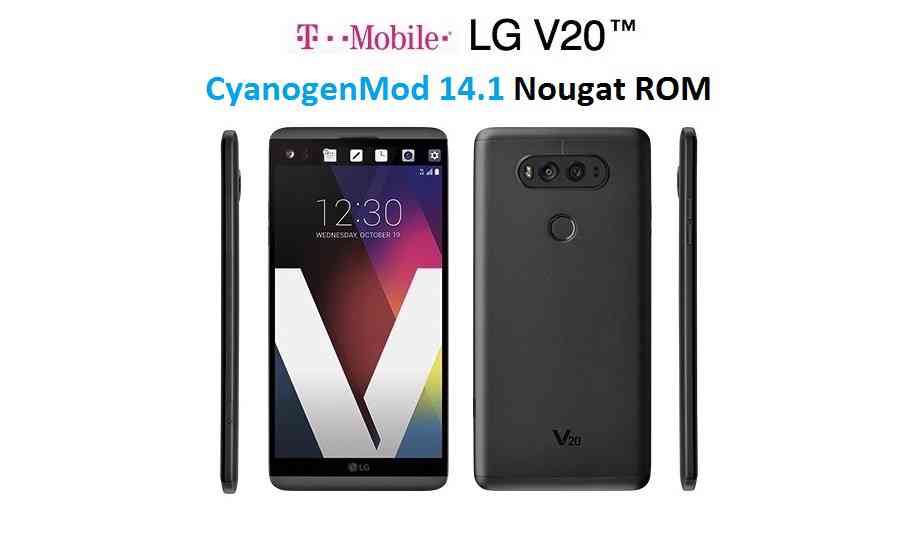
Android Nougat 7.1 ROM, LG V20 T-Mobile CM14/14.1 (CyanogenMod 14/14.1) has now arrived via an UNOFFICIAL build. For latest updates, stay tuned to the Lineage OS device list page. In addition to that we also have the LineageOS 14.1 ROM for LG V20 T-Mobile. LG V20 was launched with Nougat but this custom ROM has come for LG V20 T-Mobile via CM14/14.1 (CyanogenMod 14/14.1) ROM. We have all available OFFICIAL CM14 (Cyanogenmod 14) ROMs, we have update many Android NOUGAT AOSP ROMs and also we have update a big list of available CM14/14.1 (CyanogenMod 14/14.1) Nougat 7.1 ROMs. This CM14/14.1 for LG V20 T-Mobile (h918) is brought to you by developer albinoman887. If you like this ROM then consider a donation to Matt Filetto (albinoman887). The TWRP recovery for LG V20 is brought to you by jcadduono. Conside a donation to jcadduono via PayPal.
DISCLAIMER:
THIS IS AN INITIAL BUILD WHICH MAY NOT BOOT AT ALL. HAVE A BACKUP BEFORE FLASHING THIS AND TRY AT YOUR OWN RISK. Installing a custom ROM on a LG V20 T-Mobile (h918) requires the bootloader to be unlocked on the LG V20 T-Mobile (h918) phone, which may VOID your warranty and may delete all your data. Before proceeding further you may consider backup all data on the phone. You are the only person doing changes to your phone and I cannot be held responsible for the mistakes done by you.Status of CM14/14.1 for LG V20 T-Mobile CM14/14.1 (CyanogenMod 14/14.1) Nougat 7.1 ROM:
WHAT’S WORKING:
– Not KnownKNOWN ISSUES:
– Not Known
REQUIRED LINKS AND FILES FOR LG V20 T-Mobile (h918) CM14/14.1 (CYANOGENMOD 14/14.1, NOUGAT) CUSTOM ROM:
- TWRP recovery link for LG V20 T-Mobile (h918) (by jcadduono)
– Here is theTWRP update guide for the LG V20 T-Mobile (h918). This TWRP recovery guide requires the bootloader to be unlocked on the LG V20 T-Mobile (h918).
- ROM Download link of CyanogenMod 14/14.1 (CM14/14.1) for LG V20 T-Mobile (h918)
- Nougat GApps download link for LG V20 T-Mobile (h918) CM14/14.1 (CyanogenMod 14/14.1) Nougat 7.1 ROM
Root binary is inbuilt since CyanogenMod 12, so you don’t need a separate SuperSu package to install to gain ROOT access. Here is How to Enable ROOT on CM14/14.1 (CyanogenMod 14/14.1)
If there is no in-built ROOT or it does not work for some reason then you can try flashing SuperSU zip using recovery to gain ROOT access.HOW TO INSTALL/DOWNLOAD/FLASH/UPDATE CM14/14.1 FOR LG V20 T-Mobile (h918) (CYANOGENMOD 14/14.1) NOUGAT CUSTOM ROM:
Follow this if you are flashing CyanogenMod 14/14.1 (CM14/14.) for LG V20 T-Mobile (h918) for the first time, or coming from another ROM:
Points to NOTE:
– Try to avoid restoring apps backup using Titanium Backup. It may break things up.
– Don’t restore system data using Titanium Backup! It will definitely break the current installation.
– It is also discouraged to Restoring Apps + Data using Titanium Backup.- Download and Copy the GApps and LG V20 T-Mobile (h918) CM14/14.1 (CyanogenMod 14/14.1) ROM ZIP to your phone.
- Boot into Recovery. Make sure to have a Custom recovery like CWM or TWRP or any other custom recovery. If not then follow the Custom Recovery Installation Guide for LG V20 T-Mobile (h918) (it’s a generic guide which will work for TWRP as well as CWM recovery or any other recovery)
- Wipe data factory reset, Cache partition, Dalvik Cache and Format the System partition.
– Here is a guide explaining how to wipe data using TWRP recovery.This will delete all your data on your phone. You may consider complete backup of your phone data or take a NANDROID backup of the current ROM
– How to backup all data on your Android Device
– how to take NANDROID backup using TWRP recovery - First flash the LG V20 T-Mobile (h918) CM14/14.1 ROM ZIP from device. Then flash the GApps zip from your device memory.
– Here is a post explaining how to flash a custom ROM using TWRP recovery. - Then reboot into recovery (don’t skip this) and flash the CyanogenMod 14/14.1 (CM14/14.1) Nougat GApps package.
– Here is a post explaining how to flash GApps using TWRP recovery. - Reboot and Enjoy the Nougat 7.1 ROM CyanogenMod 14/14.1 (CM14/14.1) for LG V20 T-Mobile (h918).
Upgrading from earlier version of CyanogenMod 14/14.1 (CM14/14.1) for LG V20 T-Mobile (h918):
- Copy the latest LG V20 T-Mobile (h918) CM14/14.1 ROM ZIP file to your phone.
- Boot into Recovery.
- Flash the latest CM ROM ZIP from your phone.
– Here is a post explaining how to flash a custom ROM using TWRP recovery. - Then flash the CM14/14.1 Nougat GApps package.
– Here is a post explaining how to flash GApps using TWRP recovery. - Reboot and Enjoy
Complete the initial setup and enjoy Android Nougat 7.1 with CM14/14.1 for LG V20 T-Mobile (h918). After the installation of CM14/14.1 for LG V20 T-Mobile (h918) you may want to enable ROOT access on your phone and here is how you can do that:
How to Enable ROOT on CM14/14.1 (CyanogenMod 14/14.1).Stay tuned or Subscribe to the LG V20 T-Mobile (h918) forum For other Android Nougat ROMs, CyanogenMod 14/14.1 ROMs, other ROMs and all other device specific topics.LineageOS 15 for Nexus 5x (bullhead) is now available to download via a development build. This post provides you the download link to the Android Oreo based Lineage OS 15 for Nexus 5x (bullhead) and guides through the installation process of the same. This LineageOS 15 for Nexus 5x is brought to you by developer Paul-L.
DONATION TO DEVELOPER(S):
No donation link found for Paul-L.
If you want the OFFICIAL Lineage OS 15 update or some more Android Oreo ROMs then stay tuned to the LineageOS 15 ROMs page or the AOSP Oreo ROMs devices list page or the AICP 13 Oreo ROMs list.
DISCLAIMER:
THIS IS AN INITIAL BUILD WHICH HAS MAY NOT BOOT AT ALL. HAVE A BACKUP BEFORE FLASHING THIS AND TRY AT YOUR OWN RISK. Installing a custom ROM requires an unlocked bootloader on Nexus 5x, which may VOID your warranty and may delete all your data. Before proceeding further you may consider backup all data on the phone. Understand that you are the only person making changes to your phone and I cannot be held responsible for the mistakes done by you.Content structure:
Status of LineageOS 15 for Nexus 5x Oreo 8 ROM:
WHAT’S WORKING:
– UnknownKNOWN ISSUES:
– Unknown
REQUIRED LINKS AND FILES FOR LineageOS 15 for Nexus 5x OREO ROM:
- TWRP recovery for Nexus 5x
– Here is the TWRP update guide for Nexus 5x. This recovery guide requires an unlocked bootloader on the phone.
- LineageOS 15 Download link for Nexus 5x (bullhead)
- GApps for LineageOS 15 Oreo ROM
Root binary is NOT inbuilt in Lineage OS ROM, so you may need a separate SuperSu package or LineageOS su binary to install to gain ROOT access. Here is Lineage OS Rooting guide
If there is no in-built ROOT or it does not work for some reason then you can try SuperSU rooting guide to enable ROOT access.HOW TO INSTALL/DOWNLOAD/FLASH/UPDATE THE Lineage OS 15 for Nexus 5x:
Follow this if you are flashing LineageOS 15 for Nexus 5x for the first time, or coming from another ROM:
Points to NOTE:
– Try to avoid restoring apps backup using Titanium Backup. It may break things up.
– Don’t restore system data using Titanium Backup! It will definitely break the current installation.
– It is also discouraged to Restoring Apps + Data using Titanium Backup.- Boot into Recovery.
Make sure to have a Custom recovery like CWM or TWRP or any other custom recovery. If not then download the recovery for Nexus 5x from above link and follow the Custom Recovery Installation Guide (it’s a generic guide which will work for TWRP as well as CWM recovery or any other recovery) - Wipe data factory reset, Cache partition, Dalvik Cache and Format the System partition.
– Here is a guide explaining how to wipe data using TWRP recovery.This will delete all your data on your phone. You may consider complete backup of your phone data or take a NANDROID backup of the current ROM
– How to backup all data on your Android Device
– how to take NANDROID backup using TWRP recovery - Download and extract the boot.img file to your pc. Boot the phone in fastboot mode and execute the following to flash the boot image file:
fastboot flash boot boot.img
This requires Fastboot to be installed on your PC:
– here is 15 Seconds ADB Installer or Minimal ADB and Fastboot for Windows
– and how to install Fastboot on Linux or MAC - Then download and Copy the Oreo GApps and the LineageOS 15 ROM ZIP to the phone.
- First flash the Lineage OS 15 ROM ZIP file from device. Then flash the GApps zip from your device memory.
– Here is a post explaining how to install Lineage OS - Then reboot into recovery (don’t skip this) and flash the Gapps for LineageOS 15 package.
– Here is a post explaining how to flash GApps using TWRP recovery. - Reboot and Enjoy Android Oreo with LineageOS 15 for Nexus 5x.
Upgrading from earlier version of Lineage OS 15 for Nexus 5x (bullhead):
- Copy the latest Lineage OS 15 for Nexus 5x ZIP file to the phone.
- Boot into Recovery.
- Flash the ROM ZIP that you copied.
– Here is a post explaining how to install LineageOS - Then flash the LineageOS 15 GApps package.
– Here is a post explaining how to flash GApps using TWRP recovery. - Reboot and Enjoy
Complete the initial setup and enjoy Android Oreo 8.0 with LineageOS 15 for Nexus 5x. After the installing the LineageOS 15 ROM, you may want to enable ROOT access on your phone and here is how you can do that:
How to Enable ROOT on LineageOS 15 ROM.Stay tuned or Subscribe to the Nexus 5x (bullhead) forum For other Android Oreo, Nougat ROMs, LineageOS 15 ROMs, other custom ROMs and all other device specific topics.LineageOS 17 for Redmi Note 6 Pro is now available to download and install from a developer build. This article explains how to install Redmi Note 6 Pro LineageOS 17 ROM based on Android 10, with a step-by-step guide. This Redmi Note 6 Pro LineageOS 17 build is brought to you by developer DD3Boh.
Follow the links to get other Android 10 builds such as: LineageOS 17.1 and 17 and Android 10 Download for supported devices.
DONATION TO DEVELOPER(S)/PROJECT:
If you like this ROM then do consider for a contribution to DD3Boh and LineageOS project:
– Donate to DD3Boh
– Donate to LineageOS project
[su_note note_color=”#F9D9D9″ text_color=”#AA4343″ radius=”3″ class=”” id=””]DISCLAIMER:
THIS IS AN INITIAL BUILD OF LineageOS 17 FOR Redmi Note 6 Pro, WHICH HAS MANY BUGS.
MAKE SURE TO BACKUP ALL DATA OF YOUR PHONE AND KEEP IT IN YOUR MIND THAT YOU ARE FLASHING AT YOUR OWN RISK.[/su_note][su_note note_color=”#FBF4DD” text_color=”#A38C68″ radius=”3″ class=”” id=””]Installing LineageOS 17 for Redmi Note 6 Pro requires an unlock bootloader on Redmi Note 6 Pro, which may VOID your warranty and may delete all your data. Before proceeding further you may consider backup all data on the phone.
You are the only person making changes to your phone; neither the developer nor I can be held responsible for the mistakes done by you.[/su_note]
Status of the Redmi Note 6 Pro LineageOS 17 Android 10 custom ROM:
WHAT’S WORKING:
– Almost Everything except listed belowKNOWN ISSUES:
– VoLTE
– Encryption
– WiFi Display
– Selinux permissiveREQUIRED GUIDES AND DOWNLOADS OF LineageOS 17 FOR Redmi Note 6 Pro:
- ROM Download link of Redmi Note 6 Pro LineageOS 17 [ Always download the latest file ]
- Redmi Note 6 Pro TWRP Download (tulip) for this Redmi Note 6 Pro LineageOS 17 ROM
- How to install TWRP recovery
- Redmi Note 6 Pro unlock bootloader guide – required to install TWRP recovery
- LineageOS 17 GApps Download
- How to Root LineageOS 17
- Download ADB to sideload the ROM
– 15 Seconds ADB Installer for Windows
– Minimal ADB and Fastboot for Windows
– ADB Fastboot for Linux and MAC
HOW TO DOWNLOAD AND INSTALL Redmi Note 6 Pro LineageOS 17 Android 10 CUSTOM ROM:
[su_note note_color=”#D7E3F4″ text_color=”#728095″ radius=”3″ class=”” id=””]
Following are the two sub-sections of this Redmi Note 6 Pro LineageOS 17 update guide:- First time installation of LineageOS 17 for Redmi Note 6 Pro
- Upgrading LineageOS 17 for Redmi Note 6 Pro from a previous build of LineageOS 17 ROM
[/su_note]
Download and Install LineageOS 17 for Redmi Note 6 Pro for the first time:
- Download and Copy the LineageOS 17 ROM for Redmi Note 6 Pro and the GApps for LineageOS 17 to your phone.
- Boot into the TWRP custom Recovery to install this Redmi Note 6 Pro LineageOS 17 Android 10 custom ROM. Make sure to use the TWRP provided in above downloads section or any system-as-root configured TWRP for Redmi Note 6 Pro
[su_note note_color=”#D7E3F4″ text_color=”#728095″ radius=”3″ class=”” id=””]- By now your phone must have an unlocked bootloader to proceed with other steps. If not, unlock the bootloader first and proceed ahead.[/su_note] - Wipe the data partition, Cache partition, vendor partition and system partition.
[su_note note_color=”#D7E3F4″ text_color=”#728095″ radius=”3″ class=”” id=””]- Here is a guide explaining how to wipe using TWRP recovery.[/su_note]
[su_note note_color=”#FBF4DD” text_color=”#A38C68″ radius=”3″ class=”” id=””]This will delete all your data on your phone. You may consider taking a complete backup of your phone data or take a backup of all relevant partitions.
– How to backup data on Android
– how to take NANDROID backup using TWRP recovery[/su_note] - Install the Redmi Note 6 Pro LineageOS 17 ROM file that you have copied into the phone.
[su_note note_color=”#D7E3F4″ text_color=”#728095″ radius=”3″ class=”” id=””]- Here is a post explaining how to install LineageOS[/su_note] - Reboot into the TWRP recovery again.
- Then install the LineageOS 17 GApps package.
[su_note note_color=”#D7E3F4″ text_color=”#728095″ radius=”3″ class=”” id=””]- Here is a post explaining how to install GApps using TWRP recovery.[/su_note] - Reboot and Enjoy the Android 10 based LineageOS 17 for Redmi Note 6 Pro.
Upgrading from earlier version of LineageOS 17 for Redmi Note 6 Pro (tulip):
- Copy the latest ROM zip file of LineageOS 17 for Redmi Note 6 Pro, LineageOS 17 GApps and/or Magisk ROOT package to the phone
- Boot into Recovery to flash the updated LineageOS 17 for Redmi Note 6 Pro
- Wipe the system partition from the TWRP recovery menu.
- Install the Redmi Note 6 Pro LineageOS 17 update.
[su_note note_color=”#D7E3F4″ text_color=”#728095″ radius=”3″ class=”” id=””]- Here is a post explaining how to install LineageOS[/su_note] - Reboot and see you have the GApps and ROOT access or NOT.
[su_note note_color=”#D8F1C6″ text_color=”#769958″ radius=”3″ class=”” id=””]- Gapps is built in such a way that it will sustain across ROM updates.[/su_note] - If you don’t have GApps after upgrading the LineageOS 17 on Redmi Note 6 Pro, then flash the GApps.
[su_note note_color=”#D7E3F4″ text_color=”#728095″ radius=”3″ class=”” id=””]- Here is a post explaining how to flash GApps using TWRP recovery.[/su_note] - If you don’t have ROOT after upgrading the LineageOS 17 on Redmi Note 6 Pro, then flash the SuperSU or Magisk or the Lineage SU binary.
[su_note note_color=”#D7E3F4″ text_color=”#728095″ radius=”3″ class=”” id=””]- Here is a post explaining How Root LineageOS 17[/su_note] - Once everything is done, reboot and Enjoy the LineageOS 17 on Redmi Note 6 Pro.
[su_note note_color=”#D8F1C6″ text_color=”#769958″ radius=”3″ class=”” id=””]Complete the initial setup and enjoy Android 10 with LineageOS 17 on Redmi Note 6 Pro.[/su_note]
Some Screenshots of LineageOS 17
[rl_gallery id=”103801″]
After installing LineageOS 17 on Redmi Note 6 Pro you may want to install Google Camera (GCam) or enable ROOT access on your phone and here is how you can do that:
– How Root LineageOS 17Where to Download Google Camera for Redmi Note 6 Pro LineageOS 17?
GCam 7.2 and GCam 7.0 are compatible with LineageOS 17 or any Android 10 ROM in general.
In case you won’t get your device in the above lists, you can always look into the big list of GCam for Android 10 (this page contains a huge list of GCam for all available devices)[su_note note_color=”#D7E3F4″ text_color=”#728095″ radius=”3″ class=”” id=””]If there is no ROOT access for some reason even after installing the LineageOS SU binary, then you can try SuperSU Zip to enable ROOT access.[/su_note]
Stay tuned or Subscribe to the Redmi Note 6 Pro (tulip) LineageOS forum For other Android 10, Android Oreo ROMs, Nougat ROMs, or other ROMs and all other device specific topics.