- Search Results
The good news is that, you can now download and install LineageOS 16 on Galaxy NOTE 4 variant. This post guides you how to install LineageOS 16 on Galaxy NOTE 4, with a step-by-step guide. This build of LineageOS 16 for Galaxy NOTE 4 is brought to you by developer kevintm78.
DONATION TO DEVELOPER(S)/PROJECT:
If you like this ROM then do consider for a contribution to kevintm78 and LineageOS project:
– Donate to kevintm78
– Donate to LineageOS projectFollow the links to get other LineageOS 16 and Android Pie ROM builds.

[su_note note_color=”#F9D9D9″ text_color=”#AA4343″ radius=”3″ class=”” id=””]DISCLAIMER:
THIS IS AN INITIAL BUILD OF Galaxy NOTE 4 LineageOS 16 WHICH MAY NOT BOOT AT ALL OR EVEN IF IT BOOTS, IT MAY HAVE MANY BUGS.
MAKE SURE TO BACKUP THE CURRENT ROM AND ALL DATA OF YOUR PHONE BEFORE FLASHING.[/su_note][su_note note_color=”#FBF4DD” text_color=”#A38C68″ radius=”3″ class=”” id=””]Installing a TWRP recovery on Galaxy NOTE 4 may delete all your data. Before proceeding further you may consider backup all data on the phone.
You are the only person doing changes to your phone; neither the developer nor I can be held responsible for the mistakes done by you.[/su_note]
Status of Galaxy NOTE 4 LineageOS 16 ROM:
WHAT’S WORKING:
– UnknownKNOWN ISSUES:
– UnknownREQUIRED GUIDES AND DOWNLOADS TO INSTALL Galaxy NOTE 4 LineageOS 16 ANDROID 9 PIE ROM:
[styledlist style=”yes”]- TWRP for Galaxy NOTE 4 (trlte) to install LineageOS 16 ROM
- Install TWRP recovery using ODIN
- ROM Download link of Galaxy NOTE 4 LineageOS 16 ROM [LATEST build on 16th Feb, 2019]
- MindTheGApps for LineageOS 16
- How to Root LineageOS 16
[/styledlist]
HOW TO UPDATE/INSTALL LineageOS 16 FOR Galaxy NOTE 4 – Android 9 Pie CUSTOM ROM:
[su_note note_color=”#D7E3F4″ text_color=”#728095″ radius=”3″ class=”” id=””]
Following are the two sub-sections of this LineageOS 16 guide:- Fresh installation of Galaxy NOTE 4 LineageOS 16 ROM
- Updating a new Galaxy NOTE 4 LineageOS 16 on top of previous LineageOS 16 ROM[/su_note]
Flashing LineageOS 16 on Galaxy NOTE 4 for the first time:
[su_note note_color=”#FBF4DD” text_color=”#A38C68″ radius=”3″ class=”” id=””]
Points to NOTE:- Try to avoid restoring apps backup using Titanium Backup. It may break things up.
- Don’t restore system data using Titanium Backup! It will definitely break the current installation.
- It is also discouraged to Restoring Apps + Data using Titanium Backup.
[/su_note]
- Download and Copy the LineageOS 16 Gapps and the Galaxy NOTE 4 LineageOS 16 ROM ZIP file to your phone.
- Boot into the TWRP custom Recovery to install this LineageOS 16 for Galaxy NOTE 4.
[su_note note_color=”#D7E3F4″ text_color=”#728095″ radius=”3″ class=”” id=””]- Make sure to have a Custom recovery like a TWRP recovery or any other custom recovery.
– If not then download the TWRP recovery from Downloads link and follow how to install TWRP on Samsung using ODIN (it’s a generic guide which will work for TWRP as well as any other recovery)[/su_note] - Wipe the data partition (or do a factory reset), Cache partition, Dalvik Cache or ART cache and Format the System partition.
[su_note note_color=”#D7E3F4″ text_color=”#728095″ radius=”3″ class=”” id=””]- Here is a guide explaining how to wipe using TWRP recovery.[/su_note]
[su_note note_color=”#FBF4DD” text_color=”#A38C68″ radius=”3″ class=”” id=””]This will delete all your data on your phone. You may consider complete backup of your phone data or take a NANDROID backup of the current ROM
– How to backup all data on your Android Device
– how to take NANDROID backup using TWRP recovery[/su_note] - Install the Galaxy NOTE 4 LineageOS 16 ROM file that you have copied into the phone.
[su_note note_color=”#D7E3F4″ text_color=”#728095″ radius=”3″ class=”” id=””]- Here is a post explaining how to install LineageOS[/su_note] - Then install the Android Pie MindTheGapps for LineageOS 16 package.
[su_note note_color=”#D7E3F4″ text_color=”#728095″ radius=”3″ class=”” id=””]- Here is a post explaining how to install GApps using TWRP recovery.[/su_note] - Reboot and Enjoy the Galaxy NOTE 4 LineageOS 16 Android 9 Pie ROM.
Upgrading a new version of LineageOS 16 for Galaxy NOTE 4 (trlte):
- Copy the latest ROM zip file of LineageOS 16 for Galaxy NOTE 4, LineageOS 16 GApps and/or Magisk ROOT package to the phone
- Boot into Recovery.
– Make sure you have a latest custom Recovery that should be able to flash the LineageOS 16 ROM update. - Format or wipe the system partition from the custom recovery menu.
- Install the LineageOS 16 ROM for Galaxy NOTE 4.
[su_note note_color=”#D7E3F4″ text_color=”#728095″ radius=”3″ class=”” id=””]- Here is a post explaining how to install LineageOS[/su_note] - Reboot and see you have the GApps and ROOT access or NOT.- Gapps is built in such a way that it will sustain across ROM updates.
- If you don’t have GApps after upgrading the LineageOS 16 on Galaxy NOTE 4, then flash the GApps.
[su_note note_color=”#D7E3F4″ text_color=”#728095″ radius=”3″ class=”” id=””]- Here is a post explaining how to flash GApps using TWRP recovery.[/su_note] - If you don’t have ROOT after upgrading the LineageOS 16 on Galaxy NOTE 4, then flash the SuperSU or Magisk or the Lineage SU binary.
[su_note note_color=”#D7E3F4″ text_color=”#728095″ radius=”3″ class=”” id=””]- Here is a post explaining How to Enable ROOT on LineageOS 16 ROM[/su_note] - Once everything is done, reboot and Enjoy the LineageOS 16 for Galaxy NOTE 4.
[su_note note_color=”#D8F1C6″ text_color=”#769958″ radius=”3″ class=”” id=””]Complete the initial setup and enjoy Android 9 Pie with LineageOS 16 on Galaxy NOTE 4.[/su_note]
After installing LineageOS 16 on Galaxy NOTE 4 you may want to install Google Camera (GCam) or enable ROOT access on your phone and here is how you can do that:
– LineageOS 16 ROOT
– GCam for Android Pie (this page contains a huge list of GCam for all available devices)[su_note note_color=”#D7E3F4″ text_color=”#728095″ radius=”3″ class=”” id=””]If there is no ROOT access for some reason even after installing the LineageOS SU binary, then you can try SuperSU rooting guide to enable ROOT access.[/su_note]
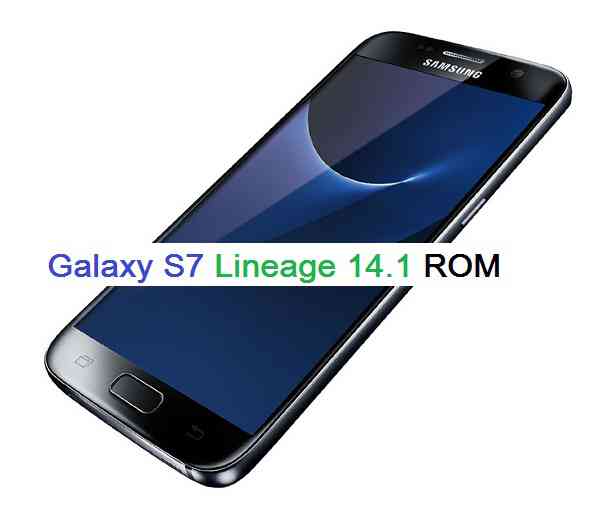
Stay tuned or Subscribe to the Galaxy NOTE 4 (trlte) LineageOS forum For other Android Pie, Android Oreo ROMs, Nougat ROMs, or other ROMs and all other device specific topics.Android Nougat 7.1 ROM, Galaxy S7 LineageOS 14.1 has now arrived via an UNOFFICIAL and OFFICIAL build. THIS IS ONLY FOR EXYNOS VARIANT. If you want some more Lineage ROMs then stay tuned the LineageOS 14.1 ROM collection page. Before this ROM there was the CM14.1 for Galaxy S7. This LineageOS 14.1 for Galaxy S7 (herolte) is brought to you by developer FevaX.
[su_note note_color=”#D8F1C6″ text_color=”#769958″ radius=”3″ class=”” id=””]
LineageOS 16 for Galaxy S7 is also available to download.[/su_note]DISCLAIMER:
THIS IS AN INITIAL BUILD WHICH MAY NOT BOOT AT ALL. HAVE A BACKUP BEFORE FLASHING THIS AND TRY AT YOUR OWN RISK. Installing a custom ROM on a Galaxy S7 (herolte) requires the bootloader to be unlocked on the Galaxy S7 (herolte) phone, which may VOID your warranty and may delete all your data. Before proceeding further you may consider backup all data on the phone. You are the only person doing changes to your phone and I cannot be held responsible for the mistakes done by you.Status of Galaxy S7 LineageOS 14.1 Nougat 7.1 Custom ROM:
WHAT’S WORKING:
– Not KnownKNOWN ISSUES:
– Not Known
REQUIRED LINKS AND FILES FOR Galaxy S7 LineageOS 14.1 NOUGAT CUSTOM ROM:
- TWRP recovery link for Galaxy S7 (herolte)
– Here is theTWRP update guide for the Galaxy S7 (herolte). This TWRP recovery guide requires an unlocked bootloader on the Galaxy S7 (herolte).
- ROM Download link of OFFICIAL LineageOS 14.1 for Galaxy S7 (herolte)
If you want to upgrade this LineageOS 14.1 on top of CM14.1 ROM without wiping data then you can refer this CyanogenMod to Lineage upgrade guide.
- ROM Download link of LineageOS 14.1 for Galaxy S7 (herolte)
- Lineage Nougat GApps download link for Galaxy S7 LineageOS 14.1 Nougat 7.1 ROM
Root binary is inbuilt in LineageOS 14.1, so you don’t need a separate SuperSu package to install to gain ROOT access. Here is How to Enable ROOT on LineageOS 14.1
If there is no in-built ROOT or it does not work for some reason then you can try flashing SuperSU zip using recovery to gain ROOT access.HOW TO INSTALL/DOWNLOAD/FLASH/UPDATE LINEAGE 14.1 FOR Galaxy S7 NOUGAT CUSTOM ROM:
Follow this if you are flashing LineageOS 14.1 for Galaxy S7 (herolte) for the first time, or coming from another ROM:
Points to NOTE:
– Try to avoid restoring apps backup using Titanium Backup. It may break things up.
– Don’t restore system data using Titanium Backup! It will definitely break the current installation.
– It is also discouraged to Restoring Apps + Data using Titanium Backup.- Download and Copy the GApps and Galaxy S7 LineageOS 14.1 ROM ZIP to your phone.
- Boot into Recovery. Make sure to have a Custom recovery like CWM or TWRP or any other custom recovery. If not then follow the Custom Recovery Installation Guide for Galaxy S7 (herolte) (it’s a generic guide which will work for TWRP as well as CWM recovery or any other recovery)
- Wipe data factory reset, Cache partition, Dalvik Cache and Format the System partition.
– Here is a guide explaining how to wipe data using TWRP recovery.This will delete all your data on your phone. You may consider complete backup of your phone data or take a NANDROID backup of the current ROM
– How to backup all data on your Android Device
– how to take NANDROID backup using TWRP recovery - First flash the Galaxy S7 LineageOS 14.1 ROM ZIP from device. Then flash the GApps zip from your device memory.
– Here is a post explaining how to install LineageOS. - Then reboot into recovery (don’t skip this) and flash the LineageOS 14.1 Nougat GApps package.
– Here is a post explaining how to flash GApps using TWRP recovery. - Reboot and Enjoy the Nougat 7.1 LineageOS 14.1 ROM for Galaxy S7 (herolte).
Upgrading from earlier version of LineageOS 14.1 for Galaxy S7 (herolte):
- Copy the latest Galaxy S7 LineageOS 14.1 ROM ZIP file to your phone.
- Boot into Recovery.
- Flash the latest CM ROM ZIP from your phone.
– Here is a post explaining how to install LineageOS. - Then flash the LineageOS 14.1 Nougat GApps package.
– Here is a post explaining how to flash GApps using TWRP recovery. - Reboot and Enjoy
Complete the initial setup and enjoy Android Nougat 7.1 with LineageOS 14.1 for Galaxy S7 (herolte). After the installation of LineageOS 14.1 for Galaxy S7 (herolte) you may want to enable ROOT access on your phone and here is how you can do that:
How to Enable ROOT on LineageOS 14.1.Stay tuned or Subscribe to the Galaxy S7 (herolte) forum For other Android Nougat ROMs, LineageOS 14.1 ROMs, other ROMs and all other device specific topics.Android Nougat 7.1 ROM, Motorola Moto G LineageOS 14.1 has now arrived via an UNOFFICIAL build. Also, here comes the LineageOS 15 for Moto G 2013. If you want some more Lineage ROMs or wanna taste the OFFICIAL Lineage build then stay tuned the LineageOS 14.1 ROM collection page. Before this there was the CM14.1 for Moto G (Moto G 2013). This LineageOS 14.1 for Moto G (falcon) is brought to you by developer Aayushya.
DISCLAIMER:
THIS IS AN INITIAL BUILD WHICH MAY NOT BOOT AT ALL. HAVE A BACKUP BEFORE FLASHING THIS AND TRY AT YOUR OWN RISK. Installing a custom ROM on a Moto G (falcon) requires the bootloader to be unlocked on the Moto G (falcon) phone, which may VOID your warranty and may delete all your data. Before proceeding further you may consider backup all data on the phone. You are the only person doing changes to your phone and I cannot be held responsible for the mistakes done by you.Status of Moto G LineageOS 14.1 Nougat 7.1 Custom ROM:
WHAT’S WORKING:
– Not KnownKNOWN ISSUES:
– Not Known
REQUIRED LINKS AND FILES FOR Moto G LineageOS 14.1 NOUGAT CUSTOM ROM:
- Unlocked bootlaoder on Moto G and TWRP recovery for Moto G
– here is a guide: How to install TWRP recovery on Moto G
- ROM Download link of OFFICIAL LineageOS 14.1 for Moto G (falcon)
– If you want to upgrade this LineageOS 14.1 on top of CM14.1 ROM without wiping data then you can refer this CyanogenMod to Lineage upgrade guide.
- ROM Download link of UNOFFICIAL LineageOS 14.1 for Moto G (falcon)
- Lineage Nougat GApps download link for Moto G LineageOS 14.1 Nougat 7.1 ROM
Root binary is inbuilt in LineageOS 14.1, so you don’t need a separate SuperSu package to install to gain ROOT access. Here is How to Enable ROOT on LineageOS 14.1
If there is no in-built ROOT or it does not work for some reason then you can try flashing SuperSU zip using recovery to gain ROOT access.HOW TO INSTALL/DOWNLOAD/FLASH/UPDATE LineageOS 14.1 FOR Moto G NOUGAT CUSTOM ROM:
Follow this if you are flashing LineageOS 14.1 for Moto G (falcon) for the first time, or coming from another ROM:
Points to NOTE:
– Try to avoid restoring apps backup using Titanium Backup. It may break things up.
– Don’t restore system data using Titanium Backup! It will definitely break the current installation.
– It is also discouraged to Restoring Apps + Data using Titanium Backup.- Download and Copy the GApps and Moto G LineageOS 14.1 ROM ZIP to your phone.
- Boot into Recovery. Make sure to have a Custom recovery like CWM or TWRP or any other custom recovery. If not then follow the Custom Recovery Installation Guide for Moto G (falcon) (it’s a generic guide which will work for TWRP as well as CWM recovery or any other recovery)
- Wipe data factory reset, Cache partition, Dalvik Cache and Format the System partition.
– Here is a guide explaining how to wipe data using TWRP recovery.This will delete all your data on your phone. You may consider complete backup of your phone data or take a NANDROID backup of the current ROM
– How to backup all data on your Android Device
– how to take NANDROID backup using TWRP recovery - First flash the Moto G LineageOS 14.1 ROM ZIP from device. Then flash the GApps zip from your device memory.
– Here is a post explaining how to install LineageOS. - Then reboot into recovery (don’t skip this) and flash the LineageOS 14.1 Nougat GApps package.
– Here is a post explaining how to flash GApps using TWRP recovery. - Reboot and Enjoy the Nougat 7.1 LineageOS 14.1 ROM for Moto G (falcon).
Upgrading from earlier version of LineageOS 14.1 for Moto G (falcon):
- Copy the latest Moto G LineageOS 14.1 ROM ZIP file to your phone.
- Boot into Recovery.
- Flash the latest CM ROM ZIP from your phone.
– Here is a post explaining how to install LineageOS. - Then flash the LineageOS 14.1 Nougat GApps package.
– Here is a post explaining how to flash GApps using TWRP recovery. - Reboot and Enjoy
Complete the initial setup and enjoy Android Nougat 7.1 with LineageOS 14.1 for Moto G (falcon). After the installation of LineageOS 14.1 for Moto G (falcon) you may want to enable ROOT access on your phone and here is how you can do that:
How to Enable ROOT on LineageOS 14.1.Stay tuned or Subscribe to the Moto G (falcon) forum For other Android Nougat ROMs, LineageOS 14.1 ROMs, other ROMs and all other device specific topics.LineageOS 14.1 for Pantech Vega Iron (ef52l) has arrived via an unofficial build. If you want the OFFICIAL update or some more Lineage ROMs then stay tuned to the LineageOS 14.1 page or the latest LineageOS 15 Android O devices list page. This Vega Iron LineageOS 14.1 (ef52l) is brought to you by DoVanChuc.
DONATION TO DEVELOPER(S):
If you like this ROM then please do consider a donation to Dovanchuc7521.
DISCLAIMER:
THIS IS AN INITIAL BUILD WHICH MAY NOT BOOT AT ALL OR EVEN IF IT BOOTS IT MAY HAVE MANY BUGS. HAVE A BACKUP OF THE CURRENT ROM BEFORE FLASHING THIS ROM AND TRY AT YOUR OWN RISK. Installing a custom ROM on a Vega Iron (ef52l) requires the bootloader to be unlocked on the Vega Iron (ef52l) phone, which may VOID your warranty and may delete all your data. Before proceeding further you may consider backup all data on the phone. You are the only person doing changes to your phone and I cannot be held responsible for the mistakes done by you.Status of LineageOS 14.1 for Pantech Vega Iron (ef52l), Nougat 7.1 ROM:
WHAT’S WORKING:
– Not KnownKNOWN ISSUES:
– Not Known
REQUIRED LINKS AND FILES FOR LineageOS 14.1 for Vega Iron NOUGAT CUSTOM ROM:
- CWM recovery | TWRP recovery for Vega Iron (ef52l)
– Here is the CWM/TWRP recovery update guide for the Pantech Vega Iron (ef52l). This CWM/TWRP recovery guide requires an unlocked bootloader on the Vega Iron (ef52l)
- ROM Download link of Vega Iron LineageOS 14.1 (ef52l)
- LineageOS Nougat GApps download link for Vega Iron LineageOS 14.1 Nougat 7.1 ROM
Root binary is NOT inbuilt in LineageOS 14.1, so you may need a separate SuperSu package or LineageOS su binary to install to gain ROOT access. Here is LineageOS Rooting guide
If there is no in-built ROOT or it does not work for some reason then you can try SuperSU rooting guide to enable ROOT access.HOW TO INSTALL/DOWNLOAD/FLASH/UPDATE Pantech Vega Iron LineageOS 14.1 NOUGAT CUSTOM ROM:
Follow this if you are flashing LineageOS 14.1 for Vega Iron (ef52l) for the first time, or coming from another ROM:
Points to NOTE:
– Try to avoid restoring apps backup using Titanium Backup. It may break things up.
– Don’t restore system data using Titanium Backup! It will definitely break the current installation.
– It is also discouraged to Restoring Apps + Data using Titanium Backup.- Boot into Recovery. Make sure to have a Custom recovery like CWM or TWRP or any other custom recovery. If not then follow the Custom Recovery Installation Guide for Pantech Vega Iron (ef52l) (it’s a generic guide which will work for TWRP as well as CWM recovery or any other recovery)
- Wipe data factory reset, Cache partition, Dalvik Cache and Format the System partition.
– Here is a guide explaining how to wipe data using TWRP.This will delete all your data on your phone. You may consider complete backup of your phone data or take a NANDROID backup of the current ROM
– backup all data on your Android phone
– Take NANDROID backup using TWRP recovery - Then download and Copy the GApps and LineageOS 14.1 for Vega Iron ROM ZIP to your phone.
- First flash the Vega Iron LineageOS 14.1 ROM ZIP from device.
– Here is a post explaining how to flash a custom ROM using TWRP recovery. - DO NOT REBOOT YET. Now flash the LineageOS 14.1 GApps package.
– Here is a post explaining how to flash GApps using TWRP recovery. - Reboot and Enjoy the Nougat 7.1 LineageOS 14.1 ROM for Pantech Vega Iron (ef52l).
Upgrading from earlier version of LineageOS 14.1 for Pantech Vega Iron (ef52l):
- Copy the latest LineageOS 14.1 for Vega Iron ROM ZIP file to your phone.
- Boot into Recovery.
- Flash the latest LineageOS ROM ZIP from your phone.
– Here is a post explaining how to flash a custom ROM using TWRP recovery. - Then flash the Android Nougat GApps package.
– Here is a post explaining how to flash GApps using TWRP. - Reboot and Enjoy
Complete the initial setup and enjoy Android Nougat 7.1 with LineageOS 14.1 for Pantech Vega Iron (ef52l). After the installation of Vega Iron LineageOS 14.1 (ef52l) you may want to enable ROOT access on your phone and here is how you can do that:
How to ROOT LineageOS 14.1.Stay tuned or Subscribe to the Pantech Vega Iron (ef52l) LineageOS forum For other Android Nougat ROMs, LineageOS 14.1 ROMs, other ROMs and all other device specific topics.Android 10 based Pixel Experience for Mi 8 is now available to download and install from a developer built firmware. This Pixel Experience Android 10 build for Mi 8 is brought to you by Hlcpereira.
Other Android 10 ROMs for Mi 8
Following are some of the other custom ROMs based on Android 10 for Mi 8:
– Pixel 3 Android 10 ROM for Mi 8
– LineageOS 17 download for all available devices
– Android 10 download for all available devicesDONATION TO DEVELOPER(S)/PROJECT:
If you like this ROM then do consider for a contribution to Hlcpereira and Pixel Experience project:
– Donate to Hlcpereira
– Donate to Pixel Experience project
[su_note note_color=”#F9D9D9″ text_color=”#AA4343″ radius=”3″ class=”” id=””]This Pixel Experience Android 10 for Mi 8 is based on a very early build, which may have many bugs.
This software has to be installed using a custom recovery such as TWRP, which requires an unlocked bootloader on the phone.
Make sure you BACKUP all the data and all the partitions of your phone before installing this Android 10 ROM.You have to keep in mind that, you are the only person making changes to your phone and I cannot be held responsible for anything wrong done by you.[/su_note]
About Pixel Experience ROM based on Android 10:
Pixel Experience is a custom ROM based on AOSP, with Google apps included and all Pixel goodies (launcher, wallpapers, icons, fonts, bootanimation), etc.
The objective of Pixel Experience team is to offer the maximum possible stability and security, along with essential and useful features for the proper functioning of the device. Pixel Experience project is maintained by jhenrique09.This Pixel Experience ROM is based on the recently released Android 10, which is the latest Android to date.
Status of this Mi 8 Pixel Experience Android 10 ROM:
WHAT’S WORKING:
– Wifi
– RIL
– Mobile data
– GPS
– Camera
– Flashlight
– Camcorder
– Bluetooth
– FMRadio
– Fingerprint reader
– NFC
– Lights
– Sound / vibration
– FacelockKNOWN ISSUES:
– Nothing reported yetREQUIRED GUIDES AND DOWNLOADS OF Pixel Experience ANDROID 10 FOR Mi 8:
- Pixel Experience Android 10 Download for Mi 8
- TWRP for Mi 8
- How to install TWRP recovery
- Bootloader unlock guide – required to install TWRP recovery
- DM verity disabler (required to be flashed if device is not encrypted)
HOW TO DOWNLOAD AND INSTALL Pixel Experience ANDROID 10 ON Mi 8:
[su_note note_color=”#FBF4DD” text_color=”#A38C68″ radius=”3″ class=”” id=””]
Following are the two sub-sections of this Mi 8 Android 10 update guide:- First time installation of Pixel Experience Android 10 on Mi 8
- Upgrading Pixel Experience Android 10 build on Mi 8 from a previous build of the same ROM
[/su_note]
Install Android 10 on Mi 8 for the first time:
[su_note note_color=”#D8F1C6″ text_color=”#769958″ radius=”3″ class=”” id=””]This ROM update process requires few guides to be followed and few files to be downloaded. Everything referred in the below guide is provided in the above downloads section.[/su_note]
- Download and Copy the Pixel Experience Android 10 ROM for Mi 8 to your phone.
- Boot into the TWRP Recovery to install Pixel Experience Android 10 ROM on Mi 8.
[su_note note_color=”#D7E3F4″ text_color=”#728095″ radius=”3″ class=”” id=””]- Make sure to have a Custom recovery like a TWRP recovery or any other custom recovery.
– If not then download the TWRP recovery from Downloads link and follow the how to install TWRP recovery guide (it’s a generic guide which will work for TWRP as well as any other recovery)[/su_note] - Wipe system, data, vendor and cache partition.
[su_note note_color=”#D7E3F4″ text_color=”#728095″ radius=”3″ class=”” id=””]- Here is a guide explaining how to wipe using TWRP recovery.[/su_note]
[su_note note_color=”#FBF4DD” text_color=”#A38C68″ radius=”3″ class=”” id=””]This will delete all your data on your phone. You may consider complete backup of your phone data or take a NANDROID backup of the current ROM
– Backup data on Android
– NANDROID backup on TWRP recovery[/su_note] - Install the Mi 8 Pixel Experience Android 10 ROM file that you have copied into the phone.
- Reboot and Enjoy Android 10 on Mi 8.
Upgrade Pixel Experience Android 10 on Mi 8:
- Copy the latest Pixel Experience Android 10 ROM zip file to the phone
- Boot into TWRP recovery to flash the updated Android 10 on Mi 8
- Wipe the system partition from the custom recovery menu.
- Install the Android 10 ROM zip file on Mi 8.
- Once done, reboot and Enjoy the Pixel Experience Android 10 update on Mi 8.
[su_note note_color=”#D7E3F4″ text_color=”#728095″ radius=”3″ class=”” id=””]Pixel Experience ROM has the Google Apps built-in, so, there is absolutely no need to flash it again unlike other custom ROMs.[/su_note]
To root the Android 10 Pixel Experience ROM on Mi 8, you can flash the magisk root zip file using TWRP recovery.
If you face any problem installing this ROM, then login and leave a reply so that someone can help you.
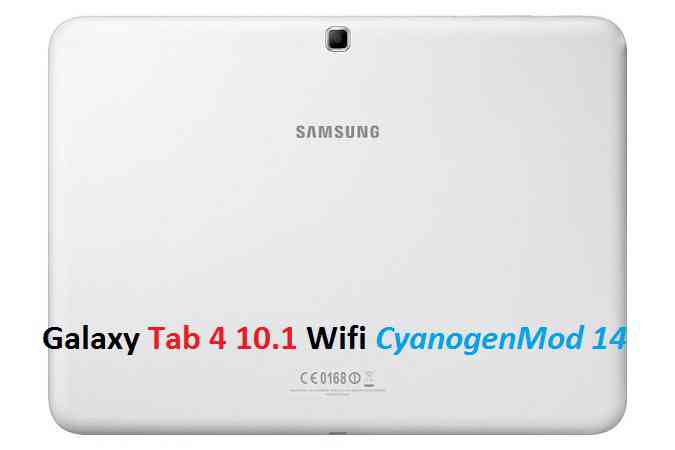
Stay tuned or Subscribe to the Mi 8 (dipper) LineageOS forum For other Android 10, Android Pie, Android Oreo ROMs, Nougat ROMs, or other ROMs and all other device specific topics.Here is the much awaited Nougat 7.0 ROM for Galaxy Tab 4 10.1 WiFi CyanogenMod 14 (CM14). In addition, we also have the Lineage OS 14.1 for Galaxy Tab 4 10.1 WiFi. For latest updates, stay tuned to the Lineage OS device list page. Since Google released Android Nougat Source code, we have update many Android NOUGAT AOSP ROMs and also many CyanogenMod 14 ROMs updated and many are yet to come. This Galaxy Tab 4 10.1 WiFi for CyanogenMod 14 is brought to you by developer sub77.
DISCLAIMER:
THIS IS STILL AN EARLY BUILD AND CONTAINS BUGS. Installing custom ROM requires a custom recovery to be installed on your device, which may VOID your warranty and may delete all your data. Before proceeding further you may consider backup your all data. You are the only person doing changes to your phone and neither the developer(s) nor we can be held responsible for the mistakes done by you.Status of Galaxy (SM-T530) Tab 4 10.1 WiFi CM14 (CyanogenMod 14) Nougat 7.0 ROM:
WHAT’S WORKING:
– Not knownKNOWN ISSUES:
– Not known
REQUIRED LINKS AND FILES FOR GALAXY TAB 4 10.1 WIFI CM14 (CYANOGENMOD 14, NOUGAT) CUSTOM ROM:
- TWRP recovery for Tab 4 10.1 WiFI SM-T530
– Custom Recovery Installation Guide on Samsung Galaxy Tab 4 10.1 WiFi – SM T530
- ROM Download link for Galaxy Tab 4 10.1 WiFi (SM-T530) CM14 ROM
- Nougat GApps download link for Galaxy Tab 4 10.1 WiFi CM14 ROM
Root binary is inbuilt since CyanogenMod 12, so you don’t need a separate SuperSu package to install to gain ROOT access. Here is How to Enable ROOT on CM14/CyanogenMod 14
HOW TO INSTALL/DOWNLOAD/FLASH/UPDATE GALAXY TAB 4 10.1 WIFI CM14 (CYANOGENMOD 14) (SM-T530) NOUGAT CUSTOM ROM:
Follow this if you are flashing CyanogenMod 14 ROM for the first time to Galaxy Tab 4 10.1 WiFi, or coming from another ROM:
This will delete all your data on your phone. You may consider backing up your phone data or take a nandroid backup. Here is how to take NANDROID backup using TWRP recovery.
Points to NOTE:
– Try to avoid restoring apps backup using Titanium Backup. It may break things up.
– Don’t restore system data using Titanium Backup! It will definitely break the current installation.
– It is also discouraged to Restoring Apps + Data using Titanium Backup.- Download and Copy the GApps and Galaxy Tab 4 10.1 WiFi CyanogenMod 14 ROM ZIP to your phone.
- Boot into Recovery. Make sure to have a Custom recovery like CWM or TWRP or any other custom recovery. If not then follow the Custom Recovery Installation Guide for Samsung Galaxy Tab 4 10.1 WiFi – SM T530 (it’s a generic guide which will work for TWRP as well as CWM recovery)
- Wipe data factory reset, Cache partition, Dalvik Cache and Format the System partition.
– Here is a guide explaining how to wipe data using TWRP recovery.This will delete all your data on your phone. You may consider complete backup of your phone data or take a NANDROID backup of the current ROM
– How to backup all data on your Android Device
– how to take NANDROID backup using TWRP recovery - First flash the CM14 ROM ZIP from device. Then flash the GApps zip from your device memory.
– Here is a post explaining how to flash a custom ROM using TWRP recovery. - Then reboot into recovery (don’t skip this) and flash the CM14 Nougat Google Apps package.
– Here is a post explaining how to flash GApps using TWRP recovery. - Reboot and Enjoy the CyanogenMod 14 Nougat ROM on Galaxy Tab 4 10.1 WiFi.
Upgrading from earlier version of CyanogenMod 14 for Tab 4 10.1 WiFi:
- Copy the latest Galaxy Tab 4 10.1 WiFi CyanogenMod 14 ROM ZIP file to your phone.
- Boot into Recovery.
- Flash the latest CM ROM ZIP from your phone.
– Here is a post explaining how to flash a custom ROM using TWRP recovery. - Then flash the CM14 Nougat Google Apps package.
– Here is a post explaining how to flash GApps using TWRP recovery. - Reboot and Enjoy
Complete the initial setup and enjoy Android Nougat 7.0.0 with CyanogenMod 14 for Tab 4 10.1 WiFi (SM-T530). After this CM14 installation you may want to enable ROOT access on your phone and here is how you can do that:
How to Enable ROOT on CM14/CyanogenMod 14.Stay tuned or Subscribe to the Galaxy Tab 4 10.1 WiFi forum For other Android Nougat ROMs, CyanogenMod 14 ROMs, other ROMs and all other device specific topics.You can now download and install LineageOS 16 for Yu Yureka. Here is how to install LineageOS 16 on Yu Yureka, with a step-by-step guide. This LineageOS 16 build is brought to you by developer rajesh@xda.
Follow the links to get other LineageOS 16 and Android Pie ROM builds.
DONATION TO DEVELOPER(S)/PROJECT:
If you like this ROM then do consider for a contribution to rajesh@xda and LineageOS project:
– Donate to rajesh@xda
– Donate to LineageOS project

[su_note note_color=”#F9D9D9″ text_color=”#AA4343″ radius=”3″ class=”” id=””]DISCLAIMER:
THIS IS AN INITIAL BUILD OF LineageOS 16 FOR Yu Yureka, WHICH MAY NOT BOOT AT ALL OR MAY HAVE MANY BUGS.
MAKE SURE TO BACKUP ALL DATA OF YOUR PHONE AND FLASH AT YOUR OWN RISK.[/su_note][su_note note_color=”#FBF4DD” text_color=”#A38C68″ radius=”3″ class=”” id=””]Installing a custom ROM may require an unlock bootloader on Yu Yureka, which may VOID your warranty and may delete all your data. Before proceeding further you may consider backup all data on the phone.
You are the only person doing changes to your phone; neither the developer nor I can be held responsible for the mistakes done by you.[/su_note]Status of the Yu Yureka LineageOS 16 ROM:
WHAT’S WORKING:
– Everything except listed belowKNOWN ISSUES:
– VoLTE
– First boot might be longerREQUIRED GUIDES AND DOWNLOADS TO INSTALL LineageOS 16 ON Yu Yureka:
- TWRP downlaod for Yu Yureka (tomato) to flash this LineageOS 16 on Yu Yureka
- How to install TWRP recovery
- Yu Yureka unlock bootloader guide – required to install TWRP recovery
- ROM download link for Yu Yureka LineageOS 16
- MindTheGApps for LineageOS 16 / GApps for LineageOS 16
- How to ROOT LineageOS 16
HOW TO DOWNLOAD AND INSTALL LineageOS 16 ON Yu Yureka – Android 9 Pie CUSTOM ROM:
[su_note note_color=”#D7E3F4″ text_color=”#728095″ radius=”3″ class=”” id=””]
Following are the two sub-sections of this Yu Yureka LineageOS 16 guide:- First time installation of LineageOS 16 on Yu Yureka
- Upgrading LineageOS 16 on Yu Yureka from a previous build of LineageOS 16 ROM
[/su_note]
To Install LineageOS 16 on Yu Yureka for the first time:
[su_note note_color=”#FBF4DD” text_color=”#A38C68″ radius=”3″ class=”” id=””]
Points to NOTE:- Try to avoid restoring apps backup using Titanium Backup. It may break things up.
- Don’t restore system data using Titanium Backup! It will definitely break the current installation.
- It is also discouraged to Restoring Apps + Data using Titanium Backup.
[/su_note]
- Download and Copy the dev built LineageOS 16 for Yu Yureka ROM zip and GApps ZIP file to your phone.
- Boot into the TWRP custom Recovery to install this LineageOS 16 on Yu Yureka.
[su_note note_color=”#D7E3F4″ text_color=”#728095″ radius=”3″ class=”” id=””]- Make sure to have a Custom recovery like a TWRP recovery or any other custom recovery.
– If not then download the TWRP recovery from Downloads link and follow the how to install twrp Guide (it’s a generic guide which will work for TWRP as well as any other recovery)
– Installing TWRP recovery requires an unlocked bootloader on Yu Yureka[/su_note] - Wipe the data partition (or do a factory reset), Cache partition, Dalvik Cache or ART cache and Format the System partition.
[su_note note_color=”#D7E3F4″ text_color=”#728095″ radius=”3″ class=”” id=””]- Here is a guide explaining how to wipe using TWRP recovery.[/su_note]
[su_note note_color=”#FBF4DD” text_color=”#A38C68″ radius=”3″ class=”” id=””]This will delete all your data on your phone. You may consider complete backup of your phone data or take a NANDROID backup of the current ROM
– How to backup data on Android phone
– how to take NANDROID backup using TWRP recovery[/su_note] - First flash the LineageOS 16 for Yu Yureka
[su_note note_color=”#D7E3F4″ text_color=”#728095″ radius=”3″ class=”” id=””]- Here is a post explaining how to install recovery flashable zip file[/su_note] - Then install the MindTheGapps for LineageOS 16 package.
[su_note note_color=”#D7E3F4″ text_color=”#728095″ radius=”3″ class=”” id=””]- Here is a post explaining how to install GApps using TWRP recovery.[/su_note] - Reboot and Enjoy the Android 9 Pie LineageOS 16 on Yu Yureka.
Upgrading from earlier version of LineageOS 16 on Yu Yureka (tomato):
- Copy the latest ROM zip file of LineageOS 16 for Yu Yureka, LineageOS 16 GApps and/or Magisk ROOT package to the phone
- Boot into Recovery.- Make sure you have a latest custom Recovery that should be able to flash the LineageOS 16 ROM update.
- Format or wipe the system partition from the custom recovery menu.
- Install the LineageOS 16 for Yu Yureka.
[su_note note_color=”#D7E3F4″ text_color=”#728095″ radius=”3″ class=”” id=””]- Here is a post explaining how to install LineageOS[/su_note] - Reboot and see you have the GApps and ROOT access or NOT.
[su_note note_color=”#D8F1C6″ text_color=”#769958″ radius=”3″ class=”” id=””]- Gapps is built in such a way that it will sustain across ROM updates.[/su_note] - If you don’t have GApps after upgrading the LineageOS 16 on Yu Yureka, then flash the GApps.
[su_note note_color=”#D7E3F4″ text_color=”#728095″ radius=”3″ class=”” id=””]- Here is a post explaining how to flash GApps using TWRP recovery.[/su_note] - If you don’t have ROOT after upgrading the LineageOS 16 on Yu Yureka, then flash the SuperSU or Magisk or the Lineage SU binary.
[su_note note_color=”#D7E3F4″ text_color=”#728095″ radius=”3″ class=”” id=””]- Here is a post explaining How to Enable ROOT on LineageOS 16 ROM[/su_note] - Once everything is done, reboot and Enjoy the LineageOS 16 on Yu Yureka.
[su_note note_color=”#D8F1C6″ text_color=”#769958″ radius=”3″ class=”” id=””]Complete the initial setup and enjoy Android 9 Pie with LineageOS 16 on Yu Yureka.[/su_note]
After installing LineageOS 16 on Yu Yureka you may want to install Google Camera (GCam) or enable ROOT access on your phone and here is how you can do that:
– LineageOS 16 ROOT
– GCam for Android Pie (this page contains a huge list of GCam for all available devices)[su_note note_color=”#D7E3F4″ text_color=”#728095″ radius=”3″ class=”” id=””]If there is no ROOT access for some reason even after installing the LineageOS SU binary, then you can try SuperSU rooting guide to enable ROOT access.[/su_note]
Stay tuned or Subscribe to the Yu Yureka (tomato) LineageOS forum For other Android Pie, Android Oreo ROMs, Nougat ROMs, or other ROMs and all other device specific topics.Android Nougat 7.1 ROM, HTC 10 LineageOS 14.1 has now arrived via an UNOFFICIAL build. If you want some more Lineage ROMs build then stay tuned the LineageOS 14.1 ROM collection page. Before this Lineage ROM we also had the CM14.1 for HTC 10. As always, this LineageOS 14.1 for HTC 10 (pme) is brought to you by developer ibrokemypie and javelinanddart. If you like this ROM then consider a donation to ibrokemypie and donation to javelinanddart.
DISCLAIMER:
THIS IS AN INITIAL OFFICIAL BUILD WHICH MAY HAVE MANY HAVE SOME BUGS AND MAY NOT BE IDEAL FOR DAILY DRIVER USAGE. HAVE A BACKUP BEFORE FLASHING THIS ROM AND TRY AT YOUR OWN RISK. Installing a custom ROM on a HTC 10 (pme) requires the bootloader to be unlocked on the HTC 10 (pme) phone, which may VOID your warranty and may delete all your data. Before proceeding further you may consider backup all data on the phone. You are the only person doing changes to your phone and I cannot be held responsible for the mistakes done by you.Status of HTC 10 LineageOS 14.1 Nougat 7.1 Custom ROM:
WHAT’S WORKING:
– Not KnownKNOWN ISSUES:
– Not Known
REQUIRED LINKS AND FILES FOR HTC 10 LineageOS 14.1 NOUGAT CUSTOM ROM:
- Unlocked bootloader on HTC 10 (pme)
- TWRP recovery for the HTC 10 (codename: pme)
– TWRP recovery installation guide for the HTC 10 - ROM Download link of LineageOS 14.1 for HTC 10 (pme) by ibrokemypie
- ROM Download link of LineageOS 14.1 for HTC 10 (pme) by javelinanddart
- Download link of Nougat GApps for LineageOS 14.1 for HTC 10 LineageOS 14.1 Nougat 7.1 ROM
Root binary is inbuilt in LineageOS 14.1, so you don’t need a separate SuperSu package to install to gain ROOT access. Here is How to Enable ROOT on LineageOS 14.1
If there is no in-built ROOT or it does not work for some reason then you can try flashing SuperSU zip using recovery to gain ROOT access.HOW TO INSTALL/DOWNLOAD/FLASH/UPDATE LineageOS 14.1 FOR HTC 10 NOUGAT CUSTOM ROM:
Follow this if you are flashing LineageOS 14.1 for HTC 10 (pme) for the first time, or coming from another ROM:
Points to NOTE:
– Try to avoid restoring apps backup using Titanium Backup. It may break things up.
– Don’t restore system data using Titanium Backup! It will definitely break the current installation.
– It is also discouraged to Restoring Apps + Data using Titanium Backup.- Download and Copy the GApps and HTC 10 LineageOS 14.1 ROM ZIP to your phone.
- Boot into Recovery. Make sure to have a Custom recovery like CWM or TWRP or any other custom recovery. If not then follow the Custom Recovery Installation Guide for HTC 10 (pme) (it’s a generic guide which will work for TWRP as well as CWM recovery or any other recovery)
- Wipe data factory reset, Cache partition, Dalvik Cache and Format the System partition.
– Here is a guide explaining how to wipe data using TWRP recovery.This will delete all your data on your phone. You may consider complete backup of your phone data or take a NANDROID backup of the current ROM
– How to backup all data on your Android Device
– how to take NANDROID backup using TWRP recovery - First flash the HTC 10 LineageOS 14.1 ROM ZIP from device. Then flash the GApps zip from your device memory.
– Here is a post explaining how to install LineageOS - Then reboot into recovery (don’t skip this) and flash the LineageOS 14.1 Nougat GApps package.
– Here is a post explaining how to flash GApps using TWRP recovery. - Reboot and Enjoy the Nougat 7.1 LineageOS 14.1 ROM for HTC 10 (pme).
Upgrading from earlier version of LineageOS 14.1 for HTC 10 (pme):
- Copy the latest HTC 10 LineageOS 14.1 ROM ZIP file to your phone.
- Boot into Recovery.
- Flash the latest CM ROM ZIP from your phone.
– Here is a post explaining how to install LineageOS - Then flash the LineageOS 14.1 Nougat GApps package.
– Here is a post explaining how to flash GApps using TWRP recovery. - Reboot and Enjoy
Complete the initial setup and enjoy Android Nougat 7.1 with LineageOS 14.1 for HTC 10 (pme). After the installation of LineageOS 14.1 for HTC 10 (pme) you may want to enable ROOT access on your phone and here is how you can do that:
How to Enable ROOT on LineageOS 14.1.Stay tuned or Subscribe to the HTC 10 (pme) forum For other Android Nougat ROMs, LineageOS 14.1 ROMs, other ROMs and all other device specific topics.Samsung Galaxy S3 crDroid Nougat 7.1 ROM is now available through UNOFFCIAL build. We also have Lineage OS 14.1 for Galaxy S3, Nougat 7.1 Resurrection Remix ROM for Galaxy S3 and CM14.1 ROM for Galaxy S3. This crDroid Nougat 7.1 ROM for Galaxy S3 brought to you by developer gianogli.
If you want crDroid for other devices then here is a list of crDroid Nougat 7.1 ROMs. If you want other Nougat ROMs then checkout the following Nougat ROM collections: Lineage OS 14.1 ROMs collection, Resurrection Remix Nougat ROMs collection.
Installing a custom ROM on a the Galaxy S3 may require the bootloader to be unlocked on Galaxy S3 and a Custom Recovery on Galaxy S3. Before proceeding further you may consider backup all data on the phone. You are the only person doing changes to your phone and I cannot be held responsible for the mistakes done by you.Status of Samsung Galaxy S3 crDroid Nougat 7.1 ROM build:
WHAT’S WORKING:
– Not KnownKNOWN ISSUES:
– Not Known
REQUIRED DOWNLOADS AND LINKS Galaxy S3 crDroid NOUGAT 7.1 ROM UPDATE GUIDE:
- TWRP download link for Galaxy S3- TWRP Installation Guide for Galaxy S3 (i9300) (This guide is only for .tar TWRP file)
- ROM download link for Galaxy S3 crDroid Nougat 7.1 ROM
- Android 7.1 Nougat GApps download link for Galaxy S3 crDroid ROM
Root binary is inbuilt since CyanogenMod 12, so you don’t need a separate SuperSu package to install to gain ROOT access on a CM14 ROM or a CM14 based ROM. As crDroid is a CM14 based ROM, so here is How to Enable ROOT on crDroid ROM
HOW TO INSTALL/FLASH/UPDATE crDroid FOR Galaxy S3 NOUGAT 7.1 ROM:
Follow these steps if you are flashing Nougat 7.1 crDroid for Galaxy S3 for the first time, or coming from another ROM:
Points to NOTE on BACKUP:
– Try to avoid restoring apps backup using Titanium Backup. It may break things up.
– Don’t restore system data using Titanium Backup! It will definitely break the current installation.
– It is also discouraged to Restoring Apps + Data using Titanium Backup.- Download and Copy the Nougat GApps and Galaxy S3 crDroid Nougat 7.1 ROM zip to the phone memory.
- Boot into Recovery. Make sure to have a Custom recovery like CWM or TWRP or any other custom recovery.
- Wipe data factory reset, Cache partition, Dalvik Cache and Format the System partition.
– Here is a guide explaining how to wipe data using TWRP recovery.This will delete all your data on your phone. You may consider complete backup of your phone data or take a NANDROID backup of the current ROM.
– How to backup all data on your Android Device.
– how to take NANDROID backup using TWRP recovery. - First flash the ROM zip of Galaxy S3 crDroid from device.
– Here is a post explaining how to flash a custom ROM using TWRP recovery. - Then reboot into recovery (don’t skip this) and flash the crDroid Nougat Google Apps package.
– Here is a post explaining how to flash GApps using TWRP recovery. - Reboot and Enjoy the crDroid Nougat for Galaxy S3.
Upgrading from earlier version of Galaxy S3 crDroid Nougat 7.1 ROM:
- Copy the Galaxy S3 crDroid ROM ZIP file to your phone.
- Boot into Recovery.
- Flash the latest ROM zip of Galaxy S3 crDroid from your phone.
– Here is a post explaining how to flash a custom ROM using TWRP recovery. - Then flash the crDroid Nougat Google Apps package.
– Here is a post explaining how to flash GApps using TWRP recovery. - Reboot and Enjoy
Complete the initial setup and enjoy Android Nougat 7.1 with crDroid for Galaxy S3 (codename: i9300). After this crDroid installation you may want to enable ROOT access on your phone and here is how you can do that:
As crDroid is a CM14 based ROM, so here is How to Enable ROOT on crDroid ROMStay tuned or Subscribe to the Galaxy S3 (i9300) forum For other Android Nougat ROMs, CyanogenMod 14 ROMs, other ROMs and all other device specific topics.Here comes the LineageOS 14.1 for Xperia M2 via an unofficial build. If you want the OFFICIAL update or some more Lineage ROMs then stay tuned to the LineageOS 14.1 ROM collection page. This Xperia M2 LineageOS 14.1 (eagle) is brought to you by developer Kj77 (Konstantinosj77), one more build is brought to you by Szwajowy and one of the TWRP is brought to you by erikcas.
DISCLAIMER:
THIS IS AN INITIAL BUILD WHICH MAY NOT BOOT AT ALL OR EVEN IF IT BOOTS IT MAY HAVE MANY BUGS. HAVE A BACKUP OF THE CURRENT ROM BEFORE FLASHING THIS ROM AND TRY AT YOUR OWN RISK. Installing a custom ROM on a Xperia M2 (eagle) requires the bootloader to be unlocked on the Xperia M2 (eagle) phone, which may VOID your warranty and may delete all your data. Before proceeding further you may consider backup all data on the phone. You are the only person doing changes to your phone and I cannot be held responsible for the mistakes done by you.Status of Sony Xperia M2 LineageOS 14.1 Nougat 7.1 ROM:
WHAT’S WORKING:
– Not KnownKNOWN ISSUES:
– Not Known
REQUIRED LINKS AND FILES FOR LineageOS 14.1 for Xperia M2 NOUGAT CUSTOM ROM:
- TWRP recovery link by erikcas | TWRP Download link by Kj77 (Konstantinosj77) for Xperia M2 (eagle)
– Here is theTWRP update guide for the Xperia M2 (eagle). This TWRP recovery guide requires an unlocked bootloader on the Xperia M2 (eagle)
- ROM Download link of Xperia M2 LineageOS 14.1 (eagle) by Kj77 (Konstantinosj77)
- ROM Download link of Xperia M2 LineageOS 14.1 (eagle) by Szwajowy
- LineageOS Nougat GApps download link for LineageOS 14.1 for Xperia M2 Nougat 7.1 ROM
Root binary is NOT inbuilt in LineageOS 14.1, so you may need a separate SuperSu package or LineageOS su binary to install to gain ROOT access. Here is How to ROOT LineageOS 14.1
If there is no in-built ROOT or it does not work for some reason then you can try flashing SuperSU zip using recovery to gain ROOT access.HOW TO INSTALL/DOWNLOAD/FLASH/UPDATE Xperia M2 LineageOS 14.1 NOUGAT CUSTOM ROM:
Follow this if you are flashing LineageOS 14.1 for Xperia M2 (eagle) for the first time, or coming from another ROM:
Points to NOTE:
– Try to avoid restoring apps backup using Titanium Backup. It may break things up.
– Don’t restore system data using Titanium Backup! It will definitely break the current installation.
– It is also discouraged to Restoring Apps + Data using Titanium Backup.- Download and Copy the GApps and LineageOS 14.1 for Xperia M2 ROM ZIP to your phone.
- Boot into Recovery. Make sure to have a Custom recovery like CWM or TWRP or any other custom recovery. If not then follow the Custom Recovery Installation Guide for Xperia M2 (eagle) (it’s a generic guide which will work for TWRP as well as CWM recovery or any other recovery)
- Wipe data factory reset, Cache partition, Dalvik Cache and Format the System partition.
– Here is a guide explaining how to wipe data using TWRP recovery.This will delete all your data on your phone. You may consider complete backup of your phone data or take a NANDROID backup of the current ROM
– How to backup all data on your Android Device
– how to take NANDROID backup using TWRP recovery - First flash the Xperia M2 LineageOS 14.1 ROM ZIP from device. Then flash the GApps zip from your device memory.
– Here is a post explaining how to install LineageOS. - DO NOT REBOOT YET. Now flash the LineageOS 14.1 Nougat GApps package.
– Here is a post explaining how to flash GApps using TWRP recovery. - Reboot and Enjoy the Nougat 7.1 LineageOS 14.1 ROM for Xperia M2 (eagle).
Upgrading from earlier version of LineageOS 14.1 for Xperia M2 (eagle):
- Copy the latest LineageOS 14.1 for Xperia M2 ROM ZIP file to your phone.
- Boot into Recovery.
- Flash the latest LineageOS ROM ZIP from your phone.
– Here is a post explaining how to install LineageOS. - Then flash the LineageOS 14.1 Nougat GApps package.
– Here is a post explaining how to flash GApps using TWRP recovery. - Reboot and Enjoy
Complete the initial setup and enjoy Android Nougat 7.1 with LineageOS 14.1 for Xperia M2 (eagle). After the installation of Xperia M2 LineageOS 14.1 (eagle) you may want to enable ROOT access on your phone and here is how you can do that:
How to Enable ROOT on LineageOS 14.1.Stay tuned or Subscribe to the Xperia M2 (eagle) forum For other Android Nougat ROMs, LineageOS 14.1 ROMs, other ROMs and all other device specific topics.