- Search Results

Galaxy TAB 4 7.0 CM13 (CyanogenMod 13, Android Marshmallow) ROM is now Live by several developers. Here I have provided the Tab 4 (codename: degaslte) CyanogenMod 13 ROMs from developer CTXz and Andy “CrossGate” Yan.
DISCLAIMER:
Installing custom ROM requires a custom recovery to be installed on your Samsung Galaxy Tab 4 (codename: degaslte), which may VOID your warranty and may delete all your data. Before proceeding further you may consider backup your all data. You are the only person doing changes to your phone and we cannot be held responsible for the mistakes done by you. Neither the developer nor we will be held responsible for any disaster that happens to your device.KNOWN ISSUES for CTXz’s build:
– Auto Rotate does not work after few minutes
– Preffered networks cannot be switched (Stuck on 3G logo on network but it is actually LTE)
– SElinuxREQUIRED DOWNLOADS AND LINKS FOR THE GALAXY TAB 4 CYANOGENMOD 13 MARSHMALLOW CUSTOM ROM:
- Download link of Galaxy Tab 4 CyanogenMod 13 ROM by CTXz
- Download link of Galaxy Tab 4 CyanogenMod 13 ROM by Andy “CrossGate” Yan
- Google Apps download link
- TWRP recovery in .tar file for Galaxy Tab 4 – SM-T235
– Follow this guide: How to Install TWRP on Samsung Phone using Odin for the .tar TWRP file. - TWRP recovery in .img file for Galaxy Tab 4 – SM-T235
– Then follow this guide: How to flash TWRP on Android Phone using fastboot (This requires an unlocked bootloader).
If required:
– 15 Seconds ADB Installer for Windows
– Minimal ADB and Fastboot for Windows
ADB Fastboot Installation guide for Linux and MACGALAXY TAB 4 7.0 CyanogenMod 13 MARSHMALLOW ROM INSTALLATION GUIDE:
Make sure that you have a custom recovery installed on your Galaxy TAB 4 7.0. If not then download the recovery from above downloads section and you can follow this TWRP recovery installation on Samsung phone using ODIN guide.
Points to NOTE on Backup:
– Try to avoid restoring apps backup using Titanium Backup. It may break things up.
– Don’t restore system data using Titanium Backup! It will definitely break the current installation.
– It is also discouraged to Restoring Apps + Data using Titanium Backup.Follow this if you are flashing CyanogenMod 13 ROM for the first time to your Galaxy TAB 4 7.0 phone, or coming from another ROM:
- Download and Copy the GApps and Galaxy TAB 4 7.0 CyanogenMod 13 ROM ZIP to your phone.
- Take a backup using a synchronization application or using Samsung Smart Switch or if you have TWRP installed then boot into TWRP recovery and take a NANDROID backup using the TWRP itself.
- Boot into Recovery. Make sure to have a Custom recovery like CWM or TWRP or any other custom recovery.
- Wipe data factory reset, Cache partition, Dalvik Cache and Format the System partition.
– Here is a guide explaining how to wipe data using TWRP recovery.This will delete all your data on your phone. IGNORE IF YOU DON’T WANT TO OR IF YOU HAVE ALREADY DONE THIS. You may consider complete backup of your phone data or take a NANDROID backup of the current ROM.
– How to backup all data on your Android Device.
– how to take NANDROID backup using TWRP recovery. - First flash the CM13 ROM ZIP from device. Then flash the GApps zip from your device memory.
– Here is a post explaining how to flash a custom ROM using TWRP recovery.
– Use the same guide to flash the GApps too. - Reboot and Enjoy the CyanogenMod 13 Marshmallow ROM on your Galaxy TAB 4 7.0.
Upgrading from earlier version of CyanogenMod 13 ROM on Galaxy TAB 4 7.0:
- Copy the latest Galaxy TAB 4 7.0 CyanogenMod 13 ROM ZIP file to your phone.
- Boot into Recovery.
- Flash the latest CM ROM ZIP from your phone.
– Here is a post explaining how to flash a custom ROM using TWRP recovery.
– Use the same guide to flash the GApps too. - Reboot and Enjoy
The flashing may take a while. When it will be done you can reboot your system and enjoy the Galaxy Tab 4 7.0 CM13 (CyanogenMod 13, Marshmallow ROM), the Android Marshmallow touch with CyanogenMod.
After this CyanogenMod 13 ROM installation you may want to enable ROOT access on your phone and here is how you can do that:
How to Enable ROOT Access on CyanogenMod 13For more Custom ROMs, Android Nougat ROMs, TWRP Recovery Installation guide, Rooting Guide you can have a look at the Galaxy Tab 4 7.0 forum and also you can subscribe to stay updated for this device specific topics.
Dev thread for CTXz’s build.
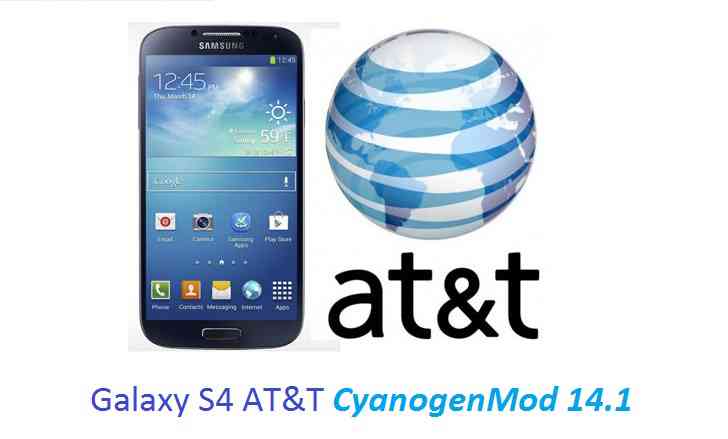
CM14.1 for Galaxy S4 AT&T CM14/14.1 (CyanogenMod 14/14.1) has now arrived through an UNOFFICIAL build. For latest updates, stay tuned to the Lineage OS device list page. This Nougat 7.1 has come for Galaxy S4 AT&T via CyanogenMod 14/14.1 ROM. Since Google released Android Nougat Source code, we have update many Android NOUGAT AOSP ROMs, also many CyanogenMod 14/CM14 ROMs and Official CyanogenMod 14/14.1 (CM14/14.1) list. This CyanogenMod 14/14.1 (CM14/14.1) for Galaxy S4 AT&T is brought to you by developer kn06497.
DISCLAIMER:
THIS IS STILL AN EARLY BUILD. THIS ROM MAY NOT BOOT AT ALL OR EVEN IF IT BOOTS IT MAY CONTAIN MANY BUGS THAN YOU CAN IMAGINE MAKING IT UNUSABLE AS A DAILY DRIVER. TRY AT YOUR OWN RISK. Installing custom ROM requires a custom recovery to be installed on your device, which may VOID your warranty and may delete all your data. Before proceeding further you may consider backup your all data. You are the only person doing changes to your phone and neither the developer(s) nor we can be held responsible for the mistakes done by you.Status of (SGH-i337, jflteatt) Galaxy S4 AT&T CM14/14.1 (CyanogenMod 14/14.1) Nougat 7.1 ROM:
WHAT’S WORKING:
– Not KnownKNOWN ISSUES:
– Not Known
REQUIRED LINKS AND FILES FOR GALAXY S4 AT&T CM14/14.1 (CyanogenMod 14/14.1) NOUGAT 7.1 CUSTOM ROM:
- TWRP download link for Galaxy S4 AT&T
– Here is: the TWRP flashing guide using fastboot.
- ROM Download link to kn06497’s CM14/14.1 for Galaxy S4 AT&T Nougat 7.1 ROM (SGH-i337, jflteatt)
- Nougat 7.1 GApps download link for Galaxy S4 AT&T CM14/14.1 ROM
Root binary is inbuilt since CyanogenMod 12, so you don’t need a separate SuperSu package to install to gain ROOT access. Here is How to Enable ROOT on CM14/14.1 (CyanogenMod 14/14.1)
If there is no in-built ROOT or it does not work for some reason then you can try flashing SuperSU zip using recovery to gain ROOT access.HOW TO INSTALL/DOWNLOAD/FLASH/UPDATE GALAXY S4 AT&T CM14/14.1 (CyanogenMod 14/14.1) (SGH-i337, jflteatt) NOUGAT 7.1 CUSTOM ROM:
Follow this if you are flashing Galaxy S4 AT&T CM14/14.1 (CyanogenMod 14/14.1) for the first time, or coming from another ROM:
This will delete all your data on your phone. You may consider backing up your phone data or take a nandroid backup. Here is how to take NANDROID backup using TWRP recovery.
Points to NOTE:
– Try to avoid restoring apps backup using Titanium Backup. It may break things up.
– Don’t restore system data using Titanium Backup! It will definitely break the current installation.
– It is also discouraged to Restoring Apps + Data using Titanium Backup.- Download and Copy the GApps and Galaxy S4 AT&T CM14/14.1 (CyanogenMod 14/14.1) ROM ZIP to your phone.
- Boot into Recovery.
- Wipe data factory reset, Cache partition, Dalvik Cache and Format the System partition.
– Here is a guide explaining how to wipe data using TWRP recovery.This will delete all your data on your phone. You may consider complete backup of your phone data or take a NANDROID backup of the current ROM
– How to backup all data on your Android Device
– how to take NANDROID backup using TWRP recovery - First flash the CM14/14.1 ROM ZIP from device.
– Here is a post explaining how to flash a custom ROM using TWRP recovery. - Then reboot into recovery (don’t skip this) and flash the CyanogenMod 14/14.1 Nougat GApps package.
– Here is a post explaining how to flash GApps using TWRP recovery. - Reboot and Enjoy the CM14/14.1 for Galaxy S4 AT&T.
Upgrading from earlier version of (CyanogenMod 14/14.1) CM14/14.1 for S4 AT&T:
- Copy the latest Galaxy S4 AT&T CM14/14.1 (CyanogenMod 14/14.1) ROM ZIP file to your phone.
- Boot into Recovery.
- Flash the latest CM ROM ZIP from your phone.
– Here is a post explaining how to flash a custom ROM using TWRP recovery. - Then flash the CM14/14.1 Nougat GApps package.
– Here is a post explaining how to flash GApps using TWRP recovery. - Reboot and Enjoy
Complete the initial setup and enjoy Android Nougat 7.1 with (CyanogenMod 14/14.1) CM14/14.1 for S4 AT&T (SGH-i337, jflteatt). After this CM14/14.1 installation you may want to enable ROOT access on your phone and here is how you can do that:
How to Enable ROOT on CM14/14.1 (CyanogenMod 14/14.1).Stay tuned or Subscribe to the Galaxy S4 AT&T (SGH-i337, jflteatt) forum For other Android Nougat ROMs, CyanogenMod 14/14.1 ROMs, other ROMs and all other device specific topics.This an unofficial Galaxy S Lollipop Omni ROM for Samsung Galaxy S I9000|I9000B aka galaxysmtd|galaxysbmtd respectively brought to you by developer humberos.
Now the Android Marshmallow Omni ROM is also available for Samsung Galaxy S. If you are interested then you can try out the Omni Marshmallow ROM for Galaxy S.DISCLIAMER:
Installing custom ROM requires a custom recovery to be installed on your device, which may VOID your warranty and may delete all your data. Before proceeding further you may consider backup your all data. You are the only person doing changes to your phone and I cannot be held responsible for the mistakes done by you. Neither the developer nor we will be held responsible for any disaster that happens to your device.Required files for Galaxy S Lollipop Omni ROM installation:
– ROM download link
– Google Apps flashable zip download link
– If you want ROOT then the SuperSU package by chainfireIf you are interested for Marshmallow then you can try out the Omni Marshmallow ROM for Galaxy S.
Installing Omni Lollipop ROM on Galaxy S:
Before starting the installation make sure that your phone is rooted and it has a custom recovery installed.
If phone is on Jelly Bean or any other ROM then follow this
STEP 1:Copy the ROM, GApps and SuperSU ROOT zip file to your phone(By using a USB cable or via adb push command).
STEP 2:Enter into recovery mode by pressing your device specific key combinations.
Or else if you are on a pc, then type the following command:$ adb reboot recovery
STEP 3:Wipe system partition, cache, data and dalvik cache
STEP 4:Select the Install Zip from SDcard option and Select the Omni ROM zip file to flash.
An error may appear, such as: warning that all data will be wiped. The error is because of the different partition table for this ROM.
Reflash the ROM zip and it will continue now.STEP 5:Flash the GAPPS and then Reboot.
It can take up to 5 min. or more, just have patience and make sure enough battery charge is there in your phone.If phone is on KitKat Omni ROM then follow this
– Flash the ROM zip and then Reboot.
– Wait till it shows the upgrading android dialog and then VOILA.Have fun and stay tuned to get more updates guys.
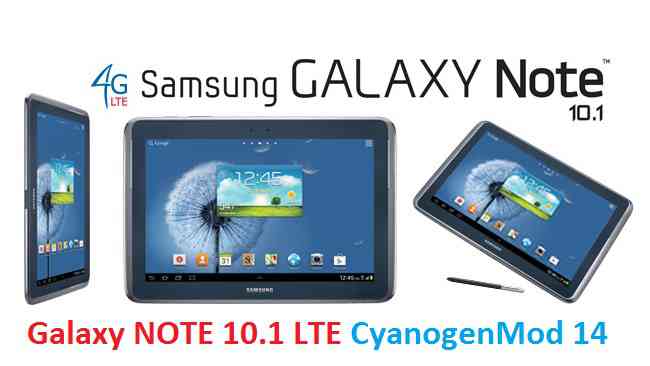
Android Nougat 7.0 ROM for Galaxy NOTE 10.1 LTE CM14 (CyanogenMod 14) has now arrived through an UNOFFICIAL build. For latest updates, stay tuned to the Lineage OS device list page. This Nougat 7.0 has come for Galaxy NOTE 10.1 LTE via CyanogenMod 14 ROM. Since Google released Android Nougat Source code, we have update many Android NOUGAT AOSP ROMs and also many CyanogenMod 14 ROMs updated and many are yet to come. This Galaxy NOTE 10.1 LTE for CyanogenMod 14 is brought to you by developer davidmueller13.
DISCLAIMER:
THIS IS STILL AN EARLY BUILD AND CONTAINS BUGS. Installing custom ROM requires a custom recovery to be installed on your device, which may VOID your warranty and may delete all your data. Before proceeding further you may consider backup your all data. You are the only person doing changes to your phone and neither the developer(s) nor we can be held responsible for the mistakes done by you.Status of Galaxy NOTE 10.1 LTE CM14 (CyanogenMod 14) Nougat 7.0 ROM:
WHAT’S WORKING:
– Not KnownKNOWN ISSUES:
– Not Known
REQUIRED LINKS AND FILES FOR GALAXY NOTE 10.1 LTE CM14 (CYANOGENMOD 14, NOUGAT) CUSTOM ROM:
- TWRP recovery for NOTE 10.1 LTE
– Custom Recovery Installation Guide on Samsung Galaxy NOTE 10.1 LTE
- Download link for Galaxy NOTE 10.1 LTE CM14 ROM [UPDATED 18/09/2016]
- Nougat GApps download link for Galaxy NOTE 10.1 LTE CM14 ROM
Root binary is inbuilt since CyanogenMod 12, so you don’t need a separate SuperSu package to install to gain ROOT access. Here is How to Enable ROOT on CM14/CyanogenMod 14
HOW TO INSTALL/DOWNLOAD/FLASH/UPDATE GALAXY NOTE 10.1 LTE CM14 (CYANOGENMOD 14) NOUGAT CUSTOM ROM:
Follow this if you are flashing CyanogenMod 14 ROM for the first time to Galaxy NOTE 10.1 LTE, or coming from another ROM:
This will delete all your data on your phone. You may consider backing up your phone data or take a nandroid backup. Here is how to take NANDROID backup using TWRP recovery.
Points to NOTE:
– Try to avoid restoring apps backup using Titanium Backup. It may break things up.
– Don’t restore system data using Titanium Backup! It will definitely break the current installation.
– It is also discouraged to Restoring Apps + Data using Titanium Backup.- Download and Copy the GApps and Galaxy NOTE 10.1 LTE CyanogenMod 14 ROM ZIP to your phone.
- Boot into Recovery. Make sure to have a Custom recovery like CWM or TWRP or any other custom recovery. If not then follow the Custom Recovery Installation Guide for Samsung Galaxy NOTE 10.1 LTE (it’s a generic guide which will work for TWRP as well as CWM recovery)
- Wipe data factory reset, Cache partition, Dalvik Cache and Format the System partition.
– Here is a guide explaining how to wipe data using TWRP recovery.This will delete all your data on your phone. You may consider complete backup of your phone data or take a NANDROID backup of the current ROM
– How to backup all data on your Android Device
– how to take NANDROID backup using TWRP recovery - First flash the CM14 ROM ZIP from device. Then flash the GApps zip from your device memory.
– Here is a post explaining how to flash a custom ROM using TWRP recovery.
– Use the same guide to flash the GApps too. - Reboot and Enjoy the CyanogenMod 14 Nougat ROM on Galaxy NOTE 10.1 LTE.
Upgrading from earlier version of CyanogenMod 14 for Galaxy NOTE 10.1 LTE:
- Copy the latest Galaxy NOTE 10.1 LTE CyanogenMod 14 ROM ZIP file to your phone.
- Boot into Recovery.
- Flash the latest CM ROM ZIP from your phone.
– Here is a post explaining how to flash a custom ROM using TWRP recovery.
– Use the same guide to flash the GApps too. - Reboot and Enjoy
Complete the initial setup and enjoy Android Nougat 7.0.0 with CyanogenMod 14 for NOTE 10.1 LTE. After this CM14 installation you may want to enable ROOT access on your phone and here is how you can do that:
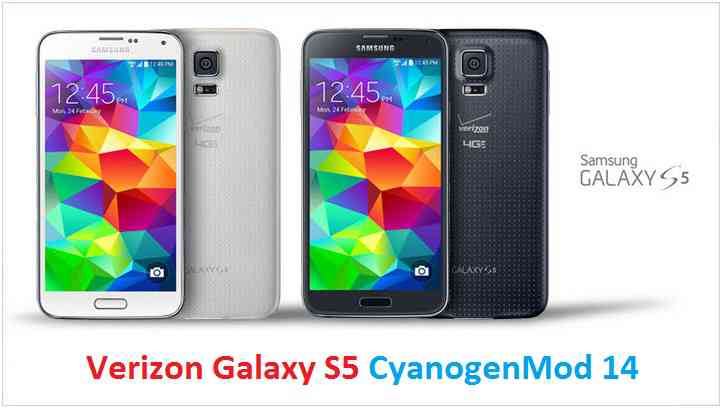
How to Enable ROOT on CM14/CyanogenMod 14.Stay tuned or Subscribe to the Galaxy NOTE 10.1 LTE forum For other Android Nougat ROMs, CyanogenMod 14 ROMs, other ROMs and all other device specific topics.CM14 for Verizon Galaxy S5 CM14/CyanogenMod 14 has now arrived through an UNOFFICIAL build. In addition to this we also have Lineage 14.1 for Galaxy S5 VERIZON. For latest updates, stay tuned to the Lineage OS device list page. Since Google released Android Nougat Source code, we have update many Android NOUGAT AOSP ROMs and also many CyanogenMod 14/CM14 ROMs updated and many are yet to come. If you are looking CM14 for Galaxy S5 then here is the Galaxy S5 CM14/CyanogenMod 14 Nougat 7.0 ROM. This CyanogenMod 14/CM14 for Galaxy S5 Verizon is brought to you by developer haggertk.
DISCLAIMER:
THIS IS STILL AN EARLY BUILD. THIS ROM MAY NOT BOOT AT ALL OR EVEN IF IT BOOTS IT MAY CONTAIN MANY BUGS THAN YOU CAN IMAGINE MAKING IT UNUSABLE AS A DAILY DRIVER. TRY AT YOUR OWN RISK. Installing custom ROM requires a custom recovery to be installed on your device, which may VOID your warranty and may delete all your data. Before proceeding further you may consider backup your all data. You are the only person doing changes to your phone and neither the developer(s) nor we can be held responsible for the mistakes done by you.Status of (G900V, kltevzw) Verizon Galaxy S5 CM14/CyanogenMod 14 Nougat 7.0 ROM:
WHAT’S WORKING:
– Not KnownKNOWN ISSUES:
– Not Known
REQUIRED LINKS AND FILES FOR VERIZON GALAXY S5 CM14/CYANOGENMOD 14 NOUGAT 7.0 CUSTOM ROM:
- SafeStrap download link of recovery for S5 Verizon by Hashcode (This needs a pre-rooted S5 Verizon phone and BusyBox installed)
– See if this OneClick Root will help for Samsung Galaxy S5 Verizon (G900V, kltevzw)
- ROM Download link to haggertk’s CM14 for Galaxy S5 Verizon Nougat 7.0 ROM (G900V, kltevzw)
- Nougat GApps download link for Galaxy S5 Verizon CM14 ROM
Root binary is inbuilt since CyanogenMod 12, so you don’t need a separate SuperSu package to install to gain ROOT access. Here is How to Enable ROOT on CM14/CyanogenMod 14
HOW TO INSTALL/DOWNLOAD/FLASH/UPDATE VERIZON GALAXY S5 CM14/CYANOGENMOD 14 (G900V, kltevzw) NOUGAT 7.0 CUSTOM ROM:
Follow this if you are flashing Verizon Galaxy S5 CM14/CyanogenMod 14 for the first time, or coming from another ROM:
This will delete all your data on your phone. You may consider backing up your phone data or take a nandroid backup. Here is how to take NANDROID backup using TWRP recovery.
Points to NOTE:
– Try to avoid restoring apps backup using Titanium Backup. It may break things up.
– Don’t restore system data using Titanium Backup! It will definitely break the current installation.
– It is also discouraged to Restoring Apps + Data using Titanium Backup.- Download and Copy the GApps and Verizon Galaxy S5 CM14/CyanogenMod 14 ROM ZIP to your phone.
- Boot into Recovery.
- Wipe data factory reset, Cache partition, Dalvik Cache and Format the System partition.
– Here is a guide explaining how to wipe data using TWRP recovery.This will delete all your data on your phone. You may consider complete backup of your phone data or take a NANDROID backup of the current ROM
– How to backup all data on your Android Device
– how to take NANDROID backup using TWRP recovery - First flash the CM14 ROM ZIP from device.
– Here is a post explaining how to flash a custom ROM using TWRP recovery. - Then reboot into recovery (don’t skip this) and flash the CyanogenMod 14 Nougat GApps package.
– Here is a post explaining how to flash GApps using TWRP recovery. - Reboot and Enjoy the CM14 for Galaxy S5 Verizon.
Upgrading from earlier version of CyanogenMod 14/CM14 for S5 Verizon:
- Copy the latest Verizon Galaxy S5 CM14/CyanogenMod 14 ROM ZIP file to your phone.
- Boot into Recovery.
- Flash the latest CM ROM ZIP from your phone.
– Here is a post explaining how to flash a custom ROM using TWRP recovery. - Then flash the CM14 Nougat GApps package.
– Here is a post explaining how to flash GApps using TWRP recovery. - Reboot and Enjoy
Complete the initial setup and enjoy Android Nougat 7.0.0 with CyanogenMod 14/CM14 for S5 (G900V, kltevzw). After this CM14 installation you may want to enable ROOT access on your phone and here is how you can do that:
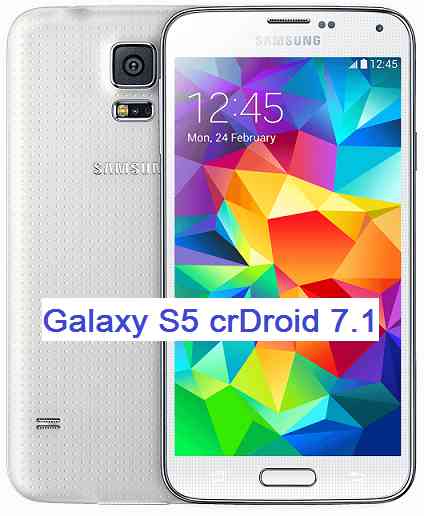
How to Enable ROOT on CM14/CyanogenMod 14.Stay tuned or Subscribe to the Galaxy S5 Verizon (G900V, kltevzw) forum For other Android Nougat ROMs, CyanogenMod 14 ROMs, other ROMs and all other device specific topics.Samsung Galaxy S5 crDroid Nougat 7.1 ROM is now available through UNOFFCIAL build. In addition to this ROM, here comes the Android Oreo based Lineage OS 15 for Galaxy S5. We also have Lineage OS 14.1 for Galaxy S5, Nougat 7.1 AICP ROM for Galaxy S5 and OFFICIAL CM14.1 ROM for Galaxy S5. This crDroid Nougat 7.1 ROM for Galaxy S5 brought to you by developer thisisapoorusernamechoice.
If you want crDroid for other devices then here is a list of crDroid Nougat 7.1 ROMs. If you want other Nougat ROMs then checkout the following Nougat ROM collections: Lineage OS 14.1 ROMs collection, Resurrection Remix Nougat ROMs collection.
Installing a custom ROM on a the Galaxy S5 may require the bootloader to be unlocked on Galaxy S5 and a Custom Recovery on Galaxy S5. Before proceeding further you may consider backup all data on the phone. You are the only person doing changes to your phone and I cannot be held responsible for the mistakes done by you.Status of Samsung Galaxy S5 crDroid Nougat 7.1 ROM build:
WHAT’S WORKING:
– Not KnownKNOWN ISSUES:
– Not Known
REQUIRED DOWNLOADS AND LINKS Galaxy S5 crDroid NOUGAT 7.1 ROM UPDATE GUIDE:
- TWRP download link for Galaxy S5
– TWRP Installation Guide for Galaxy S5 (g900f, klte) (This guide is only for .tar TWRP file)
- ROM download link for Galaxy S5 crDroid Nougat 7.1 ROM
- Android 7.1 Nougat GApps download link for Galaxy S5 crDroid ROM
Root binary is inbuilt since CyanogenMod 12, so you don’t need a separate SuperSu package to install to gain ROOT access on a CM14 ROM or a CM14 based ROM. As crDroid is a CM14 based ROM, so here is How to Enable ROOT on crDroid ROM
HOW TO INSTALL/FLASH/UPDATE crDroid FOR Galaxy S5 NOUGAT 7.1 ROM:
Follow these steps if you are flashing Nougat 7.1 crDroid for Galaxy S5 for the first time, or coming from another ROM:
Points to NOTE on BACKUP:
– Try to avoid restoring apps backup using Titanium Backup. It may break things up.
– Don’t restore system data using Titanium Backup! It will definitely break the current installation.
– It is also discouraged to Restoring Apps + Data using Titanium Backup.- Download and Copy the Nougat GApps and Galaxy S5 crDroid Nougat 7.1 ROM zip to the phone memory.
- Boot into Recovery. Make sure to have a Custom recovery like CWM or TWRP or any other custom recovery.
- Wipe data factory reset, Cache partition, Dalvik Cache and Format the System partition.
– Here is a guide explaining how to wipe data using TWRP recovery.This will delete all your data on your phone. You may consider complete backup of your phone data or take a NANDROID backup of the current ROM.
– How to backup all data on your Android Device.
– how to take NANDROID backup using TWRP recovery. - First flash the ROM zip of Galaxy S5 crDroid from device.
– Here is a post explaining how to flash a custom ROM using TWRP recovery. - Then reboot into recovery (don’t skip this) and flash the crDroid Nougat Google Apps package.
– Here is a post explaining how to flash GApps using TWRP recovery. - Reboot and Enjoy the crDroid Nougat for Galaxy S5.
Upgrading from earlier version of Galaxy S5 crDroid Nougat 7.1 ROM:
- Copy the Galaxy S5 crDroid ROM ZIP file to your phone.
- Boot into Recovery.
- Flash the latest ROM zip of Galaxy S5 crDroid from your phone.
– Here is a post explaining how to flash a custom ROM using TWRP recovery. - Then flash the crDroid Nougat Google Apps package.
– Here is a post explaining how to flash GApps using TWRP recovery. - Reboot and Enjoy
Complete the initial setup and enjoy Android Nougat 7.1 with crDroid for Galaxy S5 (codename: klte). After this crDroid installation you may want to enable ROOT access on your phone and here is how you can do that:
As crDroid is a CM14 based ROM, so here is How to Enable ROOT on crDroid ROMStay tuned or Subscribe to the Galaxy S5 (klte) forum For other Android Nougat ROMs, CyanogenMod 14 ROMs, other ROMs and all other device specific topics.I beg you people.
please guys make a custom rom for my device SM G531F.
You People are awesome and i have full faith on you that you guys will surely help me out.
Thank you guys.
Love your works.Android Oreo 8.0 ROM, Galaxy Trend Plus LineageOS 15 has now arrived via a development build. This post provides the download link to LineageOS 15 ROM for Galaxy Trend Plus and guides through the installation process of the same. If you want the OFFICIAL LineageOS 15 update or some more Android Oreo ROMs then stay tuned to the LineageOS 15 ROMs page or the AOSP Android Oreo ROMs devices list page. This LineageOS 15 Oreo ROM for Galaxy Trend Plus (kyleproxx, S7580) is brought to you by developer Đỗ Hoàng Khánh Nam.
DONATION TO DEVELOPER(s):
Donation link not found for Đỗ Hoàng Khánh Nam.
DISCLAIMER:
THIS IS AN INITIAL BUILD WHICH MAY NOT BOOT AT ALL. HAVE A BACKUP BEFORE FLASHING THIS AND TRY AT YOUR OWN RISK. Installing a custom ROM on a Galaxy Trend Plus requires an unlocked bootloader on Galaxy Trend Plus, which may VOID your warranty and may delete all your data. Before proceeding further you may consider backup all data on the phone. You are the only person doing changes to your phone and I cannot be held responsible for the mistakes done by you.Content structure:
Status of Samsung Galaxy Trend Plus LineageOS 15 Oreo 8 ROM:
WHAT’S WORKING:
– UnknownKNOWN ISSUES:
– Unknown
REQUIRED LINKS AND FILES FOR THIS Galaxy Trend Plus LINEAGEOS 15 OREO CUSTOM ROM INSTALLATION:
- TWRP download for Galaxy Trend Plus (kyleproxx, S7580)
– Here is theTWRP update guide for the Galaxy Trend Plus. This TWRP recovery guide requires an unlocked bootloader on the Galaxy Trend Plus.
- ROM Download link of LineageOS 15 for Galaxy Trend Plus
- Gapps Download link for LienageOS 15
Root binary is NOT inbuilt in LineageOS ROM, so you may need a separate SuperSu package or LineageOS su binary to install to gain ROOT access. Here is LineageOS Rooting guide
If there is no in-built ROOT or it does not work for some reason then you can try SuperSU rooting guide to enable ROOT access.HOW TO INSTALL/DOWNLOAD/FLASH/UPDATE THE Galaxy Trend Plus TO THE LineageOS 15 BASED ANDROID OREO ROM:
Follow this if you are flashing LineageOS 15 on the Galaxy Trend Plus for the first time, or coming from another ROM:
Points to NOTE:
– Try to avoid restoring apps backup using Titanium Backup. It may break things up.
– Don’t restore system data using Titanium Backup! It will definitely break the current installation.
– It is also discouraged to Restoring Apps + Data using Titanium Backup.- Download and Copy the GApps and the Galaxy Trend Plus LineageOS 15 ROM ZIP to your phone.
- Boot into Recovery.
Make sure to have a Custom recovery like CWM or TWRP or any other custom recovery. If not then download the recovery for Galaxy Trend Plus from above link and follow the Custom Recovery Installation Guide (it’s a generic guide which will work for TWRP as well as CWM recovery or any other recovery) - Wipe data factory reset, Cache partition, Dalvik Cache and Format the System partition.
– Here is a guide explaining how to wipe data using TWRP recovery.This will delete all your data on your phone. You may consider complete backup of your phone data or take a NANDROID backup of the current ROM
– How to backup all data on your Android Device
– how to take NANDROID backup using TWRP recovery - First flash the Galaxy Trend Plus LineageOS 15 ROM ZIP from device. Then flash the GApps zip from your device memory.
– Here is a post explaining how to install LineageOS - Then reboot into recovery (don’t skip this) and flash the Gapps for LineageOS 15 package.
– Here is a post explaining how to flash GApps using TWRP recovery. - Reboot and Enjoy Android Oreo with LineageOS 15 ROM on Galaxy Trend Plus.
Upgrading from earlier version of LineageOS 15 for Galaxy Trend Plus:
- Copy the latest Galaxy Trend Plus Lineage 15 ROM ZIP file to your phone.
- Boot into Recovery.
- Flash the LineageOS ROM ZIP from your phone.
– Here is a post explaining how to install LineageOS - Then flash the LineageOS 15 Oreo GApps package.
– Here is a post explaining how to flash GApps using TWRP recovery. - Reboot and Enjoy
Complete the initial setup and enjoy Android Oreo 8.0 with LineageOS on the Galaxy Trend Plus (kyleproxx, S7580). After the installing LineageOS 15 for Galaxy Trend Plus, you may want to enable ROOT access on your phone and here is how you can do that:
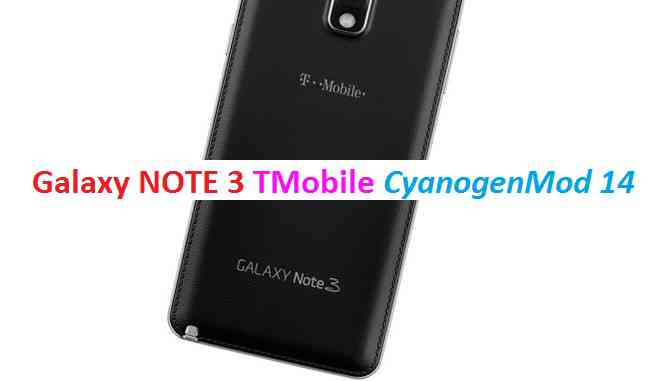
How to Enable ROOT on LineageOS 15.Stay tuned or Subscribe to the Galaxy Trend Plus (kyleproxx, S7580) forum For other Android Oreo, Nougat ROMs, LineageOS 15 ROMs, other custom ROMs and all other device specific topics.Here is the much awaited Nougat 7.0 ROM for Galaxy NOTE 3 T Mobile CM14 (CyanogenMod 14). For latest updates, stay tuned to the Lineage OS device list page. This Nougat 7.0 has come for TMobile NOTE 3 via CyanogenMod 14 ROM. Since Google released Android Nougat Source code, we have update many Android NOUGAT AOSP ROMs and also many CyanogenMod 14 ROMs updated and many are yet to come. This Galaxy NOTE 3 T Mobile CyanogenMod 14 is brought to you by developer Trader418.
DISCLAIMER:
THIS IS STILL AN EARLY BUILD AND CONTAINS BUGS. Installing custom ROM requires a custom recovery to be installed on your device, which may VOID your warranty and may delete all your data. Before proceeding further you may consider backup your all data. You are the only person doing changes to your phone and neither the developer(s) nor we can be held responsible for the mistakes done by you.Status of Galaxy (SM-n900T) NOTE 3 TMobile CM14 (CyanogenMod 14) Nougat 7.0 ROM:
WHAT’S WORKING:
– Wi-fi
– Adding a google account
– PlaystoreKNOWN ISSUES:
– Network
– Camera
– And many other things
REQUIRED LINKS AND FILES FOR GALAXY NOTE 3 TMOBILE CM14 (CYANOGENMOD 14, NOUGAT 7.0) CUSTOM ROM:
- TWRP recovery for NOTE 3 T Mobile SM-N900T
– Custom Recovery Installation Guide on Samsung Galaxy NOTE 3 T Mobile – SM n900T
- Download link for Galaxy NOTE 3 TMobile (SM-n900T) CM14 ROM
- Nougat GApps download link for Galaxy NOTE 3 TMobile CM14 ROM
This is a user build and hence there is no inbuilt su in this CyanogenMod 14 ROM. To enable root you need to flash the SuperSU viarecovery. Here is post explaining: How to Enable ROOT on NOTE 3 TMobile CM14 Nougat ROM
HOW TO INSTALL/DOWNLOAD/FLASH/UPDATE GALAXY NOTE 3 TMOBILE CM14 (CYANOGENMOD 14) (SM-n900T) NOUGAT 7.0 CUSTOM ROM:
Follow this if you are flashing CyanogenMod 14 ROM for the first time to Galaxy NOTE 3 T Mobile, or coming from another ROM:
This will delete all your data on your phone. You may consider backing up your phone data or take a nandroid backup. Here is how to take NANDROID backup using TWRP recovery.
Points to NOTE:
– Try to avoid restoring apps backup using Titanium Backup. It may break things up.
– Don’t restore system data using Titanium Backup! It will definitely break the current installation.
– It is also discouraged to Restoring Apps + Data using Titanium Backup.- Download and Copy the GApps and Galaxy NOTE 3 T Mobile CyanogenMod 14 ROM ZIP to your phone.
- Boot into Recovery. Make sure to have a Custom recovery like CWM or TWRP or any other custom recovery. If not then follow the Custom Recovery Installation Guide for Samsung Galaxy NOTE 3 T Mobile – SM n900T (it’s a generic guide which will work for TWRP as well as CWM recovery)
- Wipe data factory reset, Cache partition, Dalvik Cache and Format the System partition.
– Here is a guide explaining how to wipe data using TWRP recovery.This will delete all your data on your phone. You may consider complete backup of your phone data or take a NANDROID backup of the current ROM
– How to backup all data on your Android Device
– how to take NANDROID backup using TWRP recovery - First flash the CM14 ROM ZIP from device. Then flash the GApps zip from your device memory.
– Here is a post explaining how to flash a custom ROM using TWRP recovery. - Now flash the Nougat GApps package.
– Here is a post explaining how to flash Nougat GApps using TWRP recovery. - Reboot and Enjoy the CyanogenMod 14 Nougat ROM on Galaxy NOTE 3 T Mobile.
Upgrading from earlier version of CyanogenMod 14 for Galaxy NOTE 3 T Mobile:
- Copy the latest Galaxy NOTE 3 T Mobile CyanogenMod 14 ROM ZIP file to your phone.
- Boot into Recovery.
- Flash the latest CM ROM ZIP from your phone.
– Here is a post explaining how to flash a custom ROM using TWRP recovery. - Now flash the Google Apps package.
– Here is a post explaining how to flash Nougat GApps using TWRP recovery. - Reboot and Enjoy
Complete the initial setup and enjoy Android Nougat 7.0.0 with CyanogenMod 14 for NOTE 3 T Mobile (SM-n900T).
Stay tuned or Subscribe to the Galaxy NOTE 3 TMobile forum For other Android Nougat ROMs, CyanogenMod 14 ROMs, other ROMs and all other device specific topics.For the development link of Galaxy NOTE 3 T Mobile CyanogenMod 14 Nougat ROM Update, visit here.
Android Marshmallow ROM, LineageOS 13 for Galaxy J7 Sprint has now arrived via an UNOFFICIAL build. If you want some more LineageOS ROMs or wanna taste the OFFICIAL LineageOS build then stay tuned to the LineageOS 13 Devices List page and LineageOS 14.1 ROM Device List. This Galaxy J7 SPRINT LineageOS 13 is brought to you by developer minz1.
DONATION TO DEVELOPER:
If you like this LineageOS 13 for Galaxy J7 Sprint, then consider a donation to minz1.
DISCLAIMER:
THIS IS AN INITIAL BUILD WHICH MAY HAVE MANY MORE BUGS THAN YOU CAN IMAGINE. HAVE A BACKUP BEFORE FLASHING THIS AND TRY AT YOUR OWN RISK. Installing a custom ROM on a Galaxy J7 SPRINT (j7ltespr, SM-J700P) may require the bootloader to be unlocked, which may VOID your warranty and may delete all your data. Before proceeding further you may consider backup all data on the phone. You are the only person doing changes to your phone and I cannot be held responsible for the mistakes done by you.Status of LineageOS 13 for Galaxy J7 SPRINT (j7ltespr) Marshmallow ROM:
WHAT’S WORKING:
– Not KnownKNOWN ISSUES:
– Not Known
REQUIRED LINKS AND FILES FOR LineageOS 13 for Galaxy J7 SPRINT MARSHMALLOW CUSTOM ROM:
- Latest FW and baseband
- TWRP download link for Galaxy J7 SPRINT
– Here is: Custom Recovery Installation Guide for Samsung Galaxy J7 SPRINT (This guide is only for .tar TWRP file)
– To flash .img file you can follow this TWRP update guide using fastboot or you can use Flashify to update the .img TWRP. - ROM Download Link of Galaxy J7 Sprint LineageOS 13 ROM (j7ltespr, SM-J700P)
- LineageOS 13 GApps download link for Galaxy J7 Sprint LineageOS 13 Marshmallow ROM
Root binary is NOT inbuilt in LineageOS 13, so you may need a separate SuperSu package or LineageOS su binary to install to gain ROOT access. Here is How to Enable ROOT on LineageOS 13
If there is no in-built ROOT or it does not work for some reason then you can try flashing SuperSU zip using recovery to gain ROOT access.HOW TO INSTALL/DOWNLOAD/FLASH/UPDATE Galaxy J7 Sprint LineageOS 13 MARSHMALLOW CUSTOM ROM:
Follow this if you are flashing LineageOS 13 for Galaxy J7 Sprint (j7ltespr, SM-J700P) for the first time, or coming from another ROM:
Points to NOTE:
– Try to avoid restoring apps backup using Titanium Backup. It may break things up.
– Don’t restore system data using Titanium Backup! It will definitely break the current installation.
– It is also discouraged to Restoring Apps + Data using Titanium Backup.- Download and Copy the GApps and LineageOS 13 for Galaxy J7 Sprint ROM ZIP to your phone.
- Boot into Recovery. Make sure to have a Custom recovery like CWM or TWRP or any other custom recovery. If not then follow the Custom Recovery Installation Guide for Galaxy J7 Sprint (j7ltespr, SM-J700P) (it’s a generic guide which will work for TWRP as well as CWM recovery or any other recovery)
- Wipe data factory reset, Cache partition, Dalvik Cache and Format the System partition.
– Here is a guide explaining how to wipe data using TWRP recovery.This will delete all your data on your phone. You may consider complete backup of your phone data or take a NANDROID backup of the current ROM
– How to backup all data on your Android Device
– how to take NANDROID backup using TWRP recovery - First flash the Galaxy J7 Sprint LineageOS 13 ROM ZIP from device. Then flash the GApps zip from your device memory.
– Here is a post explaining how to install LineageOS. - DO NOT REBOOT yet. Then flash the LineageOS 13 GApps package.
– Here is a post explaining how to flash LineageOS 13 GApps using TWRP recovery. - Reboot and Enjoy the Marshmallow LineageOS 13 ROM for Galaxy J7 Sprint (j7ltespr, SM-J700P).
Upgrading from earlier version of Galaxy J7 Sprint LineageOS 13 (j7ltespr, SM-J700P):
- Copy the latest LineageOS 13 for Galaxy J7 Sprint ROM ZIP file to your phone.
- Boot into Recovery.
- Flash the latest LineageOS ROM ZIP from your phone.
– Here is a post explaining how to install LineageOS. - Then flash the LineageOS 13 Marshmallow GApps package.
– Here is a post explaining how to flash GApps using TWRP recovery. - Reboot and Enjoy
Complete the initial setup and enjoy Android Marshmallow with LineageOS 13 for Galaxy J7 Sprint (j7ltespr, SM-J700P). After the installation of Galaxy J7 Sprint LineageOS 13 ROM (j7ltespr, SM-J700P) you may want to enable ROOT access on your phone and here is how you can do that:
How to Enable ROOT on LineageOS 13.Stay tuned or Subscribe to the Galaxy J7 Sprint (j7ltespr, SM-J700P) forum For other Android Custom ROMs, LineageOS 13 ROMs, other ROMs and all other device specific topics.