- Search Results
HTC ONE A9 CM13 (cyanogenMod 13) Marshmallow ROM (Device Codename: hiaeul) Marshmallow taste has now arrived and this an official build. Official NIGHTLY build are automated builds which makes sure the build is not broken by daily code changes made by developers. NIGHTLY builds are not stable as compared to SNAPSHOT builds and may contain some minor bugs. Here is some brief explanation of the difference between a NIGHTLY and SNAPSHOT.
DISCLAIMER:
Installing custom ROM requires a custom recovery to be installed on the HTC One A9 which in turn requires the bootloader to be unlocked, which may VOID your warranty and may delete all your data. Before proceeding further you may consider backup your all data or take a NANDROID backup using a recovery. You are the only person doing changes to your phone and I cannot be held responsible for the mistakes done by you. Neither the developer nor we will be held responsible for any disaster that happens to your device.
REQUIRED DOWNLOADS AND LINKS FOR THE HTC ONE A9 (GSM US) CM13 ROM UPDATE GUIDE:
- TWRP recovery download of HTC One A9
– Here is a Guide explaining How to Install TWRP using Fastboot. Before following this guide the Bootloader must be unlocked on your HTC ONE A9 and S-OFF. - ROM download link for HTC One A9 CyanogenMod 13
- GApps download link
Root binary is inbuilt since CyanogenMod 12, so you don’t need a separate SuperSu package to install to gain ROOT access. Here is How to Enable ROOT Access on CM13/CyanogenMod 13
FLASHING CYANOGENMOD 13 ON HTC ONE A9 (GSM US) CM13 (CyanogenMod 13) MARSHMALLLOW CUSTOM ROM:
Follow this if you are flashing CyanogenMod 13 for the first time to your HTC One A9 (GSM US), or coming from another ROM:
This will delete all your data on your phone. You may consider backing up your phone data or take a nandroid backup. Here is how to take NANDROID backup using TWRP recovery.
Points to NOTE:
– Try to avoid restoring apps backup using Titanium Backup. It may break things up.
– Don’t restore system data using Titanium Backup! It will definitely break the current installation.
– It is also discouraged to Restoring Apps + Data using Titanium Backup.- Download and Copy the GApps and CyanogenMod ROM ZIP to your device.
- Take a backup using a synchronization application or using Samsung Smart Switch or if you have TWRP installed then boot into TWRP recovery and take a NANDROID backup using the TWRP itself.
- Boot into Recovery. Make sure to have a Custom recovery like CWM or TWRP.
If you don’t have a recovery then download it from the above link and follow the below guide to flash:
– Here is a Guide explaining How to Install TWRP using Fastboot.
– Before following this guide make sure that the Bootloader is already unlocked on your HTC ONE A9. - Wipe data factory reset, Cache partition, Dalvik Cache and Format the System partition.
– Here is a guide explaining how to wipe data using TWRP recovery. - First flash the CM ROM ZIP from device. Then flash the GApps zip from your device memory.
– Here is a post explaining how to flash a custom ROM using TWRP recovery.
– Use the same guide to flash the GApps too. - Reboot and Enjoy the CyanogenMod 13 Marshmallow ROM on your HTC One A9.
Upgrading from earlier version of CyanogenMod 13.0 on the HTC One A9 (GSM US):
- Copy the CyanogenMod 13 ROM ZIP file to your phone.
- Boot into Recovery.
- Flash the latest CM ROM ZIP from your phone.
– Here is a post explaining how to flash a custom ROM using TWRP recovery.
– Use the same guide to flash the GApps too. - Reboot and Enjoy
The first boot may take long time, so don’t panic and be sure that you have enough battery backup. Let the phone reboot and then enjoy the official CyanogenMod 13 Marshmallow ROM on HTC One A9.
After this CM13 installation you may want to enable ROOT access on your phone and here is how you can do that:
How to Enable ROOT Access on CM13/CyanogenMod 13.Android Oreo 8.0 ROM, LineageOS 15 for Galaxy S6 has now arrived via an UNOFFICIAL build. This LineageOS 15 for Galaxy S6 (zerofltexx) is brought to you by developer lukasb06.
DONATION TO DEVELOPER:
If you like this ROM then do consider a contribution to lukasb06 for his efforts:
Donate to lukasb06If you want the OFFICIAL LineageOS update or some more Android Oreo ROMs then stay tuned to the LineageOS 15 ROMs page or the AOSP Android Oreo devices list page.
DISCLAIMER:
THIS IS A BETA ROM AND MAY HAVE MANY BUGS. HAVE A BACKUP BEFORE FLASHING THIS LINEAGEOS ROM AND TRY AT YOUR OWN RISK. Installing a custom ROM on a Galaxy S6 (zerofltexx) requires the bootloader to be unlocked on the Galaxy S6 (zerofltexx) phone, which may VOID your warranty and may delete all your data. Before proceeding further you may consider backup all data on the phone. You are the only person doing changes to your phone and I cannot be held responsible for the mistakes done by you..content_layout_width { width: 270px; }
@media(min-width: 800px) { .content_layout_width { width: 500px; } }Content structure:
Status of LineageOS 15 for Galaxy S6 Oreo Custom ROM:
WHAT’S WORKING:
– Telephony (Calls, SMS, Mobile Data)
– WiFi
– Bluetooth
– NFC
– Fingerprint
– CameraKNOWN ISSUES:
– GPS works only on device mode
– Some video codecs are not played properly
REQUIRED LINKS AND FILES FOR LineageOS 15 for Galaxy S6 OREO CUSTOM ROM:
- TWRP recovery link for Galaxy S6 (zerofltexx)
– Here is theTWRP update guide for the Galaxy S6 (zerofltexx).
- ROM Download link of LineageOS 15 for Galaxy S6
- LineageOS 15 GApps download link for LineageOS 15 for Galaxy S6 Oreo 8.0 ROM (Download the stock ARM64 GApps)
Root binary is NOT inbuilt in LineageOS 15, so you may need a separate SuperSu package or LineageOS su binary to install to gain ROOT access. Here is LineageOS Rooting guide
If there is no in-built ROOT or it does not work for some reason then you can try SuperSU rooting guide to enable ROOT access.HOW TO INSTALL/DOWNLOAD/FLASH/UPDATE LineageOS 15 FOR Galaxy S6 OREO CUSTOM ROM:
Follow this if you are flashing LineageOS 15 for Galaxy S6 for the first time, or coming from another ROM:
Points to NOTE:
– Try to avoid restoring apps backup using Titanium Backup. It may break things up.
– Don’t restore system data using Titanium Backup! It will definitely break the current installation.
– It is also discouraged to Restoring Apps + Data using Titanium Backup.- Boot into Recovery. Make sure to have a Custom recovery like CWM or TWRP or any other custom recovery. If not then follow the Custom Recovery Installation Guide for Galaxy S6 (it’s a generic guide which will work for TWRP as well as CWM recovery or any other recovery)
- Wipe data factory reset, Cache partition, Dalvik Cache and Format the System partition.
– Here is a guide explaining how to wipe data using TWRP recovery.This will delete all your data on your phone. You may consider complete backup of your phone data or take a NANDROID backup of the current ROM
– How to backup all data on your Android Device
– how to take NANDROID backup using TWRP recovery - Download and Copy the LineageOS 15 GApps and LineageOS 15 for Galaxy S6 Oreo ROM ZIP file to your phone.
- First flash the LineageOS 15 for Galaxy S6 Oreo ROM ZIP from device. Then flash the GApps for LineageOS 15 zip from your device memory.
– Here is a post explaining how to install LineageOS - Then reboot into recovery (don’t skip this) and flash the Gapps for LineageOS 15 package.
– Here is a post explaining how to flash GApps using TWRP recovery. - Reboot and Enjoy the Oreo 8.0 LineageOS 15 ROM for Galaxy S6.
Upgrading from earlier version of LineageOS 15 for Galaxy S6 (zerofltexx):
- Copy the latest Galaxy S6 Lineage 15 ROM ZIP file to your phone.
- Boot into Recovery.
- Flash the latest LinegeOS ROM ZIP from your phone.
– Here is a post explaining how to install LineageOS - Then flash the Lineage 15 Oreo GApps package.
– Here is a post explaining how to flash GApps using TWRP recovery. - Reboot and Enjoy
Complete the initial setup and enjoy Android Oreo 8.0 with LineageOS 15 for Galaxy S6. After the installation of LineageOS 15 for Galaxy S6 you may want to enable ROOT access on your phone and here is how you can do that:
How to Enable ROOT on LineageOS 15.Stay tuned or Subscribe to the Galaxy S6 LineageOS forum For other Android Oreo, Nougat ROMs, LineageOS 15 ROMs, other ROMs and all other device specific topics.If you have found any BUG or any issues with this ROM, then following is the development thread at XDA created by lukasb06.
Android Nougat 7.1 ROM, LineageOS 14.1 for Galaxy S4 Docomo has now arrived via an UNOFFICIAL build. This Lineage 14.1 for Galaxy S4 Docomo (jfltedcm) is brought to you by developer voidz-maguro.
DONATION TO DEVELOPER:
– No donation link found for voidz-maguro.
If you want some more Lineage ROMs or wanna taste the OFFICIAL Lineage build then stay tuned the LineageOS 14.1 ROMs list page. Or, if you want the OFFICIAL LineageOS update or some latest Android Oreo ROMs then stay tuned to the LineageOS 15 ROMs page or the AOSP Android Oreo devices list page.
DISCLAIMER:
HAVE A BACKUP BEFORE FLASHING THIS AND TRY AT YOUR OWN RISK. Installing a custom ROM on a Galaxy S4 Docomo (jfltedcm) requires the bootloader to be unlocked on the Galaxy S4 Docomo phone, which may VOID your warranty and may delete all your data. Before proceeding further you may consider backup all data on the phone. You are the only person doing changes to your phone and I cannot be held responsible for the mistakes done by you.Status of LineageOS 14.1 for Galaxy S4 Docomo Nougat 7.1 ROM:
WHAT’S WORKING:
– UnknownKNOWN ISSUES:
– Unknown
REQUIRED LINKS AND FILES FOR LineageOS 14.1 for Galaxy S4 Docomo NOUGAT CUSTOM ROM:
- TWRP recovery for Galaxy S4 Docomo (jfltedcm)
– Here is theTWRP update guide for the Galaxy S4 Docomo.
- LineageOS 14.1 Download link for Galaxy S4 Docomo (jfltedcm)
- Lineage 14.1 Nougat GApps download link for LineageOS 14.1 for Galaxy S4 Docomo Nougat 7.1 ROM
Root binary is inbuilt in LineageOS 14.1, so you don’t need a separate SuperSu package to install to gain ROOT access. Here is How to Enable ROOT on LineageOS 14.1
If there is no in-built ROOT or it does not work for some reason then you can try flashing SuperSU zip using recovery to gain ROOT access.HOW TO INSTALL/DOWNLOAD/FLASH/UPDATE LINEAGE 14.1 FOR Galaxy S4 Docomo NOUGAT CUSTOM ROM:
Follow this if you are flashing LineageOS 14.1 for Galaxy S4 Docomo for the first time, or coming from another ROM:
Points to NOTE:
– Try to avoid restoring apps backup using Titanium Backup. It may break things up.
– Don’t restore system data using Titanium Backup! It will definitely break the current installation.
– It is also discouraged to Restoring Apps + Data using Titanium Backup.- Download and Copy the GApps and LineageOS 14.1 for Galaxy S4 Docomo ROM ZIP to your phone.
- Boot into Recovery. Make sure to have a Custom recovery like CWM or TWRP or any other custom recovery. If not then follow the Recovery Installation via odin for Galaxy S4 Docomo (it’s a generic guide which will work for TWRP as well as CWM recovery or any other recovery)
- Wipe data factory reset, Cache partition, Dalvik Cache and Format the System partition.
– Here is a guide explaining how to wipe data using TWRP recovery.This will delete all your data on your phone. You may consider complete backup of your phone data or take a NANDROID backup of the current ROM
– How to backup all data on your Android Device
– how to take NANDROID backup using TWRP recovery - First flash the LineageOS 14.1 for Galaxy S4 Docomo ROM ZIP from device. Then flash the GApps zip from your device memory.
– Here is a post explaining how to install LineageOS. - Then reboot into recovery (don’t skip this) and flash the Lineage 14.1 Nougat GApps package.
– Here is a post explaining how to flash GApps using TWRP recovery. - Reboot and Enjoy the Nougat 7.1 Lineage 14.1 ROM for Galaxy S4 Docomo.
Upgrading from earlier version of Lineage 14.1 for Galaxy S4 Docomo:
- Copy the latest LineageOS 14.1 for Galaxy S4 Docomo ROM ZIP file to your phone.
- Boot into Recovery.
- Flash the latest LineageOS 14.1 ROM ZIP from your phone.
– Here is a post explaining how to install LineageOS. - Then flash the Lineage 14.1 Nougat GApps package.
– Here is a post explaining how to flash GApps using TWRP recovery. - Reboot and Enjoy
Complete the initial setup and enjoy Android Nougat 7.1 with Lineage 14.1 for Galaxy S4 Docomo. After the installation of Lineage 14.1 for Galaxy S4 Docomo you may want to enable ROOT access on your phone and here is how you can do that:
How to Enable ROOT on LineageOS 14.1.Stay tuned or Subscribe to the Galaxy S4 Docomo (jfltedcm) forum For other Android Nougat ROMs, LineageOS 14.1 ROMs, other ROMs and all other device specific topics.This Galaxy Grand DUOS Resurrection Remix Marshmallow ROM (Android 6.0.1 Marshmallow for Grand DUOS (I9082)) is now up for grab. Here I am presenting the Resurrection Remix Marshmallow ROM download links with flashing guide. Make sure you have already a TWRP recovery installed on your Galaxy Grand DUOS to be able to flash this Bliss Marshmallow ROM. Nougat ROM has also arrived: here is the Galaxy Grand DUOS CM14/CyangoenMod 14 Nougat 7.0 ROM.
 DISCLAIMER:
Installing custom ROM requires a custom recovery to be installed on your device, which may VOID your warranty and may delete all your data. Before proceeding further you may consider backup your all data. You are the only person doing changes to your phone and WE cannot be held responsible for the mistakes done by you.KNOWN ISSUES:
– All CM BUGS only.
– Does not work on 4.1 stock ROM’s bootloader, please upgrade to stock 4.2 before flashingWORKING LIST:
– everything is Working.Required files for Galaxy Grand DUOS Resurrection Remix Marshmallow ROM flashing:
- TWRP recovery link.
Here is How to Install TWRP on Samsung using Fastboot for the .img TWRP file.
Here is How to Install TWRP on Samsung using Odin for the .tar TWRP file. - ROM Download link
- Android 6.0 GApps flashable zip download link
Have a look on the Grand DUOS forum to get other ROMs for your device.
Flashing guide of Galaxy Grand DUOS Resurrection Remix Mallow ROM:
If you are on CM 10.1 or a stock ROM prior to 4.2, upgrade to stock 4.2 first.
STEP 1:Copy the ROM and GApps zip file to your phone (By using a USB cable or via adb push command).
STEP 2:Enter into recovery mode by pressing your device specific key combinations.
Or else if you are on a pc with USB driver and adb installed, then type the following command:$ adb reboot recovery
STEP 3:Wipe system partition, cache and data partition. [IMPORTANT]
If you don’t know how to do this then here is how to wipe data using TWRP recovery.
This will delete all your data on your phone. You may consider backing up your phone data or take a nandroid backup. Here is how to take NANDROID backup using TWRP recovery.
STEP 4:Select the Install Zip from SDcard option.
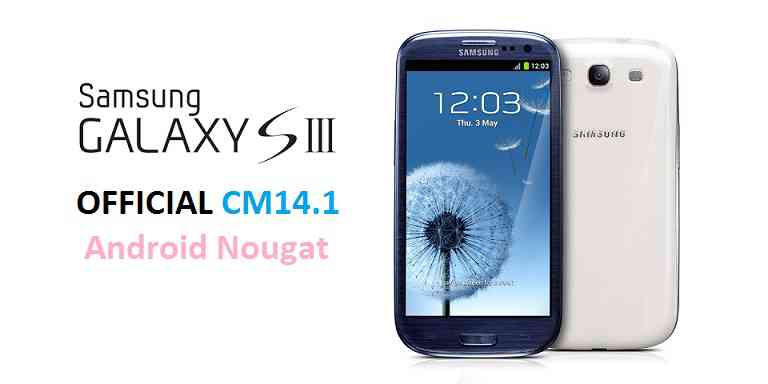
Select the Galaxy Grand DUOS Android M Resurrection Remix ROM zip file and let the installation complete and then reboot and then flash the GApps package and reboot to enjoy Android Marshmallow 6.0 on the Galaxy Grand DUOS.Here is the OFFICIAL CyanogenMod 14.1 (CM14.1) for Galaxy S3 (i9300). You might know that CyanogenMod is now continued as Lineage OS. Stay tuned to the Lineage OS 14.1 Devices list page to get more updates on Lineage OS ROMs. This is an OFFICIAL CyanogenMod 14.1 NIGHTLY update for Galaxy S3. CyanogenMod is no longer available, so you can move on to the OFFICIAL Lineage OS 14.1 for Galaxy S3. In addition to this we have update the Galaxy S3 nougat Resurrection Remix ROM and unofficial CM14 for Galaxy S3 and also many OFFICIAL CM14.1 (CyanogenMod 14.1) for many supported devices and many Unofficial CyanogenMod 14/14.1 ROM updates.
DISCLAIMER:
Installing a custom ROM on a the Galaxy S3 may require the bootloader to be unlocked on Galaxy S3 and a Custom Recovery on Galaxy S3, which may VOID your warranty and may delete all your data. Before proceeding further you may consider backup all data on the phone. You are the only person doing changes to your phone and I cannot be held responsible for the mistakes done by you. ALSO KNOW THAT THIS IS A DEVELOPMENT BUILD AND CONTAINS MORE BUGS THAN YOU CAN THINK.
REQUIRED DOWNLOADS AND LINKS FOR GALAXY S3 OFFICIAL CM14.1 (CYANOGENMOD 14.1) NOUGAT ROM UPDATE GUIDE:
- TWRP download link for Galaxy S3 (i9300).
– here is a guide: Galaxy S3 TWRP recovery installation guide (for .tar or .tar.md5 extension TWRP file) and How to install Cyanogen recovery (or twrp in .img format) on Galaxy S3
- ROM download link of OFFICIAL Cyanogenmod 14.1 for Galaxy S3
- CyanogenMod 14.1 GApps download link for Galaxy S3 CyanogenMod 14.1 ROM
Root binary is inbuilt since CyanogenMod 12, so you don’t need a separate SuperSu package to install to gain ROOT access. Here is How to Enable ROOT on CM14.1/CyanogenMod 14.1
HOW TO INSTALL/FLASH/UPDATE CM14.1 FOR GALAXY S3 (CYANOGENMOD 14.1 NOUGAT ROM):
Follow these steps if you are flashing CM14.1 for Galaxy S3 for the first time, or coming from another ROM:
Points to NOTE on BACKUP:
– Try to avoid restoring apps backup using Titanium Backup. It may break things up.
– Don’t restore system data using Titanium Backup! It will definitely break the current installation.
– It is also discouraged to Restoring Apps + Data using Titanium Backup.- Download and Copy the Nougat GApps and CyanogenMod 14.1 Nougat ROM ZIP to Galaxy S3 (i9300).
- Boot into Recovery. Make sure to have a Custom recovery like CWM or TWRP or any other custom recovery.
- Wipe data factory reset, Cache partition, Dalvik Cache and Format the System partition.
– Here is a guide explaining how to wipe data using TWRP recovery.This will delete all your data on your phone. You may consider complete backup of your phone data or take a NANDROID backup of the current ROM.
– How to backup all data on your Android Device.
– how to take NANDROID backup using TWRP recovery. - First flash the Galaxy S3 CM14.1 ROM ZIP from device.
– Here is a post explaining how to flash a custom ROM using TWRP recovery. - Then reboot into recovery (don’t skip this) and flash the CM14.1 Nougat Google Apps package.
– Here is a post explaining how to flash GApps using TWRP recovery. - Reboot and Enjoy the CyanogenMod 14.1 Nougat ROM on Galaxy S3.
Upgrading from earlier version of Galaxy S3 CM14.1 Nougat ROM:
- Copy the Galaxy S3 CM14.1 ROM ZIP file to your phone.
- Boot into Recovery.
- Flash the latest CM14.1 ROM ZIP from your phone.
– Here is a post explaining how to flash a custom ROM using TWRP recovery. - Then flash the CM14.1 Nougat Google Apps package.
– Here is a post explaining how to flash GApps using TWRP recovery. - Reboot and Enjoy
Complete the initial setup and enjoy Android Nougat 7.1 with CyanogenMod 14.1 On Galaxy S3 (codename: i9300). After this CM14.1 installation you may want to enable ROOT access on your phone and here is how you can do that:
How to Enable ROOT on CM14.1/CyanogenMod 14.1.Stay tuned or Subscribe to the Galaxy S3 (i9300) forum For other Android Nougat ROMs, CyanogenMod 14 ROMs, other ROMs and all other device specific topics.Android Marshmallow ROM, LineageOS 13 for Galaxy On7 Pro has now arrived via an UNOFFICIAL build. If you want some more LineageOS ROMs or wanna taste the OFFICIAL LineageOS build then stay tuned to the LineageOS 13 Devices List page and LineageOS 14.1 ROM Device List. This On7 Pro LineageOS 13 is brought to you by developer androidlover5842.
DONATION TO DEVELOPER:
Donation link is not available for Androidlover.
DISCLAIMER:
THIS IS AN INITIAL BUILD WHICH MAY HAVE MANY MORE BUGS THAN YOU CAN IMAGINE. HAVE A BACKUP BEFORE FLASHING THIS AND TRY AT YOUR OWN RISK. Installing a custom ROM on a Galaxy On7 Pro (o7prolte, SM-G600FY) may require the bootloader to be unlocked, which may VOID your warranty and may delete all your data. Before proceeding further you may consider backup all data on the phone. You are the only person doing changes to your phone and I cannot be held responsible for the mistakes done by you.Status of LineageOS 13 for Galaxy On7 Pro (o7prolte, SM-G600FY) Marshmallow ROM:
WHAT’S WORKING:
– Not KnownKNOWN ISSUES:
– Camera
– Many other things
REQUIRED LINKS AND FILES FOR LineageOS 13 for On7 Pro MARSHMALLOW CUSTOM ROM:
- TWRP download link in img extension | TWRP download link in tar extension for Galaxy On7 Pro
– Here is: TWRP update Guide for Galaxy On7 Pro (This guide is only for .tar TWRP file)
– To flash .img file you can follow this TWRP update guide using fastboot or you can use Flashify to update the .img TWRP. - ROM Download Link of Galaxy On7 Pro LineageOS 13 ROM (o7prolte, SM-G600FY)
- LineageOS 13 GApps download link for Galaxy On7 Pro LineageOS 13 Marshmallow ROM
Root binary is NOT inbuilt in LineageOS 13, so you may need a separate SuperSu package or LineageOS su binary to install to gain ROOT access. Here is How to Enable ROOT on LineageOS 13
If there is no in-built ROOT or it does not work for some reason then you can try flashing SuperSU zip using recovery to gain ROOT access.HOW TO INSTALL/DOWNLOAD/FLASH/UPDATE Galaxy On7 Pro LineageOS 13 MARSHMALLOW CUSTOM ROM:
Follow this if you are flashing LineageOS 13 for Galaxy On7 Pro (o7prolte, SM-G600FY) for the first time, or coming from another ROM:
Points to NOTE:
– Try to avoid restoring apps backup using Titanium Backup. It may break things up.
– Don’t restore system data using Titanium Backup! It will definitely break the current installation.
– It is also discouraged to Restoring Apps + Data using Titanium Backup.- Download and Copy the GApps and LineageOS 13 for Galaxy On7 Pro ROM ZIP to your phone.
- Boot into Recovery. Make sure to have a Custom recovery like CWM or TWRP or any other custom recovery. If not then follow the Custom Recovery Installation Guide for Galaxy On7 Pro (o7prolte, SM-G600FY) (it’s a generic guide which will work for TWRP as well as CWM recovery or any other recovery)
- Wipe data factory reset, Cache partition, Dalvik Cache and Format the System partition.
– Here is a guide explaining how to wipe data using TWRP recovery.This will delete all your data on your phone. You may consider complete backup of your phone data or take a NANDROID backup of the current ROM
– How to backup all data on your Android Device
– how to take NANDROID backup using TWRP recovery - First flash the Galaxy On7 Pro LineageOS 13 ROM ZIP from device. Then flash the GApps zip from your device memory.
– Here is a post explaining how to install LineageOS. - DO NOT REBOOT yet. Then flash the LineageOS 13 GApps package.
– Here is a post explaining how to flash LineageOS 13 GApps using TWRP recovery. - Reboot and Enjoy the Marshmallow LineageOS 13 ROM for Galaxy On7 Pro (o7prolte, SM-G600FY).
Upgrading from earlier version of Galaxy On7 Pro LineageOS 13 (o7prolte, SM-G600FY):
- Copy the latest LineageOS 13 for Galaxy On7 Pro ROM ZIP file to your phone.
- Boot into Recovery.
- Flash the latest LineageOS ROM ZIP from your phone.
– Here is a post explaining how to install LineageOS. - Then flash the LineageOS 13 Marshmallow GApps package.
– Here is a post explaining how to flash GApps using TWRP recovery. - Reboot and Enjoy
Complete the initial setup and enjoy Android Marshmallow with LineageOS 13 for Galaxy On7 Pro (o7prolte, SM-G600FY). After the installation of Galaxy On7 Pro LineageOS 13 ROM (o7prolte, SM-G600FY) you may want to enable ROOT access on your phone and here is how you can do that:
How to Enable ROOT on LineageOS 13.Stay tuned or Subscribe to the Galaxy On7 Pro (o7prolte, SM-G600FY) forum For other Android Custom ROMs, LineageOS 13 ROMs, other ROMs and all other device specific topics.Development thread for this ROM is here.
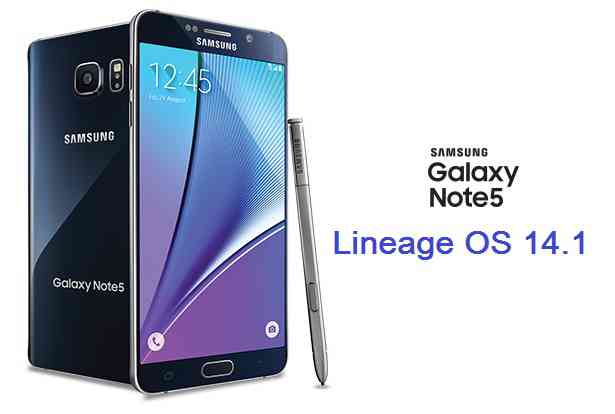
Android Nougat 7.1 ROM, LineageOS 14.1 for Galaxy NOTE 5 has now arrived via an UNOFFICIAL build. If you want some more LineageOS ROMs or wanna taste the OFFICIAL LineageOS build then stay tuned to the LineageOS 14.1 ROM collection page. This Galaxy NOTE 5 LineageOS 14.1 is brought to you by developer raymanfx.
DONATION TO DEVELOPER:
If you like raymanfx’s work and want him to keep up this good work then consider a small donation to raymanfx
DISCLAIMER:
THIS IS AN INITIAL BUILD WHICH MAY NOT BOOT AT ALL. HAVE A BACKUP BEFORE FLASHING THIS AND TRY AT YOUR OWN RISK. Installing a custom ROM on a Galaxy NOTE 5 (nobleltejv, SM-920C) may require the bootloader to be unlocked, which may VOID your warranty and may delete all your data. Before proceeding further you may consider backup all data on the phone. You are the only person doing changes to your phone and I cannot be held responsible for the mistakes done by you.Status of LineageOS 14.1 for Galaxy NOTE 5 Nougat 7.1 ROM:
WHAT’S WORKING:
– Not KnownKNOWN ISSUES:
– Not Known
REQUIRED LINKS AND FILES FOR LineageOS 14.1 for Galaxy NOTE 5 NOUGAT 7.1 BASED CUSTOM ROM:
- Latest FW and baseband
- TWRP Download Link for Galaxy NOTE 5
– Here is: Custom Recovery Installation Guide for Samsung Galaxy NOTE 5 (This guide is only for .tar.md5 TWRP file)
– To flash .img file you can follow this TWRP update guide using fatboot or you can use Flashify to update the .img TWRP.
– To flash Recovery flashable Recovery image you can follow this guide: TWRP update guide using existing recovery - ROM Download Link of Galaxy NOTE 5 LineageOS 14.1 ROM (nobleltejv, SM-920C)
- LineageOS 14.1 GApps download link for Galaxy NOTE 5 LineageOS 14.1 Nougat 7.1 ROM
Root binary is NOT inbuilt in LineageOS 14.1, so you may need a separate SuperSu package or LineageOS su binary to install to gain ROOT access. Here is How to Enable ROOT on LineageOS 14.1
If there is no in-built ROOT or it does not work for some reason then you can try flashing SuperSU zip using recovery to gain ROOT access.HOW TO INSTALL/DOWNLOAD/FLASH/UPDATE Galaxy NOTE 5 LineageOS 14.1 NOUGAT CUSTOM ROM:
Follow this if you are flashing LineageOS 14.1 for Galaxy NOTE 5 (nobleltejv, SM-920C) for the first time, or coming from another ROM:
Points to NOTE:
– Try to avoid restoring apps backup using Titanium Backup. It may break things up.
– Don’t restore system data using Titanium Backup! It will definitely break the current installation.
– It is also discouraged to Restoring Apps + Data using Titanium Backup.- Download and Copy the GApps and LineageOS 14.1 for Galaxy NOTE 5 ROM ZIP to your phone.
- Boot into Recovery. Make sure to have a Custom recovery like CWM or TWRP or any other custom recovery. If not then follow the Custom Recovery Installation Guide for Galaxy NOTE 5 (nobleltejv, SM-920C) (it’s a generic guide which will work for TWRP as well as CWM recovery or any other recovery)
- Wipe data factory reset, Cache partition, Dalvik Cache and Format the System partition.
– Here is a guide explaining how to wipe data using TWRP recovery.This will delete all your data on your phone. You may consider complete backup of your phone data or take a NANDROID backup of the current ROM
– How to backup all data on your Android Device
– how to take NANDROID backup using TWRP recovery - First flash the Galaxy NOTE 5 LineageOS 14.1 ROM ZIP from device. Then flash the GApps zip from your device memory.
– Here is a post explaining how to install LineageOS. - DO NOT REBOOT yet. Then flash the LineageOS 14.1 GApps package.
– Here is a post explaining how to flash GApps using TWRP recovery. - Reboot and Enjoy the Nougat 7.1 LineageOS 14.1 ROM for Galaxy NOTE 5 (nobleltejv, SM-920C).
Upgrading from earlier version of Galaxy NOTE 5 LineageOS 14.1 (nobleltejv, SM-920C):
- Copy the latest LineageOS 14.1 for Galaxy NOTE 5 ROM ZIP file to your phone.
- Boot into Recovery.
- Flash the latest LineageOS ROM ZIP from your phone.
– Here is a post explaining how to install LineageOS. - Then flash the LineageOS 14.1 Nougat GApps package.
– Here is a post explaining how to flash GApps using TWRP recovery. - Reboot and Enjoy
Complete the initial setup and enjoy Android Nougat 7.1 with LineageOS 14.1 for Galaxy NOTE 5 (nobleltejv, SM-920C). After the installation of Galaxy NOTE 5 LineageOS 14.1 ROM (nobleltejv, SM-920C) you may want to enable ROOT access on your phone and here is how you can do that:
How to Enable ROOT on LineageOS 14.1.Stay tuned or Subscribe to the Galaxy NOTE 5 (nobleltejv, SM-920C) forum For other Android Nougat ROMs, LineageOSLineageOS 14.1 ROMs, other ROMs and all other device specific topics.Galaxy S3 NEO CyanogenMod 12 Lollipop ROM is brought to you for Samsung Galaxy S3 NEO GT-I9300i and GT-I9301i by xda senior member Rox. In addition to this there are the following ROMs available for S3 Neo: Lineage OS for S3 Neo, CyanogenMOd 13 for S3 Neo, CM 12.1 for S3 Neo.

Now the Android Marshmallow is up. If you are interested then you can have a look on this:
Galaxy S3 NEO CyanogenMod 12.1 CM (12.1) ROMWARNING:
Installing custom ROM requires a custom recovery to be installed on your device, which may VOID your warranty and may delete all your data.
before proceeding you may consider backup your all data. And remember that you are the only person making any changes to your phone and neither the developer nor we can be held responsible for the disaster that may happen as a consequence of this ROM flashing.KNOWN ISSUE:
NFC ( Can’t be fixed, because of lack of sources )
Audio in calls on 2nd SIM ( GT-I9300I only )
Some devices have non-working camera because they have different sensor – HERE IS THE FIXCustom recovery guide for Galaxy S3 NEO: i9300i and i9301i
If you have not yet installed a custom recovery on your S3 Neo then head on to the next link to get it done.
Galaxy S3 Neo Rooting guide and custom recovery installationFiles needed for Galaxy S3 NEO CyanogenMod 12 Lollipop ROM installation:
Samsung Galaxy S3 NEO CyanogenMod 12 ROM download link [UPDATED]
Google Apps download linkWe also have the Resurrection Remix Lollipop ROM for the S3 NEO. Here is the Resurrection Remix Lollipop ROM for Galaxy S3 NEO.
Galaxy S3 NEO CyanogenMod 12 Lollipop ROM flashing guide:
STEP 1:Copy the CyanogenMod ROM and GApps zip file to your SD card or internal memory (By using a USB cable or via adb push command).
STEP 2:Reboot your phone into recovery mode (Hole Volume UP + HOME + Power button while the phone is booting)
Or if you have a PC in hand with USB driver installed for your phone then type the following command to enter into recovery mode:$ adb reboot recovery
It is recommended to use the CWM recovery, especially for the GT-i9300i users.
STEP 3:Wipe data/factory reset.
This will delete all your data on your phone.
You may consider backing up your phone data or take a nandroid backup.STEP 4:Select the Install Zip from sdcard option.
Select the CyanogenMod ROM zip and then followed by the GApps zip file.The flashing may take a while.
When it will be done you can reboot your system and enjoy Galaxy S3 NEO CyanogenMod 12 Lollipop ROM, the Android Lollipop touch.Mi Max CM13 (CyanogenMod 13) Marshmallow Custom ROM is an UNOFFICIAL Android Marshmallow build for Xiaomi Mi Max (device codename: HYDROGEN). This mi Max CM13 (CyanogenMod 13) ROM is brought to you by developer zhaochengw. Yes this ROM still has some bugs as this is still an UNOFFICIAL beta build. It is strongly recommended that you take either a NANDROID backup or a complete sync of your phone data.
DISCLAIMER:
Installing custom ROM requires a custom recovery to be installed on your device, which in-turn may require the bootloader to be unlocked which may VOID your warranty and may delete all your data. Before proceeding further you may consider backup your all data. You are the only person making changes on your phone and neither we nor the developer can be held responsible for the mistakes done by YOU.
REQUIRED DOWNLOADS AND GUIDES FOR MI MAX CM13 ROM FLASHING:
- ROM Download link for Mi Max CM13 (CyanogenMod 13) [uploaded by Hogyoku]
- Google Apps download link for Mi Max CM13 ROM
The CyanogenMod 13 ROM for Mi Max comes with inbuilt ROOT, so SuperSU zip file is not required. After this CM13 installation you may want to enable ROOT access on your phone and here is how you can do that:
How to Enable ROOT Access on CM13/CyanogenMod 13Stay tuned or Subscribe to the Xiaomi Mi Max forum For upcoming Android Nougat ROMs, CyanogenMod Custom ROMs, other ROMs and all other device specific topics.
INSTALLATION GUIDE OF MI MAX CM13 (CYANOGENMOD 13) MARSHMALLOW CUSTOM ROM INSTALLATION GUIDE:
Make sure that you have unlocked the bootloader and installed a custom recovery on your Xiaomi Mi Max (device codename: hydrogen).
Follow this if you are flashing CyanogenMOd 13 ROM for the first time to your Mi Max, or coming from another ROM:
This will delete all your data on your phone. You may consider backing up your phone data or take a nandroid backup. Here is how to take NANDROID backup using TWRP recovery.
Points to NOTE:
– Try to avoid restoring apps backup using Titanium Backup. It may break things up.
– Don’t restore system data using Titanium Backup! It will definitely break the current installation.
– It is also discouraged to Restoring Apps + Data using Titanium Backup.- Download and Copy the GApps and Mi Max CyanogenMod 13 ROM ZIP to your phone.
- Take a backup using a synchronization application or using Samsung Smart Switch or if you have TWRP installed then boot into TWRP recovery and take a NANDROID backup using the TWRP itself.
- Boot into Recovery. Make sure to have a Custom recovery like CWM or TWRP or any other custom recovery.
- Wipe data factory reset, Cache partition, Dalvik Cache and Format the System partition.
– Here is a guide explaining how to wipe data using TWRP recovery. - First flash the CM13 ROM ZIP from device. Then flash the GApps zip from your device memory.
– Here is a post explaining how to flash a custom ROM using TWRP recovery.
– Use the same guide to flash the GApps too. - Reboot and Enjoy the CyanogenMod 13 Marshmallow ROM on your Mi Max.
Upgrading from earlier version of CyanogenMod 13 ROM on Mi Max:
- Copy the CyanogenMod 12.1 ROM ZIP file to your phone.
- Boot into Recovery.
- Flash the latest CM ROM ZIP from your phone.
– Here is a post explaining how to flash a custom ROM using TWRP recovery.
– Use the same guide to flash the GApps too. - Reboot and Enjoy
Complete the initial setup and enjoy Android Marshmallow 6.0.1 with CyanogenMod 13 for Xiaomi Mi Max. After this CM13 installation you may want to enable ROOT access on your phone and here is how you can do that:
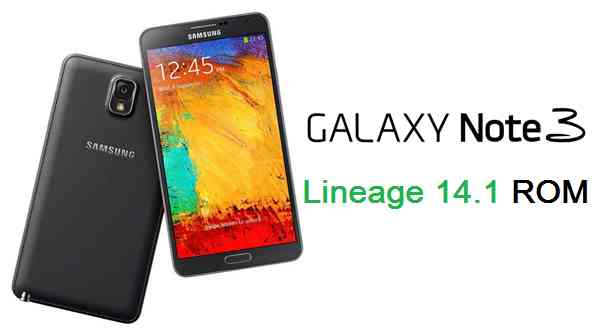
How to Enable ROOT Access on CM13/CyanogenMod 13Android Nougat 7.1 ROM, Galaxy NOTE 3 LineageOS 14.1 has now arrived via an UNOFFICIAL build. If you want some more LineageOS ROMs or wanna taste the OFFICIAL LineageOS build then stay tuned the LineageOS 14.1 ROM collection page. Here we also have the CM14 for Galaxy NOTE 3. This LineageOS 14.1 for Galaxy NOTE 3 (hlte) is brought to you by developer Trader418. Another build brought to you by christer12. If you like christer12’s ROM then consider donating christer12 via PayPal and donate to Trader418.
Status of Galaxy NOTE 3 LineageOS 14.1 Nougat 7.1 Custom ROM:
WHAT’S WORKING:
– Not KnownKNOWN ISSUES:
– Not Known
REQUIRED LINKS AND FILES FOR GALAXY NOTE 3 LINEAGE OS 14.1 NOUGAT CUSTOM ROM:
- TWRP recovery for NOTE 3 (hlte, SM-N9005)
– Here is theTWRP update guide for the Galaxy NOTE 3 (hlte). This TWRP recovery guide may require an unlocked bootloader on the Galaxy NOTE 3 (hlte).
- ROM Download link of LineageOS 14.1 for Galaxy NOTE 3 (hlte) by Trader418
- ROM Download link of LineageOS 14.1 for Galaxy NOTE 3 (hlte) by christer12
- LineageOS Nougat GApps download link for Galaxy NOTE 3 LineageOS 14.1 Nougat 7.1 ROM
Root binary is inbuilt in LineageOS 14.1, so you don’t need a separate SuperSu package to install to gain ROOT access. Here is How to Enable ROOT on LineageOS 14.1
If there is no in-built ROOT or it does not work for some reason then you can try flashing SuperSU zip using recovery or else install the CF auto root for Galaxy NOTE 3: https://www.androidfilehost.com/?fid=24344671467601938 to gain ROOT access.HOW TO INSTALL/DOWNLOAD/FLASH/UPDATE LineageOS 14.1 FOR Galaxy NOTE 3 NOUGAT CUSTOM ROM:
Follow this if you are flashing LineageOS 14.1 for Galaxy NOTE 3 (hlte) for the first time, or coming from another ROM:
Points to NOTE:
– Try to avoid restoring apps backup using Titanium Backup. It may break things up.
– Don’t restore system data using Titanium Backup! It will definitely break the current installation.
– It is also discouraged to Restoring Apps + Data using Titanium Backup.- Download and Copy the GApps and Galaxy NOTE 3 LineageOS 14.1 ROM ZIP to your phone.
- Boot into Recovery. Make sure to have a Custom recovery like CWM or TWRP or any other custom recovery. If not then follow the Custom Recovery Installation Guide for Galaxy NOTE 3 (hlte) (it’s a generic guide which will work for TWRP as well as CWM recovery or any other recovery)
- Wipe data factory reset, Cache partition, Dalvik Cache and Format the System partition.
– Here is a guide explaining how to wipe data using TWRP recovery.This will delete all your data on your phone. You may consider complete backup of your phone data or take a NANDROID backup of the current ROM
– How to backup all data on your Android Device
– how to take NANDROID backup using TWRP recovery - First flash the Galaxy NOTE 3 LineageOS 14.1 ROM ZIP from device. Then flash the GApps zip from your device memory.
– Here is a post explaining how to install LineageOS. - Then reboot into recovery (don’t skip this) and flash the LineageOS 14.1 Nougat GApps package.
– Here is a post explaining how to flash GApps using TWRP recovery. - Reboot and Enjoy the Nougat 7.1 LineageOS 14.1 ROM for Galaxy NOTE 3 (hlte).
Upgrading from earlier version of LineageOS 14.1 for Galaxy NOTE 3 (hlte):
- Copy the latest Galaxy NOTE 3 LineageOS 14.1 ROM ZIP file to your phone.
- Boot into Recovery.
- Flash the latest CM ROM ZIP from your phone.
– Here is a post explaining how to install LineageOS. - Then flash the LineageOS 14.1 Nougat GApps package.
– Here is a post explaining how to flash GApps using TWRP recovery. - Reboot and Enjoy
Complete the initial setup and enjoy Android Nougat 7.1 with LineageOS 14.1 for Galaxy NOTE 3 (hlte). After the installation of LineageOS 14.1 for Galaxy NOTE 3 (hlte) you may want to enable ROOT access on your phone and here is how you can do that:
How to Enable ROOT on LineageOS 14.1.Stay tuned or Subscribe to the Galaxy NOTE 3 (hlte) forum For other Android Nougat ROMs, LineageOS 14.1 ROMs, other ROMs and all other device specific topics.Note 3 LineageOS 14.1 dev thread by trader418 is here.
- TWRP recovery download of HTC One A9