- Search Results
Android Nougat 7.1 ROM, LineageOS 14.1 for Galaxy J5 has now arrived via an UNOFFICIAL build. If you want some more LineageOS ROMs or wanna taste the OFFICIAL LineageOS build then stay tuned to the LineageOS 14.1 ROM collection page. This Galaxy J5 LineageOS 14.1 is brought to you by developer SoUnd001 and all the Galaxy J5 TWRP recovery brought to you by developer Nick Verse
DISCLAIMER:
THIS IS AN INITIAL BUILD WHICH MAY NOT BOOT AT ALL. HAVE A BACKUP BEFORE FLASHING THIS AND TRY AT YOUR OWN RISK. Installing a custom ROM on a Galaxy J5 (j5ltexx, j5nltexx, j5lteub, j5ltedx) may require the bootloader to be unlocked, which may VOID your warranty and may delete all your data. Before proceeding further you may consider backup all data on the phone. You are the only person doing changes to your phone and I cannot be held responsible for the mistakes done by you.Status of LineageOS 14.1 for Galaxy J5 Nougat 7.1 ROM:
WHAT’S WORKING:
– Not KnownKNOWN ISSUES:
– Not Known
REQUIRED LINKS AND FILES FOR LineageOS 14.1 for Galaxy J5 NOUGAT 7.1 BASED CUSTOM ROM:
- Latest FW and baseband
- TWRP link for J500F | TWRP link for J500FN | TWRP link for J500G | TWRP link for J500M
– Here is: Custom Recovery Installation Guide for Samsung Galaxy J5 (This guide is only for .tar TWRP file)
– To flash .img file you can follow this TWRP update guide using fastboot or you can use Flashify to update the .img TWRP. - All download links to LineageOS for Galaxy J5 (j5ltexx, j5nltexx, j5lteub, j5ltedx)
J500F/FN/M/G/Y ROM Link | J500H (j53gxx) ROM Link - LineageOS 14.1 Nougat GApps download link for Galaxy J5 LineageOS 14.1 Nougat 7.1 ROM
Root binary is NOT inbuilt in LineageOS 14.1, so you may need a separate SuperSu package or LineageOS su binary to install to gain ROOT access. Here is How to Enable ROOT on LineageOS 14.1
If there is no in-built ROOT or it does not work for some reason then you can try flashing SuperSU zip using recovery to gain ROOT access.HOW TO INSTALL/DOWNLOAD/FLASH/UPDATE Galaxy J5 LineageOS 14.1 NOUGAT CUSTOM ROM:
Follow this if you are flashing LineageOS 14.1 for Galaxy J5 (j5ltexx, j5nltexx, j5lteub, j5ltedx) for the first time, or coming from another ROM:
Points to NOTE:
– Try to avoid restoring apps backup using Titanium Backup. It may break things up.
– Don’t restore system data using Titanium Backup! It will definitely break the current installation.
– It is also discouraged to Restoring Apps + Data using Titanium Backup.- Download and Copy the GApps and LineageOS 14.1 for Galaxy J5 ROM ZIP to your phone.
- Boot into Recovery. Make sure to have a Custom recovery like CWM or TWRP or any other custom recovery. If not then follow the Custom Recovery Installation Guide for Galaxy J5 (j5ltexx, j5nltexx, j5lteub, j5ltedx) (it’s a generic guide which will work for TWRP as well as CWM recovery or any other recovery)
- Wipe data factory reset, Cache partition, Dalvik Cache and Format the System partition.
– Here is a guide explaining how to wipe data using TWRP recovery.This will delete all your data on your phone. You may consider complete backup of your phone data or take a NANDROID backup of the current ROM
– How to backup all data on your Android Device
– how to take NANDROID backup using TWRP recovery - First flash the Galaxy J5 LineageOS 14.1 ROM ZIP from device. Then flash the GApps zip from your device memory.
– Here is a post explaining how to install LineageOS. - DO NOT REBOOT yet. Then flash the LineageOS 14.1 Nougat GApps package.
– Here is a post explaining how to flash GApps using TWRP recovery. - Reboot and Enjoy the Nougat 7.1 LineageOS 14.1 ROM for Galaxy J5 (j5ltexx, j5nltexx, j5lteub, j5ltedx).
Upgrading from earlier version of Galaxy J5 LineageOS 14.1 (j5ltexx, j5nltexx, j5lteub, j5ltedx):
- Copy the latest LineageOS 14.1 for Galaxy J5 ROM ZIP file to your phone.
- Boot into Recovery.
- Flash the latest LineageOS ROM ZIP from your phone.
– Here is a post explaining how to install LineageOS. - Then flash the LineageOS 14.1 Nougat GApps package.
– Here is a post explaining how to flash GApps using TWRP recovery. - Reboot and Enjoy
Complete the initial setup and enjoy Android Nougat 7.1 with LineageOS 14.1 for Galaxy J5 (j5ltexx, j5nltexx, j5lteub, j5ltedx). After the installation of Galaxy J5 LineageOS 14.1 ROM (j5ltexx, j5nltexx, j5lteub, j5ltedx) you may want to enable ROOT access on your phone and here is how you can do that:
How to Enable ROOT on LineageOS 14.1.Stay tuned or Subscribe to the Galaxy J5 (j5ltexx, j5nltexx, j5lteub, j5ltedx) forum For other Android Nougat ROMs, LineageOS 14.1 ROMs, other ROMs and all other device specific topics.The dev thread by SoUnd001 is here.
Android Nougat 7.1 ROM, LineageOS 14.1 for Galaxy S3 LTE has now arrived via an OFFICIAL build. If you want some more LineageOS ROMs then stay tuned to the LineageOS 14.1 ROM Devices list page. This Galaxy S3 LTE LineageOS 14.1 is an OFFICIAL LineageOS for Galaxy S3 LTE, which means you will be getting weekly updates of this ROM for your device.
DISCLAIMER:
HAVE A BACKUP BEFORE FLASHING THIS AND TRY AT YOUR OWN RISK. Installing a custom ROM on a Galaxy S3 LTE (i9305) may require the bootloader to be unlocked, which may VOID your warranty and may delete all your data. Before proceeding further you may consider backup all data on the phone. You are the only person doing changes to your phone and I cannot be held responsible for the mistakes done by you.Status of LineageOS 14.1 for Galaxy S3 LTE (i9305) Nougat 7.1 ROM:
WHAT’S WORKING:
– Not KnownKNOWN ISSUES:
– Not Known
REQUIRED LINKS AND FILES FOR LineageOS 14.1 for Galaxy S3 LTE NOUGAT 7.1 BASED CUSTOM ROM:
- TWRP download link for Galaxy S3 LTE
– Here is: Custom Recovery Installation Guide for Samsung Galaxy S3 LTE (This guide is only for .tar or .tar.md5 TWRP file)
– To flash .img file you can follow this TWRP update guide using fastboot or you can use Flashify to update the .img TWRP. [YOUR DEVICE MIGHT NEED TO BE BOOTLOADER UNLOCKED IF YOU ARE FOLLOWING THIS] - ROM Download link of OFFICIAL LineageOS 14.1 for Galaxy S3 LTE (i9305)
- LineageOS 14.1 GApps download link for Galaxy S3 LTE LineageOS 14.1 Nougat 7.1 ROM
Root binary is NOT inbuilt in LineageOS 14.1, so you may need a separate SuperSu package or LineageOS su binary to install to gain ROOT access. Here is How to Enable ROOT on LineageOS 14.1
If there is no in-built ROOT or it does not work for some reason then you can try flashing SuperSU zip using recovery to gain ROOT access.HOW TO INSTALL/DOWNLOAD/FLASH/UPDATE Galaxy S3 LTE LineageOS 14.1 NOUGAT CUSTOM ROM:
Follow this if you are flashing LineageOS 14.1 for Galaxy S3 LTE (i9305) for the first time, or coming from another ROM:
Points to NOTE:
– Try to avoid restoring apps backup using Titanium Backup. It may break things up.
– Don’t restore system data using Titanium Backup! It will definitely break the current installation.
– It is also discouraged to Restoring Apps + Data using Titanium Backup.- Download and Copy the GApps and LineageOS 14.1 for Galaxy S3 LTE ROM ZIP to your phone.
- Boot into Recovery. Make sure to have a Custom recovery like CWM or TWRP or any other custom recovery. If not then follow the Custom Recovery Installation Guide for Galaxy S3 LTE (i9305) (it’s a generic guide which will work for TWRP as well as CWM recovery or any other recovery)
- Wipe data factory reset, Cache partition, Dalvik Cache and Format the System partition.
– Here is a guide explaining how to wipe data using TWRP recovery.This will delete all your data on your phone. You may consider complete backup of your phone data or take a NANDROID backup of the current ROM
– How to backup all data on your Android Device
– how to take NANDROID backup using TWRP recovery - First flash the Galaxy S3 LTE LineageOS 14.1 ROM ZIP from device. Then flash the GApps zip from your device memory.
– Here is a post explaining how to install LineageOS. - DO NOT REBOOT yet. Then flash the LineageOS 14.1 GApps package.
– Here is a post explaining how to flash LineageOS 14.1 GApps using TWRP recovery. - Reboot and Enjoy the Nougat 7.1 LineageOS 14.1 ROM for Galaxy S3 LTE (i9305).
Upgrading from earlier version of Galaxy S3 LTE LineageOS 14.1 (i9305):
- Copy the latest LineageOS 14.1 for Galaxy S3 LTE ROM ZIP file to your phone.
- Boot into Recovery.
- Flash the latest LineageOS ROM ZIP from your phone.
– Here is a post explaining how to install LineageOS. - Then flash the LineageOS 14.1 Nougat GApps package.
– Here is a post explaining how to flash GApps using TWRP recovery. - Reboot and Enjoy
Complete the initial setup and enjoy Android Nougat 7.1 with LineageOS 14.1 for Galaxy S3 LTE (i9305). After the installation of Galaxy S3 LTE LineageOS 14.1 ROM (i9305) you may want to enable ROOT access on your phone and here is how you can do that:
How to Enable ROOT on LineageOS 14.1.Stay tuned or Subscribe to the Galaxy S3 LTE (i9305) forum For other Android Nougat ROMs, LineageOS 14.1 ROMs, other ROMs and all other device specific topics.I Can’t find rom for device samsung galaxy j1 mini prime latam. Or exist´s a rom compatible with this device that’s ready for him? Or if possible generate a release rom for this device?
Thank You !!!
Device Info
Model: Samsung Galaxy J1 mini prime
Kernel Version: 3.10.65-11785156
ROM: J106BUBU0AQG1
Android Version: 6.0.1
Country: ColombiaLink:
http://www.samsung.com/co/smartphones/galaxy-j1-mini-prime-j106b/This post will guide you How to flash/Install Custom ROM on an Android phone or Tablet by using TWRP or any other Recovery. Here I will be sharing all the necessary steps, download links or files to install a Custom ROM On any Android device using a TWRP recovery.

WHAT IS A CUSTOM ROM?
A Custom ROM is a customized ROM or Firmware built for a particular device. For example the OEM manufactured devices usually come with AOSP (The Android Open Source Project) Android ROMs. This not always true. OEMs like: Samsung which has TouchWiz UI, HTC which has Sense UI, Xiaomi which has MIUI etc. The AOSP is the vanilla version of Android which is released to each OEM where they integrate their own changes or features on top of the Vanilla Android and customizes the actual AOSP ROM. CyanogenMod is one of the biggest Custom ROM developed by the developer community across the world and which was not created by a single OEM like Samsung, HTC, Xiaomi etc.
Custom ROMs give you many added features which the OEM’s stock ROMs does not have and sometimes even Google’s AOSP also lacks those features. For example: The dictionary feature on Android came around 4.2 or 4.3 (I don’t remember exactly when) but I had been using the same feature in CyanogenMod since Android 2.3. Just imagine how much the CyanogenMod custom ROM is ahead of even Google in terms of feature packing. I hope you have got at least some idea, if not then you can get it after using one.
DOWNLOADS AND LINKS TO INSTALL CUSTOM ROM ON ANDROID USING TWRP:
- Unlocked bootloader on your Android. Here is a Bootloader unlock guide for various Android Devices which may help for your Android device.
- ADB and Fastboot installed on your PC or MAC.
– 15 Seconds ADB Installer for Windows
– Minimal ADB and Fastboot for Windows
ADB Fastboot Installation guide for Linux and MAC - You need to have a TWRP recovery installed on your Android device.
- Custom ROM zip file built for your Android device.
You may search some Official ROMs, Unofficial ROMs or Stock ROMs and many other ROMs
- Backup all data on your phone.
Here is a Step By Step Data Backup Guide for any Android Device.
- Enough battery backup (60% or more).
HOW TO FLASH/INSTALL CUSTOM ROM USING TWRP RECOVERY ON ANY ANDROID DEVICE:
Step By Step Guide.
- Download and copy the Custom ROM zip file on your Android device. (You may search our forum for the availability of a custom ROM for your device)
- Now Boot your Android device into TWRP recovery.
You may power off and press the appropriate key combination for your phone to boot into recovery mode.
Also you can execute the following command on a Command Console or a terminal:$ adb reboot recovery
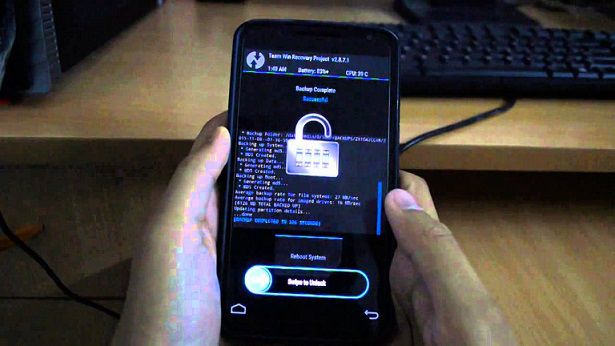
- Then Just Select Install from TWRP home screen, then navigate to the directory where you have kept the Custom ROM zip file and then select the ROM file and slide the Swipe to Confirm Flash on TWRP screen to start the flashing of the Custom ROM
- Wait for TWRP to flash the Custom ROM completely. Once the flashing is done just reboot your device.
- Done!!! Your Android device is now installed with a new Custom ROM. ENJOY.
If you have any concerns or any difficulties on this guide then feel free to place a reply on this thread to get instant help.
Samsung Galaxy NOTE 2 has got CyanogenMod 13, Android Marshmallow update. This update is brought to you by developer Trafalgar Square. I don’t know the working status of the ROM. You are advised to have a complete backup of your data and the current ROM, so that you can roll back to the current state if something goes wrong.
DISCLAIMER:
Installing custom ROM requires a custom recovery to be installed on your device, which may VOID your warranty and may delete all your data. Understand that YOU are the only person making changes to your phone. Neither we nor the developer can be held responsible for the disaster that may happen to your device after following this guide.
[Samsung Galaxy NOTE 2 CyanogenMod 13 Android Marshmallow ROM]
Required files for NOTE 2 CM13 ROM:
– ROM download link
– Google Apps download linkFlashing CyanogenMod 13 Marshmallow ROM on Galaxy Note 2 n7100:
STEP 1:Copy the ROM zip file to your SD card (By using a USB cable or via adb push command).
STEP 2:After copying the ROM zip file to your SD card you have to go to the recovery where you have to install this zip file.
To go to the recovery type the following command (if you have connected your device with PC):$ adb reboot recovery
STEP 3:Wipe Data/Factory Reset. Clean system, cache partition.
If you don’t know how to do this then here is how to wipe data using TWRP recovery.
This will delete all your data on your phone. You may consider backing up your phone data or take a nandroid backup. Here is how to take NANDROID backup using TWRP recovery.
NOTE:
This step will delete all your user data and hence consider backup those out of your phone.
Data Backup guideSTEP 4:Select the Install Zip from SDcard option.
Select the ROM zip file where you have kept in the SD card.STEP 5:Repeat the STEP 4 to flash GApps. Select the Install Zip from SDcard option again.
Select the Gapps zip file where you have kept in the SD card.The flashing will take a while. When it will be done you can reboot your system and enjoy the ROM on your device. If you have any concerns or problems on this ROM then reply to this thread. After this CM13 installation you may want to enable ROOT access on your phone and here is how you can do that:
How to Enable ROOT Access on CM13/CyanogenMod 13The good news is that, you can now download and install LineageOS 16 on Galaxy Grand Neo variant. This post guides you how to install LineageOS 16 on Galaxy Grand Neo, with a step-by-step guide. This build of LineageOS 16 for Galaxy Grand Neo is brought to you by developer knuxfanwin8.
DONATION TO DEVELOPER(S)/PROJECT:
If you like this ROM then do consider for a contribution to knuxfanwin8 and LineageOS project:
– No donation link found for knuxfanwin8
– Donate to LineageOS projectFollow the links to get other LineageOS 16 and Android Pie ROM builds.

[su_note note_color=”#F9D9D9″ text_color=”#AA4343″ radius=”3″ class=”” id=””]DISCLAIMER:
THIS IS AN INITIAL BUILD OF Galaxy Grand Neo LineageOS 16 WHICH MAY NOT BOOT AT ALL OR EVEN IF IT BOOTS, IT MAY HAVE MANY BUGS.
MAKE SURE TO BACKUP THE CURRENT ROM AND ALL DATA OF YOUR PHONE BEFORE INSTALLING.[/su_note][su_note note_color=”#FBF4DD” text_color=”#A38C68″ radius=”3″ class=”” id=””]Installing a TWRP recovery on Galaxy Grand Neo may delete all your data. Before proceeding further you may consider backup all data on the phone.
You are the only person doing changes to your phone; neither the developer nor I can be held responsible for the mistakes done by you.[/su_note]Status of Galaxy Grand Neo LineageOS 16 ROM:
WHAT’S WORKING:
– UnknownKNOWN ISSUES:
– UnknownREQUIRED GUIDES AND DOWNLOADS TO INSTALL Galaxy Grand Neo LineageOS 16 ANDROID 9 PIE ROM:
[styledlist style=”yes”]
- ROM Download link of Galaxy Grand Neo LineageOS 16 ROM [UPDATED ON 6th JUNE 2019] [FILE NOT AVAILABLE ANY LONGER]
- TWRP for Galaxy Grand Neo (baffinlite, i9060) to install LineageOS 16 ROM
- Install TWRP recovery using ODIN
- MindTheGApps for LineageOS 16 / GApps for LineageOS 16
- How to Root LineageOS 16
[/styledlist]
HOW TO UPDATE/INSTALL LineageOS 16 FOR Galaxy Grand Neo – Android 9 Pie CUSTOM ROM:
[su_note note_color=”#D7E3F4″ text_color=”#728095″ radius=”3″ class=”” id=””]
Following are the two sub-sections of this LineageOS 16 guide:- Fresh installation of Galaxy Grand Neo LineageOS 16 ROM
- Updating a new Galaxy Grand Neo LineageOS 16 on top of previous LineageOS 16 ROM
[/su_note]
How to Install LineageOS 16 on Galaxy Grand Neo for the first time:
[su_note note_color=”#FBF4DD” text_color=”#A38C68″ radius=”3″ class=”” id=””]
Points to NOTE:- Try to avoid restoring apps backup using Titanium Backup. It may break things up.
- Don’t restore system data using Titanium Backup! It will definitely break the current installation.
- It is also discouraged to Restoring Apps + Data using Titanium Backup.
[/su_note]
- Download and Copy the LineageOS 16 Gapps and the Galaxy Grand Neo LineageOS 16 ROM ZIP file to your phone.
- Boot into the TWRP custom Recovery to install this LineageOS 16 for Galaxy Grand Neo.
[su_note note_color=”#D7E3F4″ text_color=”#728095″ radius=”3″ class=”” id=””]- Make sure to have a Custom recovery like a TWRP recovery or any other custom recovery.
– If not then download the TWRP recovery from Downloads link and follow how to install TWRP on Samsung using ODIN (it’s a generic guide which will work for TWRP as well as any other recovery)[/su_note] - Wipe the data partition (or do a factory reset), Cache partition, Dalvik Cache or ART cache and Format the System partition.
[su_note note_color=”#D7E3F4″ text_color=”#728095″ radius=”3″ class=”” id=””]- Here is a guide explaining how to wipe using TWRP recovery.[/su_note]
[su_note note_color=”#FBF4DD” text_color=”#A38C68″ radius=”3″ class=”” id=””]This will delete all your data on your phone. You may consider complete backup of your phone data or take a NANDROID backup of the current ROM
– How to backup all data on your Android Device
– how to take NANDROID backup using TWRP recovery[/su_note] - Install the Galaxy Grand Neo LineageOS 16 ROM file that you have copied into the phone.
[su_note note_color=”#D7E3F4″ text_color=”#728095″ radius=”3″ class=”” id=””]- Here is a post explaining how to install LineageOS[/su_note] - Then install the Android Pie MindTheGapps for LineageOS 16 package.
[su_note note_color=”#D7E3F4″ text_color=”#728095″ radius=”3″ class=”” id=””]- Here is a post explaining how to install GApps using TWRP recovery.[/su_note] - Reboot and Enjoy the Galaxy Grand Neo LineageOS 16 Android 9 Pie ROM.
Upgrading a new version of LineageOS 16 for Galaxy Grand Neo (baffinlite, i9060):
- Copy the latest ROM zip file of LineageOS 16 for Galaxy Grand Neo, LineageOS 16 GApps and/or Magisk ROOT package to the phone
- Boot into Recovery.
– Make sure you have a latest custom Recovery that should be able to install the LineageOS 16 ROM update. - Format or wipe the system partition from the custom recovery menu.
- Install the LineageOS 16 ROM for Galaxy Grand Neo.
[su_note note_color=”#D7E3F4″ text_color=”#728095″ radius=”3″ class=”” id=””]- Here is a post explaining how to install LineageOS[/su_note] - Reboot and see you have the GApps and ROOT access or NOT.- Gapps is built in such a way that it will sustain across ROM updates.
- If you don’t have GApps after upgrading the LineageOS 16 on Galaxy Grand Neo, then install the GApps.
[su_note note_color=”#D7E3F4″ text_color=”#728095″ radius=”3″ class=”” id=””]- Here is a post explaining how to install GApps using TWRP recovery.[/su_note] - If you don’t have ROOT after upgrading the LineageOS 16 on Galaxy Grand Neo, then install the SuperSU or Magisk or the Lineage SU binary.
[su_note note_color=”#D7E3F4″ text_color=”#728095″ radius=”3″ class=”” id=””]- Here is a post explaining How to Enable ROOT on LineageOS 16 ROM[/su_note] - Once everything is done, reboot and Enjoy the LineageOS 16 for Galaxy Grand Neo.
[su_note note_color=”#D8F1C6″ text_color=”#769958″ radius=”3″ class=”” id=””]Complete the initial setup and enjoy Android 9 Pie with LineageOS 16 on Galaxy Grand Neo.[/su_note]
After installing LineageOS 16 on Galaxy Grand Neo you may want to install Google Camera (GCam) or enable ROOT access on your phone and here is how you can do that:
– LineageOS 16 ROOT
– GCam Download for Android Pie (this page contains a huge list of GCam for all available devices)[su_note note_color=”#D7E3F4″ text_color=”#728095″ radius=”3″ class=”” id=””]If there is no ROOT access for some reason even after installing the LineageOS SU binary, then you can try SuperSU rooting guide to enable ROOT access.[/su_note]
Stay tuned or Subscribe to the Galaxy Grand Neo (baffinlite, i9060) LineageOS forum For other Android Pie, Android Oreo ROMs, Nougat ROMs, or other ROMs and all other device specific topics.Android Marshmallow ROM, LineageOS 13 for Galaxy Grand Neo Plus has now arrived via an UNOFFICIAL and OFFICIAL build. If you want some more LineageOS ROM builds then stay tuned to the LineageOS 13 ROM page and LineageOS 14.1 ROM or the latest LineageOS 15 ROMs page. This LineageOS 13 based on Marshmallow for Galaxy Grand Neo Plus is brought to you by Dev4Perf.
DONATION TO DEVELOPER:
No donation link found for Dev4Perf.
DISCLAIMER:
THIS IS AN INITIAL BUILD WHICH MAY HAVE MANY MORE BUGS THAN YOU CAN IMAGINE. HAVE A BACKUP BEFORE FLASHING THIS AND TRY AT YOUR OWN RISK. Installing a custom ROM on a Galaxy Grand Neo Plus may require the bootloader to be unlocked, which may VOID your warranty and may delete all your data. Before proceeding further you may consider backup all data on the phone. You are the only person doing changes to your phone and I cannot be held responsible for the mistakes done by you.Status of LineageOS 13 for Galaxy Grand Neo Plus (i9060i) Marshmallow ROM:
WHAT’S WORKING:
– Not KnownKNOWN ISSUES:
– Not known
REQUIRED LINKS AND FILES FOR LineageOS 13 for Galaxy Grand Neo Plus MARSHMALLOW CUSTOM ROM:
- TWRP for Galaxy Grand Neo Plus by Dev4Perf (i9060i)
– Here is: TWRP update Guide for Samsung Galaxy Grand Neo Plus (This guide is only for .tar or tar.md5 TWRP filetypes)
- Galaxy Grand Neo Plus LineageOS 13 ROM (i9060i) [UNOFFICIAL ROM LINK]
- LineageOS 13 GApps for Galaxy Grand Neo Plus LineageOS 13 Marshmallow ROM
Root binary is NOT inbuilt in LineageOS 13, so you may need a separate SuperSu package or LineageOS su binary to install to gain ROOT access. Here is How to Enable ROOT on LineageOS 13
If there is no in-built ROOT or it does not work for some reason then you can try SuperSU ROOT to gain ROOT access.HOW TO INSTALL/DOWNLOAD/FLASH/UPDATE Galaxy Grand Neo Plus LineageOS 13 MARSHMALLOW CUSTOM ROM:
Follow this if you are flashing LineageOS 13 for Galaxy Grand Neo Plus for the first time, or coming from another ROM:
Points to NOTE:
– Try to avoid restoring apps backup using Titanium Backup. It may break things up.
– Don’t restore system data using Titanium Backup! It will definitely break the current installation.
– It is also discouraged to Restoring Apps + Data using Titanium Backup.- Download and keep the ROM zip file and the GApps file ready before start flashing.
- Boot into Recovery. Make sure to have a Custom recovery like CWM or TWRP or any other custom recovery. If not then follow the Samsung recovery update guide (it’s a generic guide which will work for TWRP as well as CWM recovery or any other recovery)
- Wipe data factory reset, Cache partition, Dalvik Cache and Format the System partition.
– Here is a guide explaining How to clear data using TWRP.This will delete all your data on your phone. You may consider complete backup of your phone data or take a NANDROID backup of the current ROM
– Take backup of data
– Take a ROM backup - Then Copy the GApps and LineageOS 13 for Galaxy Grand Neo Plus ROM ZIP to your phone.
- First flash the Galaxy Grand Neo Plus LineageOS 13 ROM ZIP from device. Then flash the GApps zip from your device memory.
– Here is a post explaining how to install LineageOS. - DO NOT REBOOT yet. Then flash the LineageOS 13 GApps package.
– Here is a post explaining flashing Marshmallow GApps. - Reboot and Enjoy the Marshmallow LineageOS 13 ROM for Galaxy Grand Neo Plus.
Upgrading from earlier version of Galaxy Grand Neo Plus LineageOS 13:
- Copy the latest LineageOS 13 for Galaxy Grand Neo Plus ROM ZIP file to your phone.
- Boot into Recovery.
- Flash the latest LineageOS ROM ZIP from your phone.
– Here is a post explaining LineageOS installation precodeure. - Then flash the LineageOS Marshmallow GApps package.
– Here is a post explaining Install GApps using recovery. - Reboot and Enjoy
Complete the initial setup and enjoy Android Marshmallow with LineageOS 13 for Galaxy Grand Neo Plus. After the installation of Galaxy Grand Neo Plus LineageOS 13 ROM you may want to enable ROOT access on your phone and here is how you can do that:
How to ROOT LineageOS 13.Stay tuned or Subscribe to the Galaxy Grand Neo Plus (i9060i) forum For other Android Custom ROMs, LineageOS 13 ROMs, other ROMs and all other device specific topics.This is the AOKP Nougat ROM for Galaxy S5. In addition to this ROM, here comes the Android Oreo based Lineage OS 15 for Galaxy S5. We also have the CM14.1 for Galaxy S5. We also have the Lineage OS 14.1 for Galaxy S5. For more, here is a list of Nougat ROMs for Galaxy S5.
This Nougat AOKP ROM for Galaxy S5 is brought to you by developer Blackjubel. If you like his work and want him to keep up his good work, then consider a Donation to Blackjubel.
DISCLAIMER:
Installing a custom ROM on a the Galaxy S5 may require the bootloader to be unlocked on Galaxy S5 and a Custom Recovery on Galaxy S5, which may VOID your warranty and may delete all your data. Before proceeding further you may consider backup all data on the phone. You are the only person doing changes to your phone and I cannot be held responsible for the mistakes done by you.
REQUIRED DOWNLOADS AND LINKS FOR GALAXY S5 AOKP NOUGAT CUSTOM ROM UPDATE GUIDE:
- TWRP download link for Galaxy S5 (klte
– Custom Recovery Installation Guide for Samsung Galaxy S3 (i9300) (This guide is only for .tar TWRP file)
- ROM download link of AOKP Nougat for Galaxy S5
- AOKP Nougat GApps download link for Galaxy S5 AOKP Nougat ROM
Root binary is inbuilt since CyanogenMod 12. As the AOKP ROM is based on CyanogenMod ROM, so you don’t need a separate SuperSu package to install to gain ROOT access. Here is How to Enable ROOT on CM14/CyanogenMod 14 based ROMsHOW TO INSTALL/FLASH/UPDATE AOKP NOUGAT ON GALAXY S5 (AOKP NOUGAT ROM):
Points to NOTE on BACKUP:
– Try to avoid restoring apps backup using Titanium Backup. It may break things up.
– Don’t restore system data using Titanium Backup! It will definitely break the current installation.
– It is also discouraged to Restoring Apps + Data using Titanium Backup.Follow these steps if you are flashing AOKP Nougat on Galaxy S5 for the first time, or coming from another ROM:
- Download and Copy the Nougat GApps, AOKP Nougat ROM and the CM setup remover ZIP to Galaxy S5.
- Boot into Recovery. Make sure to have a Custom recovery like CWM or TWRP or any other custom recovery.
- Wipe data factory reset, Cache partition, Dalvik Cache and Format the System partition.
– Here is a guide explaining how to wipe data using TWRP recovery.This will delete all your data on your phone. You may consider complete backup of your phone data or take a NANDROID backup of the current ROM.
– How to backup all data on your Android Device.
– how to take NANDROID backup using TWRP recovery. - First flash the Galaxy S5 AOKP Nougat ROM ZIP from device.
– Here is a post explaining how to flash a custom ROM using TWRP recovery. - Then reboot into recovery (don’t skip this) and flash the AOKP Nougat Google Apps package.
– Here is a post explaining how to flash GApps using TWRP recovery. - Reboot and Enjoy the AOKP Nougat ROM on Galaxy S5.
Upgrading from earlier version of Galaxy S5 AOKP Nougat ROM:
- Copy the AOKP Nougat ROM ZIP file to your phone.
- Boot into Recovery.
- Flash the latest AOKP Nougat ROM ZIP from your phone.
– Here is a post explaining how to flash a custom ROM using TWRP recovery. - Then flash the AOKP Nougat Google Apps package.
– Here is a post explaining how to flash GApps using TWRP recovery. - Reboot and Enjoy
Complete the initial setup and enjoy Android Nougat 7.0.0_r1 with AOKP Nougat On Galaxy S5 (codename: klte). After this AOKP Nougat ROM installation you may want to enable ROOT access on your phone and here is how you can do that:
How to Enable ROOT on CyanogenMod 14 based AOKP ROM.Stay tuned or Subscribe to the Galaxy S5 (klte) forum For other Android Nougat ROMs, CyanogenMod 14 ROMs, other ROMs and all other device specific topics.Android Oreo 8.1 ROM, LineageOS 15.1 for Galaxy S9+ Exynos (star2lte) has now arrived via a development build. This LineageOS 15.1 for Galaxy S9 Plus Exynos (star2lte) is brought to you by developer jesec (Jesse Chan).
DONATION TO DEVELOPER:
If you like this ROM then do consider for a small contribution to jesec and/or LineageOS project:
– Donate to jesec (Jesse Chan)
– Donate to LineageOS projectIf you want the OFFICIAL LineageOS update or some more Android Oreo ROMs then stay tuned to the LineageOS 15 page or the AOSP Android Oreo devices list page or the AICP 13 Oreo ROMs list.
DISCLAIMER:
THIS IS AN INITIAL BUILD WHICH MAY NOT BOOT AT ALL OR EVEN IF IT BOOTS IT MAY HAVE MANY BUGS. HAVE A BACKUP BEFORE FLASHING THIS LINEAGEOS ROM AND TRY AT YOUR OWN RISK.Installing a custom ROM on a Galaxy S9+ Exynos (star2lte) requires the bootloader to be unlocked on the Galaxy S9+ Exynos (star2lte) phone, which may VOID your warranty and may delete all your data. Before proceeding further you may consider backup all data on the phone. You are the only person doing changes to your phone and I cannot be held responsible for the mistakes done by you.
Content structure:
Status of LineageOS 15.1 for Galaxy S9+ Exynos Oreo ROM Download:
WHAT’S WORKING:
– UnknownKNOWN ISSUES:
– Unknown
REQUIRED LINKS AND FILES FOR LineageOS 15.1 for Galaxy S9+ Exynos OREO CUSTOM ROM:
- TWRP recovery link for Galaxy S9+ Exynos (star2lte)
– Here is the TWRP update guide for the Galaxy S9+ Exynos (star2lte).
- LineageOS 15.1 Download link for Galaxy S9+ Exynos
- LineageOS 15.1 GApps download link for LineageOS 15.1 for Galaxy S9+ Exynos Oreo 8.1 ROM
Root binary is NOT inbuilt in LineageOS 15.1, so you may need a separate SuperSu package or LineageOS su binary to install to gain ROOT access. Here is LineageOS Rooting guide
If there is no in-built ROOT or it does not work for some reason then you can try SuperSU rooting guide to enable ROOT access.HOW TO INSTALL/DOWNLOAD/FLASH/UPDATE LineageOS 15.1 FOR Galaxy S9+ Exynos OREO CUSTOM ROM:
Follow this if you are flashing LineageOS 15.1 for Galaxy S9+ Exynos for the first time, or coming from another ROM:
Points to NOTE:
– Try to avoid restoring apps backup using Titanium Backup. It may break things up.
– Don’t restore system data using Titanium Backup! It will definitely break the current installation.
– It is also discouraged to Restoring Apps + Data using Titanium Backup.- Boot into Recovery. Make sure to have a Custom recovery like CWM or TWRP or any other custom recovery. If not then follow the Custom Recovery Installation Guide for Galaxy S9+ Exynos (it’s a generic guide which will work for TWRP as well as CWM recovery or any other recovery)
- Wipe data factory reset, Cache partition, Dalvik Cache and Format the System partition.
– Here is a guide explaining how to wipe data using TWRP recovery.This will delete all your data on your phone. You may consider complete backup of your phone data or take a NANDROID backup of the current ROM
– How to backup all data on your Android Device
– how to take NANDROID backup using TWRP recovery - Download and Copy the LineageOS 15.1 GApps and the Android Oreo based LineageOS 15.1 for Galaxy S9+ Exynos ROM ZIP file to your phone.
- First flash the LineageOS 15.1 for Galaxy S9+ Exynos Oreo ROM ZIP from device. Then flash the GApps for LineageOS 15.1 zip from your device memory.
– Here is a post explaining how to install LineageOS - Then reboot into recovery (don’t skip this) and flash the Gapps for LineageOS 15.1 package.
– Here is a post explaining how to flash GApps using TWRP recovery. - Reboot and Enjoy the Oreo 8.1 LineageOS 15.1 ROM for Galaxy S9+ Exynos.
Upgrading from earlier version of LineageOS 15.1 for Galaxy S9+ Exynos (star2lte):
- Copy the latest Galaxy S9+ Exynos Lineage 15 Oreo ROM ZIP file to your phone.
- Boot into Recovery.
- Flash the latest LinegeOS ROM ZIP from your phone.
– Here is a post explaining how to install LineageOS - Then flash the Lineage 15 Oreo GApps package.
– Here is a post explaining how to flash GApps using TWRP recovery. - Reboot and Enjoy
Complete the initial setup and enjoy Android Oreo 8.1 with LineageOS 15.1 for Galaxy S9+ Exynos. After the installation of LineageOS 15.1 for Galaxy S9+ Exynos you may want to enable ROOT access on your phone and here is how you can do that:
How to Enable ROOT on LineageOS 15.1.Stay tuned or Subscribe to the Galaxy S9+ Exynos LineageOS forum For other Android Oreo, Nougat ROMs, LineageOS 15.1 ROMs, other ROMs and all other device specific topics.CyanogenMod 12 for Samsung Galaxy S3 GT-I9305 is brought to you by Developer DerTeufel1980. CyanogenMod 12 is a custom ROM based on Android Lollipop 5.0.2.
DISCLAIMER:
Installing custom ROM requires a custom recovery to be installed on your device, which may VOID your warranty and may delete all your data. Before proceeding further you may consider backup your all data. You are the only person doing changes to your phone and I cannot be held responsible for the mistakes done by you. Neither the developer nor we will be held responsible for any disaster that happens to your device.KNOWN ISSUE:
– GPSFiles needed to install cyanogenmod 12 for galaxy s3:
– ROM download link
– Google Apps download link for Android 5.0Flashing guide of CyanogenMod 12 for Galaxy S3 LTE:
STEP 1:Copy the CyanogenMod ROM and GApps zip file to your SD card or internal memory (By using a USB cable or via adb push command).
STEP 2:Reboot your phone into recovery mode (Hole Volume UP + HOME + Power button while the phone is booting)
Or if you have a PC in hand with USB driver installed for your phone then type the following command to enter into recovery mode:$ adb reboot recovery
STEP 3:Wipe data/factory reset.
If you don’t know how to do this then here is how to wipe data using TWRP recovery.This will delete all your data on your phone. You may consider backing up your phone data or take a nandroid backup. Here is how to take NANDROID backup using TWRP recovery.
STEP 4:Select the Install Zip from sdcard option.
Select the CyanogenMod ROM zip and then followed by the GApps zip file.The flashing may take a while. When it will be done you can reboot your system and enjoy the Cyanogenmod 12 (Android Lollipop) for Galaxy S3 GT-I9305.
After this CyanogenMod 12 ROM installation you may want to enable ROOT access on your phone and here is how you can do that:
How to Enable ROOT Access on CyanogenMod 12/12.1