- Search Results
LineageOS 16 for Mi Max 3 is now available to download and install, which is based on Android Pie 9.0 version. Here is how to install LineageOS 16 on Mi Max 3, with a step-by-step guide.
Follow the links to get other LineageOS 16 and Android Pie ROM builds.
This LineageOS 16 build for Mi Max 3 is brought to you by developer Scissordragonboy.
[h2]DONATION TO DEVELOPER(S)/PROJECT:[/h2]
If you like this ROM then do consider for a contribution to Scissordragonboy and LineageOS project:
– No donation link found for Scissordragonboy
– Donate to LineageOS project

[su_note note_color=”#F9D9D9″ text_color=”#AA4343″ radius=”3″ class=”” id=””]DISCLAIMER:
THIS IS AN INITIAL BETA BUILD OF LineageOS 16 FOR Mi Max 3, WHICH MAY NOT BOOT AT ALL OR MAY HAVE MANY BUGS IF IT BOOTS.
MAKE SURE TO BACKUP ALL DATA OF YOUR PHONE AND MIND THAT YOU ARE FLASHING AT YOUR OWN RISK.[/su_note][su_note note_color=”#FBF4DD” text_color=”#A38C68″ radius=”3″ class=”” id=””]Installing a custom ROM may require an unlock bootloader on Mi Max 3, which may VOID your warranty and may delete all your data. Before proceeding further you may consider backup all data on the phone.
You are the only person doing changes to your phone; neither the developer nor I can be held responsible for the mistakes done by you.[/su_note][h3]Status of the Mi Max 3 LineageOS 16 ROM:[/h3]
[color=blue]WHAT’S WORKING:
– Unknown
[/color][color=red]KNOWN ISSUES:
– Unknown
[/color][h2]REQUIRED GUIDES AND DOWNLOADS TO INSTALL LineageOS 16 ON Mi Max 3:[/h2]
- ROM download link of LineageOS 16 for Mi Max 3 [LINK HAS BEEN REMOVED BY DEV]
- TWRP Download for this Mi Max 3 LineageOS 16 ROM
- How to install TWRP recovery
- Mi Max 3 unlock bootloader – required to install TWRP recovery
- MindTheGApps for LineageOS 16 / GApps for LineageOS 16
- How to ROOT LineageOS 16
[h2]HOW TO DOWNLOAD AND INSTALL LineageOS 16 ON Mi Max 3 – Android 9.0 Pie CUSTOM ROM:[/h2]
[su_note note_color=”#D7E3F4″ text_color=”#728095″ radius=”3″ class=”” id=””]
Following are the two sub-sections of this Mi Max 3 LineageOS 16 guide:- First time installation of LineageOS 16 on Mi Max 3
- Upgrading LineageOS 16 on Mi Max 3 from a previous build of LineageOS 16 ROM
[/su_note]
[h3]To Install LineageOS 16 on Mi Max 3 for the first time:[/h3]
[su_note note_color=”#FBF4DD” text_color=”#A38C68″ radius=”3″ class=”” id=””]
Points to NOTE:- Try to avoid restoring apps backup using Titanium Backup. It may break things up.
- Don’t restore system data using Titanium Backup! It will definitely break the current installation.
- It is also discouraged to Restoring Apps + Data using Titanium Backup.
[/su_note]
- Download and Copy the Mi Max 3 LineageOS 16 ROM and GApps ZIP file to your phone.
- Boot into the TWRP custom Recovery to install this LineageOS 16 on Mi Max 3.
[su_note note_color=”#D7E3F4″ text_color=”#728095″ radius=”3″ class=”” id=””]- Make sure to have a Custom recovery like a TWRP recovery or any other custom recovery.
– If not then download the TWRP recovery from Downloads link and follow the how to install twrp Guide (it’s a generic guide which will work for TWRP as well as any other recovery)
– Installing TWRP recovery requires an unlocked bootloader on Mi Max 3[/su_note] - Wipe the data partition (or do a factory reset), Cache partition, Dalvik Cache or ART cache and Format the System partition.
[su_note note_color=”#D7E3F4″ text_color=”#728095″ radius=”3″ class=”” id=””]- Here is a guide explaining how to wipe using TWRP recovery.[/su_note]
[su_note note_color=”#FBF4DD” text_color=”#A38C68″ radius=”3″ class=”” id=””]This will delete all your data on your phone. You may consider complete backup of your phone data or take a NANDROID backup of the current ROM
– How to backup data on Android phone
– how to take NANDROID backup using TWRP recovery[/su_note] - First flash the LineageOS 16 for Mi Max 3
[su_note note_color=”#D7E3F4″ text_color=”#728095″ radius=”3″ class=”” id=””]- Here is a post explaining how to install recovery flashable zip file[/su_note] - Then install the MindTheGapps for LineageOS 16 package.
[su_note note_color=”#D7E3F4″ text_color=”#728095″ radius=”3″ class=”” id=””]- Here is a post explaining how to install GApps using TWRP recovery.[/su_note] - Reboot and Enjoy the Android 9.0 Pie LineageOS 16 on Mi Max 3.
[h3]Upgrading from earlier version of LineageOS 16 on Mi Max 3 (nitrogen):[/h3]
- Copy the latest ROM zip file of LineageOS 16 for Mi Max 3, LineageOS 16 GApps and/or Magisk ROOT package to the phone
- Boot into Recovery.- Make sure you have a latest custom Recovery that should be able to flash the LineageOS 16 ROM update.
- Format or wipe the system partition from the custom recovery menu.
- Install the LineageOS 16 for Mi Max 3.
[su_note note_color=”#D7E3F4″ text_color=”#728095″ radius=”3″ class=”” id=””]- Here is a post explaining how to install LineageOS[/su_note] - Reboot and see you have the GApps and ROOT access or NOT.
[su_note note_color=”#D8F1C6″ text_color=”#769958″ radius=”3″ class=”” id=””]- Gapps is built in such a way that it will sustain across ROM updates.[/su_note] - If you don’t have GApps after upgrading the LineageOS 16 on Mi Max 3, then flash the GApps.
[su_note note_color=”#D7E3F4″ text_color=”#728095″ radius=”3″ class=”” id=””]- Here is a post explaining how to flash GApps using TWRP recovery.[/su_note] - If you don’t have ROOT after upgrading the LineageOS 16 on Mi Max 3, then flash the SuperSU or Magisk or the Lineage SU binary.
[su_note note_color=”#D7E3F4″ text_color=”#728095″ radius=”3″ class=”” id=””]- Here is a post explaining How to Enable ROOT on LineageOS 16 ROM[/su_note] - Once everything is done, reboot and Enjoy the LineageOS 16 on Mi Max 3.
[su_note note_color=”#D8F1C6″ text_color=”#769958″ radius=”3″ class=”” id=””]Complete the initial setup and enjoy Android 9.0 Pie with LineageOS 16 on Mi Max 3.[/su_note]
After installing LineageOS 16 on Mi Max 3 you may want to install Google Camera (GCam) or enable ROOT access on your phone and here is how you can do that:
– LineageOS 16 ROOT
– Google Camera APK for Android Pie (this page contains a huge list of GCam for all available devices)[su_note note_color=”#D7E3F4″ text_color=”#728095″ radius=”3″ class=”” id=””]If there is no ROOT access for some reason even after installing the LineageOS SU binary, then you can try SuperSU rooting guide to enable ROOT access.[/su_note]
Stay tuned or Subscribe to the Mi Max 3 (nitrogen) LineageOS forum For other Android Pie, Android Oreo ROMs, Nougat ROMs, or other ROMs and all other device specific topics.Android Oreo crDroid 4.0 ROM for LG G3 (d855) is now available via a development version. This guide provides the download to crDroid Oreo ROM for LG G3 and guides through the installation process of LG G3 crDroid Oreo ROM. This LG G3 crDroid Android Oreo ROM is brought to you by crdroidandroid.
DONATION TO DEVELOPER(s):
If you like this crDroid ROM, then do consider a contribution to crDroid Android project:
– Donate to crDroid projectIf you want Lineage OS ROM or some more Android Oreo ROMs then stay tuned to the LineageOS 15 devices list page or the AOSP Android Oreo ROMs devices list page.
DISCLAIMER:
THIS IS AN INITIAL BUILD OF ANDROID OREO, WHICH MAY HAVE FEW BUGS. BACKUP THE CURRENT ROM BEFORE INSTALLING THIS ONE. TRY AT YOUR OWN RISK.
Installing a custom ROM on a the LG G3 requires a custom recovery to be installed, which may VOID your warranty and may delete all your data. Before proceeding further you may consider backup all data on the phone. You are the only person making changes to your phone and I cannot be held responsible for the mistakes done by you.Content structure:
Status of LG G3 crDroid 4.0 Oreo 8 ROM:
WHAT’S WORKING:
– UnknownKNOWN ISSUES:
– Unknown
REQUIRED LINKS AND FILES FOR LG G3 crDroid 4.0 OREO ROM:
- TWRP recovery for LG G3
- crDroid Oreo ROM Download link for LG G3
- Oreo GApps Download for crDroid 4.0 Android Oreo ROM
Root binary is NOT inbuilt in Lineage OS ROM, so you may need a separate SuperSu package or LineageOS su (because crDroid ROM is based on LineageOS) binary to install to gain ROOT access. Here is Lineage OS Rooting guide
If there is no in-built ROOT or it does not work for some reason then you can try SuperSU rooting guide to enable ROOT access.HOW TO INSTALL/DOWNLOAD/INSTALL/UPDATE THE LG G3 TO THE crDroid 4.0 OREO ROM:
Follow this if you are installing crDroid 4.0 on the LG G3 for the first time, or coming from another ROM:
Points to NOTE:
– Try to avoid restoring apps backup using Titanium Backup. It may break things up.
– Don’t restore system data using Titanium Backup! It will definitely break the current installation.
– It is also discouraged to Restoring Apps + Data using Titanium Backup.- Boot into Recovery.
Make sure to have a Custom recovery like CWM or TWRP or any other custom recovery. If not then download the recovery for LG G3 from above link and follow the Custom Recovery Installation Guide (it’s a generic guide which will work for TWRP as well as CWM recovery or any other recovery) - Wipe data factory reset, Cache partition, Dalvik Cache and Format the System partition.
– Here is a guide explaining how to wipe data using TWRP recovery.This will delete all your data on your phone. You may consider complete backup of your phone data or take a NANDROID backup of the current ROM
– How to backup all data on your Android Device
– how to take NANDROID backup using TWRP recovery - Download and Copy the Oreo GApps and the crDroid 4.0 Oreo ROM ZIP to the phone.
- First install the LG G3 crDroid 4.0 Oreo ROM ZIP from device. Then install the GApps zip from your device memory.
– Here is a post explaining how to install crDroid 4.0 Oreo ROM - Then reboot into recovery (don’t skip this) and install the Gapps for crDroid 4.0 package.
– Here is a post explaining how to install GApps using TWRP recovery. - Reboot and Enjoy Android Oreo with crDroid 4.0 ROM on LG G3.
Upgrading from earlier version of crDroid 4.0 for LG G3 (d855):
- Copy the latest crDroid 4.0 Oreo ROM ZIP file to the phone.
- Boot into Recovery.
- Install the crDroid Android Oreo ROM ZIP file that you copied.
– Here is a post explaining how to install crDroid 4.0 Oreo ROM - Then install the crDroid 4.0 Oreo GApps package.
– Here is a post explaining how to install GApps using TWRP recovery. - Reboot and Enjoy
Complete the initial setup and enjoy Android Oreo 8.1 with crDroid 4.0 on the LG G3 (d855). After the installing the crDroid 4.0 ROM, you may want to enable ROOT access on your phone and here is how you can do that:
How to Enable ROOT on crDroid 4.0 ROM.Stay tuned or Subscribe to the LG G3 crDroid forum For other Android Oreo ROMs, Android Nougat ROMs, LineageOS ROMs, other ROMs and all other device specific topics.Android Oreo 8.1 ROM, LineageOS 15.1 for Galaxy S4 LTE Advanced (i9506) has now arrived via an UNOFFICIAL build. This LineageOS 15.1 for Galaxy S4 LTE Advanced (ks01ltexx) is brought to you by developer kyasu
DONATION TO DEVELOPER:
No donation link found for kyasu.
[su_note note_color=”#D8F1C6″ text_color=”#769958″ radius=”3″ class=”” id=””]
– LineageOS 16 for Galaxy S4 LTE-A is also available to download.
– See the LineageOS 16 download list for other devices.[/su_note]If you want the OFFICIAL LineageOS update or some more Android Oreo ROMs then stay tuned to the LineageOS 15 page or the AOSP Android Oreo devices list page or the AICP 13 Oreo ROMs list.
DISCLAIMER:
THIS IS AN ALPHA ROM AND MAY HAVE MANY BUGS. HAVE A BACKUP BEFORE FLASHING THIS LINEAGEOS ROM AND TRY AT YOUR OWN RISK. Installing a custom ROM on a Galaxy S4 LTE Advanced (ks01ltexx) will delete all your data. Before proceeding further you may consider backup all data on the phone. You are the only person doing changes to your phone and I cannot be held responsible for the mistakes done by you..content_layout_width { width: 270px; }
@media(min-width: 800px) { .content_layout_width { width: 500px; } }Content structure:
Status of LineageOS 15.1 for Galaxy S4 LTE Advanced Android Oreo Download:
WHAT’S WORKING:
– UnknownKNOWN ISSUES:
– Unknown
REQUIRED LINKS AND FILES FOR LineageOS 15.1 for Galaxy S4 LTE Advanced OREO CUSTOM ROM:
- TWRP recovery link for Galaxy S4 LTE Advanced (ks01ltexx)
– Here is theTWRP update guide for the Galaxy S4 LTE Advanced (ks01ltexx).
- LineageOS 15.1 Download link for Galaxy S4 LTE Advanced
- LineageOS 15.1 GApps download link for LineageOS 15.1 for Galaxy S4 LTE Advanced Oreo 8.1 ROM
Root binary is NOT inbuilt in LineageOS 15.1, so you may need a separate SuperSu package or LineageOS su binary to install to gain ROOT access. Here is LineageOS Rooting guide
If there is no in-built ROOT or it does not work for some reason then you can try SuperSU rooting guide to enable ROOT access.HOW TO INSTALL/DOWNLOAD/FLASH/UPDATE LineageOS 15.1 FOR Galaxy S4 LTE Advanced OREO CUSTOM ROM:
Follow this if you are flashing LineageOS 15.1 for Galaxy S4 LTE Advanced for the first time, or coming from another ROM:
Points to NOTE:
– Try to avoid restoring apps backup using Titanium Backup. It may break things up.
– Don’t restore system data using Titanium Backup! It will definitely break the current installation.
– It is also discouraged to Restoring Apps + Data using Titanium Backup.- Boot into Recovery. Make sure to have a Custom recovery like CWM or TWRP or any other custom recovery. If not then follow the Custom Recovery Installation Guide for Galaxy S4 LTE Advanced (it’s a generic guide which will work for TWRP as well as CWM recovery or any other recovery)
- Wipe data factory reset, Cache partition, Dalvik Cache and Format the System partition.
– Here is a guide explaining how to wipe data using TWRP recovery.This will delete all your data on your phone. You may consider complete backup of your phone data or take a NANDROID backup of the current ROM
– How to backup all data on your Android Device
– how to take NANDROID backup using TWRP recovery - Download and Copy the LineageOS 15.1 GApps and the Android Oreo based LineageOS 15.1 for Galaxy S4 LTE Advanced ROM ZIP file to your phone.
- First flash the LineageOS 15.1 for Galaxy S4 LTE Advanced Oreo ROM ZIP from device. Then flash the GApps for LineageOS 15.1 zip from your device memory.
– Here is a post explaining how to install LineageOS - Then reboot into recovery (don’t skip this) and flash the Gapps for LineageOS 15.1 package.
– Here is a post explaining how to flash GApps using TWRP recovery. - Reboot and Enjoy the Oreo 8.1 LineageOS 15.1 ROM for Galaxy S4 LTE Advanced.
Upgrading from earlier version of LineageOS 15.1 for Galaxy S4 LTE Advanced (ks01ltexx):
- Copy the latest Galaxy S4 LTE Advanced Lineage 15 Oreo ROM ZIP file to your phone.
- Boot into Recovery.
- Flash the latest LinegeOS ROM ZIP from your phone.
– Here is a post explaining how to install LineageOS - Then flash the Lineage 15 Oreo GApps package.
– Here is a post explaining how to flash GApps using TWRP recovery. - Reboot and Enjoy
Complete the initial setup and enjoy Android Oreo 8.1 with LineageOS 15.1 for Galaxy S4 LTE Advanced. After the installation of LineageOS 15.1 for Galaxy S4 LTE Advanced you may want to enable ROOT access on your phone and here is how you can do that:
How to Enable ROOT on LineageOS 15.1.Stay tuned or Subscribe to the Galaxy S4 LTE Advanced LineageOS forum For other Android Oreo, Nougat ROMs, LineageOS 15.1 ROMs, other ROMs and all other device specific topics.LineageOS 17.1 for Redmi 5 is now available to download and install from a developer build. This article explains how to install Redmi 5 LineageOS 17 ROM based on Android 10, with a step-by-step guide. This Redmi 5 LineageOS 17 build is brought to you by developer ayandebnath and another build of LineageOS 17.1 is by baunilla.
Follow the links to get other Android 10 builds such as: LineageOS 17.1 and Android 10 Download for supported devices.
DONATION TO DEVELOPER(S)/PROJECT:
If you like this ROM then do consider for a contribution to ayandebnath, baunilla and LineageOS project:
– Donate to ayandebnath
– No donation link found for baunilla
– Donate to LineageOS project
[su_note note_color=”#F9D9D9″ text_color=”#AA4343″ radius=”3″ class=”” id=””]DISCLAIMER:
THIS IS AN INITIAL BUILD OF LineageOS 17 FOR Redmi 5, WHICH HAS MANY BUGS.
MAKE SURE TO BACKUP ALL DATA OF YOUR PHONE AND KEEP IT IN YOUR MIND THAT YOU ARE FLASHING AT YOUR OWN RISK.[/su_note][su_note note_color=”#FBF4DD” text_color=”#A38C68″ radius=”3″ class=”” id=””]Installing LineageOS 17.1 for Redmi 5 requires an unlock bootloader on Redmi 5, which may VOID your warranty and may delete all your data. Before proceeding further you may consider backup all data on the phone.
You are the only person making changes to your phone; neither the developer nor I can be held responsible for the mistakes done by you.[/su_note]
Status of the Redmi 5 LineageOS 17 Android 10 custom ROM:
WHAT’S WORKING:
– Almost Everything except listed belowKNOWN ISSUES on ayandebnath’s build:
– Double tap to wake (DT2W)
– Chrome is unstable (use another browser)KNOWN ISSUES on baunilla’s build:
– Fingerprint not detected (Goodix only?)
– Camera low-light artifacts (use zoom to fix)
– SELinux permissive, public test-keys
– Some idle battery drainWhere to Download LineageOS 17.1 for Redmi 5?
- ROM Download link of Redmi 5 LineageOS 17.1 by baunilla
- ROM Download link | Mirror Link of Redmi 5 LineageOS 17 by ayandebnath
- ROM Download link of Redmi 5 LineageOS 17 by baunilla (updated on November 3rd)
- Redmi 5 TWRP Download | Another TWRP Download for this LineageOS 17 ROM
- How to install TWRP recovery
- Redmi 5 unlock bootloader guide – required to install TWRP recovery
- How to Root LineageOS 17
- GApps for this build is not required.
- Download ADB to sideload the ROM
– 15 Seconds ADB Installer for Windows
– Minimal ADB and Fastboot for Windows
– ADB Fastboot for Linux and MAC
HOW TO DOWNLOAD AND INSTALL Redmi 5 LineageOS 17 Android 10 CUSTOM ROM:
[su_note note_color=”#D7E3F4″ text_color=”#728095″ radius=”3″ class=”” id=””]
Following are the two sub-sections of this Redmi 5 LineageOS 17 update guide:- First time installation of LineageOS 17 for Redmi 5
- Upgrading LineageOS 17 for Redmi 5 from a previous build of LineageOS 17 ROM
[/su_note]
Download and Install LineageOS 17 for Redmi 5 for the first time:
- Download and Copy the LineageOS 17 ROM for Redmi 5 and the GApps for LineageOS 17 to your phone.
- Boot into the TWRP custom Recovery to install this Redmi 5 LineageOS 17 Android 10 custom ROM. Make sure to use the TWRP provided in above downloads section or any system-as-root configured TWRP for Redmi 5
[su_note note_color=”#D7E3F4″ text_color=”#728095″ radius=”3″ class=”” id=””]- By now your phone must have an unlocked bootloader to proceed with other steps. If not, unlock the bootloader first and proceed ahead.[/su_note] - Wipe the data partition, Cache partition, vendor partition and system partition.
[su_note note_color=”#D7E3F4″ text_color=”#728095″ radius=”3″ class=”” id=””]- Here is a guide explaining how to wipe using TWRP recovery.[/su_note]
[su_note note_color=”#FBF4DD” text_color=”#A38C68″ radius=”3″ class=”” id=””]This will delete all your data on your phone. You may consider taking a complete backup of your phone data or take a backup of all relevant partitions.
– How to backup data on Android
– how to take NANDROID backup using TWRP recovery[/su_note] - Install the Redmi 5 LineageOS 17 ROM file that you have copied into the phone.
[su_note note_color=”#D7E3F4″ text_color=”#728095″ radius=”3″ class=”” id=””]- Here is a post explaining how to install LineageOS[/su_note] - Reboot and Enjoy the Android 10 based LineageOS 17 for Redmi 5.
Upgrading from earlier version of LineageOS 17 for Redmi 5 (rosy):
[su_note note_color=”#FBF4DD” text_color=”#A38C68″ radius=”3″ class=”” id=””]Follow this LineageOS 17 upgrade for Redmi 5 if you are upgrading from this build. If you are upgrading from other LineageOS 17 build from other developer, then probably you have to do a clean flash.[/su_note]
- Copy the latest ROM zip file of LineageOS 17 for Redmi 5, LineageOS 17 GApps and/or Magisk ROOT package to the phone
- Boot into Recovery to flash the updated LineageOS 17 for Redmi 5
- Wipe the system partition from the TWRP recovery menu.
- Install the Redmi 5 LineageOS 17 update.
[su_note note_color=”#D7E3F4″ text_color=”#728095″ radius=”3″ class=”” id=””]- Here is a post explaining how to install LineageOS[/su_note] - Once everything is done, reboot and Enjoy the LineageOS 17 on Redmi 5.
[su_note note_color=”#D8F1C6″ text_color=”#769958″ radius=”3″ class=”” id=””]Complete the initial setup and enjoy Android 10 with LineageOS 17 on Redmi 5.[/su_note]
Some Screenshots of LineageOS 17
[rl_gallery id=”103801″]
After installing LineageOS 17 on Redmi 5 you may want to install Google Camera (GCam) or enable ROOT access on your phone and here is how you can do that:
– How Root LineageOS 17Where to Download Google Camera for Redmi 5 LineageOS 17?
GCam 7.2 and GCam 7.0 are compatible with LineageOS 17 or any Android 10 ROM in general.
In case you won’t get your device in the above lists, you can always look into the big list of GCam for Android 10 (this page contains a huge list of GCam for all available devices)[su_note note_color=”#D7E3F4″ text_color=”#728095″ radius=”3″ class=”” id=””]If there is no ROOT access for some reason even after installing the LineageOS SU binary, then you can try SuperSU Zip to enable ROOT access.[/su_note]
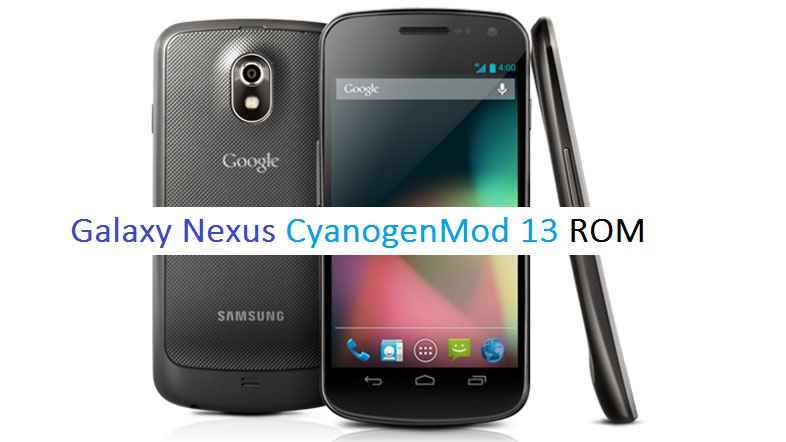
Stay tuned or Subscribe to the Redmi 5 (rosy) LineageOS forum For other Android 10, Android Oreo ROMs, Nougat ROMs, or other ROMs and all other device specific topics.Galaxy Nexus GSM CM13 (CyanogenMod 13) Marshmallow Custom ROM is brought to you by developer Ziyan as always. Earlier he was the developer to bring you the Galaxy Nexus CyanogenMod 12 maguro. Also if you are interested on Android M then here is the AOSP Marshmallow ROM for the Galaxy Nexus.
DISCLAIMER:
Installing custom ROM requires a custom recovery on the Galaxy Nexus maguro phone, which may VOID your warranty and may delete all your data. Before proceeding further you may consider backing up your all data. Understand that YOU are the only person making changes to your phone. Neither we nor the developer can be held responsible for the disaster that may happen to your device after following this guide.
If you wanna taste Nougat then here is the Nougat ROM for Galaxy Nexus.
REQUIRED DOWNLOADS NAD LINKS FOR THIS GALAXY NEXUS CM13 (CYANOGENMOD 13) MARSHMALLOW ROM:
- ROM: CyanogenMod 13 for Galaxy Nexus CM13 ROM download link
- GAPPS: Google Apps download link
- Make sure that you have the bootloader unlocked on Galaxy Nexus maguro phone and installed a custom recovery. If you don’t have a custom recovery then follow the below link:
RECOVERY: Installing custom recovery for Galaxy Nexus maguro phone.
Root binary is inbuilt since CyanogenMod 12, so you don’t need a separate SuperSu package to install to gain ROOT access. Here is How to Enable ROOT Access on CM13/CyanogenMod 13
FLASHING GALAXY NEXUS CM13 (CYANOGENMOD 13) MARSHMALLOW CUSTOM ROM:
Follow this if you are flashing CyanogenMod 13 for the first time to your Galaxy Nexus (Maguro), or coming from another ROM:
- Install the TWRP recovery on the Galaxy Nexus (Maguro). (Bootloader has to be unlocked before flashing a recovery). Here is a simple guide for Bootloader unlock and TWRP recovery installation on a Google Nexus Device.
– If you have the bootloader unlocked but you don’t have a recovery then download it from the above link and follow the below guide to flash:
How to Install TWRP on Android using Fastboot. - Then download and Copy the GApps and CyanogenMod ROM ZIP to your phone.
- Boot into Recovery. Make sure to have a Custom recovery like CWM or TWRP.
- Take a backup using a synchronization application or if you have TWRP installed then you can take a NANDROID backup using the TWRP itself.
- Wipe data factory reset, Cache partition, Dalvik Cache and Format the System partition. Here is a guide explaining how to wipe data using TWRP recovery.
- First flash the CM ROM ZIP from device. Then flash the GApps zip from your device memory.
– Here is a post explaining how to flash a custom ROM using TWRP recovery.
Use the same guide to flash the GApps too. - Reboot and Enjoy the CyanogenMod 13 Marshmallow ROM on your Galaxy Nexus (Maguro).
- Install the TWRP recovery on the Galaxy Nexus (Maguro). (Bootloader has to be unlocked before flashing a recovery). Here is a simple guide for Bootloader unlock and TWRP recovery installation on a Google Nexus Device.
Upgrading from earlier version of CyanogenMod 13.0:
- Copy the CyanogenMod 13 ROM ZIP file to your phone.
- Boot into Recovery.
- Flash the latest CM ROM ZIP from your phone.
– Here is a post explaining how to flash a custom ROM using TWRP recovery. - Reboot and Enjoy
Points to NOTE:
– Try to avoid restoring apps backup using Titanium Backup. It may break things up.
– Don’t restore system data using Titanium Backup! It will definitely break the current installation.
– It is also discouraged to Restoring Apps + Data using Titanium Backup.The first boot may take long time, so don’t panic and be sure that you have enough battery backup. Let the phone reboot and then enjoy the official CyanogenMod 13 Marshmallow ROM on Galaxy Nexus (Maguro).
That’s all guys. This is a beta build and an unofficial build. An unofficial build means you will not get daily updates and OTA updates, but do not worry Ziyan is releasing the builds frequently. If you have some concerns regarding this ROM then head over to the source link and convey the same.After this CM13 installation you may want to enable ROOT access on your phone and here is how you can do that:
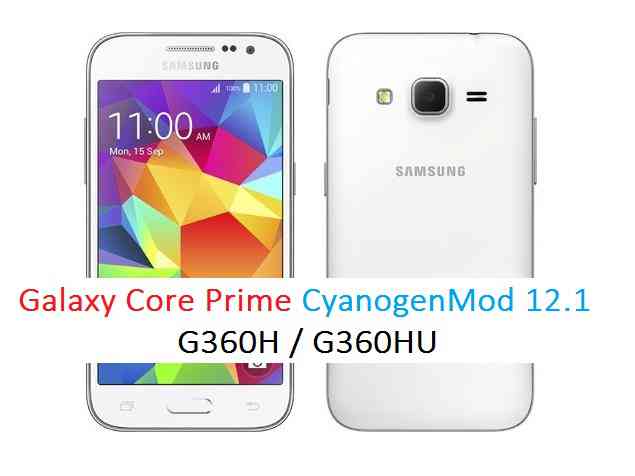
How to Enable ROOT Access on CM13/CyanogenMod 13.Stay tuned or Subscribe to the galaxy Nexus forum for GSM, Sprint and Verizon For upcoming Android Nougat ROMs, CyanogenMod Custom ROMs, other ROMs and all other device specific topics.Galaxy Core Prime CM12.1 (CyanogenMod 12.1, Android Lollipop) Custom ROM is based on Android Lollipop 5.1 is again brought to you for Samsung Galaxy Core Prime SM-G360H, G360HU by developer doesntexits and Dreamstar. In addition to this Cm12.1 we also have the Android Nougat 7.1 Lineage 14.1 for Galaxy Core Prime.
DISCLAIMER:
Installing custom ROM requires a custom recovery to be installed on your Samsung Galaxy Core Prime, which may VOID your warranty and may delete all your data. Before proceeding further you may consider backup your all data. You are the only person doing changes to your phone and I cannot be held responsible for the mistakes done by you. Neither the developer nor we will be held responsible for any disaster that happens to your device.KNOWN ISSUES:
– Switching to other fonts will get bootloops after restart.
REQUIRED DOWNLOADS AND LINKS FOR THE CYANOGENMOD 12.1 CORE PRIME LOLLIPOP ROM FLASHING GUIDE:
- ROM download link for Galaxy Core Prime (Codename: core33g)
- Google Apps download link
- TWRP recovery for Core Prime (Core33g).
– Download the .tar extension TWRP file which can be flashed with ODIN. Follow this guide: How to Install TWRP on Samsung Phone using Odin for the .tar TWRP file.– If you already have an unlocked bootloader then you can download the .img file extension. Then follow this guide: How to flash TWRP on Android Phone using fastboot.
If required:
– 15 Seconds ADB Installer for Windows
– Minimal ADB and Fastboot for Windows
ADB Fastboot Installation guide for Linux and MACGALAXY CORE PRIME CYANOGENMOD 12.1 LOLLIPOP ROM INSTALLATION GUIDE:
Follow the below guide if you are flashing the Core Prime CM12.1 Lollipop ROM for the first time, or coming from another ROM:
This will delete all your data on your phone. You may consider backing up your phone data or take a nandroid backup. Here is how to take NANDROID backup using TWRP recovery.
Points to NOTE:
– Try to avoid restoring apps backup using Titanium Backup. It may break things up.
– Don’t restore system data using Titanium Backup! It will definitely break the current installation.
– It is also discouraged to Restoring Apps + Data using Titanium Backup.- Make sure you have a TWRP installed on your Galaxy Core Prime.
If you don’t have a recovery then download it from the above downloads list (.tar file extension image) and follow the below guide to flash the TWRP:
– How to Install TWRP on Samsung using Odin for the .tar TWRP file. - Download and Copy the GApps and CyanogenMod ROM ZIP to your Galaxy Core Prime phone.
- Take a backup using a synchronization application or using Samsung Smart Switch or if you have TWRP installed then you can take a NANDROID backup using the TWRP itself.
- Boot into the custom Recovery.
- Wipe data factory reset, Cache partition, Dalvik Cache and Format the System partition.
– Here is a guide explaining how to wipe data using TWRP recovery.This will delete all your data on your phone. You may consider complete backup of your phone data or take a NANDROID backup of the current ROM
– How to backup all data on your Android Device
– how to take NANDROID backup using TWRP recovery - First flash the CM ROM ZIP from your phone. Then flash the GApps zip from your device memory.
– Here is a post explaining how to flash a custom ROM using TWRP recovery.
Use the same guide to flash the GApps too. - Reboot and Enjoy the CyanogenMod 12.1 Lollipop ROM on your Galaxy Core Prime.
- Make sure you have a TWRP installed on your Galaxy Core Prime.
Upgrading Galaxy Core Prime CM12.1 from earlier version of CyanogenMod 12.1:
- Copy the CyanogenMod 12.1 ROM ZIP file to your Galaxy Core Prime phone.
- Boot into Recovery.
- Flash the latest CM ROM ZIP from your phone.
– Here is a post explaining how to flash a custom ROM using TWRP recovery. - Reboot and Enjoy
The flashing may take a while. When it will be done you can reboot your system and enjoy the Galaxy Core Prime CM12.1 (CyanogenMod 12.1, Lollipop ROM), the Android Lollipop touch with CyanogenMod.
After this CyanogenMod 12.1 ROM installation you may want to enable ROOT access on your phone and here is how you can do that:
How to Enable ROOT Access on CyanogenMod 12/12.1Here is the much awaited Nougat 7.0 ROM for Galaxy NOTE 3 Canada CM14 (CyanogenMod 14). For latest updates, stay tuned to the Lineage OS device list page. This Nougat 7.0 has come for Canada NOTE 3 via CyanogenMod 14 ROM. Since Google released Android Nougat Source code, we have update many Android NOUGAT AOSP ROMs and also many CyanogenMod 14 ROMs updated and many are yet to come. This Galaxy NOTE 3 Canada CyanogenMod 14 is brought to you by developer Trader418.
DISCLAIMER:
THIS IS STILL AN EARLY BUILD AND CONTAINS BUGS. Installing custom ROM requires a custom recovery to be installed on your device, which may VOID your warranty and may delete all your data. Before proceeding further you may consider backup your all data. You are the only person doing changes to your phone and neither the developer(s) nor we can be held responsible for the mistakes done by you.Status of Galaxy (SM-n900w8) NOTE 3 Canada CM14 (CyanogenMod 14) Nougat 7.0 ROM:
WHAT’S WORKING:
– Wi-fi
– Adding a google account
– PlaystoreKNOWN ISSUES:
– Network
– Camera
– And many other things
REQUIRED LINKS AND FILES FOR GALAXY NOTE 3 CANADA CM14 (CYANOGENMOD 14, NOUGAT 7.0) CUSTOM ROM:
- TWRP recovery for NOTE 3 Canada SM-N900W8
– Custom Recovery Installation Guide on Samsung Galaxy NOTE 3 Canada – SM n900w8
- Download link for Galaxy NOTE 3 Canada (SM-n900w8) CM14 ROM
- Nougat GApps download link for Galaxy NOTE 3 Canada CM14 ROM
This is a user build and hence there is no inbuilt su in this CyanogenMod 14 ROM. To enable root you need to flash the SuperSU viarecovery. Here is post explaining: How to Enable ROOT on NOTE 3 Canada CM14 Nougat ROM
HOW TO INSTALL/DOWNLOAD/FLASH/UPDATE GALAXY NOTE 3 CANADA CM14 (CYANOGENMOD 14) (SM-n900w8) NOUGAT 7.0 CUSTOM ROM:
Follow this if you are flashing CyanogenMod 14 ROM for the first time to Galaxy NOTE 3 Canada, or coming from another ROM:
This will delete all your data on your phone. You may consider backing up your phone data or take a nandroid backup. Here is how to take NANDROID backup using TWRP recovery.
Points to NOTE:
– Try to avoid restoring apps backup using Titanium Backup. It may break things up.
– Don’t restore system data using Titanium Backup! It will definitely break the current installation.
– It is also discouraged to Restoring Apps + Data using Titanium Backup.- Download and Copy the GApps and Galaxy NOTE 3 Canada CyanogenMod 14 ROM ZIP to your phone.
- Boot into Recovery. Make sure to have a Custom recovery like CWM or TWRP or any other custom recovery. If not then follow the Custom Recovery Installation Guide for Samsung Galaxy NOTE 3 Canada – SM n900w8 (it’s a generic guide which will work for TWRP as well as CWM recovery)
- Wipe data factory reset, Cache partition, Dalvik Cache and Format the System partition.
– Here is a guide explaining how to wipe data using TWRP recovery.This will delete all your data on your phone. You may consider complete backup of your phone data or take a NANDROID backup of the current ROM
– How to backup all data on your Android Device
– how to take NANDROID backup using TWRP recovery - First flash the CM14 ROM ZIP from device. Then flash the GApps zip from your device memory.
– Here is a post explaining how to flash a custom ROM using TWRP recovery. - Now flash the Nougat GApps package.
– Here is a post explaining how to flash Nougat GApps using TWRP recovery. - Reboot and Enjoy the CyanogenMod 14 Nougat ROM on Galaxy NOTE 3 Canada.
Upgrading from earlier version of CyanogenMod 14 for Galaxy NOTE 3 Canada:
- Copy the latest Galaxy NOTE 3 Canada CyanogenMod 14 ROM ZIP file to your phone.
- Boot into Recovery.
- Flash the latest CM ROM ZIP from your phone.
– Here is a post explaining how to flash a custom ROM using TWRP recovery. - Now flash the Google Apps package.
– Here is a post explaining how to flash Nougat GApps using TWRP recovery. - Reboot and Enjoy
Complete the initial setup and enjoy Android Nougat 7.0.0 with CyanogenMod 14 for NOTE 3 Canada (SM-n900w8).
Stay tuned or Subscribe to the Galaxy NOTE 3 Canada forum For other Android Nougat ROMs, CyanogenMod 14 ROMs, other ROMs and all other device specific topics.For the development link of Galaxy NOTE 3 Canada CyanogenMod 14 Nougat ROM Update, visit here.
Here comes the OFFICIAL Huawei Honor 5x LineageOS 14.1 ROM build. If you want some more Lineage ROMs then stay tuned to the LineageOS 14.1 ROM collection page. Before this there was the CM14.1 for Honor 5x.
DISCLAIMER:
THIS IS AN INITIAL NIGHTLY BUILD WHICH MAY HAVE BUGS. HAVE A BACKUP OF THE CURRENT ROM BEFORE FLASHING THIS ROM AND TRY AT YOUR OWN RISK. Installing a custom ROM on a Honor 5x (kiwi) requires the bootloader to be unlocked on the Honor 5x (kiwi) phone, which may VOID your warranty and may delete all your data. Before proceeding further you may consider backup all data on the phone. You are the only person doing changes to your phone and I cannot be held responsible for the mistakes done by you.Upgrading from Honor 5x CyanogenMod 14.1 to LineageOS 14.1:
Lineage developer team will be releasing EXPERIMENTAL builds along with weekly NIGHTLY build so that users can migrate from CM14.1 to LineageOS 14.1 easily. Here is a guide that explains how to migrate CM14.1 to LineageOS 14.1.

REQUIRED LINKS AND FILES FOR Honor 5x LineageOS 14.1 NOUGAT CUSTOM ROM:
- TWRP recovery link for Honor 5x (kiwi)
– Here is theTWRP update guide for the Honor 5x (kiwi). This TWRP recovery guide requires an unlocked bootloader on the Honor 5x (kiwi).
- ROM Download link of OFFICIAL LineageOS 14.1 for Honor 5x (kiwi)
If you want to upgrade this LineageOS 14.1 on top of CM14.1 ROM without wiping data then you can refer this CyanogenMod to LineageOS upgrade guide.
- Lineage Nougat GApps download link for Honor 5x LineageOS 14.1 Nougat 7.1 ROM
Root binary is inbuilt in LineageOS 14.1, so you don’t need a separate SuperSu package to install to gain ROOT access. Here is How to Enable ROOT on LineageOS 14.1
If there is no in-built ROOT or it does not work for some reason then you can try flashing SuperSU zip using recovery to gain ROOT access.HOW TO INSTALL/DOWNLOAD/FLASH/UPDATE LineageOS 14.1 FOR Honor 5x NOUGAT CUSTOM ROM:
Follow this if you are flashing LineageOS 14.1 for Honor 5x (kiwi) for the first time, or coming from another ROM:
Points to NOTE:
– Try to avoid restoring apps backup using Titanium Backup. It may break things up.
– Don’t restore system data using Titanium Backup! It will definitely break the current installation.
– It is also discouraged to Restoring Apps + Data using Titanium Backup.- Download and Copy the GApps and Honor 5x LineageOS 14.1 ROM ZIP to your phone.
- Boot into Recovery. Make sure to have a Custom recovery like CWM or TWRP or any other custom recovery. If not then follow the Custom Recovery Installation Guide for Honor 5x (kiwi) (it’s a generic guide which will work for TWRP as well as CWM recovery or any other recovery)
- Wipe data factory reset, Cache partition, Dalvik Cache and Format the System partition.
– Here is a guide explaining how to wipe data using TWRP recovery.This will delete all your data on your phone. You may consider complete backup of your phone data or take a NANDROID backup of the current ROM
– How to backup all data on your Android Device
– how to take NANDROID backup using TWRP recovery - First flash the Honor 5x LineageOS 14.1 ROM ZIP from device. Then flash the GApps zip from your device memory.
– Here is a post explaining how to install LineageOS - DO NOT REBOOT YET. Now flash the LineageOS 14.1 Nougat GApps package.
– Here is a post explaining how to flash GApps using TWRP recovery. - Reboot and Enjoy the Nougat 7.1 LineageOS 14.1 ROM for Honor 5x (kiwi).
Upgrading from earlier version of LineageOS 14.1 for Honor 5x (kiwi):
- Copy the latest Honor 5x LineageOS 14.1 ROM ZIP file to your phone.
- Boot into Recovery.
- Flash the latest CM ROM ZIP from your phone.
– Here is a post explaining how to install LineageOS - Then flash the LineageOS 14.1 Nougat GApps package.
– Here is a post explaining how to flash GApps using TWRP recovery. - Reboot and Enjoy
Complete the initial setup and enjoy Android Nougat 7.1 with LineageOS 14.1 for Honor 5x (kiwi). After the installation of LineageOS 14.1 for Honor 5x (kiwi) you may want to enable ROOT access on your phone and here is how you can do that:
How to Enable ROOT on LineageOS 14.1.Stay tuned or Subscribe to the Honor 5x (kiwi) forum For other Android Nougat ROMs, LineageOS 14.1 ROMs, other ROMs and all other device specific topics.Android Marshmallow ROM, LineageOS 13 for Redmi Pro has now arrived via an UNOFFICIAL build. Here we also have the LineageOS 14.1 for Redmi Pro. If you want some more LineageOS ROMs or wanna taste the OFFICIAL LineageOS build then stay tuned to the LineageOS Marshmallow page and LOS 14.1 Nougat ROMs. This Redmi Pro LineageOS 13 is brought to you by developer OrdunaLagarma.
DONATION TO DEVELOPER(S):
If you like this ROM then consider a donation to OrdunaLagarma, the developer of this ROM.
DISCLAIMER:
THIS IS AN INITIAL TEST BUILD WHICH BOOTS BUT HAS MANY MORE BUGS THAN YOU CAN IMAGINE. HIS CANNOT BE USED AS A DAILY DRIVER IN ANYWAY. HAVE A BACKUP BEFORE FLASHING THIS AND TRY AT YOUR OWN RISK. Installing a custom ROM may require unlocking the bootloader on Redmi Pro, which may VOID your warranty and may delete all your data. Before proceeding further you may consider backup all data on the phone. You are the only person making changes to your phone and I cannot be held responsible for the mistakes done by you.Status of LineageOS 13 for Redmi Pro (omega) Marshmallow ROM:
WHAT’S WORKING:
– WLAN
– Audio
– Network and data
– Camera but it is not focusing
– OTG
– Bluetooth
– Home button (hardware buttons removed)KNOWN ISSUES:
– Camera focus
– RIL reset on outgoing calls
– Not charging while being off.
– Fingerprint sensor
REQUIRED LINKS AND FILES FOR LineageOS 13 FOR REDMI PRO MARSHMALLOW CUSTOM ROM:
- TWRP link for Redmi Pro (by daohoa24)
– Here is: Mediatek Recovery Installation Guide
– This TWRP recovery guide requires an unlocked bootloader on the Redmi Pro. - LineageOS 13 ROM for Redmi Pro (omega)
- Lineage 13 GApps for Redmi Pro LineageOS 13 Marshmallow ROM
Root binary is NOT inbuilt in LineageOS 13, so you may need a separate SuperSu package or LineageOS su binary to install to gain ROOT access. Here is how to ROOT LineageOS 13
If there is no in-built ROOT or it does not work for some reason then you can try installing SuperSU binary to gain ROOT access.HOW TO INSTALL/DOWNLOAD/FLASH/UPDATE Redmi Pro LineageOS 13 MARSHMALLOW CUSTOM ROM:
Follow this if you are flashing LineageOS 13 for Redmi Pro (omega) for the first time, or coming from another ROM:
Points to NOTE:
– Try to avoid restoring apps backup using Titanium Backup. It may break things up.
– Don’t restore system data using Titanium Backup! It will definitely break the current installation.
– It is also discouraged to Restoring Apps + Data using Titanium Backup.- Download and Copy the GApps and LineageOS 13 for Redmi Pro ROM ZIP to your phone.
- Boot into Recovery. Make sure to have a Custom recovery like CWM or TWRP or any other custom recovery. If not then follow the Mediatek recovery guide. (it’s a generic guide which will work for TWRP as well as CWM recovery or any other recovery)
- Wipe data factory reset, Cache partition, Dalvik Cache and Format the System partition.
– Here is how to Erase data using TWRP.This will delete all your data on your phone. You may consider complete backup of your phone data or take a NANDROID backup of the current ROM
– Data backup on Phone
– Backup using TWRP recovery - First flash the Redmi Pro LineageOS 13 ROM ZIP from device. Then flash the GApps zip from your device memory.
– Here is a post explaining how to install LineageOS. - DO NOT REBOOT yet. Then flash the Marshmallow GApps package.
– Here is how to install GApps on Marshmallow ROM. - Reboot and Enjoy the Marshmallow LineageOS 13 ROM for Redmi Pro (omega).
Upgrading from earlier version of Redmi Pro LineageOS 13 (omega):
- Copy the latest LineageOS 13 for Redmi Pro ROM ZIP file to your phone.
- Boot into Recovery.
- Flash the latest LineageOS ROM ZIP from your phone.
– Here is a post explaining how to install LineageOS. - Then flash the LineageOS 13 GApps package.
– Here is a post explaining how to flash GApps using recovery. - Reboot and Enjoy
Complete the initial setup and enjoy Android Marshmallow with LineageOS 13 for Redmi Pro (omega). After the installation of Redmi Pro LineageOS 13 ROM (omega) you may want to enable ROOT access on your phone and here is how you can do that:
How to Enable ROOT on LineageOS 13.Stay tuned or Subscribe to the Redmi Pro (omega) forum For other Android Custom ROMs, LineageOS 13 ROMs, other ROMs and all other device specific topics.If you have any queries or concerns using this ROM, then go to the Lineage ROM thread for Redmi Pro LineageOS 13.
Android Oreo 8.1 ROM, Moto Z LineageOS 15.1 has now arrived via a development build. If you want the OFFICIAL LineageOS 15.1 update or some more Android Oreo ROMs then stay tuned to the LineageOS 15.1 page or the AOSP Android Oreo ROMs devices list page. This LineageOS 15.1 for Moto Z is brought to you by developer erfanoabdi.
Follow the links to get LineageOS 16 and Android Pie ROM builds.
DONATION TO DEVELOPER:
No donation link found for erfanoabdi.
DISCLAIMER:
THIS IS AN INITIAL ALPHA BUILD, WHICH MAY HAVE FEW BUGS. HAVE A BACKUP BEFORE FLASHING THIS AND TRY AT YOUR OWN RISK. Installing a custom ROM on a Moto Z (griffin) requires an unlocked bootloader on Moto Z (griffin), which may VOID your warranty and may delete all your data. Before proceeding further you may consider backup all data on the phone. You are the only person doing changes to your phone and I cannot be held responsible for the mistakes done by you.Status of Motorola Moto Z LineageOS 15.1 Oreo 8 ROM:
WHAT’S WORKING:
– EverythingKNOWN ISSUES:
– Camera Preview and Video (But can take picture)
– MP3 Playback
REQUIRED LINKS AND FILES FOR Moto Z LineageOS 15.1 OREO CUSTOM ROM:
- TWRP recovery download for Moto Z (griffin) (This TWRP is must. Official TWRP won’t work for this ROM)
– Here is theTWRP update guide for the Moto Z. This TWRP recovery guide requires an unlocked bootloader on the Moto Z.
- ROM Download link of LineageOS 15.1 for Moto Z
- Oreo GApps Download Link for Moto Z LineageOS 15.1 Oreo 8.1 ROM
Root binary is NOT inbuilt in LineageOS 15.1, so you may need a separate SuperSu package or LineageOS su binary to install to gain ROOT access. Here is LineageOS Rooting guide
If there is no in-built ROOT or it does not work for some reason then you can try SuperSU rooting guide to enable ROOT access.HOW TO INSTALL/DOWNLOAD/FLASH/UPDATE LineageOS 15.1 FOR Moto Z OREO CUSTOM ROM:
Follow this if you are flashing LineageOS 15.1 for Moto Z for the first time, or coming from another ROM:
Points to NOTE:
– Try to avoid restoring apps backup using Titanium Backup. It may break things up.
– Don’t restore system data using Titanium Backup! It will definitely break the current installation.
– It is also discouraged to Restoring Apps + Data using Titanium Backup.- Download and Copy the GApps and Moto Z LineageOS 15.1 ROM ZIP to your phone.
- Boot into Recovery. Make sure to have a Custom recovery like CWM or TWRP or any other custom recovery. If not then follow the Custom Recovery Installation Guide for Moto Z (it’s a generic guide which will work for TWRP as well as CWM recovery or any other recovery)
- Wipe data factory reset, Cache partition, Dalvik Cache and Format the System partition.
– Here is a guide explaining how to wipe data using TWRP recovery.This will delete all your data on your phone. You may consider complete backup of your phone data or take a NANDROID backup of the current ROM
– How to backup all data on your Android Device
– how to take NANDROID backup using TWRP recovery - First flash the Moto Z LineageOS 15.1 ROM ZIP from device. Then flash the GApps zip from your device memory.
– Here is a post explaining how to install LineageOS - Then reboot into recovery (don’t skip this) and flash the Gapps for LineageOS 15.1 package.
– Here is a post explaining how to flash GApps using TWRP recovery. - Reboot and Enjoy the Oreo 8.1 LineageOS 15.1 ROM for Moto Z.
Upgrading from earlier version of LineageOS 15.1 for Moto Z (griffin):
- Copy the latest Moto Z Lineage 15 ROM ZIP file to your phone.
- Boot into Recovery.
- Flash the latest LineageOS 15.1 Oreo ROM ZIP from your phone.
– Here is a post explaining how to install LineageOS - Then flash the Lineage 15 Oreo GApps package.
– Here is a post explaining how to flash GApps using TWRP recovery. - Reboot and Enjoy
Complete the initial setup and enjoy Android Oreo 8.1 with LineageOS 15.1 for Moto Z. After the installation of LineageOS 15.1 for Moto Z you may want to enable ROOT access on your phone and here is how you can do that:
How to Enable ROOT on LineageOS 15.1.Stay tuned or Subscribe to the Moto Z (griffin) forum For other Android Oreo, Nougat ROMs, LineageOS 15.1 ROMs, other custom ROMs and all other device specific topics.