- Search Results
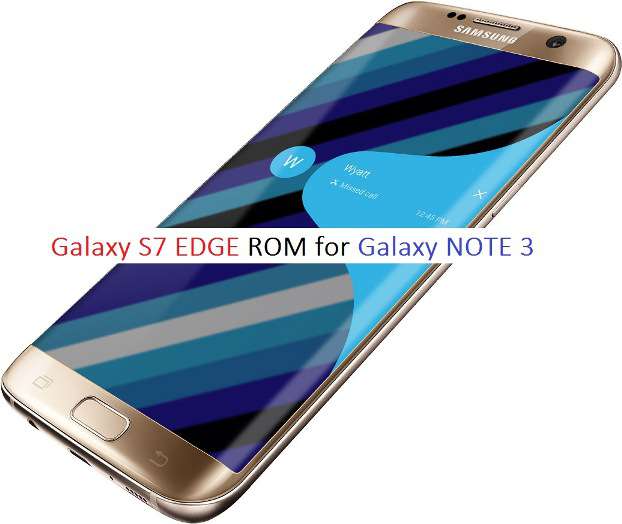
Here is a Galaxy S7 Edge ROM for the Galaxy NOTE 3 users ported by darkera13. This ported ROM is based on Galaxy S7 Edge firmware version: G935FXXU1APC8. This ROM is supported on N900D (SC01F, HLTEDCM, SC02F), N9002, N9005 (HLTE, HLTEEUR), N900S, N900K, N900L (HLTESKT), N900P (HLTESPR), N900T (HLTETMO), N900W8 (HLTECAN), Galaxy J (JS01LTE).
S7 EDGE ROM FEATURES:- Based on Galaxy S7 Edge G935FXXU1APC8
- Rooted / Deodexed / Zipaligned / Busybox / Deknoxed
- Multiple Languages
- First world Touchwiz 6.0.1 for Samsung Galaxy Note 3
- Android 6.0.1
- Full Galaxy S7 Edge features
- Full Galaxy Note5 features
- Camera 5.0
BUGS ON THIS ROM:- Always ON not working
- Sound alive not working
- Sview not working
- Some camera mode not working (hardware limited)
- Hotspot not working
- Gallery’s event player failed

REQUIRED LINKS AND DOWNLOADS FOR THE GALAXY S7 EDGE ROM FOR GALAXY NOTE 3:
- TWRP recovery for NOTE 3 or any custom recovery.
- Take backup of the Complete ROM or all the data using a synchronization application.
– Take a complete backup of the current ROM if you have installed TWRP on the Galaxy NOTE 3.
– Take a backup of individual data using a synchronization application.
ROM Download link: Google Drive | Mega | AFH
INSTALL GALAXY S7 EDGE ROM ON GALAXY NOTE 3:
- Make sure you have installed a TWRP recovery on your Galaxy NOTE 3 variant.
- Download and Copy the ROM zip to your NOTE 3.
- Take a backup of all the data on your phone.
– Follow this guide to Backup data on Android phone.
– If you want a snapshot of the current ROM then here is How to take NANDROID BACKUP using TWRP recovery - Now follow the guide: Installing Custom ROM on Any Android phone Using TWRP recovery to flash the Galaxy S7 EDGE ROM on Galaxy NOTE 3.
DONE!!! Now your Galaxy NOTE 3 variant phone is flashed with the Galaxy S7 EDGE ROM. Have a look how the Galaxy S7 Edge feels??? Play with your device and do login to reply if you face any problems while installing this ROM or while using this ROM.
This is a Q&A discussion thread for the Galaxy S3 (i9300) CyanogenMod 13 Marshmallow ROM. If you have any bugs to report or concerns regarding this ROM then please feel free to place your comments in this topic.
Please use this thread to discuss this ROM only and for anything else either you can search the forum or create a new topic in the appropriate device forum.
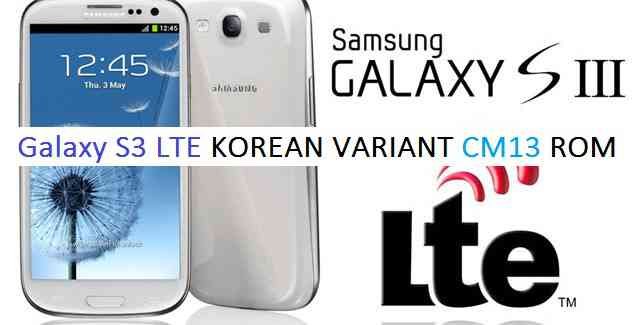
Galaxy S3 LTE KOREA CM13 (CyanogenMod 13, c1skt) Marshmallow ROM is an unofficial build brought to you by developer fullgreen. This is a BETA status ROM which have minor BUGs and hence, please take a backup using a synchronization application or using Samsung Smart Switch or if you have TWRP installed then boot into TWRP recovery and take a NANDROID backup using the TWRP itself before flashing this ROM.
CAUTION:
Before proceeding further you may consider backup your all data. You are the only person doing changes to your phone and I cannot be held responsible for the mistakes done by you. Neither the developer nor we will be held responsible for any disaster that happens to your device.
Status of fullgreen’s S3 LTE KOREA SK Telecom CyanogenMod 13 ROM:
KNOWN ISSUES:
– NOT KNOWNWHAT’S WORKING:
– NOT KNOWNRecommended files for CM13 Galaxy S3 LTE KOREA (CyanogenMod 13, c1skt) Marshmallow ROM installation:
- CWM recovery download link (.tar) for KOREAN Galaxy S3 LTE (c1skt)
– Download the .tar extension Recovery file which can be flashed with ODIN. Follow this guide: How to Install CWM on Samsung using Odin for the .tar TWRP file. - ROM download link for Galaxy S3 LTE KOREAN variant (c1skt) CyanogenMod 13
- Marshmallow GApps download link for Galaxy S3 LTE KOREA (c1skt) CM13
Installing CyanogenMod 13 on (c1skt) Galaxy S3 LTE KOREA CM13 Marshmallow ROM:
Make sure that you have a custom recovery installed on your Galaxy S3 LTE KOREAN phone. If not then download the recovery from above downloads section and you can follow this TWRP recovery installation on Samsung phone using ODIN guide.
Follow this if you are flashing CyanogenMod 13 ROM for the first time to your Galaxy S3 LTE KOREA phone, or coming from another ROM:
This will delete all your data on your phone. You may consider backing up your phone data or take a nandroid backup. Here is how to take NANDROID backup using TWRP recovery.
Points to NOTE on BACKUP:
– Try to avoid restoring apps backup using Titanium Backup. It may break things up.
– Don’t restore system data using Titanium Backup! It will definitely break the current installation.
– It is also discouraged to Restoring Apps + Data using Titanium Backup.- Download and Copy the GApps and Galaxy S3 LTE KOREA CyanogenMod 13 ROM ZIP to your phone.
- Boot into Recovery. Make sure to have a Custom recovery like CWM or TWRP or any other custom recovery.
- Wipe data factory reset, Cache partition, Dalvik Cache and Format the System partition.
– Here is a guide explaining how to wipe data using TWRP recovery.This will delete all your data on your phone. You may consider complete backup of your phone data or take a NANDROID backup of the current ROM.
– How to backup all data on your Android Device.
– how to take NANDROID backup using TWRP recovery. - First flash the CM13 ROM ZIP from device. Then flash the GApps zip from your device memory.
– Here is a post explaining how to flash a custom ROM using TWRP recovery. - Now flash the Google Apps package.
– Here is a post explaining how to flash GApps using TWRP recovery. - Reboot and Enjoy the CyanogenMod 13 Marshmallow ROM on your Galaxy S3 LTE KOREA.
Upgrading from earlier version of CyanogenMod 13 ROM on Galaxy S3 LTE KOREAN variant:
- Copy the latest Galaxy S3 LTE KOREA CyanogenMod 13 ROM ZIP file to your phone.
- Boot into Recovery.
- Flash the latest CM ROM ZIP from your phone and wait till it finishes flashing.
– Here is a post explaining how to flash a custom ROM using TWRP recovery. - After that flash the Google Apps package.
– Here is a post explaining how to flash GApps using TWRP recovery. - Reboot and Enjoy
Complete the initial setup and enjoy Android Marshmallow 6.0.1 with CyanogenMod 13 for Galaxy S3 LTE KOREA. After this CM13 installation you may want to enable ROOT access on your phone and here is how you can do that:
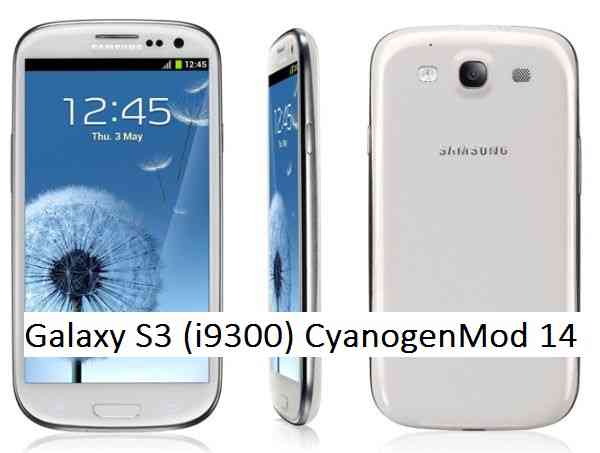
How to Enable ROOT Access on CM13/CyanogenMod 13Stay tuned or Subscribe to the Samsung Galaxy S3 LTE KOREA (c1skt) forum For upcoming Android Nougat ROMs, CyanogenMod Custom ROMs, other ROMs and all other device specific topics.Here is the much awaited Nougat 7.0 ROM for Galaxy S3 CyanogenMod 14 (CM14). We also have the Lineage 14.1 for Galaxy S3 (i9300). For latest updates, stay tuned to the Lineage OS device list page. One more important update goes here: Official CM14.1 for Galaxy S3 (i9300) and Galaxy S3 nougat Resurrection Remix ROM. If you are looking for S3 LTE CM14 then here is the CyanogenMod 14/CM14 for Galaxy S3 LTE (i9305). Since Google released Android Nougat Source code, we have update many Android NOUGAT AOSP ROMs and we also have a big list of devices with CM14/CyanogenMod 14 Nougat 7.0 ROMs till date. This CyanogenMod 14/CM14 for Galaxy S3 is brought to you by developer Taker18 and another build by NoN1979. If you want to donate Taker18 for his awesome work, you can donate him using this Link. Another ROM is by pesci2k.
DISCLAIMER:
THIS IS STILL AN EARLY BUILD AND CONTAINS BUGS. Installing custom ROM requires a custom recovery to be installed on your device, which may VOID your warranty and may delete all your data. Before proceeding further you may consider backup your all data. You are the only person doing changes to your phone and neither the developer(s) nor we can be held responsible for the mistakes done by you.Status of Galaxy S3 CM14 (CyanogenMod 14) Nougat 7.0 ROM:
WHAT’S WORKING:
– Not knownKNOWN ISSUES:
– Not known
REQUIRED LINKS AND FILES FOR GALAXY S3 CM14 (CYANOGENMOD 14, NOUGAT) CUSTOM ROM:
- TWRP recovery download for S3 i9300
– Custom Recovery Installation Guide on Samsung Galaxy S3 i9300
- Download link to Taker18’s (i9300) Galaxy S3 CM14/CyanogenMod 14 ROM [UPDATED FREQUENTLY]
- Download link to NoN1979’s (i9300) Galaxy S3 CM14/CyanogenMod 14 ROM
- Download link to pesci2k’s (i9300) Galaxy S3 CM14/CyanogenMod 14 ROM
- Nougat GApps download link for Galaxy S3 CM14 ROM
Root binary is inbuilt since CyanogenMod 12, so you don’t need a separate SuperSu package to install to gain ROOT access. Here is How to Enable ROOT on CM14/CyanogenMod 14
HOW TO INSTALL/DOWNLOAD/FLASH/UPDATE GALAXY S3 CM14 (CYANOGENMOD 14) (i9300) NOUGAT CUSTOM ROM:
Follow this if you are flashing CyanogenMod 14 for Galaxy S3 for the first time, or coming from another ROM:
This will delete all your data on your phone. You may consider backing up your phone data or take a nandroid backup. Here is how to take NANDROID backup using TWRP recovery.
Points to NOTE:
– Try to avoid restoring apps backup using Titanium Backup. It may break things up.
– Don’t restore system data using Titanium Backup! It will definitely break the current installation.
– It is also discouraged to Restoring Apps + Data using Titanium Backup.- Download and Copy the GApps and Galaxy S3 CyanogenMod 14 ROM ZIP to your phone.
- Boot into Recovery. Make sure to have a Custom recovery like CWM or TWRP or any other custom recovery. If not then follow the Custom Recovery Installation Guide for Samsung Galaxy S3 – i9300 (it’s a generic guide which will work for TWRP as well as CWM recovery)
- Wipe data factory reset, Cache partition, Dalvik Cache and Format the System partition.
– Here is a guide explaining how to wipe data using TWRP recovery.This will delete all your data on your phone. You may consider complete backup of your phone data or take a NANDROID backup of the current ROM
– How to backup all data on your Android Device
– how to take NANDROID backup using TWRP recovery - First flash the CM14 ROM ZIP from device. Then flash the GApps zip from your device memory.
– Here is a post explaining how to flash a custom ROM using TWRP recovery. - Then reboot into recovery (don’t skip this) and flash the CM14 Nougat Google Apps package.
– Here is a post explaining how to flash GApps using TWRP recovery. - Reboot and Enjoy the CyanogenMod 14 Nougat ROM on Galaxy S3.
Upgrading from earlier version of CyanogenMod 14 for S3:
- Copy the latest Galaxy S3 CyanogenMod 14 ROM ZIP file to your phone.
- Boot into Recovery.
- Flash the latest CM ROM ZIP from your phone.
– Here is a post explaining how to flash a custom ROM using TWRP recovery. - Then flash the CM14 Nougat Google Apps package.
– Here is a post explaining how to flash GApps using TWRP recovery. - Reboot and Enjoy
Complete the initial setup and enjoy Android Nougat 7.0.0 with CyanogenMod 14 for S3 (i9300). After this CM14 installation you may want to enable ROOT access on your phone and here is how you can do that:
How to Enable ROOT on CM14/CyanogenMod 14.Stay tuned or Subscribe to the Galaxy S3 i9300 forum For other Android Nougat ROMs, CyanogenMod 14 ROMs, other ROMs and all other device specific topics.Development thread for this Galaxy S3 CM14 is here.
Galaxy S6 Active SM-G890A AT&T device is getting official Android 6.0.1 Marshmallow update version G890AUCU3CPE3. Many people are struggling to get this update because of various reasons and hence here is a very simple Step By Step guide to update the G890AUCU3CPE3 Marshmallow Update Manually on the Galaxy S6 Active SM-G890A AT&T. Just grab the Firmware update from the Downloads section and then follow the update process.
This guide is divided into various parts depending on your current firmware version. See the updates that has been released from older to latest order for Galaxy S6 Active SM-G890A AT&T:
v1 – 5.0.2 – G890AUCU2AOF3
v2 – 5.0.2 – G890AUCU2AU2AOF4
v3 – 5.1.1 – G890AUCU3BOJE
v4 – 5.1.1 – G890AUCU3BPB3 or G890AUCS3BPCG
v5 – 6.0.1 – G890AUCU4CPF1IMPORTANT:
You have to update the firmware incrementally meaning if you’re on v2 – G890AUCU2AU2AOF4 you can’t go straight to v5. You have to go to v3, then v4 and finally upgrade to v5. The same holds true for other versions too.DISCLAIMER:
Manually updating the firmware WILL WIPE EVERYTHING on your phone. Make sure you do a backup using a synchronization application or using Samsung Smart Switch or if you have TWRP installed then you can take a NANDROID backup using the TWRP itself. Make sure you do the updates incrementally. As far as I know this has worked for everyone but still I am not responsible if anything goes wrong by following this guide. I can assure you that I will try to help you out as far as possible.
REQUIRED DOWNLOADS AND RELEVANT LINKS TO UPDATE Galaxy S6 ACTIVE SM-G890A AT&T G890AUCU3CPE3:
- ADB Binaries installed on a Windows or MAC:
– 15 Seconds ADB Installer for Windows
– Minimal ADB and Fastboot for Windows
ADB Fastboot Installation guide for Linux and MAC. - If you are on v1 – 5.0.2 – G890AUCU2AOF3 then download all the firmwares including this one:
v1 (G890AUCU2AOF3) to v2 (G890AUCU2AU2AOF4) update file (129 MB) - If you are on v2 – 5.0.2 – G890AUCU2AU2AOF4 then download all the firmwares below this:
v2 (G890AUCU2AU2AOF4) to v3 (G890AUCU3BOJE) update file (719 MB) - If you are on v3 – 5.1.1 – G890AUCU3BOJE then download all the firmwares below this:
v3 (G890AUCU3BOJE) to v4 (G890AUCU3BPB3) update file (85.9 MB) [updated Link] - If you are on v4 – 5.1.1 – G890AUCU3BPB3 or G890AUCS3BPCG then you have to download only one of the file mentioned below as per your current FW version:
v4 (G890AUCU3BPB3) to v5 (G890AUCU3CPE3) update file (1.5 GB) [updated Link]
INSTALLING THE Galaxy S6 Active SM-G890A AT&T G890AUCU3CPE3 Android 6.0.1 MARSHMALLOW UPDATE:
- Install ADB utility on your PC or MAC (You can SKIP if you have ADB installed on your PC). Follow the appropriate guide to install ADB utility according to the OS that you use:
15 Seconds ADB Installer or Minimal ADB and Fastboot for Windows
ADB Fastboot Installation guide for Linux and MAC. - Download appropriate Firmware(s) according to your current FW version of the phone.
- The firmware upgrade will WIPE EVERYTHING on your phone. Make sure you do a backup using a third party synchronization application or using Samsung Smart Switch or if you have TWRP installed then you can take a NANDROID backup using the TWRP itself.
- Reboot the phone into recovery.
– Turn it off and wait a minute for it to completely turn off.
– Hold down Volume Up + Home + Power button until you see a little Android guy and wait until a menu comes up. - Select “Apply Update from ADB“
- Open a command console or terminal and move to the directory where you have downloaded the firmware files.
To open the command window in Windows, Press Shift (on keyboard) + Right Click (on mouse) on any directory or any place on Windows explorer and then Click on Open command window here
- Execute the following command to flash a firmware:
$ adb sideload <firmware-file-name>
– Make sure to replace the firmware-file-name with the exact file name.
- After the update phone will reboot automatically. Just be patient till it boots up completely.
- Repeat the process of updating the firmware from STEP 6 to 9 until you update the v5.
– Here you need to take care that if you are on v1 firmware then you need to flash v1 to v2, then v2 to v3, then v3 to v4 and finally v5.
Finally enjoy the Android Marshmallow 6.0.1 update via G890AUCU3CPE3 on the Galaxy S6 Active SM-G890A AT&T. Meanwhile if you have any concerns on flashing or you face any difficulties while following this guide then just login and place a reply to get an instant help.
Android Pie 9.0 for Redmi Note 4 is now available to download from a stable build. This post guides how to download and install AOSP Android Pie on Redmi Note 4.
[su_note note_color=”#D8F1C6″ text_color=”#769958″ radius=”3″ class=”” id=””]
EDIT:
Lineage OS 16 for Redmi Note 4 is also available now.[/su_note]This AOSP build of Redmi Note 4 Android Pie 9.0 is brought to you by abhishek987.
DONATION TO PROJECT/DEVELOPER(s):
Please consider for a small contribution to abhishek987 for the effort to build this ROM:
– No donation link found for abhishek987[su_note note_color=”#F9D9D9″ text_color=”#AA4343″ radius=”3″ class=”” id=””]DISCLAIMER:
THIS IS REPORTED AS A STABLE BUILD OF ANDROID PIE FOR Redmi Note 4 (Android 9).
BUT STILL MAKE SURE TO BACKUP EVERYTHING BEFORE YOU INSTALL THIS ANDROID PIE ON Redmi Note 4.[/su_note]
[su_note note_color=”#FBF4DD” text_color=”#A38C68″ radius=”3″ class=”” id=””]
– Installing a custom ROM requires unlocked bootloader on Redmi Note 4, which may VOID your warranty and may delete all your data. Before proceeding further you may consider backup all data on the phone.
– You are the only person making changes to your phone and I cannot be held responsible for the mistakes done by you.
[/su_note]Content structure of Redmi Note 4 Android Pie update guide:

Status of this AOSP Android Pie on Redmi Note 4:
WHAT’S WORKING:
– Boots
– RIL (Calls, SMS, Data)
– Fingerprint
– IR Blaster
– Wi-Fi
– Bluetooth
– Camera
– Camcorder
– Video Playback
– Audio
– Sensors
– Flash
– LED
– GPS
– VolteKNOWN ISSUES:
– Nothing majorREQUIRED LINKS AND FILES TO INSTALL AOSP ANDROID PIE ON Redmi Note 4:
- TWRP recovery for Redmi Note 4
– Here is the how to install TWRP for Redmi Note 4.
– This recovery guide requires an unlock bootloader on Redmi Note 4. - AOSP downlaod link to install Android Pie on Redmi Note 4
- ARM64 GApps download for Android Pie 9.0 ROM
HOW TO FLASH/INSTALL ANDROID PIE 9.0 ON Redmi Note 4:
Follow this guide if you are flashing Android 9.0 Pie on Redmi Note 4 for the first time, or coming from any other ROM of any Android version:
[su_note note_color=”#FBF4DD” text_color=”#A38C68″ radius=”3″ class=”” id=””]Points to NOTE:
– Try to avoid restoring apps backup using any application such as: Titanium Backup. It may break things up.
– Don’t restore system data using Titanium Backup! It will definitely break the current installation.
– It is also discouraged to Restoring Apps + Data using Titanium Backup.[/su_note]- Boot into the TWRP custom Recovery to install this Android 9.0 Pie on Redmi Note 4.
[su_note note_color=”#D7E3F4″ text_color=”#728095″ radius=”3″ class=”” id=””]- Make sure to have a Custom recovery like a TWRP recovery or any other custom recovery.
– If not then download the TWRP recovery from Downloads link and follow the TWRP flashing Guide (it’s a generic guide which will work for TWRP or any other recovery)[/su_note] - Backup system, vendor, boot, data of your Redmi Note 4 phone
[su_note note_color=”#D7E3F4″ text_color=”#728095″ radius=”3″ class=”” id=””]- How to take complete backup using TWRP[/su_note] - Wipe the data partition (or do a factory reset), wipe cache, ART or Dalvik cache and Format the System partition.
[su_note note_color=”#D7E3F4″ text_color=”#728095″ radius=”3″ class=”” id=””]- Here is a guide explaining How to wipe data using TWRP.[/su_note]
[su_note note_color=”#FBF4DD” text_color=”#A38C68″ radius=”3″ class=”” id=””]This will delete all your data on your phone. You may consider complete backup of your phone data or take a NANDROID backup of the current ROM
– How to backup Data on Android Phone[/su_note] - Download and Copy the Android Pie GApps and Redmi Note 4 Android 9 Pie AOSP ZIP files to your phone by using MTP mode in TWRP.
- Flash the Redmi Note 4 Android 9 Pie AOSP file that you have copied into the phone.
[su_note note_color=”#D7E3F4″ text_color=”#728095″ radius=”3″ class=”” id=””]- Here is a post explaining how to install recovery flashable zip file[/su_note] - Then flash the Android 9.0 Pie GApps (Android 9 Pie GApps package).
[su_note note_color=”#D7E3F4″ text_color=”#728095″ radius=”3″ class=”” id=””]- Here is a post explaining how to install GApps using TWRP recovery.[/su_note] - Reboot and Enjoy the Android 9.0 Pie on Redmi Note 4.
Upgrading from earlier version of Android Pie on Redmi Note 4 (mido):
- Copy the latest Redmi Note 4 Android 9 Pie AOSP ROM ZIP file, Android 9 Pie GApps package to the phone.
- Boot into TWRP Recovery on Redmi Note 4.
– Make sure you have a latest or a compatible custom Recovery that should be able to install Android Pie on Redmi Note 4. - Format or wipe the system partition from the custom recovery menu.
- First install the Android 9 Pie ROM ZIP file from device.
[su_note note_color=”#D7E3F4″ text_color=”#728095″ radius=”3″ class=”” id=””]- Here is a post explaining how to install recovery flashable zip[/su_note] - Reboot and see you have the GApps available or not.
[su_note note_color=”#D7E3F4″ text_color=”#728095″ radius=”3″ class=”” id=””]- Gapps is built in such a way that it will sustain across ROM updates.[/su_note] - If you don’t have GApps after upgrading the Android 9 Pie on Redmi Note 4, then flash the Android GApps once again.
[su_note note_color=”#D7E3F4″ text_color=”#728095″ radius=”3″ class=”” id=””]- Here is a post explaining how to flash GApps using TWRP recovery.[/su_note] - Once everything is done, reboot and Enjoy the Android 9 Pie on Redmi Note 4.
TROUBLESHOOTING AFTER INSTALLING ANDROID PIE 9.0 ON Redmi Note 4:
This build is reported to be a stable build of Android Pie on Redmi NOTE 4. But, if in case you want to downgrade to Android Oreo then here are some of the options:
– How to install OFFICIAL LineageOS 15.1 on Redmi Note 4
– How to install LineageOS 15.1 on Redmi Note 4
– How to install crDroid on Redmi Note 4
– How to install AICP 13 on Redmi Note 4
– How to install Resurrection Remix on Redmi Note 4[su_note note_color=”#D7E3F4″ text_color=”#728095″ radius=”3″ class=”” id=””]Stay tuned or Subscribe to the Redmi Note 4 (mido) forum for Android 9 Pie ROMs, Redmi Note 4 Lineage OS 16 ROM, Android Oreo 8.1 ROMs, LineageOS 15.1 ROMs, other ROMs and all other device specific topics.[/su_note]
For any help on this ROM, here is the source link on xda.
Going out on a limb here, posting in a heretofore empty forum. But I seem to be stuck and need some help please. Given that somebody is still updating the nightly for it, I assume that I’m not the only one still using this phone. Anyway, I’ve been able to root my phone and flash 14.1 (using the latest nightly as of this writing (i.e. lineage-14.1-20170227-nightly-d2spr-signed.zip). Everything seems to work great, up until I try and flash GApps. Then things get squirrely. The farthest I’ve ever gotten is using open_gapps-arm-7.1-mini-20170301.zip. It looked like everything was going to work. But then, when I tried to download Chrome from the Play Store, the Play Store app crashed and wouldn’t restart. I getting bummed out that I get this far, and then hit a wall. Can anybody please educate me on what I might be doing wrong?
THANKS – mz
This is discussion thread opened for Galaxy S3 NEO CM12.1 Lollipop ROM [GT-i9300i, i9301i and i9301Q].
This ROM is brought to you by developer ROX. Below are the known issues:
– NFC ( Can’t be fixed, because of lack of sources )
– Audio in calls on 2nd SIM ( GT-I9300I only )
– Some devices have non-working camera because they have different sensor [FIX]If you have any concerns on this ROM or if your device is behaving weird after flashing this ROM then yes this thread is for you. Place your problems or comments on this ROM here.
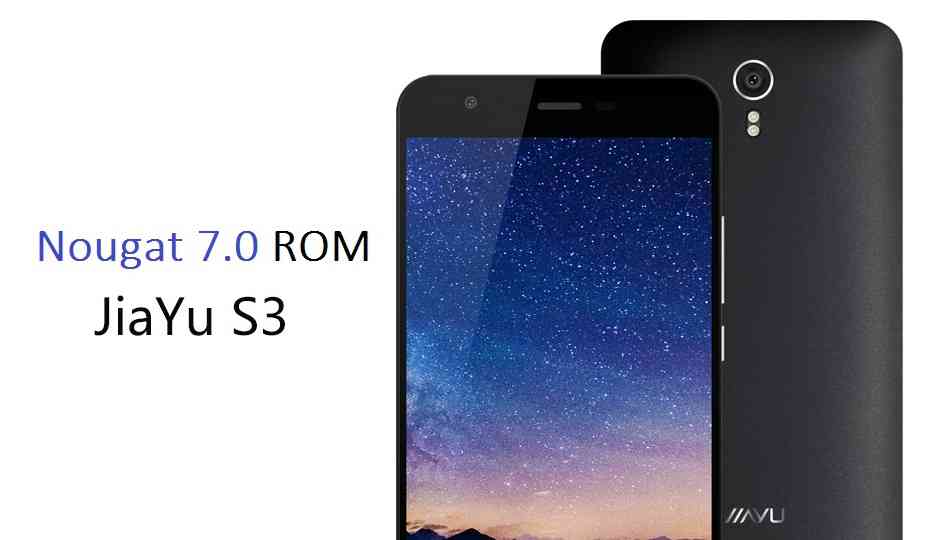
If you are searching for anything else then you can create a new thread under appropriate forum.Android AOSP 7.0 Nougat ROM for Jiayu S3 (h560) is now available through an unofficial AOSP ROM update and this is a guide which explains how to update Jiayu S3 to Android Nougat ROM. Since the Android Nougat Source code release, till now we have many Android Nougat ROMs available for various devices and also we have many CyanogenMod 14 ROMs. And now this time the Nougat ROM (build number: NRD90M) has arrived to Jiayu S3 (codename: h560) which is brought to you by developer superdragonpt. Jiayu S3 Users must be thankful to the developers for their priceless efforts and lightning fast development.
DISCLAIMER:
I DON’T KNOW THE STATUS OF THIS ROM YET. THIS COULD BE AN INITIAL ALPHA ROM WHICH MAY NOT BOOT AT ALL OR IF AT ALL IT BOOTS THEN IT MAY NOT BE USABLE AS A DAILY DRIVER. I JUST FOUND THE ROM AND POSTED HERE. TRY AT YOUR OWN RISK. ALSO MAKE SURE TO TAKE NANDROID BACKUP OF YOUR CURRENT ROM.I don’t want to waste your time and my time too and hence I basically verify the system/build.prop and/or updater-script to get the build details at the first place before posting any ROM. I may be wrong at times and hence it is your responsibility to verify once more about the legitimacy of the ROMs.
Installing a custom ROM on a the Jiayu S3 requires the bootloader to be unlocked, which may VOID your warranty and may delete all your data. Before proceeding further you may consider backup all data on the phone. You are the only person doing changes to your phone and I cannot be held responsible for the mistakes done by you.
Status of superdragonpt’s Jiayu S3 Nougat ROM:
WHAT’S WORKING:
– RIL (Calls /SMS, data still a bit buggy sometimes)
– Wifi
– Bluetooth
– Audio
– Sensors
– Lights
– Both storages & MTPKNOWN ISSUES:
– HW de/encoding
– GPS
– Camera
– There could be many un-noticed bugs
REQUIRED DOWNLOADS AND LINKS TO UPDATE AOSP 7.0 NOUGAT ROM FOR JIAYU S3 (h560):
- ROM Download link to AOSP 7.0 Nougat ROM for Jiayu S3 by superdragonpt
- Google Apps download link for the Nougat Jiayu S3 ROM (Use the Delta GApps)
- Enable ROOT on Jiayu S3 Nougat ROM
Make sure you have a Linux/Windows PC or a MAC installed with Fastboot and adb binaries. If not then you can follow one of the following guides based on your PC OS:
– 15 Seconds ADB Installer for Windows
– Minimal ADB and Fastboot for Windows
– ADB Fastboot Installation guide for Linux or MACHOW TO INSTALL/FLASH/UPDATE JIAYU S3 NOUGAT ROM (ANDROID 7.0 AOSP ROM):
- Download the Jiayu S3 Nougat ROM zip file and a suitable Nougat Gapps zip file from the above download link and copy both the files to phone.
- Boot into Recovery by one of the following method:
– Power off the phone and keep pressing key combinations to enter into recovery.
– If you have enabled USB debugging and you have ADB utility installed on your PC then you can execute the following command on a console or command prompt:adb reboot recovery
- Wipe data factory reset, Cache partition, Dalvik Cache and Format the System partition using the recovery.
– Here is a guide explaining how to wipe data using TWRP recovery.This will delete all your data on your phone. IGNORE IF YOU DON’T WANT TO OR IF YOU HAVE ALREADY DONE THIS. You may consider complete backup of your phone data or take a NANDROID backup of the current ROM.
– How to backup all data on your Android Device.
– how to take NANDROID backup using TWRP recovery. - First flash the Jiayu S3 Nougat ROM ZIP from device.
– Here is a post explaining how to flash a custom ROM using TWRP recovery. - Now flash the Google Apps package.
– Here is a post explaining how to flash GApps using TWRP recovery.
Upgrading from earlier version of Nougat 7.0 AOSP ROM on Jiayu S3:
- Copy the Jiayu S3 Nougat ROM ZIP file to your phone.
- Boot into Recovery.
- Flash the latest Jiayu S3 Nougat ROM ZIP from your phone.
– Here is a post explaining how to flash a custom ROM using TWRP recovery. - Reboot your phone. If your GApps are removed after the flashing then follow the next step.
- After that flash the Google Apps package.
– Here is a post explaining how to flash GApps using TWRP recovery.
Reboot the phone to system from the recovery when the flashing is done, do the initial setup and then enjoy the taste of Android Nougat on Jiayu S3. If you have any concerns or are you facing any problem regarding this guide or Jiayu S3 Nougat ROM then just login and leave a comment to get an instant reply.
Stay tuned or Subscribe to the Jiayu S3 forum For other Android Nougat ROMs, 14 ROMs, other ROMs and all other device specific topics.here is the dev thread for Jiayu S3 Nougat 7.0 ROM.
Good news for OnePlus 3/3T users as Android Pie 9.0 for OnePlus 3/3T is now available to download from a near stable build. This post guides how to download and install Pixel Experience Android Pie on OnePlus 3/3T.
This Pixel Experience build of OnePlus 3/3T Android Pie 9.0 is brought to you by JagravNaik.
DONATION TO PROJECT/DEVELOPER(s):
Please consider for a small contribution to JagravNaik for the effort to build this ROM:
– No donation link found for JagravNaik[su_note note_color=”#F9D9D9″ text_color=”#AA4343″ radius=”3″ class=”” id=””]DISCLAIMER:
THIS IS REPORTED AS A STABLE BUILD OF ANDROID PIE FOR OnePlus 3/3T (Android 9).
BUT STILL MAKE SURE TO BACKUP EVERYTHING BEFORE YOU INSTALL THIS ANDROID PIE ON OnePlus 3/3T.[/su_note]
[su_note note_color=”#FBF4DD” text_color=”#A38C68″ radius=”3″ class=”” id=””]
– Installing a custom ROM requires unlocked bootloader on OnePlus 3/3T, which may VOID your warranty and may delete all your data. Before proceeding further you may consider backup all data on the phone.
– You are the only person making changes to your phone and I cannot be held responsible for the mistakes done by you.
[/su_note]Content structure of OnePlus 3/3T Android Pie update guide:

Status of this Pixel Experience Android Pie on OnePlus 3/3T:
WHAT’S WORKING:
– Everything except listed belowKNOWN ISSUES:
– NFC
– EncryptionREQUIRED LINKS AND FILES OF ANDROID PIE 9.0 FOR OnePlus 3/3T:
[styledlist style=”yes”]- TWRP recovery for OnePlus 3/3T
– Here is the how to install TWRP for OnePlus 3/3T.
– This recovery guide requires an unlock bootloader on OnePlus 3/3T. - Pixel Experience downlaod link to the Pixel Experience Android Pie 9.0 for OnePlus 3/3T
[/styledlist]
HOW TO FLASH/INSTALL ANDROID PIE 9.0 ON OnePlus 3/3T:
Follow this guide if you are flashing Android 9.0 Pie on OnePlus 3/3T for the first time, or coming from any other ROM of any Android version:
[su_note note_color=”#FBF4DD” text_color=”#A38C68″ radius=”3″ class=”” id=””]Points to NOTE:
– Try to avoid restoring apps backup using any application such as: Titanium Backup. It may break things up.
– Don’t restore system data using Titanium Backup! It will definitely break the current installation.
– It is also discouraged to Restoring Apps + Data using Titanium Backup.[/su_note]- Boot into the TWRP custom Recovery to install this Android 9.0 Pie for OnePlus 3/3T.
[su_note note_color=”#D7E3F4″ text_color=”#728095″ radius=”3″ class=”” id=””]- Make sure to have a Custom recovery like a TWRP recovery or any other custom recovery.
– If not then download the TWRP recovery from Downloads link and follow the TWRP flashing Guide (it’s a generic guide which will work for TWRP or any other recovery)[/su_note] - Backup system, vendor, boot, data of your OnePlus 3/3T phone
[su_note note_color=”#D7E3F4″ text_color=”#728095″ radius=”3″ class=”” id=””]- How to take complete backup using TWRP[/su_note] - Wipe the data partition (or do a factory reset), wipe cache, ART or Dalvik cache and Format the System partition.
[su_note note_color=”#D7E3F4″ text_color=”#728095″ radius=”3″ class=”” id=””]- Here is a guide explaining How to wipe data using TWRP.[/su_note]
[su_note note_color=”#FBF4DD” text_color=”#A38C68″ radius=”3″ class=”” id=””]This will delete all your data on your phone. You may consider complete backup of your phone data or take a NANDROID backup of the current ROM
– How to backup Data on Android Phone[/su_note] - Download and Copy the OnePlus 3/3T Android 9 Pie Pixel Experience ROM ZIP file to your phone by using MTP mode in TWRP.
- Flash the OnePlus 3/3T Android 9 Pie Pixel Experience ROM file that you have copied into the phone.
[su_note note_color=”#D7E3F4″ text_color=”#728095″ radius=”3″ class=”” id=””]- Here is a post explaining how to install recovery flashable zip file[/su_note] - Reboot and Enjoy the Android 9.0 Pie on OnePlus 3/3T.
Upgrading from earlier version of Android Pie on OnePlus 3/3T (oneplus3):
- Copy the latest Android 9 Pie for OnePlus 3/3T ROM ZIP file to the phone.
- Boot into TWRP Recovery on OnePlus 3/3T.
– Make sure you have a latest custom Recovery that should be able to flash the Android Pie ROM update on OnePlus 3/3T. - Format or wipe the system partition from the custom recovery menu.
- First install the Android 9 Pie ROM ZIP file from device.
[su_note note_color=”#D7E3F4″ text_color=”#728095″ radius=”3″ class=”” id=””]- Here is a post explaining how to install recovery flashable zip[/su_note] - Once everything is done, reboot and Enjoy the Android 9 Pie for OnePlus 3/3T.
TROUBLESHOOTING AFTER INSTALLING ANDROID PIE 9.0 ON OnePlus 3/3T:
Of course this Android Pie build for OnePlus 3/3T is not stable yet. So, if in case you want to downgrade to Android Oreo then here are some of the options:
– OFFICIAL LineageOS 15.1 Oreo ROM for OnePlus 3/3T
– LineageOS 15.1 Oreo ROM for OnePlus 3/3T
– OmniROM Oreo ROM for OnePlus 3/3T
– Resurrection Remix Oreo ROM for OnePlus 3/3T[su_note note_color=”#D7E3F4″ text_color=”#728095″ radius=”3″ class=”” id=””]Stay tuned or Subscribe to the OnePlus 3/3T (oneplus3) forum for Android 9 Pie ROMs, OnePlus 3/3T Lineage OS 16 ROM, Android Oreo 8.1 ROMs, LineageOS 15.1 ROMs, other ROMs and all other device specific topics.[/su_note]