- Search Results
This is a discussion thread opened for the Nexus 4 Official CyanogenMod 13 Marshmallow ROM.
Google has stopped official latest Android releases of Nexus 4 (Mako) but CyanogenMod is still continuing the releases because different devices are maintained by different developers and Cyanogen team alone is not looking into this.
If you any doubt flashing this ROM or any BUGs to report or any concerns to convey then feel free to post your comments in this thread.
Looking to download Android Marshmallow GApps for Lineage OS 13, CyanogenMod 13 or CM13 or any custom ROM?? Here is the Marshmallow GApps for Lineage OS 13, CM13, CyanogenMod 13 or any other Android Marshmallow ROM.
Android being an Open Source Project is free to use by anybody but the underlying Application are not. Android is owned and developed by Google and hence it delivers all the google made Applications such as: Gmail, YouTube, Google Maps and many others.
It was back in 2009 during the development of CyanogenMod 4.1 Google sent a letter to Steve Kondik (Co-founder of CyanogenMod) to remove all the Google Applications from CyanogenMod after market Android firmware and hence after that the Google Apps are available separately. Wanna read more on this then here is link on Wikipedia on this matter.
This fact started from CyanogenMod because it was the most popular or to be true this was the only Ccustom ROM available during that time and post that all other Custom ROMs too follow the same trend of keeping not only Google Apps but any proprietary applications outside the Custom ROM build. You need these GApps primarily for a CM13/CyanogenMod 13 Marshmallow 6.0 ROM, all other ROMs those are built on top of CyanogenMod ROM such as: Resurrection Remix Marshmallow ROM, AOKP Marshmallow ROM and you need these Marshmallow GApps (Google Apps) packages even on Marshmallow based AOSP Custom ROMs like: Omni ROM, Paranoid Android Marshmallow ROM etc.

GOOGLE APPS / MARSHMALLOW GAPPS FOR Lineage OS 13, CM13, CYANOGENMOD 13:
Widely used Gapps is from opengapps.org which is available in the following: pico, nano, micro, mini, full, stock, super and aroma variants. The basic difference among all is the availability of Google Applications and the size.
– Starting from pico GApps version, it will have some basic GApps like the Play Store and Google setup but not more than that. Using the Play Store you can download all other Google Apps easily of your choice. In terms of size this will be the smallest possible package which occupies 115MB.
– Similarly the Aroma GApps contains all available Google Applications and is of size 802MB.Download the particular Google Apps which is more suitable for your device and data plan.
- Pico GApps Download link for Lineage OS 13, Android Marshmallow/CM13/CyanogenMod 13 GApps
- Nano GApps Download link for Lineage OS 13, Android Marshmallow/CM13/CyanogenMod 13 GApps
- Micro GApps Download link for Lineage OS 13, Android Marshmallow/CM13/CyanogenMod 13 GApps
- Mini GApps Download link for Lineage OS 13, Android Marshmallow/CM13/CyanogenMod 13 GApps
- Full GApps Download link for Lineage OS 13, Android Marshmallow/CM13/CyanogenMod 13 GApps
- Stock GApps Download link for Lineage OS 13, Android Marshmallow/CM13/CyanogenMod 13 GApps
- Super GApps Download link for Lineage OS 13, Android Marshmallow/CM13/CyanogenMod 13 GApps
- Aroma GApps Download link for Lineage OS 13, Android Marshmallow/CM13/CyanogenMod 13 GApps
If the above GApps does not work for the Marshmallow ROM or CyanogenMod 13 or CM13 ROM or any ROM, then you can try one of the following available GApps package:
Banks Dynamic GApps:
– Download link to Bank Dynamic Marshmallow GApps
DeltaDroid GApps:
– Download link to Delta Marshmallow GApps
PureNexus Dynamic GApps:
– Download link to PureNexus Dynamic Marshmallow GApps
Slim Marshmallow GApps:
– Download link to Slim Marshmallow GAppsThese are all recovery flashable zip packages, which means you can install these GApps packages using custom recoveries like TWRP, CWM, Cyanogengen or PhilZ recovery. Here is guide explaining How to flash GApps using TWRP recovery
AOSP based Android Oreo for Nexus 4 (mako) is now available via a development version. If you want the OFFICIAL update or some more Android Oreo ROMs then stay tuned to the Lineage OS 15 ROMs page or the AOSP Android Oreo ROMs devices list page. This Android Oreo ROM for Nexus 4 (mako) is brought to you by developer Ziyan and amaces
DONATION TO DEVELOPER(s):
If you like this ROM then do consider a contribution to their hard work:
– No donation link found for amaces
– Donate to ZiyanDISCLAIMER:
THIS IS AN INTIAL BUILD OF ANDROID OREO (Android 8.0), WHICH MAY HAVE MANY BUGS. BACKUP THE CURRENT ROM BEFORE FLASHING. TRY AT YOUR OWN RISK.
Installing a custom ROM on a the Nexus 4 requires a custom recovery to be installed, which may VOID your warranty and may delete all your data. Before proceeding further you may consider backup all data on the phone. You are the only person making changes to your phone and I cannot be held responsible for the mistakes done by you.Content structure:
Status of Nexus 4 Android Oreo ROM:
WHAT’S WORKING:
– EverythingKNOWN ISSUES:
– Nothing major
REQUIRED DOWNLOADS AND LINKS TO UPDATE NEXUS 4 OREO ROM:
- TWRP recovery download link for Nexus 4 Oreo ROM
– Follow this guide: How to Install TWRP on Nexus 4 using Fastboot (This requires an unlocked bootloader)
- EXPERIMENTAL ROM Download link to Android Oreo ROM for Nexus 4
- ROM Download link to Android Oreo ROM for Nexus 4 (Oreo builds will be available soon)
- Oreo GApps Download Link for Nexus 4 Oreo ROM
- Enable ROOT on Nexus 4 Oreo ROM
HOW TO INSTALL/FLASH/UPDATE ANDROID OREO FOR NEXUS 4 (ANDROID OREO 8.0, AOSP ROM):
Follow this to update Android Oreo on Nexus 4 for the first time or coming from another ROM:
Points to NOTE on BACKUP before updating:
– Try to avoid restoring apps backup using Titanium Backup. It may break things up.
– Don’t restore system data using Titanium Backup! It will definitely break the current installation.
– It is also discouraged to Restoring Apps + Data using Titanium Backup.- Boot into Recovery by one of the following method:
– Power off the phone and keep pressing key combinations while turning on your phone.
– If you have enabled USB debugging and you have ADB utility installed on your PC then you can execute the following command on a console or command prompt:adb reboot recovery
- Wipe data factory reset, Cache partition, Dalvik Cache and Format the System partition using the recovery.
– Here is a guide explaining how to wipe data using TWRP recovery.This will delete all your data on your phone. IGNORE IF YOU DON’T WANT TO OR IF YOU HAVE ALREADY DONE THIS. You may consider complete backup of your phone data or take a NANDROID backup of the current ROM.
– How to backup all data on your Android Device.
– how to take NANDROID backup using TWRP recovery. - Download the Nexus 4 Android Oreo ROM zip file from the above download link and copy the files to phone.
- Flash the Nexus 4 Oreo AOSP ROM zip from device.
– Here is a post explaining how to flash a ROM zip using TWRP.
Upgrading from earlier version of AOSP Android Oreo ROM for Nexus 4:
- Copy the latest Nexus 4 Oreo ROM ZIP file to your phone.
- Boot into Recovery.
- Flash the latest Android Oreo AOSP ROM ZIP from your phone and wait till it finishes flashing.
– Here is a post explaining how to flash a custom ROM using TWRP recovery. - Reboot and Enjoy
Reboot to system after flashing is done completely. Do the required initial setup and enjoy the Android Oreo ROM for Nexus 4. If you face any problem following this guide or post installation then just login and leave a comment to get an instant reply.
There is no inbuilt ROOT functionality available on this ROM.
To root this Nexus 4 Oreo AOSP ROM, flash the SuperSU and then Profit !!!Stay tuned or Subscribe to the Nexus 4 forum For other Android Oreo ROMs, Android Nougat ROMs, LineageOS ROMs, other ROMs and all other device specific topics.If you have any BUGs or issue to report then here is the dev thread for this ROM.
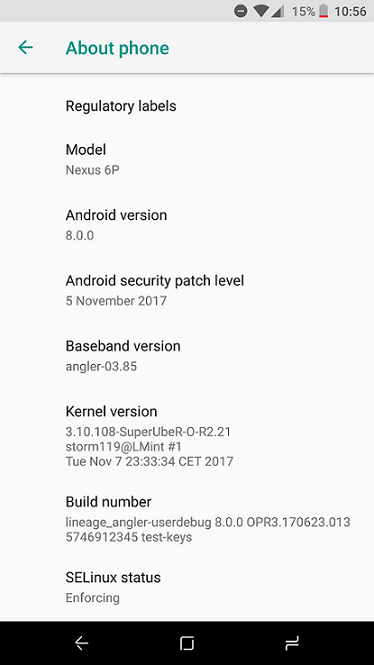
LineageOS 15 for Nexus 6p (angler) is now available to download via a development build. This post provides you the download link to the Android Oreo based Lineage OS 15 for Nexus 6p (angler) and guides through the installation process of the same. This LineageOS 15 for Nexus 6p is brought to you by developer razorloves.
DONATION TO DEVELOPER(S):
No donation link found for razorloves.
If you want the OFFICIAL Lineage OS 15 update or some more Android Oreo ROMs then stay tuned to the LineageOS 15 Download page or the AOSP Oreo Download and devices list page.
DISCLAIMER:
THIS IS AN INITIAL TEST BUILD WHICH HAS MANY BUGS. HAVE A BACKUP BEFORE FLASHING THIS AND TRY AT YOUR OWN RISK. Installing a custom ROM requires an unlocked bootloader on Nexus 6p, which may VOID your warranty and may delete all your data. Before proceeding further you may consider backup all data on the phone. Understand that you are the only person making changes to your phone and I cannot be held responsible for the mistakes done by you.
Content structure:
Status of LineageOS 15 for Nexus 6p Oreo 8 ROM:
WHAT’S WORKING:
– UnknownKNOWN ISSUES:
– UnknownScreenshot(s) of LineageOS 15 Oreo ROM on Nexus 6p:

REQUIRED LINKS AND FILES FOR LineageOS 15 for Nexus 6p OREO ROM:
- TWRP recovery for Nexus 6p
– Here is the TWRP update guide for Nexus 6p. This recovery guide requires an unlocked bootloader on the phone.
- LineageOS 15 Download link for Nexus 6p (angler) [UPDATED on 18th NOVEMBER]
- GApps download for LineageOS 15 Oreo ROM
Root binary is NOT inbuilt in Lineage OS ROM, so you may need a separate SuperSu package or LineageOS su binary to install to gain ROOT access. Here is Lineage OS 15 Rooting guide
If there is no in-built ROOT or it does not work for some reason then you can try SuperSU rooting guide to enable ROOT access.
HOW TO INSTALL/DOWNLOAD/FLASH/UPDATE THE Lineage OS 15 for Nexus 6p:
Follow this if you are flashing LineageOS 15 for Nexus 6p for the first time, or coming from another ROM:
Points to NOTE:
– Try to avoid restoring apps backup using Titanium Backup. It may break things up.
– Don’t restore system data using Titanium Backup! It will definitely break the current installation.
– It is also discouraged to Restoring Apps + Data using Titanium Backup.- Boot into Recovery.
Make sure to have a Custom recovery like CWM or TWRP or any other custom recovery. If not then download the recovery for Nexus 6p from above link and follow the Custom Recovery Installation Guide (it’s a generic guide which will work for TWRP as well as CWM recovery or any other recovery) - Wipe data factory reset, Cache partition, Dalvik Cache and Format the System partition.
– Here is a guide explaining how to wipe data using TWRP recovery.This will delete all your data on your phone. You may consider complete backup of your phone data or take a NANDROID backup of the current ROM
– How to backup all data on your Android Device
– how to take NANDROID backup using TWRP recovery - Download and Copy the Oreo GApps and the LineageOS 15 ROM ZIP to the phone.
- First flash the Lineage OS 15 ROM ZIP file from device. Then flash the GApps zip from your device memory.
– Here is a post explaining how to install Lineage OS - Then reboot into recovery (don’t skip this) and flash the Gapps for LineageOS 15 package.
– Here is a post explaining how to flash GApps using TWRP recovery. - Reboot and Enjoy Android Oreo with LineageOS 15 for Nexus 6p.
Upgrading from earlier version of Lineage OS 15 for Nexus 6p (angler):
- Copy the latest Lineage OS 15 for Nexus 6p ZIP file to the phone.
- Boot into Recovery.
- Flash the ROM ZIP that you copied.
– Here is a post explaining how to install LineageOS - Then flash the LineageOS 15 GApps package.
– Here is a post explaining how to flash GApps using TWRP recovery. - Reboot and Enjoy
Complete the initial setup and enjoy Android Oreo 8.0 with LineageOS 15 for Nexus 6p. After the installing the LineageOS 15 ROM, you may want to enable ROOT access on your phone and here is how you can do that:
How to ROOT for LineageOS 15.Stay tuned or Subscribe to the Nexus 6p (angler) forum For other Android Oreo, Nougat ROMs, LineageOS 15 ROMs, other custom ROMs and all other device specific topics.If you have found any problems on this ROM then here is the dev thread where you can convey your issues and concerns.
Android Oreo 8.1 ROM, LineageOS 15.1 for Nexus 9 has now arrived via a development build. If you want the OFFICIAL LineageOS 15.1 for Nexus 9 or some more Android Oreo ROMs for Nexus 9 then stay tuned to the LineageOS 15 page or the AOSP Android Oreo ROMs devices list page. This Nexus 9 Lineage 15 ROM is brought to you by Lycoris.
Follow the links to get LineageOS 16 and Android Pie ROM builds.
DONATION TO DEVELOPER:
– No donation link found for Lycoris
DISCLAIMER:
THIS IS AN INITIAL ALPHA BUILD AND HAS MANY MORE BUGS. HAVE A BACKUP BEFORE FLASHING THIS AND TRY AT YOUR OWN RISK. Installing a custom ROM on a Nexus 9 (flounder) requires an unlocked bootloader on Nexus 9 (flounder), which may VOID your warranty and may delete all your data. Before proceeding further you may consider backup all data on the phone. You are the only person doing changes to your phone and I cannot be held responsible for the mistakes done by you.Status of LineageOS 15.1 for Nexus 9 Oreo 8 ROM:
WHAT’S WORKING:
– UnknownKNOWN ISSUES:
– Unknown
REQUIRED LINKS AND FILES FOR LineageOS 15.1 for Nexus 9 OREO CUSTOM ROM:
- TWRP recovery download for Nexus 9 (flounder)- Here is theTWRP update guide for the Nexus 9. This TWRP recovery guide requires an unlocked bootloader on the Nexus 9.
- ROM Download link of LineageOS 15.1 for Nexus 9
- ROM Download link of LineageOS 15 for Nexus 9
- Android Oreo GApps Download for LineageOS 15.1 for Nexus 9 Oreo 8.1 ROM
Root binary is NOT inbuilt in LineageOS 15.1, so you may need a separate SuperSu package or LineageOS su binary to install to gain ROOT access. Here is LineageOS 15.1 Rooting guide
If there is no in-built ROOT or it does not work for some reason then you can try SuperSU rooting guide to enable ROOT access.
HOW TO INSTALL/DOWNLOAD/FLASH/UPDATE LineageOS 15 FOR Nexus 9 OREO CUSTOM ROM:
Follow this if you are flashing LineageOS 15.1 for Nexus 9 for the first time, or coming from another ROM:
Points to NOTE:
– Try to avoid restoring apps backup using Titanium Backup. It may break things up.
– Don’t restore system data using Titanium Backup! It will definitely break the current installation.
– It is also discouraged to Restoring Apps + Data using Titanium Backup.- Boot into Recovery.
Make sure to have a Custom recovery like CWM or TWRP or any other custom recovery. If not then follow the Custom Recovery Installation Guide for Nexus 9 (it’s a generic guide which will work for TWRP as well as CWM recovery or any other recovery)
- Wipe data factory reset, Cache partition, Dalvik Cache and Format the System partition.
– Here is a guide explaining how to wipe data using TWRP recovery.This will delete all your data on your phone. You may consider complete backup of your phone data or take a NANDROID backup of the current ROM
– How to backup all data on your Android Device
– how to take NANDROID backup using TWRP recovery - Download and Copy the Oreo GApps and LineageOS 15.1 for Nexus 9 Oreo ROM ZIP to your phone.
- First flash the LineageOS 15.1 for Nexus 9 Oreo ROM ZIP from device. Then flash the GApps zip from your device memory.
– Here is a post explaining how to install LineageOS - Then reboot into recovery (don’t skip this) and flash the Gapps for LineageOS 15.1 package.
– Here is a post explaining how to flash GApps using TWRP recovery. - Reboot and Enjoy the Oreo 8.1 LineageOS 15.1 ROM for Nexus 9.
- Boot into Recovery.
Upgrading from earlier version of LineageOS 15.1 for Nexus 9 (flounder):
- Copy the latest Nexus 9 Lineage 15 ROM ZIP file to your phone.
- Boot into Recovery.
- Flash the latest Lineage 15 Oreo ROM ZIP from your phone.
– Here is a post explaining how to install LineageOS15 - Then flash the Lineage 15 Oreo GApps package.
– Here is a post explaining how to flash GApps using TWRP recovery. - Reboot and Enjoy
Complete the initial setup and enjoy Android Oreo 8.1 with LineageOS 15.1 for Nexus 9. After the installation of LineageOS 15.1 for Nexus 9 you may want to enable ROOT access on your phone and here is how you can do that:
How to ROOT for LineageOS 15.1.Stay tuned or Subscribe to the Nexus 9 (flounder) forum For other Android Oreo, Nougat ROMs, LineageOS 15.1 ROMs, other ROMs and all other device specific topics.Android Nougat was released on August 22 but Nexus 5 Android Nougat was missing. But after the Android Nougat Source code release now the Nexus 5 Android Nougat AOSP ROM is available unofficially from various developers: Santhosh, Cdesai and aclegg2011. Just to inform you Nexus 5 CM14 Nougat Update is also available. In addition to this AOSP ROM for Nexus 5 here we have a collection of Nougat ROMs for Nexus 5.
THIS IS JUST AN ALPHA ROM AND CANNOT BE USED AS A DAILY DRIVER SOFTWARE. CHECK THE WORKING AND NON-WORKING LIST BEFORE FLASHING AND PROCEED AT YOUR OWN RISK.
DISCLAIMER:
Installing a custom ROM on a Nexus device requires the bootloader to be unlocked on the Nexus phone, which may VOID your warranty and may delete all your data. Before proceeding further you may consider backup all data on the phone. You are the only person doing changes to your phone and I cannot be held responsible for the mistakes done by you.Status of Santhosh’s Nexus 5 Nougat ROM:
WHAT’S WORKING:
– Network (RIL)
– Wifi
– Audio on calls
– Everything not listed on known issues belowKNOWN ISSUES:
– Bluetooth
– Camera
– Many other thingsStatus of Cdesai’s Nexus 5 Nougat ROM
WHAT’S WORKING:
– Network (RIL)
– Wifi
– Audio on calls
– Bluetooth
– CameraKNOWN ISSUES:
– Not Known
REQUIRED DOWNLOADS AND LINKS FOR NEXUS 5 NOUGAT AOSP ROM:
- Unlocked bootloader on Nexus 5 and Nexus 5 with TWRP recovery installed
- ROM Download link of Nexus 5 Nougat 7.0 AOSP ROM by Santhosh
- ROM Download link of Nexus 5 Nougat 7.0 AOSP ROM by Cdesai
- ROM Download link of Nexus 5 Nougat 7.0 AOSP ROM by aclegg2011
- Google Apps download link for the Nougat Nexus 5 ROM
- Enable ROOT on Nexus 5 Nougat ROM
Make sure you have a Linux/Windows PC or a MAC installed with Fastboot and adb binaries. If not then you can follow one of the following guides based on your PC OS:
– 15 Seconds ADB Installer for Windows
– Minimal ADB and Fastboot for Windows
ADB Fastboot Installation guide for Linux or MACINSTALL/FLASH NEXUS 5 NOUGAT ROM (ANDROID 7.0 AOSP ROM):
- Download the Nexus 5 Nougat AOSP ROM zip file and a suitable Nougat Gapps zip file from the above download link and copy both the files to phone.
- Boot into Recovery by one of the following method:
– Power off the phone and keep pressing key combinations: Power Button + Volume Down while turning on your Nexus.
– If you have enabled USB debugging and you have ADB utility installed on your PC then you can execute the following command on a console or command prompt:adb reboot recovery
If you don’t have a custom recovery on Nexus 5 then you can follow this guide:
How to install TWRP recovery on Nexus 5 - Wipe data factory reset, Cache partition, Dalvik Cache and Format the System partition using the recovery.
– Here is a guide explaining how to wipe data using TWRP recovery.This will delete all your data on your phone. IGNORE IF YOU DON’T WANT TO OR IF YOU HAVE ALREADY DONE THIS. You may consider complete backup of your phone data or take a NANDROID backup of the current ROM.
– How to backup all data on your Android Device.
– how to take NANDROID backup using TWRP recovery. - First flash the Nexus 5 Nougat ROM ZIP from device.
– Here is a post explaining how to flash a custom ROM using TWRP recovery. - Now flash the Google Apps package.
– Here is a post explaining how to flash GApps using TWRP recovery.
Stay tuned or Subscribe to the Nexus 5 forum For other Android Nougat ROMs, CyanogenMod 14 ROMs, other ROMs and all other device specific topics.The development thread for this ROM is here.
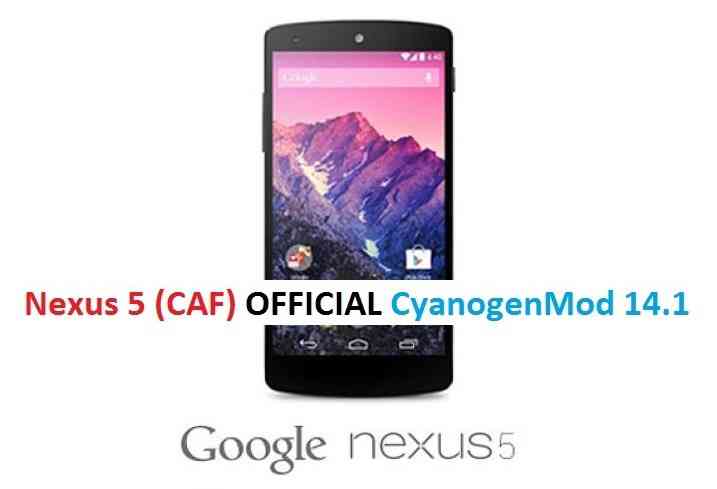
Here is the OFFICIAL CyanogenMod 14.1 (CM14.1) for Nexus 5 (hammerhead) and Nexus 5 (CAF) (hammerheadcaf). This is an OFFICIAL CyanogenMod 14.1 NIGHTLY update for Nexus 5 (CAF). You might know that CyanogenMod is now continued as Lineage OS. Stay tuned to the Lineage OS 14.1 Devices list page to get more updates on Lineage OS ROMs. In addition to the official CM14.1 following are the other nougat ROMs available for Nexus 5 (hammerhead) and Nexus 5 (CAF) (hammerheadcaf): Lineage OS 14.1 for Nexus 5, CM14 nougat ROM, AOSP Nougat ROM. We have update many OFFICIAL CM14.1 (CyanogenMod 14.1) for many supported devices and many Unofficial CyanogenMod 14/14.1 ROM updates. You may stay tuned to those pages for more updates.
DISCLAIMER:
THIS IS AN INITIAL EXPERIMENT OFFICIAL BUILD. USE THIS BUILD WITH CAUTION AND TRY AT YOUR OWN RISK. Installing a custom ROM on a the Nexus 5 (CAF) may require the bootloader to be unlocked on Nexus 5 (CAF) and a Custom Recovery on Nexus 5 (CAF), which may VOID your warranty and may delete all your data. Before proceeding further you may consider backup all data on the phone. You are the only person doing changes to your phone and I cannot be held responsible for the mistakes done by you.
REQUIRED DOWNLOADS AND LINKS FOR OFFICIAL NEXUS5 (CAF) CM14.1 (CYANOGENMOD 14.1) NOUGAT ROM UPDATE GUIDE:
- Unlocked bootlaoder and TWRP recovery on Nexus 5 for Nexus 5 (hammerheadcaf).
- ROM download link for Nexus 5 | ROM download link for CAF version of OFFICIAL Cyanogenmod 14.1 for Nexus 5
- CyanogenMod 14.1 GApps download link for Nexus 5 CM14.1 ROM
Root binary is inbuilt since CyanogenMod 12, so you don’t need a separate SuperSu package to install to gain ROOT access. Here is How to Enable ROOT on CM14.1/CyanogenMod 14.1
HOW TO INSTALL/FLASH/UPDATE CM14.1 FOR NEXUS 5 / (CAF) (CYANOGENMOD 14.1 NOUGAT ROM):
Follow these steps if you are flashing CM14.1 for Nexus 5 / (CAF) for the first time, or coming from another ROM:
Points to NOTE on BACKUP:
– Try to avoid restoring apps backup using Titanium Backup. It may break things up.
– Don’t restore system data using Titanium Backup! It will definitely break the current installation.
– It is also discouraged to Restoring Apps + Data using Titanium Backup.- Download and Copy the Nougat GApps and CyanogenMod 14.1 Nougat ROM ZIP to Nexus 5 (CAF) (hammerheadcaf).
- Boot into Recovery. Make sure to have a Custom recovery like CWM or TWRP or any other custom recovery.
- Wipe data factory reset, Cache partition, Dalvik Cache and Format the System partition.
– Here is a guide explaining how to wipe data using TWRP recovery.This will delete all your data on your phone. You may consider complete backup of your phone data or take a NANDROID backup of the current ROM.
– How to backup all data on your Android Device.
– how to take NANDROID backup using TWRP recovery. - First flash the Nexus 5 (CAF) CM14.1 ROM ZIP from device.
– Here is a post explaining how to flash a custom ROM using TWRP recovery. - Then reboot into recovery (don’t skip this) and flash the CM14.1 Nougat Google Apps package.
– Here is a post explaining how to flash GApps using TWRP recovery. - Reboot and Enjoy the CyanogenMod 14.1 Nougat ROM on Nexus 5 (CAF).
Upgrading from earlier version of Nexus 5 (CAF) CM14.1 Nougat ROM:
- Copy the Nexus 5 (CAF) CM14.1 ROM ZIP file to your phone.
- Boot into Recovery.
- Flash the latest CM14.1 ROM ZIP from your phone.
– Here is a post explaining how to flash a custom ROM using TWRP recovery. - Then flash the CM14.1 Nougat Google Apps package.
– Here is a post explaining how to flash GApps using TWRP recovery. - Reboot and Enjoy
Complete the initial setup and enjoy Android Nougat 7.1 with CyanogenMod 14.1 On Nexus 5 (CAF) (codename: hammerheadcaf). After this CM14.1 installation you may want to enable ROOT access on your phone and here is how you can do that:
How to Enable ROOT on CM14.1/CyanogenMod 14.1.Stay tuned or Subscribe to the Nexus 5 (CAF) (hammerheadcaf) forum For other Android Nougat ROMs, CyanogenMod 14 ROMs, other ROMs and all other device specific topics.If you have a Nexus device on your hand and wonder how to root and install a custom recovery… Then this guide is for you. You just need to have the basic things before start this and don’t ever forget to take a complete backup of your current user data. Remember that you cannot take a backup of your current stock ROM (a Nandroid Backup) because only a custom ROM can do this and you don’t have a custom ROM installed on your Nexus device yet.
After installing TWRP recovery you can install many android mods such as GCam APK, enable navigation gesture, enable face unlock, viper4android etc. and many more.

Before going into details make sure that you have the following things in hand to start with the rooting method.
Required things:
– Driver for Your Nexus device
– Fastboot and adb binaries
– SuperSU Flashable package– Recovery image for your corresponding device from the following links:
– CWM custom recovery
– TWPR custom recovery
– USB cable
– Enough time with a smart and cool brainNOTE:
Please download the recovery image meant for your device only.Below are some of the TWRP recovery flashing guide for Galaxy Nexus (Maguro), Nexus 4 (Mako), Nexus 5 (Hammerhead) and nexus 6:
– Galaxy Nexus TWRP recovery flashing guide
– Nexus 4 TWRP recovery flashing guide
– Nexus 5 TWRP recovery flashing guide
– Nexus 6 TWRP recovery flashing guideThe ROOTing process will erase all of your data, so it is strongly recommended that you should take a full backup of your current data.
Follow the below link for how to backup all the data on your android device:
Step by step guide to take full backup of your phone data[Rooting guide for all Nexus devices]
STEP by STEP Recovery flashing and ROOTing guide for your Nexus device:
The complete process will be split into three things as following:
– Unlocking the Bootloader
– Installing a custom recovery
– Installing the ROOT package using the custom recoveryUnlocking the Bootloader:
STEP 1:Turn the phone off.
Then boot it into the bootloader/fastboot mode by holding volume down + power.STEP 2:Open a command console and go to the directory where you have extracted adb and fastboot
Type the following command in the console:$ fastboot devices
NOTE:
This command will list the connected devices. If your phones serial number shows up you are good to go and may continue. If the phone is NOT listed this indicates that your drivers are not installed correctly. In order to continue you must configure your drivers properly so that your phone is listed under fastboot devices.STEP 3:If the phone has been recognized by the command above, proceed to unlocking the bootloader with the following command::
$ fastboot oem unlock
WARNING:
Remember that this step will wipe EVERYTHING off the phone.
If you have not taken a backup of your phone data then do it here:
Step by step guide to take full backup of your phone dataFlashing a Custom Recovery on Nexus:
STEP 1:Find out the appropriate custom recovery for your device.
Copy the custom recovery into the directory where you have kept the adb and fastboot files.STEP 2:Now type the following command to install the custom recovery image onto your Nexus device:
$ fastboot flash recovery <recovery_image_file.name>
Place the recovery image name in the <recovery_image_file.name> field.
$ fastboot reboot
Nexus Rooting guide:
NOTE:
Rooting guide will only work only after the custom recovery installation.
If you will SKIP the custom recovery installation process and perform only these steps then rooting will not be done.STEP 1:Copy the SuperSu zip file to your SD card(By using a USB cable or via adb push command).
STEP 2:After copying the SuperSu zip file to your SD card you have to go to the recovery and there you have to install this zip file.
To do so use the following command:$ adb reboot recovery
STEP 3:If you are in the CWM custom recovery then do the following:
Select the Install Zip from SDcard option.
Select the SuperSU zip file where you have kept in the SD card.If you have installed a TWRP custom recovery then do the following:
Touch on the Install software button and then Select a zip file to install.
Select the SuperSu binary zip file where you have kept in the SD card and slide to flash.After successfully completing all the above mentioned steps your Nexus device will be bootloader unlocked with a custom recovery installed and will be rooted. Enjoy all the features that comes with a Rooted Android device.
Android 10 based Bliss ROM 12.x for Nexus 5X is now available to download. This Bliss ROM Android 10 build for Nexus 5X is brought to you by team blissroms.
Other Downloads for Nexus 5X
Following are some of the other custom ROMs based on Android 10 for Nexus 5X:
– LineageOS 17.1 for all available devices
– Android 10 download for all available devicesDONATION TO DEVELOPER(S)/PROJECT:
If you like this ROM then do consider for a contribution to Bliss team:
– Donate to Team Bliss

[su_note note_color=”#F9D9D9″ text_color=”#AA4343″ radius=”3″ class=”” id=””]This is a custom ROM for Nexus 5X which may have many bugs. This firmware has to be installed using a custom recovery such as TWRP, which requires an unlocked bootloader on the phone.
Make sure you BACKUP all the data and all the partitions of your phone before installing this Bliss ROM.You are the only person making changes to your phone and I cannot be held responsible for anything wrong done by you.[/su_note]
About Bliss ROM v12 based on Android 10:
Bliss ROM is an AOSP based Rom which provides Theming options, customization, better battery life, regular security merges etc. This is a non-profitable project founded and run by jackeagle and many others in the team.
The Bliss ROM version v12.x is based on the recently released Android 10, which is the latest Android to date.
Status of this Nexus 5X Bliss ROM Android 10:
WHAT’S WORKING:
– Almost everythingKNOWN ISSUES:
– Nothing reported yetWhere to Download Bliss ROM 12.x Android 10 for Nexus 5X?
- Bliss ROM Android 10 Download for Nexus 5X
- TWRP for Nexus 5X
- How to install TWRP recovery
- Bootloader unlock guide – required to install TWRP recovery
- Android 10 GApps
How to Install Bliss ROM 12 on Nexus 5X?
[su_note note_color=”#D8F1C6″ text_color=”#769958″ radius=”3″ class=”” id=””]
Following are the two sub-sections of this Nexus 5X Android 10 update guide:- First time installation of Bliss ROM Android 10 on Nexus 5X
- Upgrading Bliss ROM Android 10 build on Nexus 5X from a previous build of the same ROM
[/su_note]
Installing Bliss ROM Android 10 for the first time:
[su_note note_color=”#D8F1C6″ text_color=”#769958″ radius=”3″ class=”” id=””]This upgrade process requires few guides to be followed and few files to be downloaded. Everything referred in the below guide is provided in the above downloads section.[/su_note]
- Download and Copy the Bliss ROM 12 Android 10 zip file for Nexus 5X and the Android 10 Gapps zip file to your phone.
- Boot into the TWRP Recovery (with SAR support) to install Bliss ROM Android 10 on Nexus 5X.
[su_note note_color=”#D7E3F4″ text_color=”#728095″ radius=”3″ class=”” id=””]- Make sure to have a Custom recovery like a TWRP recovery or any other custom recovery.
– If not then download the TWRP recovery from Downloads link and follow the how to install TWRP recovery guide (it’s a generic guide which will work for TWRP as well as any other recovery)[/su_note] - Wipe system, data, and cache partition.
[su_note note_color=”#D7E3F4″ text_color=”#728095″ radius=”3″ class=”” id=””]- Here is a guide explaining how to wipe using TWRP recovery.[/su_note]
[su_note note_color=”#FBF4DD” text_color=”#A38C68″ radius=”3″ class=”” id=””]This will delete all your data on your phone. You may consider complete backup of your phone data or take a NANDROID backup of the current ROM
– Backup data on Android
– NANDROID backup on TWRP recovery[/su_note] - Install the Bliss ROM zip file that you have copied into the phone.
- Then flash the Android 10 Gapps zip file.
[su_note note_color=”#D7E3F4″ text_color=”#728095″ radius=”3″ class=”” id=””]- Here is a post explaining how to install GApps using TWRP recovery.[/su_note] - Reboot and Enjoy Android 10 with Bliss ROM, on your Nexus 5X.
Upgrade Bliss ROM Android 10 on Nexus 5X:
- Copy the latest Bliss ROM Android 10 zip file for your device
- Boot into TWRP recovery
- Wipe the system partition from the custom recovery menu.
- Install the latest Bliss ROM zip file.
- Reboot and see you have the GApps and ROOT access or NOT (if you installed previously).
[su_note note_color=”#D8F1C6″ text_color=”#769958″ radius=”3″ class=”” id=””]- Gapps is built in such a way that it will sustain across ROM updates.[/su_note] - If you don’t have GApps after upgrading the Android 10 on the phone, then flash the GApps again.
[su_note note_color=”#D7E3F4″ text_color=”#728095″ radius=”3″ class=”” id=””]- Here is a post explaining how to flash GApps using TWRP recovery.[/su_note] - If you don’t have ROOT after upgrading the Bliss ROM Android 10 on your phone, then flash the Magisk Installer zip file.
- Once everything is done, reboot and Enjoy the Android 10 Bliss ROM on Nexus 5X.
How to Get GCam for Bliss ROM Android 10?
GCam 7.0 and later versions are compatible with Bliss ROM v12 or any Android 10 ROM in general.
You can always look into the big list of Google Camera APK download page to get a compatible GCam for your phone.Stay tuned or Subscribe to the Nexus 5X (bullhead) forum For other Android Pie, Android Oreo ROMs, Nougat ROMs, or other ROMs and all other device specific topics.The latest Android Lollipop source code was released on 3rd November this year. So the official builds will be released very soon but not yet available for most of the devices. But xda developer AndroGeek974 has ported Nexus 4 Lollipop ROM based on CyanogenMod 12. CyanogenMod is a custom Android built on top of AOSP with some extra features and CyanogenMod 12 will be the name for Android Lollipop version.
 [Nexus 4 CyanogenMod 12 Lollipop ROM]DISCLAIMER:
Installing custom ROM requires a custom recovery to be installed on your device, which may VOID your warranty and may delete all your data.
Before proceeding further you may consider backup your all data. Understand that YOU are the only person making changes to your phone. Neither we nor the developer can be held responsible for the disaster that may happen to your device after following this guide.Install Custom recovery on Nexus 4
If you have not yet installed a custom recovery on your Nexus 4 then head on to the next link to get it done.
Nexus 4 Rooting guide and custom recovery installation
This was an early build of Nexus 4 Lollipo ROM based on CyanogenMod 12, which has just basic AOSP lollipop functionality. I will strongly recommend you to visit the below link to get the updated CyanogenMod 12.1 for Nexus 4 based on Android Lollipop 5.1.1.
Latest OFFICIAL CyanogenMod 12.1 for Nexus 4 (Mako) based on Android 5.1.1If you are interested on Android Marshmallow builds then here it goes:
OFFICIAL CyanogenMod 13 Marshmallow ROM for Nexus 4 (Mako)
AOSP Marshmallow ROM for Nexus 4 (Mako)
Flashing guide of CyanogenMod 12, Nexus 4 Lollipop ROM:
To upgrade Nexus 4 Lollipop ROM based on CyanogenMod 12, then you have to get the following recovery flashable ROM zip file over here:
Lollipop ROM download link
Recovery flashable Google Apps zip file download linkSTEP 1:Copy the ROM zip and the GApps zip file to your internal memory (By using a USB cable or via adb push command).
STEP 2:After copying the ROM zip file to your internal memory you have to reboot into recovery.
To go to the recovery type the following command (if you are on a PC):$ adb reboot recovery
STEP 3:Wipe Data/Factory Reset.
Format system, Format Dalvik Cache, Format Cache partition.NOTE:
This step will delete all your data.
Consider backup your all data out of your phone.
Data Backup guideSTEP 4:Select the Install Zip from SDcard option.
Select the path to the ROM zip file where you have kept in the phone memory.STEP 5:Repeat the STEP 4 to flash GApps. Select the Install Zip from SDcard option again.
Select the Gapps zip file where you have kept in the SD card.The flashing will take a while.
When everything will be done you can reboot your system and enjoy the CyanogenMod 12, Nexus 4 Lollipop ROM.
The first boot may take a long time around 6 to 10 minutes. So be patient.After this CyanogenMod 12 ROM installation you may want to enable ROOT access on your phone and here is how you can do that:
How to Enable ROOT Access on CyanogenMod 12/12.1