- Search Results
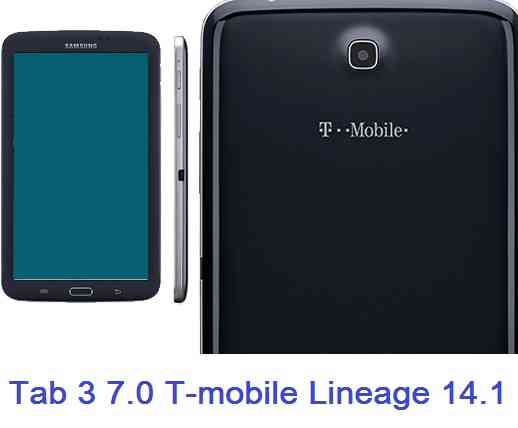
Android Nougat 7.1 ROM, LineageOS 14.1 for Galaxy TAB 3 7.0 T-Mobile has now arrived via an UNOFFICIAL and OFFICIAL build. If you want some more LineageOS ROMs for other devices then stay tuned to the Lineage 14.1 page. This Galaxy TAB 3 7.0 T-Mobile LineageOS 14.1 is brought to you by deadman96385.
DONATION TO DEVELOPER(S):
If you like the ROM or the TWRP recovery brought to you by these developer(s) then consider donation to them. Believe me it motivates and it matters too.
– donation to deadman96385DISCLAIMER:
THIS IS AN INITIAL BUILD WHICH MAY HAVE MANY MORE BUGS THAN YOU CAN IMAGINE. HAVE A BACKUP BEFORE FLASHING THIS AND TRY AT YOUR OWN RISK. Installing a custom ROM on a Galaxy TAB 3 7.0 T-Mobile (lt02ltetmo, SM-T217T) may require the bootloader to be unlocked, which may VOID your warranty and may delete all your data. Before proceeding further you may consider a complete backup. You are the only person making changes to your phone and I cannot be held responsible for the mistakes done by YOU.Status of LineageOS 14.1 for Galaxy TAB 3 7.0 T-Mobile (lt02ltetmo, SM-T217T) Nougat 7.1 ROM:
WHAT’S WORKING:
– Not KnownKNOWN ISSUES:
– Not Known
REQUIRED LINKS AND FILES FOR LineageOS 14.1 for Galaxy TAB 3 7.0 T-Mobile NOUGAT 7.1 BASED CUSTOM ROM:
- Latest available stock FW and baseband
- TWRP download link for TAB 3 7.0 T-Mobile
– Here is: how to install TWRP for Samsung Galaxy TAB 3 7.0 T-Mobile (This guide is only for .tar or .tar.md5 TWRP file)
– To flash .img file you can follow this TWRP update guide using fastboot or you can use Flashify to update the .img TWRP. [YOUR DEVICE MIGHT NEED TO BE BOOTLOADER UNLOCKED IF YOU ARE FOLLOWING THIS] - TAB 3 7.0 T-Mobile LineageOS 14.1 (by deadman96385) ROM download link [UNOFFICIAL]
- Lineage 14.1 GApps download for Galaxy TAB 3 7.0 T-Mobile LineageOS 14.1 Nougat 7.1 ROM
Root binary is NOT inbuilt in LineageOS 14.1, so you may need a separate SuperSu package or LineageOS su binary to install to gain ROOT access. Here is LineageOS ROOT method
If there is no in-built ROOT or it does not work for some reason then you can try SuperSU ROOT guide to gain ROOT access.HOW TO INSTALL/DOWNLOAD/FLASH/UPDATE Galaxy TAB 3 7.0 T-Mobile LineageOS 14.1 NOUGAT CUSTOM ROM:
Follow this if you are flashing LineageOS 14.1 for Galaxy TAB 3 7.0 T-Mobile (lt02ltetmo, SM-T217T) for the first time, or coming from another ROM:
Points to NOTE:
– Try to avoid restoring apps backup using Titanium Backup. It may break things up.
– Don’t restore system data using Titanium Backup! It will definitely break the current installation.
– It is also discouraged to Restoring Apps + Data using Titanium Backup.- Download and Copy the GApps and LineageOS 14.1 for Galaxy TAB 3 7.0 T-Mobile ROM ZIP to your phone.
- Boot into Recovery. Make sure to have a Custom recovery like CWM or TWRP or any other custom recovery. If not then follow the Recovery Installation Guide for Samsung phones to flash a custom recovery on the Galaxy TAB 3 7.0 T-Mobile (lt02ltetmo, SM-T217T). (it’s a generic guide which will work for TWRP as well as CWM recovery or any other recovery)
- Wipe data factory reset, Cache partition, Dalvik Cache and Format the System partition.
– Here is a guide explaining Erasing data using TWRP recovery.This will delete all your data on your phone. You may consider complete backup of your phone data or take a NANDROID backup of the current ROM
– backup data on Android
– TWRP NANDROID Backup guide - First flash the Galaxy TAB 3 7.0 T-Mobile LineageOS 14.1 ROM ZIP from device. Then flash the GApps zip from your device memory.
– Here is a post explaining how to install LineageOS. - DO NOT REBOOT yet. Then flash the LineageOS 14.1 GApps package.
– Here is a post explaining how to install LineageOS 14.1 GApps. - Reboot and Enjoy the Nougat 7.1 LineageOS 14.1 ROM for Galaxy TAB 3 7.0 T-Mobile (lt02ltetmo, SM-T217T).
Upgrading from earlier version of Galaxy TAB 3 7.0 T-Mobile LineageOS 14.1 (lt02ltetmo, SM-T217T):
- Copy the latest LineageOS 14.1 for Galaxy TAB 3 7.0 T-Mobile ROM ZIP file to your phone.
- Boot into Recovery.
- Flash the latest LineageOS ROM ZIP from your phone.
– Here is a post explaining how to update LineageOS. - Then flash the LineageOS 14.1 GApps package.
– Here is a post explaining how to flash GApps. - Reboot and Enjoy
Complete the initial setup and enjoy Android Nougat 7.1 with LineageOS 14.1 for Galaxy TAB 3 7.0 T-Mobile (lt02ltetmo, SM-T217T). After the installation of Galaxy TAB 3 7.0 T-Mobile LineageOS 14.1 ROM (lt02ltetmo, SM-T217T) you may want to enable ROOT access on your phone and here is how you can do that:
How to Enable ROOT on LineageOS 14.1.Stay tuned or Subscribe to the Galaxy TAB 3 7.0 T-Mobile (lt02ltetmo, SM-T217T) forum For other Android Nougat ROMs, LineageOS 14.1 ROMs, other ROMs and all other device specific topics.Android Nougat MIUI 9 for Redmi Note 4 Mediatek is available to download. The MIUI 9 for Redmi Note 4 MTK (nikel) is the brand new BETA ROM released by Xiaomi. This is an update guide of Nougat based MIUI 9 BETA ROM for Redmi Note 4 Mediatek.
NOTE:
This is a manual flashing guide. If you have already rooted or installed some other ROM on your Xiaomi Redmi Note 4 Mediatek then this guide will be handy for you. If you are already on stock ROM then just wait patiently, because most likely you are going to get official OTA update of MIUI 9 on your device.
REQUIRED DOWNLOADS AND LINKS TO INSTALL MIUI 9 for Redmi Note 4 Mediatek BETA ROM MANUALLY:
- Unlocked bootloader
- MIUI 9 Fastboot ROM zip download for Redmi Note 4 Mediatek (version 7.10.12) (updated through fastboot)
- MIUI 9 Recovery ROM zip download for Redmi Note 4 Mediatek (version 7.10.12) (updated through recovery)
- MIUI 9 Fastboot Update Guide
- MIUI 9 recovery Update Guide (through recovery)
- Backup all data on your phone (it’s your choice to backup or not to)
HOW TO UPDATE MIUI 9 for Redmi Note 4 MTK BETA NOUGAT ROM MANUALLY (Fastboot Method):
- Download the MIUI 9 Fastboot zip file to a PC installed with MiFlash tool.
- Backup all data on your phone (This update may delete all the data on your phone)
- Follow the MIUI 9 Fastboot ROM flashing guide using MiFlash utility and update the Redmi Note 4 Mediatek to MIUI 9.
HOW TO INSTALL Redmi Note 4 Mediatek (nikel) MIUI 9 BETA NOUGAT ROM MANUALLY (Recovery Method):
- Download and copy the MIUI 9 zip file to the phone’s internal storage and copy it inside a folder name: “downloaded_rom”.
If the directory is not present then create it. - Backup all data on your phone (This update may delete all the data on your phone)
- Follow the MIUI 9 ROM flashing guide using recovery method.
That’s all !! If you have done things correctly then your Redmi Note 4 Mediatek would now have updated to Android Nougat based MIUI 9 BETA ROM !! If you face any problem while installing then just login and place your concerns here, I will try to help you out.
For more Custom ROMs like: LineageOS, Resurrection Remix ROM or any other ROM, TWRP Recovery Installation guide, Rooting Guide you can have a look at the Redmi Note 4 Mediatek forum and also you can subscribe to stay updated for this device specific topics.LineageOS 15.1 for HTC One M9 Verizon (himawl) is now available to download via an EXPERIMENTAL development build. This post provides the download link to the Android Oreo based LineageOS 15.1 for HTC One M9 Verizon (himawl) and guides through the installation process of the same. This LineageOS 15.1 for HTC One M9 Verizon is brought to you by developer Flyhalf205.
Follow the links to get LineageOS 16 and Android Pie ROM builds.
DONATION TO DEVELOPER(S):
– If you like this ROM then do consider a contribution to Flyhalf205:
Donate to Flyhalf205If you want the OFFICIAL LineageOS 15.1 update or some more Android Oreo ROMs then stay tuned to the LineageOS 15 page or the AOSP Oreo ROMs devices list page.
DISCLAIMER:
THIS IS AN INITIAL TEST BUILD WHICH HAS MANY BUGS. HAVE A BACKUP BEFORE FLASHING THIS AND TRY AT YOUR OWN RISK. Installing a custom ROM requires an unlocked bootloader on HTC One M9 Verizon, which may VOID your warranty and may delete all your data. Before proceeding further you may consider backup all data on the phone. Understand that you are the only person making changes to your phone and I cannot be held responsible for the mistakes done by you.Status of LineageOS 15.1 for HTC One M9 Verizon Oreo 8 ROM:
WHAT’S WORKING:
– UnknownKNOWN ISSUES:
– Unknown
REQUIRED LINKS AND FILES FOR LineageOS 15.1 for HTC One M9 Verizon OREO ROM:
- TWRP recovery for HTC One M9 Verizon– Here is the TWRP update guide for HTC One M9 Verizon. This recovery guide requires an unlocked bootloader on HTC phone.
- LineageOS 15.1 Download link for HTC One M9 Verizon (himawl)
- GApps download for LineageOS 15.1 Oreo ROM
Root binary is NOT inbuilt in LineageOS ROM, so you may need a separate SuperSu package or LineageOS su binary to install to gain ROOT access. Here is LineageOS Rooting guide
If there is no in-built ROOT or it does not work for some reason then you can try SuperSU rooting guide to enable ROOT access.HOW TO INSTALL/DOWNLOAD/FLASH/UPDATE THE LineageOS 15.1 for HTC One M9 Verizon:
Follow this if you are flashing LineageOS 15.1 for HTC One M9 Verizon for the first time, or coming from another ROM:
Points to NOTE:
– Try to avoid restoring apps backup using Titanium Backup. It may break things up.
– Don’t restore system data using Titanium Backup! It will definitely break the current installation.
– It is also discouraged to Restoring Apps + Data using Titanium Backup.- Boot into Recovery.
Make sure to have a Custom recovery like CWM or TWRP or any other custom recovery. If not then download the recovery for HTC One M9 Verizon from above link and follow the Custom Recovery Installation Guide (it’s a generic guide which will work for TWRP as well as CWM recovery or any other recovery) - Wipe data factory reset, Cache partition, Dalvik Cache and Format the System partition.
– Here is a guide explaining how to wipe data using TWRP recovery.This will delete all your data on your phone. You may consider complete backup of your phone data or take a NANDROID backup of the current ROM
– How to backup all data on your Android Device
– how to take NANDROID backup using TWRP recovery - Download and Copy the Oreo GApps and the LineageOS 15.1 ROM ZIP to the phone.
- First flash the LineageOS 15.1 ROM ZIP file from device. Then flash the GApps zip from your device memory.
– Here is a post explaining how to install LineageOS - Then reboot into recovery (don’t skip this) and flash the Gapps for LineageOS 15.1 package.
– Here is a post explaining how to flash GApps using TWRP recovery. - Reboot and Enjoy Android Oreo with LineageOS 15.1 for HTC One M9 Verizon.
Upgrading from earlier version of LineageOS 15.1 for HTC One M9 Verizon (himawl):
- Copy the latest LineageOS 15.1 for HTC One M9 Verizon ZIP file to the phone.
- Boot into Recovery.
- Flash the ROM ZIP that you copied.
– Here is a post explaining how to install LineageOS - Then flash the LineageOS 15.1 GApps package.
– Here is a post explaining how to flash GApps using TWRP recovery. - Reboot and Enjoy
Complete the initial setup and enjoy Android Oreo 8.1 with LineageOS 15.1 for HTC One M9 Verizon. After the installing the LineageOS 15.1 ROM, you may want to enable ROOT access on your phone and here is how you can do that:
How to Enable ROOT on LineageOS 15.1 ROM.Stay tuned or Subscribe to the HTC One M9 Verizon (himawl) forum For other Android Oreo, Nougat ROMs, LineageOS 15.1 ROMs, other custom ROMs and all other device specific topics.If you found any BUG or if you have any problem on this ROM then here is the dev thread where you can place your concerns.
To everyone’s surprise, Android P DP1 (Developer Preview 1) is out and this is a post explaining how to update Android P DP1 for Google Pixel XL.
This is a manual update process of Developer Preview of Android P for Google Pixel XL. Otherwise you will be able to get the Android P developer preview by enrolling to Android BETA program, which is not available for this update unfortunately.
DISCLAIMER:
Your phone will not get any OTA after updating to Android P DP1.
Also, manually updating Android P DP1 for Google Pixel XL requires an unlocked bootloader on Google Pixel XL phone, which may VOID your warranty and may delete all your data.
Before proceeding further you may consider backup all data on the phone. You are the only person doing changes to your phone and I cannot be held responsible for the mistakes done by YOU.
REQUIRED LINKS AND DOWNLOADS TO INSTALL ANDROID P DP1 FOR Google Pixel XL:
- ADB and Fastboot utility on your PC (Windows, Linux or MAC)
– 15 Seconds ADB Installer for Windows
– Minimal ADB and Fastboot for Windows
– adb and fastboot for Linux
– adb and fastboot for MAC - USB drivers for Google Pixel XL
- Unlocked bootloader on Google Pixel XL
- Android P DP1 Download link for Google Pixel XL
STEP by STEP GUIDE TO INSTALL ANDROID P DEVELOPER PREVIEW 1 ON Google Pixel XL:
If you don’t have an unlocked bootloader on your Google Pixel XL yet, then follow the below link to get it done:
– Unlock bootloader on Google Pixel XL- Make sure you have already unlocked the bootloader and downloaded the Android P DP1 image for Google Pixel XL to be installed, from the above downloads section.
NOTE:
The zip file comes in a package which might have similar to the following files:
– bootloader image: bootloader-mako-makoz30d.img
– radio image: radio-mako-m9615a-cefwmazm-2.0.1701.03.img
– The actual Android system image: image-occam-ktu84p.zip
– scripts for different platforms like Windows and linux that will flash all of the images by itself to your device. - Put the phone into fastboot or bootloader mode.
– Power off your phone and boot into fastboot by pressing and holding Power Button + Volume Down at the same time.
– Press volume up or down button and select the power button when you see the Bootloader mode. After pressing power button you will be in Bootloader mode.
– And then connect your phone to the PC using a USB cable (make sure USB drivers already installed and ADB FASTBOOT utilities must be installed as well). - Run the flash-all.bat by double click on the script file.
For linux users you have to run the flash-all.sh script file.Wait for the script till it flashes everything.
Alternatively you can flash the images manually with the following commands:
fastboot flash bootloader bootloader.img
fastboot flash radio radio.img
fastboot reboot-bootloader
fastboot flash system system.img
fastboot flash boot boot.img
fastboot flash recovery recovery.img
Voila! Just reboot the phone and enjoy the Latest Android P Developer Preview 1 on the Google Pixel XL phone. I hope the guide is straight forward for you to follow. In case you find difficulty then just register and leave your reply to get instant assistance for your problem.
[su_note note_color=”#D8F1C6″ text_color=”#769958″ radius=”3″ class=”” id=””]
Try Google Camera APK, Android Apps and Games for Google Pixel XL:
Once done, you can try the Google Camera APK for Google Pixel XL or some Android apps and games from the Android APK download and the Android Game download section.
[/su_note]Stay tuned or Subscribe to the Google Pixel XL (marlin) forum For other Android P ROMs, Lineage OS 14.1 ROMs, other ROMs and all other device specific topics.To everyone’s surprise, Android P DP2 (Developer Preview 2) is out and this is a post explaining how to update Android P DP2 for Google Pixel.
This is a manual update process of Developer Preview of Android P for Google Pixel. Otherwise you will be able to get the Android P developer preview by enrolling to Android BETA program.
Here is how to enroll for Android P beta program and here is the supported devices for Android P beta program.
IMPORTANT NOTE:If you have installed any of the Developer Preview on your phone then your phone will not get enrolled to Android P BETA program unless you do enroll for Android P BETA program for your device.
DISCLAIMER:
Your phone will not get any OTA after updating to Android P DP2.
Also, manually updating Android P DP2 for Google Pixel requires an unlocked bootloader on Google pixel phone, which may VOID your warranty and may delete all your data.
Before proceeding further you may consider backup all data on the phone. You are the only person doing changes to your phone and I cannot be held responsible for the mistakes done by YOU.
REQUIRED LINKS AND DOWNLOADS TO INSTALL ANDROID P DP2 FOR GOOGLE PIXEL:
- ADB and Fastboot utility on your PC (Windows, Linux or MAC)
– 15 Seconds ADB Installer for Windows
– Minimal ADB and Fastboot for Windows
– adb and fastboot for Linux
– adb and fastboot for MAC - USB drivers for Google Pixel
- Unlocked bootloader on Google Pixel
- Android P DP2 Download link for Google Pixel
STEP by STEP GUIDE TO INSTALL ANDROID P Developer Preview 2 ON GOOGLE PIXEL:
If you don’t have an unlocked bootloader on your Google Pixel yet, then follow the below link to get it done:
– Unlock bootloader on Google Pixel- Make sure you have already unlocked the bootloader and downloaded the Android P DP2 image for Google Pixel to be installed, from the above downloads section.
NOTE:
The zip file comes in a package which might have similar to the following files:
– bootloader image: bootloader-mako-makoz30d.img
– radio image: radio-mako-m9615a-cefwmazm-2.0.1701.03.img
– The actual Android system image: image-occam-ktu84p.zip
– scripts for different platforms like Windows and linux that will flash all of the images by itself to your device. - Put the phone into fastboot or bootloader mode.
– Power off your phone and boot into fastboot by pressing and holding Power Button + Volume Down at the same time.
– Press volume up or down button and select the power button when you see the Bootloader mode. After pressing power button you will be in Bootloader mode.
– And then connect your phone to the PC using a USB cable (make sure USB drivers already installed and ADB FASTBOOT utilities must be installed as well). - Run the flash-all.bat by double click on the script file.
For linux users you have to run the flash-all.sh script file.Wait for the script till it flashes everything.
Alternatively you can flash the images manually with the following commands:
fastboot flash bootloader bootloader.img
fastboot flash radio radio.img
fastboot reboot-bootloader
fastboot flash system system.img
fastboot flash boot boot.img
fastboot flash recovery recovery.img
Voila! Just reboot the phone and enjoy the Latest Android P Developer Preview 2 on the Google Pixel phone. I hope the guide is straight forward for you to follow. In case you find difficulty then just register and leave your reply to get instant assistance for your problem.
[su_note note_color=”#D8F1C6″ text_color=”#769958″ radius=”3″ class=”” id=””]
Try Google Camera APK, Android Apps and Games for Google Pixel:
Once done, you can try the Google Camera APK for Google Pixel or some Android apps and games from the Android APK download and the Android Game download section.
[/su_note]Stay tuned or Subscribe to the Google Pixel (sailfish) forum For other Android P ROMs, Lineage OS 14.1 ROMs, other ROMs and all other device specific topics.ADB and Fastboot are the basic utilities if you want to ROOT, Unlock bootloader or install a custom Recovery like TWRP on any Android device. So, if you are a developer or you want to learn how you can get most out of your Android as a Developer or an advanced user then you must need ADB and Fastboot which are the basic building blocks for your Android.
Here is How to install ADB & Fastboot on Linux and MAC if you are more comfortable with Linux or MAC.
Here I have brought you the One Click ADB and Fasboot Downloads for Windows which is primarily developed by Snoop05. I must say that this a very easy-to-use tool and it’s like plug-n-play installation. As a user you need not to worry and setup anything manually because this utility will be doing everything for you with just One Click.
ADB AND FASTBOOT DOWNLOAD FOR WINDOWS:
– ADB and Fastboot installer Download Link [OLDER DOWNLOAD LINK]
– LATEST ADB and Fastboot Standalone Download
HOW TO INSTALL ADB AND FASTBOOT ON WINDOWS:
Step By Step Guide
- Download the ADB Fastboot Installer with the filename: adb-setup-1.4.2.exe.
- Go to the Downloaded directory and Double-click / Run the adb-setup-1.4.2.exe file.
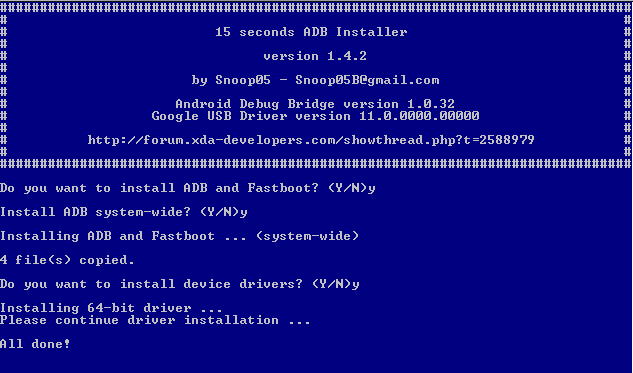
- You will get a Blue coloured command prompt screen with the text highlighting as: Do you want to install ADB and Fastboot? (Y/N)_
Just press the “Y” key on the keyboard and press Enter to continue.NOTE: This option installs the ADB and Fastboot on Windows PC.
- Then it will ask whether to install ADB system-side?
Just press the “Y” key on the keyboard again and press Enter to continue.NOTE: This option basically enables the ADB and Fastboot utilities to be accessible from any directory location on your Windows machine. If you are a beginner then it is strongly recommended that you should enable this by clicking “y”
- Then it will ask whether to install Device Drivers?
Just press the “Y” key on the keyboard again and press Enter to continue. - This time another installer will be opened automatically.
Click on Next to continue and when completed just click on Finish button.NOTE: This actually installs the Google Android USB Drivers. If you are a beginner then this step is also strongly recommended to go with a “y”
Once the ADB, Fastboot and Google Android Drivers are installed, the setup Window will automatically be closed. After that you can access the adb and fastboot from the command window on Windows OS. To open the command window, Press Shift + Right Click on mouse on any directory or any place on Windows explorer and then Click on Open command window here.
Alternatively you can open the Run window by pressing Windows Key + R on keyboard and then type cmd on the Run command window’s text box and then press Enter.
If you have any problem or if you want any help then just login to reply and you will get help instantly.
The good news is that, you can now download and install LineageOS 16 for Galaxy NOTE 2. Here is how to install LineageOS 16 on Galaxy NOTE 2 and update it to Android Pie with a step-by-step guide.
Follow the links to get other LineageOS 16 and Android Pie ROM builds.
This build of LineageOS 16 for Galaxy NOTE 2 is brought to you by developer comico.
DONATION TO DEVELOPER(S)/PROJECT:
If you like this ROM then do consider for a contribution to comico and LineageOS project:
– Donate to comico
– Donate to LineageOS project

[su_note note_color=”#F9D9D9″ text_color=”#AA4343″ radius=”3″ class=”” id=””]DISCLAIMER:
THIS IS AN INITIAL BUILD OF Galaxy NOTE 2 LineageOS 16 WHICH HAS MANY BUGS.
MAKE SURE TO BACKUP ALL DATA OF YOUR PHONE BEFORE FLASHING.[/su_note][su_note note_color=”#FBF4DD” text_color=”#A38C68″ radius=”3″ class=”” id=””]Installing a TWRP recovery on Galaxy NOTE 2 may delete all your data. Before proceeding further you may consider backup all data on the phone.
You are the only person doing changes to your phone; neither the developer nor I can be held responsible for the mistakes done by you.[/su_note]
Status of Galaxy NOTE 2 LineageOS 16 ROM:
WHAT’S WORKING:
– Many things except listed belowKNOWN ISSUES:
– Unable to capture screenshots
– No vibration
– No preview in recent apps
– Camera recording does not workREQUIRED GUIDES AND DOWNLOADS TO INSTALL Galaxy NOTE 2 ON LineageOS 16 ANDROID 9 PIE ROM:
[styledlist style=”yes”]- TWRP for Galaxy NOTE 2 (n7100) to install LineageOS 16 ROM
- Install TWRP recovery on Samsung
- ROM Download link of Galaxy NOTE 2 LineageOS 16
- Wifi FIX for murata based wifi modules
- MindTheGApps for LineageOS 16
- How to Root LineageOS 16
[/styledlist]
HOW TO UPDATE/INSTALL LineageOS 16 FOR Galaxy NOTE 2 – Android 9 Pie CUSTOM ROM:
[su_note note_color=”#D7E3F4″ text_color=”#728095″ radius=”3″ class=”” id=””]
Following are the two sub-sections of this LineageOS 16 guide:- Fresh installation of Galaxy NOTE 2 LineageOS 16 ROM
- Updating a new Galaxy NOTE 2 LineageOS 16 on top of previous LineageOS 16 ROM[/su_note]
Flashing LineageOS 16 on Galaxy NOTE 2 for the first time:
[su_note note_color=”#FBF4DD” text_color=”#A38C68″ radius=”3″ class=”” id=””]
Points to NOTE:- Try to avoid restoring apps backup using Titanium Backup. It may break things up.
- Don’t restore system data using Titanium Backup! It will definitely break the current installation.
- It is also discouraged to Restoring Apps + Data using Titanium Backup.
[/su_note]
- Download and Copy the LineageOS 16 Gapps and the Galaxy NOTE 2 LineageOS 16 ROM ZIP file to your phone.
- Boot into the TWRP custom Recovery to install this LineageOS 16 for Galaxy NOTE 2.
[su_note note_color=”#D7E3F4″ text_color=”#728095″ radius=”3″ class=”” id=””]- Make sure to have a Custom recovery like a TWRP recovery or any other custom recovery.
– If not then download the TWRP recovery from Downloads link and follow how to install TWRP on Samsung using ODIN (it’s a generic guide which will work for TWRP as well as any other recovery)[/su_note] - Wipe the data partition (or do a factory reset), Cache partition, Dalvik Cache or ART cache and Format the System partition.
[su_note note_color=”#D7E3F4″ text_color=”#728095″ radius=”3″ class=”” id=””]- Here is a guide explaining how to wipe using TWRP recovery.[/su_note]
[su_note note_color=”#FBF4DD” text_color=”#A38C68″ radius=”3″ class=”” id=””]This will delete all your data on your phone. You may consider complete backup of your phone data or take a NANDROID backup of the current ROM
– How to backup all data on your Android Device
– how to take NANDROID backup using TWRP recovery[/su_note] - Install the Galaxy NOTE 2 LineageOS 16 ROM file that you have copied into the phone.
[su_note note_color=”#D7E3F4″ text_color=”#728095″ radius=”3″ class=”” id=””]- Here is a post explaining how to install LineageOS[/su_note] - Then install the Android Pie MindTheGapps for LineageOS 16 package.
[su_note note_color=”#D7E3F4″ text_color=”#728095″ radius=”3″ class=”” id=””]- Here is a post explaining how to install GApps using TWRP recovery.[/su_note] - Reboot and Enjoy the Galaxy NOTE 2 LineageOS 16 Android 9 Pie ROM.
Upgrading a new version of LineageOS 16 for Galaxy NOTE 2 (n7100):
- Copy the latest ROM zip file of LineageOS 16 for Galaxy NOTE 2, LineageOS 16 GApps and/or Magisk ROOT package to the phone
- Boot into Recovery.
– Make sure you have a latest custom Recovery that should be able to flash the LineageOS 16 ROM update. - Format or wipe the system partition from the custom recovery menu.
- Install the LineageOS 16 ROM for Galaxy NOTE 2.
[su_note note_color=”#D7E3F4″ text_color=”#728095″ radius=”3″ class=”” id=””]- Here is a post explaining how to install LineageOS[/su_note] - Reboot and see you have the GApps and ROOT access or NOT.- Gapps is built in such a way that it will sustain across ROM updates.
- If you don’t have GApps after upgrading the LineageOS 16 on Galaxy NOTE 2, then flash the GApps.
[su_note note_color=”#D7E3F4″ text_color=”#728095″ radius=”3″ class=”” id=””]- Here is a post explaining how to flash GApps using TWRP recovery.[/su_note] - If you don’t have ROOT after upgrading the LineageOS 16 on Galaxy NOTE 2, then flash the SuperSU or Magisk or the Lineage SU binary.
[su_note note_color=”#D7E3F4″ text_color=”#728095″ radius=”3″ class=”” id=””]- Here is a post explaining How to Enable ROOT on LineageOS 16 ROM[/su_note] - Once everything is done, reboot and Enjoy the LineageOS 16 for Galaxy NOTE 2.
[su_note note_color=”#D8F1C6″ text_color=”#769958″ radius=”3″ class=”” id=””]Complete the initial setup and enjoy Android 9 Pie with LineageOS 16 on Galaxy NOTE 2.[/su_note]
After installing LineageOS 16 on Galaxy NOTE 2 you may want to install Google Camera (GCam) or enable ROOT access on your phone and here is how you can do that:
– LineageOS 16 ROOT
– GCam for Android Pie (this page contains a huge list of GCam for all available devices)[su_note note_color=”#D7E3F4″ text_color=”#728095″ radius=”3″ class=”” id=””]If there is no ROOT access for some reason even after installing the LineageOS SU binary, then you can try SuperSU rooting guide to enable ROOT access.[/su_note]
Stay tuned or Subscribe to the Galaxy NOTE 2 (n7100) LineageOS forum For other Android Pie, Android Oreo ROMs, Nougat ROMs, or other ROMs and all other device specific topics.To everyone’s surprise, Android O Developer Preview 1 is out and this is a post explaining how to update developer preview of Android O for Google Pixel XL. This is a manual update process of Developer Preview of Android O for Google Pixel XL. Otherwise you will be able to get the Android O developer preview by enrolling to Android BETA program, which is not available for this update unfortunately.
DISCLAIMER:
Manually updating Developer Preview of Android O for Google Pixel XL requires an unlocked bootloader on Google Pixel XL phone, which may VOID your warranty and may delete all your data. Before proceeding further you may consider backup all data on the phone. You are the only person doing changes to your phone and I cannot be held responsible for the mistakes done by YOU.
REQUIRED DOWNLOADS AND LINKS TO UPDATE DEVELOPER PREVIEW OF ANDROID O FOR GOOGLE PIXEL XL:
- ADB and Fastboot utility on your PC (Windows, Linux or MAC)
– 15 Seconds ADB Installer for Windows
– Minimal ADB and Fastboot for Windows
– adb and fastboot on MAC or Linux - USB drivers for Google Pixel XL
- Unlocked bootloader on Google Pixel XL
- Android O DP1 Download link for Google Pixel XL
STEP by STEP GUIDE TO UPDATE ANDROID O ON GOOGLE PIXEL XL:
If you don’t have an unlocked bootloader on your Google Pixel XL yet, then follow the below link to get it done:
Unlocking bootloader on Google Pixel XL- Make sure you have already unlocked the bootloader and downloaded the Android O DP1 image for Google Pixel XL to be installed, from the above downloads section.
NOTE:
The zip file comes in a package which might have similar to the following files:
– bootloader image: bootloader-mako-makoz30d.img
– radio image: radio-mako-m9615a-cefwmazm-2.0.1701.03.img
– The actual Android system image: image-occam-ktu84p.zip
– scripts for different platforms like Windows and linux that will flash all of the images by itself to your device. - Put the phone into fastboot or bootloader mode.
– Power off your phone and boot into fastboot by pressing and holding Power Button + Volume Down at the same time.
– Press volume up or down button and select the power button when you see the Bootloader mode. After pressing power button you will be in Bootloader mode.
– And then connect your phone to the PC using a USB cable (make sure USB drivers already installed and ADB FASTBOOT utilities must be installed as well). - Run the flash-all.bat by double click on the script file.
For linux users you have to run the flash-all.sh script file.Wait for the script till it flashes everything.
Alternatively you can flash the images manually with the following commands:
fastboot flash bootloader bootloader.img
fastboot flash radio radio.img
fastboot reboot-bootloader
fastboot flash system system.img
fastboot flash boot boot.img
fastboot flash recovery recovery.img
Voila! Just reboot the phone and enjoy the Latest Android O Developer Preview 1 on the Google Pixel XL phone. I hope the guide is straight forward for you to follow. In case you find difficulty then just register and leave your reply to get instant assistance for your problem.
[su_note note_color=”#D8F1C6″ text_color=”#769958″ radius=”3″ class=”” id=””]
Try Google Camera APK, Android Apps and Games for Google Pixel XL:
Once done, you can try the Google Camera APK for Google Pixel XL or some Android apps and games from the Android APK download and the Android Game download section.
[/su_note]Stay tuned or Subscribe to the Google Pixel XL (marlin) forum For other Android O ROMs, Lineage OS 14.1 ROMs, other ROMs and all other device specific topics.Android Oreo crDroid 4.0 ROM for OnePlus 5T (dumpling) is now available via a development version. This guide provides the download to crDroid Oreo ROM for OnePlus 5T and guides through the installation process of OnePlus 5T crDroid Oreo ROM. This OnePlus 5T crDroid Android Oreo ROM is brought to you by crdroidandroid.
DONATION TO DEVELOPER(s):
If you like this crDroid ROM, then do consider a contribution to crDroid Android project:
– Donate to crDroid projectIf you want Lineage OS ROM or some more Android Oreo ROMs then stay tuned to the LineageOS 15 Download devices list page or the AOSP Android Oreo ROMs devices list page.
DISCLAIMER:
THIS IS AN INTIAL BETA BUILD OF ANDROID OREO, WHICH MAY HAVE FEW BUGS. BACKUP THE CURRENT ROM BEFORE INSTALLING THIS ONE. TRY AT YOUR OWN RISK.
Installing a custom ROM on a the OnePlus 5T requires a custom recovery to be installed, which may VOID your warranty and may delete all your data. Before proceeding further you may consider backup all data on the phone. You are the only person making changes to your phone and I cannot be held responsible for the mistakes done by you.Content structure:
Status of OnePlus 5T crDroid 4.0 Android Oreo Download:
WHAT’S WORKING:
– UnknownKNOWN ISSUES:
– Unknown
REQUIRED LINKS AND FILES FOR OnePlus 5T crDroid 4.0 OREO ROM:
- TWRP download for OnePlus 5T
– Here is theTWRP update guide for OnePlus 5T. This recovery guide requires an unlocked bootloader on the phone.
- crDroid Oreo ROM Download link for OnePlus 5T
- Oreo GApps Download for crDroid 4.0 Android Oreo ROM
Root binary is NOT inbuilt in Lineage OS ROM, so you may need a separate SuperSu package or LineageOS su (because crDroid ROM is based on LineageOS) binary to install to gain ROOT access. Here is Lineage OS Rooting guide
If there is no in-built ROOT or it does not work for some reason then you can try SuperSU rooting guide to enable ROOT access.HOW TO INSTALL/DOWNLOAD/INSTALL/UPDATE THE OnePlus 5T TO THE crDroid 4.0 ROM:
Follow this if you are installing crDroid 4.0 on the OnePlus 5T for the first time, or coming from another ROM:
Points to NOTE:
– Try to avoid restoring apps backup using Titanium Backup. It may break things up.
– Don’t restore system data using Titanium Backup! It will definitely break the current installation.
– It is also discouraged to Restoring Apps + Data using Titanium Backup.- Boot into Recovery.
Make sure to have a Custom recovery like CWM or TWRP or any other custom recovery. If not then download the recovery for OnePlus 5T from above link and follow the Custom Recovery Installation Guide (it’s a generic guide which will work for TWRP as well as CWM recovery or any other recovery) - Wipe data factory reset, Cache partition, Dalvik Cache and Format the System partition.
– Here is a guide explaining how to wipe data using TWRP recovery.This will delete all your data on your phone. You may consider complete backup of your phone data or take a NANDROID backup of the current ROM
– How to backup all data on your Android Device
– how to take NANDROID backup using TWRP recovery - Download and Copy the Oreo GApps and the crDroid 4.0 Oreo ROM ZIP to the phone.
- First install the OnePlus 5T crDroid 4.0 Oreo ROM ZIP from device. Then install the GApps zip from your device memory.
– Here is a post explaining how to install crDroid 4.0 Oreo ROM - Then reboot into recovery (don’t skip this) and install the Gapps for crDroid 4.0 package.
– Here is a post explaining how to install GApps using TWRP recovery. - Reboot and Enjoy Android Oreo with crDroid 4.0 ROM on OnePlus 5T.
Upgrading from earlier version of crDroid 4.0 for OnePlus 5T (dumpling):
- Copy the latest crDroid 4.0 Oreo ROM ZIP file to the phone.
- Boot into Recovery.
- Install the crDroid Android Oreo ROM ZIP file that you copied.
– Here is a post explaining how to install crDroid 4.0 Oreo ROM - Then install the crDroid 4.0 Oreo GApps package.
– Here is a post explaining how to install GApps using TWRP recovery. - Reboot and Enjoy
Complete the initial setup and enjoy Android Oreo 8.1 with crDroid 4.0 on the OnePlus 5T (dumpling). After the installing the crDroid 4.0 ROM, you may want to enable ROOT access on your phone and here is how you can do that:
How to Enable ROOT on crDroid 4.0 ROM.Stay tuned or Subscribe to the OnePlus 5T LineageOS forum For other Android Oreo ROMs, Android Nougat ROMs, LineageOS ROMs, other ROMs and all other device specific topics.Resurrection Remix Oreo for HTC One Max is now available to download via an OFFICIAL version. This RR Oreo for HTC One Max (t6) is brought to you by developer tarkzim.
DONATION TO DEVELOPER(s):
If you like this ROM then do consider a small contribution to tarkzim and/or the Resurrection Remix OS project:
– donation to tarkzim
– Donate to Resurrection Remix OS projectIf you want the OFFICIAL Resurrection Remix update or some more Android Oreo Custom ROMs then stay tuned to one of the following list:
– Resurrection Remix Oreo Download list of devices
– LineageOS 15 Download
– OFFICIAL LineageOS 15.1 Download
– AOSP Oreo ROMs Download devices list page.DISCLAIMER:
THIS IS AN INITIAL BUILD OF RESURRECTION REMIX ANDROID OREO (8.1), WHICH MAY HAVE MANY BUGS. BACKUP THE CURRENT ROM BEFORE FLASHING. TRY AT YOUR OWN RISK.
Installing a custom ROM on the HTC One Max requires a custom recovery to be installed, which may VOID your warranty and may delete all your data. Before proceeding further you may consider backup all data on the phone. You are the only person making changes to your phone and I cannot be held responsible for the mistakes done by you.Content structure:
Status of Resurrection Remix Oreo for HTC One Max:
WHAT’S WORKING:
– UnknownKNOWN ISSUES:
– Unknown
REQUIRED DOWNLOADS AND LINKS TO UPDATE HTC One Max RR OREO (RESURRECTION REMIX) ROM:
- TWRP recovery download for HTC One Max for RR Oreo ROM
– Follow this guide: How to Install TWRP on HTC One Max using Fastboot (This requires an unlocked bootloader)
– Here is How to unlock bootloader on HTC Phone - ROM Download link to Resurrection Remix Oreo for HTC One Max
- Oreo GApps Download Link for HTC One Max Resurrection Remix Oreo ROM
- Rooting guide for RR Oreo
HOW TO INSTALL/FLASH/UPDATE RESURRECTION REMIX OREO FOR HTC One Max (ANDROID ANDROID 8.1, RR v6.0.0 ROM):
Follow this to Install RR Oreo for HTC One Max for the first time or coming from another Android ROM:
Points to NOTE on BACKUP before updating:
– Try to avoid restoring apps backup using Titanium Backup. It may break things up.
– Don’t restore system data using Titanium Backup! It will definitely break the current installation.
– It is also discouraged to Restoring Apps + Data using Titanium Backup.- Boot into Recovery by one of the following method:
– Power off the phone and keep pressing key combinations while turning on your phone.
– If you have enabled USB debugging and you have ADB utility installed on your PC then you can execute the following command on a console or command prompt:adb reboot recovery
- Wipe data factory reset, Cache partition, Dalvik Cache and Format the System partition using the recovery.
– Here is a guide explaining how to wipe data using TWRP recovery.This will delete all your data on your phone. IGNORE IF YOU DON’T WANT TO OR IF YOU HAVE ALREADY DONE THIS. You may consider complete backup of your phone data or take a NANDROID backup of the current ROM.
– How to backup all data on your Android Device.
– how to take NANDROID backup using TWRP recovery. - Download the HTC One Max Android Oreo ROM zip file from the above download link and copy the files to phone.
- Flash the HTC One Max RR Oreo ROM zip from device.
– Here is a post explaining how to flash a ROM zip using TWRP.
Upgrading from earlier version of Resurrection Remix Oreo for HTC One Max:
- Copy the latest ROM zip file of Resurrection Remix Oreo for HTC One Max to your phone.
- Boot into Recovery.
- Flash the latest RR Oreo ROM ZIP from your phone and wait till it finishes flashing.
– Here is a post explaining how to flash a custom ROM using TWRP recovery. - Reboot and Enjoy
Reboot to system after flashing is done completely. Do the required initial setup and enjoy the Android Oreo ROM for HTC One Max. If you face any problem following this guide or post installation then just login and leave a comment to get an instant reply.
Rooting Resurrection Remix Android Oreo ROM on HTC One Max:
There is no inbuilt ROOT functionality available on this ROM.
Here is how to How to ROOT RR Oreo ROM, a step-by-step guide !!!The above link is for LineageOS 15.1 Rooting guide, because RR Oreo is based on LineageOS 15.1.
Stay tuned or Subscribe to the HTC One Max custom ROMs forum For other Android Oreo ROMs, Android Nougat ROMs, LineageOS ROMs, Resurrection Remix ROM, Omni ROM, AICP ROM, crDroid ROM, and all other device specific topics.