- Search Results
Vivo Z6 was released recently and now we have a working port of GCam for Vivo Z6 available to download. The compatible Google Camera port(s) are brought to you by Urnyx05.
Available GCam versions for Vivo Z6
Below are the available version(s) of Google Camera APK for Vivo Z6
- GCam 7.3
- GCam 7.2
The GCam 7.x versions(s) bring Astrophotography mode and better night sight pictures to the Vivo Z6 along with other older features such as HDR+, Timelapse, portrait mode, etc. The available GCam ports are compatible on Android 10.

Status of this Vivo Z6 Google Camera
WHAT’S WORKING
– All basic featuresKNOWN ISSUES
– Nothing reported yetIf in case you have found any issue with the given Google Camera for Vivo Z6 which is not mentioned above, Help us by mentioning the issues in comments, Our Fix google camera issues post may help you to fix the issues on your own.
[/su_note][su_note note_color=”#D8F1C6″ text_color=”#769958″ radius=”3″ class=”” id=””]
Where to Download GCam for Vivo Z6?
Below are the available download link to the compatible GCam APK files –
GCam 7.3 (Latest Version) (Any version of the GCam port should work)
GCam 7.2 Download
[/su_note]How to Install Google Camera APK on Vivo Z6?
- Download any GCam APK file from the above download link(s).
- To install apps from a third-party app other than Play Store you need to enable app installation from Unknown Sources on your Android device.
For Android 10 version, enable Install Unknown Apps from the app from which you are going to install the Google Camera APK. For example: if you have downloaded the Google Camera apk file on Google chrome or firefox browser on your phone. Or you have downloaded and copied the apk file to the file browser and you want to install it from there.
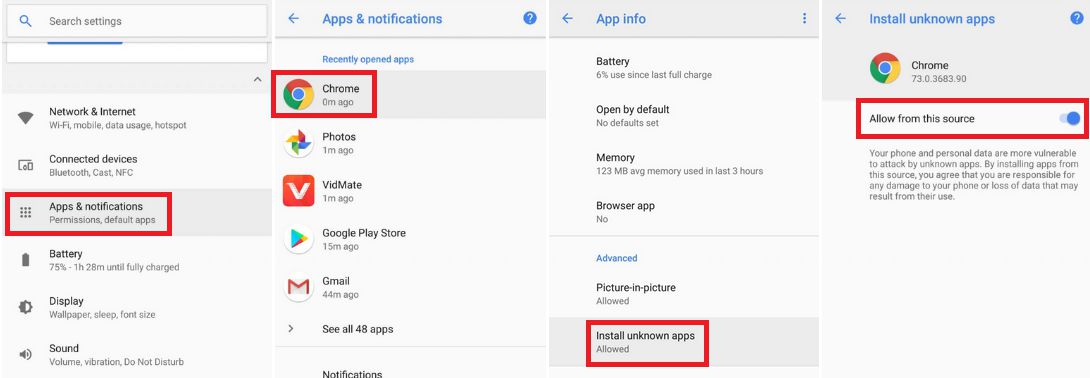
Go to Settings > Apps & notifications > Open the app (Chrome, Firefox or file manager app etc) > Install unknown apps and enable Allow from this source
See the below screenshots that enables to install unknown apps on Pie for Chrome app (you need to enable on the app from where you want to install the apk):

- Once enabled, click on the downloaded app to install.
- Once installed you can clear the app data and open the app and enjoy the feature packed Google Camera APK on Vivo Z6.
How to shoot in astrophotography mode?
Google Camera version 7.0 and up comes with Astrophotography mode by default, but there are conditions that must be met to enable astrophotography mode. Usually, following conditions must be met to capture in Astrophotography mode if manually not force enabled:
- It can be enabled on Night Sight mode (only)
- The phone must be kept static (use a tripod or keep the phone somewhere to keep it static)
- There must be low light condition
- It may take few seconds for this mode to come up when the above conditions are met
[su_note note_color=”#FBF4DD” text_color=”#A38C68″ radius=”3″ class=”” id=””]- When the display shows something like “Astrophotography is on” or “Capturing cuttlefish” (or on some GCam ports nothing is shown at all) while capturing photo in Night Sight mode, then it is shooting in astrophotography mode otherwise not.
– If the GCam takes a lot of time usually more than 30 seconds then it is capturing in astro mode.
– When I kept the phone static in front of a good light source, the Astrophotography mode did not turn on.
So, make sure it is a low light environment.[/su_note]New features are keep coming on the Google Camera app and hence there could be many versions of these ported apps for Vivo Z6. This page will always have all available working Google Camera for Vivo Z6.
Visit the following link for Vivo Z6 updates on other Google Camera, Custom ROMs and all other device specific topics.Android 10 based Resurrection Remix Ten ROM for Mi A3 is now available to download. This build of RR Ten for Mi A3 is brought to you by xZee.
Other Android 10 Downloads for Mi A3
Following are some of the other custom ROMs based on Android 10 for Mi A3:
– LineageOS 17.1 for supported devices
– Bliss ROM Android 10 for supported devices
– Android 10 download for all available devicesDONATION TO DEVELOPER(S)/PROJECT:
If you like this ROM then do consider for a contribution to xZee:
– Donation link not found
[su_note note_color=”#F9D9D9″ text_color=”#AA4343″ radius=”3″ class=”” id=””]This is a custom ROM for Mi A3 which may have many bugs. This firmware has to be installed using a custom recovery such as TWRP, which requires an unlocked bootloader on the phone.
Make sure you BACKUP all the data and all the partitions of your phone before installing this RR Ten ROM.You are the only person making changes to your phone and I cannot be held responsible for anything wrong done by you.[/su_note]
About RR Ten v8.0 based on Android 10:
Resurrection Remix OS is an open source custom ROM based on LineageOS which provides gesture control, customization, better battery life, regular security merges, OTA updates etc. This project founded and run by Altan KRK (westcrip) and many others in the team.
The Resurrection Remix (RR) Ten ROM version v8.x is based on the recently released LineageOS 17.1 and Android 10, which is the latest Android to date.
Status of this Mi A3 RR Ten Android 10:
WHAT’S WORKING:
– Almost everythingKNOWN ISSUES:
– Nothing reported yetWhere to Download RR Ten Android 10 for Mi A3?
- RR Ten ROM Android 10 Download for Mi A3
- TWRP for Mi A3
- How to install TWRP recovery
- Xiaomi Bootloader unlock guide – required to install TWRP recovery
- Android 10 GApps
How to Install Resurrection Remix (RR) Ten on Mi A3?
[su_note note_color=”#D8F1C6″ text_color=”#769958″ radius=”3″ class=”” id=””]
Following are the two sub-sections of this Mi A3 Android 10 update guide:- First time installation of RR Ten ROM
- Upgrading RR Ten build from a previous build
[/su_note]
Installing RR OS Ten for the first time:
[su_note note_color=”#D8F1C6″ text_color=”#769958″ radius=”3″ class=”” id=””]This upgrade process requires few guides to be followed and few files to be downloaded. Everything referred in the below guide is provided in the above downloads section.[/su_note]
- Download and Copy the RR ROM 8.x Android 10 zip file for Mi A3 and the Android 10 Gapps zip file to your phone.
- Boot into the TWRP Recovery (with SAR support) to install RR ROM Android 10 on Mi A3.
[su_note note_color=”#D7E3F4″ text_color=”#728095″ radius=”3″ class=”” id=””]- Make sure to have a Custom recovery like a TWRP recovery or any other custom recovery.
– If not then download the TWRP recovery from Downloads link and follow the how to install TWRP recovery guide (it’s a generic guide which will work for TWRP as well as any other recovery)[/su_note] - Wipe system, data, and cache partition.
[su_note note_color=”#D7E3F4″ text_color=”#728095″ radius=”3″ class=”” id=””]- Here is a guide explaining how to wipe using TWRP recovery.[/su_note]
[su_note note_color=”#FBF4DD” text_color=”#A38C68″ radius=”3″ class=”” id=””]This will delete all your data on your phone. You may consider complete backup of your phone data or take a NANDROID backup of the current ROM
– Backup data on Android
– NANDROID backup on TWRP recovery[/su_note] - Install the RR Ten zip file that you have copied into the phone.
- Then flash the Android 10 Gapps zip file.
[su_note note_color=”#D7E3F4″ text_color=”#728095″ radius=”3″ class=”” id=””]- Here is a post explaining how to install GApps using TWRP recovery.[/su_note] - Reboot and Enjoy Android 10 with Resurrection Remix Ten ROM, on your Mi A3.
Upgrade RR Ten ROM Android 10 on Mi A3:
- Copy the latest RR ROM Android 10 zip file for your device
- Boot into TWRP recovery
- Wipe the system partition from the custom recovery menu.
- Install the latest RR ROM zip file.
- Reboot and see you have the GApps and ROOT access or NOT (if you installed previously).
[su_note note_color=”#D8F1C6″ text_color=”#769958″ radius=”3″ class=”” id=””]- Gapps is built in such a way that it will sustain across ROM updates.[/su_note] - If you don’t have GApps after upgrading the Android 10 on the phone, then flash the GApps again.
[su_note note_color=”#D7E3F4″ text_color=”#728095″ radius=”3″ class=”” id=””]- Here is a post explaining how to flash GApps using TWRP recovery.[/su_note] - If you don’t have ROOT after upgrading the Resurrection Remix ROM Android 10 on your phone, then flash the Magisk Installer zip file.
- Once everything is done, reboot and Enjoy the Android 10 RR ROM on Mi A3.
How to Get GCam for RR Ten ROM?
GCam 7.0 and later versions are compatible with RR Ten ROM v8 or any Android 10 ROM in general.
You can always look into the big list of Google Camera APK download page to get a compatible GCam for your phone.Stay tuned or Subscribe to the Mi A3 (laurel_sprout) forum For other Android Pie, Android Oreo ROMs, Nougat ROMs, or other ROMs and all other device specific topics.You can now download and install LineageOS 16 for Zenfone Max. Here is how to install LineageOS 16 on Zenfone Max, with a step-by-step guide. This LineageOS 16 build is brought to you by developer SakilMondal.
Follow the links to get other LineageOS 16 and Android Pie ROM builds.
DONATION TO DEVELOPER(S)/PROJECT:
If you like this ROM then do consider for a contribution to Sakil_Mondal and LineageOS project:
– Donate to SakilMondal
– Donate to LineageOS project

[su_note note_color=”#F9D9D9″ text_color=”#AA4343″ radius=”3″ class=”” id=””]DISCLAIMER:
THIS IS AN INITIAL TEST BUILD OF LineageOS 16 FOR Zenfone Max, WHICH MAY NOT BOOT AT ALL.
MAKE SURE TO BACKUP ALL DATA OF YOUR PHONE.
FLASH AT YOUR OWN RISK.[/su_note][su_note note_color=”#FBF4DD” text_color=”#A38C68″ radius=”3″ class=”” id=””]Installing a custom ROM may require an unlock bootloader on Zenfone Max, which may VOID your warranty and may delete all your data. Before proceeding further you may consider backup all data on the phone.
You are the only person doing changes to your phone; neither the developer nor I can be held responsible for the mistakes done by you.[/su_note]Status of the Zenfone Max LineageOS 16 ROM:
WHAT’S WORKING:
– UnknownKNOWN ISSUES:
– Unknown
– WifiREQUIRED GUIDES AND DOWNLOADS TO INSTALL LineageOS 16 ON Zenfone Max:
- TWRP for Zenfone Max (Z010D) for this Zenfone Max LineageOS 16 ROM
- How to install TWRP recovery
- Zenfone Max unlock bootloader guide – required to install TWRP recovery
- ROM download link for Zenfone Max LineageOS 16 [LINK IS REMOVED BECAUSE IT WAS A TEST BUILD]
- MindTheGApps for LineageOS 16 / GApps for LineageOS 16
- LineageOS 16 Root guide
HOW TO DOWNLOAD AND INSTALL LineageOS 16 ON Zenfone Max – Android 9 Pie CUSTOM ROM:
[su_note note_color=”#D7E3F4″ text_color=”#728095″ radius=”3″ class=”” id=””]
Following are the two sub-sections of this Zenfone Max LineageOS 16 guide:- First time installation of LineageOS 16 on Zenfone Max
- Upgrading LineageOS 16 on Zenfone Max from a previous build of LineageOS 16 ROM
[/su_note]
Flashing LineageOS 16 on Zenfone Max for the first time:
[su_note note_color=”#FBF4DD” text_color=”#A38C68″ radius=”3″ class=”” id=””]
Points to NOTE:- Try to avoid restoring apps backup using Titanium Backup. It may break things up.
- Don’t restore system data using Titanium Backup! It will definitely break the current installation.
- It is also discouraged to Restoring Apps + Data using Titanium Backup.
[/su_note]
- Download and Copy the Zenfone Max LineageOS 16 ROM and GApps ZIP file to your phone.
- Boot into the TWRP custom Recovery to install this LineageOS 16 on Zenfone Max.
[su_note note_color=”#D7E3F4″ text_color=”#728095″ radius=”3″ class=”” id=””]- Make sure to have a Custom recovery like a TWRP recovery or any other custom recovery.
– If not then download the TWRP recovery from Downloads link and follow the Custom Recovery Installation Guide (it’s a generic guide which will work for TWRP as well as any other recovery)
– Installing TWRP recovery requires an unlocked bootloader on Zenfone Max[/su_note] - Wipe the data partition (or do a factory reset), Cache partition, Dalvik Cache or ART cache and Format the System partition.
[su_note note_color=”#D7E3F4″ text_color=”#728095″ radius=”3″ class=”” id=””]- Here is a guide explaining how to wipe using TWRP recovery.[/su_note]
[su_note note_color=”#FBF4DD” text_color=”#A38C68″ radius=”3″ class=”” id=””]This will delete all your data on your phone. You may consider complete backup of your phone data or take a NANDROID backup of the current ROM
– How to backup all data on your Android Device
– how to take NANDROID backup using TWRP recovery[/su_note] - First flash the LineageOS 16 for Zenfone Max
[su_note note_color=”#D7E3F4″ text_color=”#728095″ radius=”3″ class=”” id=””]- Here is a post explaining how to install recovery flashable zip file[/su_note] - Then install the MindTheGapps for LineageOS 16 package.
[su_note note_color=”#D7E3F4″ text_color=”#728095″ radius=”3″ class=”” id=””]- Here is a post explaining how to install GApps using TWRP recovery.[/su_note] - Reboot and Enjoy the Android 9 Pie LineageOS 16 on Zenfone Max.
Upgrading from earlier version of LineageOS 16 on Zenfone Max (Z010D):
- Copy the latest ROM zip file of LineageOS 16 for Zenfone Max, LineageOS 16 GApps and/or Magisk ROOT package to the phone
- Boot into Recovery.- Make sure you have a latest custom Recovery that should be able to flash the LineageOS 16 ROM update.
- Format or wipe the system partition from the custom recovery menu.
- Install the LineageOS 16 for Zenfone Max.
[su_note note_color=”#D7E3F4″ text_color=”#728095″ radius=”3″ class=”” id=””]- Here is a post explaining how to install LineageOS[/su_note] - Reboot and see you have the GApps and ROOT access or NOT.
[su_note note_color=”#D8F1C6″ text_color=”#769958″ radius=”3″ class=”” id=””]- Gapps is built in such a way that it will sustain across ROM updates.[/su_note] - If you don’t have GApps after upgrading the LineageOS 16 on Zenfone Max, then flash the GApps.
[su_note note_color=”#D7E3F4″ text_color=”#728095″ radius=”3″ class=”” id=””]- Here is a post explaining how to flash GApps using TWRP recovery.[/su_note] - If you don’t have ROOT after upgrading the LineageOS 16 on Zenfone Max, then flash the SuperSU or Magisk or the Lineage SU binary.
[su_note note_color=”#D7E3F4″ text_color=”#728095″ radius=”3″ class=”” id=””]- Here is a post explaining How to Enable ROOT on LineageOS 16 ROM[/su_note] - Once everything is done, reboot and Enjoy the LineageOS 16 on Zenfone Max.
[su_note note_color=”#D8F1C6″ text_color=”#769958″ radius=”3″ class=”” id=””]Complete the initial setup and enjoy Android 9 Pie with LineageOS 16 on Zenfone Max.[/su_note]
After installing LineageOS 16 on Zenfone Max you may want to install Google Camera (GCam) or enable ROOT access on your phone and here is how you can do that:
– How to ROOT LineageOS 16
– GCam APK for Android Pie (this page contains a huge list of GCam for all available devices)[su_note note_color=”#D7E3F4″ text_color=”#728095″ radius=”3″ class=”” id=””]If there is no ROOT access for some reason even after installing the LineageOS SU binary, then you can try SuperSU rooting guide to enable ROOT access.[/su_note]
Stay tuned or Subscribe to the Zenfone Max (Z010D) LineageOS forum For other Android Pie, Android Oreo ROMs, Nougat ROMs, or other ROMs and all other device specific topics.In order to install LineageOS or TWRP or root your Mi 10 Lite, you need to unlock the bootloader of your phone. In this post, I am presenting a step-by-step guide to unlock the bootloader of Mi 10 Lite.

[su_note note_color=”#F9D9D9″ text_color=”#AA4343″ radius=”3″ class=”” id=””]
DISCLAIMER:
Unlocking the bootloader may void the warranty of your device and erase all user data. So, make sure that you are out of the warranty period or you are sure about what you are doing with your device. Also, make sure to backup all important data out of the phone.
[/su_note]What is a Bootloader and why is it locked?
In computing, the startup process of a device is called as boot-up. During this boot-up process, the device is unusable by the user until it boots-up completely.
A boot-loader is a piece of software that loads other software(s) during the boot-up process. In Android, this bootloader is locked to make sure no-one can alter what is being loaded by this bootloader.
Usually, a user can install software only after the boot process is complete, and when the device is ready to use. So, basically the bootloader software is not something that is meant for the user but to run the device. If not secured, the user may alter the boot-up process leaving the device unusable.
Locking the bootloader ensures that the software integrity of the phone is trusted, meaning it has not been modified from the stock and hence used to provide or discard warranty, etc.
Before Unlocking the Bootloader
Once you understand what is the bootloader and want to unlock it on your Mi 10 Lite then below are the few things that you need to do first.
- 30% or more battery charge (just to be on the safe side)
- Register for Mi Account (you might have already done it on your phone or you can do it now)
- A Windows PC with an internet connection
- Download the MiFlash Unlock Tool (only available for Windows)
Now, How to Unlock bootloader on your Mi 10 Lite?
- First, enable Developer Options which is hidden.
[su_note note_color=”#D7E3F4″ text_color=”#728095″ radius=”3″ class=”” id=””]To enable developer options go to Settings > About Phone > Tap 7-8 times on MIUI Version to unlock the developer options[/su_note] - Then enable the OEM unlocking and USB debugging options which are inside Developer Options settings.
[su_note note_color=”#D7E3F4″ text_color=”#728095″ radius=”3″ class=”” id=””]Go to Settings > Additional Settings > Developer Options scroll down a bit and first enable OEM Unlocking and then scroll a little bit down and enable USB Debugging[/su_note] - Add your Mi 10 Lite to the Mi Unlock Status
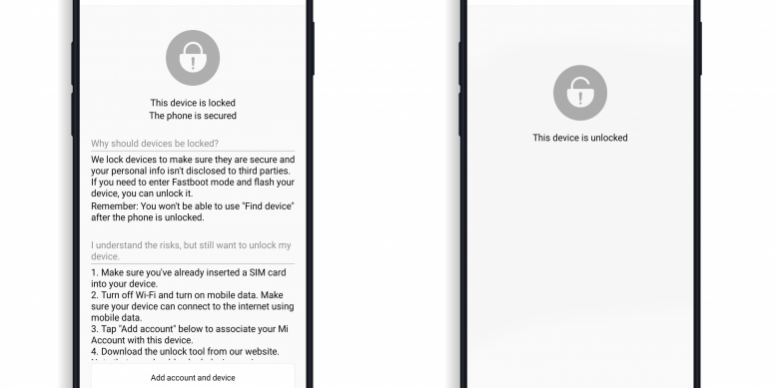
[su_note note_color=”#D7E3F4″ text_color=”#728095″ radius=”3″ class=”” id=””]Go to Settings > Additional Settings > Developer Options > Mi Unlock status and add your Mi account to your Mi 10 Lite[/su_note]The Unlock status page will look like the below image when locked and when unlocked –

- Now unzip the MiFlash Unlock tool zip file that you have downloaded earlier (if not download it now and unzip) and run the MiUsbDriver.exe file to install the USB driver required for your Mi 10 Lite bootloader unlock.
- Then from the same folder run the miflash_unlock.exe program.[su_note note_color=”#D7E3F4″ text_color=”#728095″ radius=”3″ class=”” id=””]Read the disclaimer carefully and Agree to the terms and conditions to proceed.[/su_note]
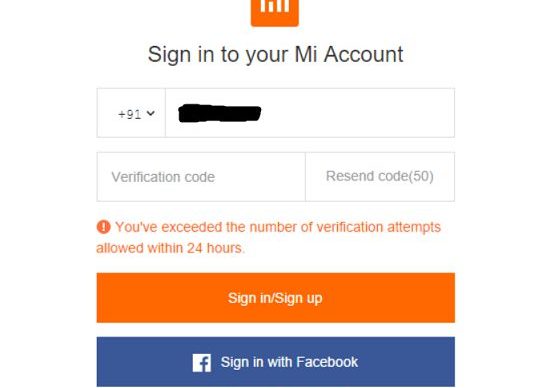
- Then sign-in to the Mi account.
[su_note note_color=”#D7E3F4″ text_color=”#728095″ radius=”3″ class=”” id=””]- Enter your registered mobile phone number and then click on the Get verification code button to get a verification code.
– Enter the verification code and then click on the Sign in/Sign up button.[/su_note][su_note note_color=”#FBF4DD” text_color=”#A38C68″ radius=”3″ class=”” id=””]There are only 3 attempts allowed in 24 hours of time. So, be careful while using this.[/su_note]
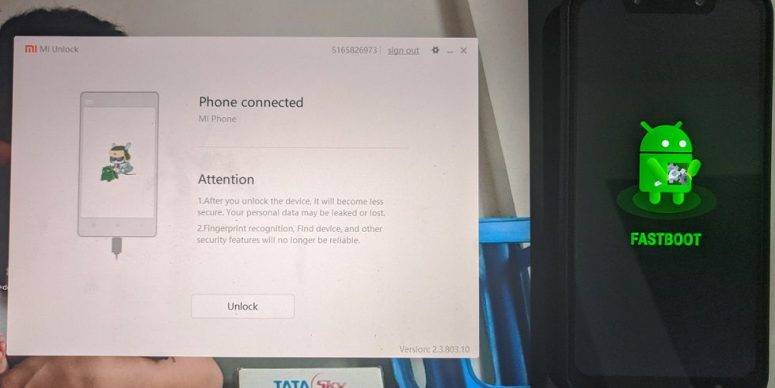
- The tool will verify for the permissions on your Mi account and take you to the next screen where it will ask you to connect the phone to the PC.
- Boot the phone into Fastboot mode and then connect to the PC using a USB cable.[su_note note_color=”#D7E3F4″ text_color=”#728095″ radius=”3″ class=”” id=””]Here the phone must be in Fastboot mode or otherwise known as bootloader mode.
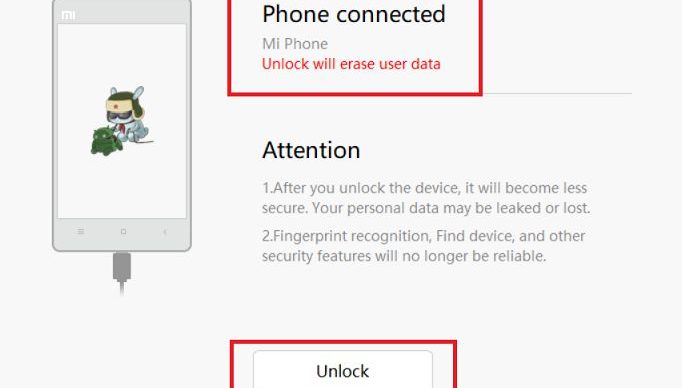
To boot into the fastboot mode first power off the Mi 10 Lite and then press and hold Volume Down and Power button together till you see the fastboot screen on the phone.[/su_note] - Once connected the Unlock button on the application will be activated. Click on the Unlock button to start the bootloader unlock process of your Mi 10 Lite.

The software application may take a while to unlock the bootloader on your Mi 10 Lite. If done correctly then your phone will have an unlocked bootloader after a few seconds.
Troubleshooting, if Failed to unlock Bootloader
Sometimes the MiFlash Unlock tool shows a failed message only at 99% of processing. or if the tool is not able to detect your phone at all etc. The following could be the reasons to looks at –
- See if you have installed the USB drivers correctly and it does show in the device manager of Windows OS when you connect the phone in fastboot mode
- or See if you have put your phone in Fastboot mode or not while connecting to the PC
- Verify if you have enabled USB debugging and OEM unlock and linked your phone to Mi Unlock status
- Verify if your account has unlocked permissions.
- If everything is alright but still it fails, then contact the Xiaomi support team or you can use their forum to seek support on your case.
Well, that’s all on how to unlock bootloader on Mi 10 Lite. If you face any kind of issue while following this guide, then just leave a reply here to get a response back.
Like it? You can always subscribe to the Mi 10 Lite forum to get more device specific topics.LineageOS 16 download for HTC One M9 is now available from an unofficial build. Here is how to install LineageOS 16 on HTC One M9, with a step-by-step guide. This LineageOS 16 build is brought to you by developer Claymore1297.
Follow the links to get other LineageOS 16 and Android Pie ROM builds.
DONATION TO DEVELOPER(S)/PROJECT:
If you like this ROM then do consider for a contribution to Claymore1297 and LineageOS project:
– Donate to Claymore1297
– Donate to LineageOS project

[su_note note_color=”#F9D9D9″ text_color=”#AA4343″ radius=”3″ class=”” id=””]DISCLAIMER:
THIS IS AN INITIAL BUILD OF LineageOS 16 FOR HTC One M9, WHICH MAY HAVE MANY BUGS.
MAKE SURE TO BACKUP ALL DATA OF YOUR PHONE.
FLASH AT YOUR OWN RISK.[/su_note][su_note note_color=”#FBF4DD” text_color=”#A38C68″ radius=”3″ class=”” id=””]Installing a custom ROM may require an unlock bootloader on HTC One M9, which may VOID your warranty and may delete all your data. Before proceeding further you may consider backup all data on the phone.
You are the only person doing changes to your phone; neither the developer nor I can be held responsible for the mistakes done by you.[/su_note]Status of the HTC One M9 LineageOS 16 ROM:
WHAT’S WORKING:
– Camera
– Video recording
– WiFi
– NFC
– Bluetooth
– Telephony (Calls and Data)
– Audio (Record and Playback)
– Video Playback
– Sensors
– GPSKNOWN ISSUES:
– NFC
– Could be Many moreREQUIRED GUIDES AND DOWNLOADS TO INSTALL LineageOS 16 ON HTC One M9:
- TWRP for HTC One M9 (himaul) for this HTC One M9 LineageOS 16 ROM
- How to install TWRP recovery
- HTC One M9 bootloader unlock guide – required to install TWRP recovery
- ROM download link for HTC One M9 LineageOS 16
- MindTheGApps for LineageOS 16 / GApps for LineageOS 16
- How to root LineageOS 16
HOW TO DOWNLOAD AND INSTALL LineageOS 16 ON HTC One M9 – Android 9 Pie CUSTOM ROM:
[su_note note_color=”#D7E3F4″ text_color=”#728095″ radius=”3″ class=”” id=””]
Following are the two sub-sections of this HTC One M9 LineageOS 16 guide:- First time installation of LineageOS 16 on HTC One M9
- Upgrading LineageOS 16 on HTC One M9 from a previous build of LineageOS 16 ROM
[/su_note]
Flashing LineageOS 16 on HTC One M9 for the first time:
[su_note note_color=”#FBF4DD” text_color=”#A38C68″ radius=”3″ class=”” id=””]
Points to NOTE:- Try to avoid restoring apps backup using Titanium Backup. It may break things up.
- Don’t restore system data using Titanium Backup! It will definitely break the current installation.
- It is also discouraged to Restoring Apps + Data using Titanium Backup.
[/su_note]
- Download and Copy the HTC One M9 LineageOS 16 ROM and GApps ZIP file to your phone.
- Boot into the TWRP custom Recovery to install this LineageOS 16 on HTC One M9.
[su_note note_color=”#D7E3F4″ text_color=”#728095″ radius=”3″ class=”” id=””]- Make sure to have a Custom recovery like a TWRP recovery or any other custom recovery.
– If not then download the TWRP recovery from Downloads link and follow the how to install twrp Guide (it’s a generic guide which will work for TWRP as well as any other recovery)
– Installing TWRP recovery requires an unlocked bootloader on HTC One M9[/su_note] - Wipe the data partition (or do a factory reset), Cache partition, Dalvik Cache or ART cache and Format the System partition.
[su_note note_color=”#D7E3F4″ text_color=”#728095″ radius=”3″ class=”” id=””]- Here is a guide explaining how to wipe using TWRP recovery.[/su_note]
[su_note note_color=”#FBF4DD” text_color=”#A38C68″ radius=”3″ class=”” id=””]This will delete all your data on your phone. You may consider complete backup of your phone data or take a NANDROID backup of the current ROM
– How to backup all data on your Android Device
– how to take NANDROID backup using TWRP recovery[/su_note] - First flash the LineageOS 16 for HTC One M9
[su_note note_color=”#D7E3F4″ text_color=”#728095″ radius=”3″ class=”” id=””]- Here is a post explaining how to install recovery flashable zip file[/su_note] - Then install the MindTheGapps for LineageOS 16 package.
[su_note note_color=”#D7E3F4″ text_color=”#728095″ radius=”3″ class=”” id=””]- Here is a post explaining how to install GApps using TWRP recovery.[/su_note] - Reboot and Enjoy the Android 9 Pie LineageOS 16 on HTC One M9.
Upgrading from earlier version of LineageOS 16 on HTC One M9 (himaul):
- Copy the latest ROM zip file of LineageOS 16 for HTC One M9, LineageOS 16 GApps and/or Magisk ROOT package to the phone
- Boot into Recovery.- Make sure you have a latest custom Recovery that should be able to flash the LineageOS 16 ROM update.
- Format or wipe the system partition from the custom recovery menu.
- Install the LineageOS 16 for HTC One M9.
[su_note note_color=”#D7E3F4″ text_color=”#728095″ radius=”3″ class=”” id=””]- Here is a post explaining how to install LineageOS[/su_note] - Reboot and see you have the GApps and ROOT access or NOT.
[su_note note_color=”#D8F1C6″ text_color=”#769958″ radius=”3″ class=”” id=””]- Gapps is built in such a way that it will sustain across ROM updates.[/su_note] - If you don’t have GApps after upgrading the LineageOS 16 on HTC One M9, then flash the GApps.
[su_note note_color=”#D7E3F4″ text_color=”#728095″ radius=”3″ class=”” id=””]- Here is a post explaining how to flash GApps using TWRP recovery.[/su_note] - If you don’t have ROOT after upgrading the LineageOS 16 on HTC One M9, then flash the SuperSU or Magisk or the Lineage SU binary.
[su_note note_color=”#D7E3F4″ text_color=”#728095″ radius=”3″ class=”” id=””]- Here is a post explaining How to Enable ROOT on LineageOS 16 ROM[/su_note] - Once everything is done, reboot and Enjoy the LineageOS 16 on HTC One M9.
[su_note note_color=”#D8F1C6″ text_color=”#769958″ radius=”3″ class=”” id=””]Complete the initial setup and enjoy Android 9 Pie with LineageOS 16 on HTC One M9.[/su_note]
After installing LineageOS 16 on HTC One M9 you may want to install Google Camera (GCam) or enable ROOT access on your phone and here is how you can do that:
– How to ROOT LineageOS 16
– GCam Download for Android Pie (this page contains a huge list of GCam for all available devices)[su_note note_color=”#D7E3F4″ text_color=”#728095″ radius=”3″ class=”” id=””]If there is no ROOT access for some reason even after installing the LineageOS SU binary, then you can try SuperSU rooting guide to enable ROOT access.[/su_note]
Stay tuned or Subscribe to the HTC One M9 (himaul) LineageOS forum For other Android Pie, Android Oreo ROMs, Nougat ROMs, or other ROMs and all other device specific topics.Good news. You can now download and install Lineage OS 16 for Redmi 5 Plus. Here is how to install LineageOS 16 on Redmi 5 Plus, with a step-by-step guide. This LineageOS 16 build is brought to you by developer rama982.
Follow the links to get other Lineage OS 16 and Android Pie ROM builds.
[h2]DONATION TO DEVELOPER(S)/PROJECT:[/h2]
If you like this ROM then do consider for a contribution to rama982 and Lineage OS project:
– No donation link found for rama982
– Donate to LineageOS project

[su_note note_color=”#F9D9D9″ text_color=”#AA4343″ radius=”3″ class=”” id=””]DISCLAIMER:
THIS IS AN INITIAL BUILD OF LINEAGE OS 16 FOR Redmi 5 Plus, WHICH MAY HAVE MANY BUGS.
MAKE SURE TO BACKUP ALL DATA OF YOUR PHONE.
FLASH AT YOUR OWN RISK.[/su_note][su_note note_color=”#FBF4DD” text_color=”#A38C68″ radius=”3″ class=”” id=””]Installing a custom ROM may require an unlock bootloader on Redmi 5 Plus, which may VOID your warranty and may delete all your data. Before proceeding further you may consider backup all data on the phone.
You are the only person doing changes to your phone; neither the developer nor I can be held responsible for the mistakes done by you.[/su_note][h3]Status of the Redmi 5 Plus LineageOS 16 ROM:[/h3]
[color=blue]WHAT’S WORKING:
– Everything except listed below
[/color][color=red]KNOWN ISSUES:
– Network Monitor
[/color][h2]REQUIRED GUIDES AND DOWNLOADS TO INSTALL LINEAGE OS 16 ON Redmi 5 Plus:[/h2]
- TWRP for Redmi 5 Plus (vince) for this LineageOS 16 ROM
- How to install TWRP recovery
- Redmi 5 Plus unlock bootloader guide – required to install TWRP recovery
- ROM download link for Redmi 5 Plus Lineage OS 16
- MindTheGApps for LineageOS 16 / GApps for Lineage OS 16
- How to ROOT Lineage OS 16
[h2]HOW TO DOWNLOAD AND INSTALL LineageOS 16 ON Redmi 5 Plus – Android 9 Pie CUSTOM ROM:[/h2]
[su_note note_color=”#D7E3F4″ text_color=”#728095″ radius=”3″ class=”” id=””]
Following are the two sub-sections of this Redmi 5 Plus LineageOS 16 guide:- First time installation of Lineage OS 16 on Redmi 5 Plus
- Upgrading LineageOS 16 on Redmi 5 Plus from a previous build of Lineage OS 16 ROM
[/su_note]
[h3]To Install LineageOS 16 on Redmi 5 Plus for the first time:[/h3]
[su_note note_color=”#FBF4DD” text_color=”#A38C68″ radius=”3″ class=”” id=””]
Points to NOTE:- Try to avoid restoring apps backup using Titanium Backup. It may break things up.
- Don’t restore system data using Titanium Backup! It will definitely break the current installation.
- It is also discouraged to Restoring Apps + Data using Titanium Backup.
[/su_note]
- Download and Copy the Redmi 5 Plus LineageOS 16 ROM and GApps ZIP file to your phone.
- Boot into the TWRP custom Recovery to install this Lineage OS 16 on Redmi 5 Plus.
[su_note note_color=”#D7E3F4″ text_color=”#728095″ radius=”3″ class=”” id=””]- Make sure to have a Custom recovery like a TWRP recovery or any other custom recovery.
– If not then download the TWRP recovery from Downloads link and follow the how to install twrp Guide (it’s a generic guide which will work for TWRP as well as any other recovery)
– Installing TWRP recovery requires an unlocked bootloader on Redmi 5 Plus[/su_note] - Wipe the data partition (or do a factory reset), Cache partition, Dalvik Cache or ART cache and Format the System partition.
[su_note note_color=”#D7E3F4″ text_color=”#728095″ radius=”3″ class=”” id=””]- Here is a guide explaining how to wipe using TWRP recovery.[/su_note]
[su_note note_color=”#FBF4DD” text_color=”#A38C68″ radius=”3″ class=”” id=””]This will delete all your data on your phone. You may consider complete backup of your phone data or take a NANDROID backup of the current ROM
– How to backup data on Android phone
– how to take NANDROID backup using TWRP recovery[/su_note] - First flash the LineageOS 16 for Redmi 5 Plus
[su_note note_color=”#D7E3F4″ text_color=”#728095″ radius=”3″ class=”” id=””]- Here is a post explaining how to install recovery flashable zip file[/su_note] - Then install the MindTheGapps for Lineage OS 16 package.
[su_note note_color=”#D7E3F4″ text_color=”#728095″ radius=”3″ class=”” id=””]- Here is a post explaining how to install GApps using TWRP recovery.[/su_note] - Reboot and Enjoy the Android 9 Pie LineageOS 16 on Redmi 5 Plus.
[h3]Upgrading from earlier version of Lineage OS 16 on Redmi 5 Plus (vince):[/h3]
- Copy the latest ROM zip file of LineageOS 16 for Redmi 5 Plus, Lineage OS 16 GApps and/or Magisk ROOT package to the phone
- Boot into Recovery.- Make sure you have a latest custom Recovery that should be able to flash the LineageOS 16 ROM update.
- Format or wipe the system partition from the custom recovery menu.
- Install the Lineage OS 16 for Redmi 5 Plus.
[su_note note_color=”#D7E3F4″ text_color=”#728095″ radius=”3″ class=”” id=””]- Here is a post explaining how to install Lineage OS[/su_note] - Reboot and see you have the GApps and ROOT access or NOT.
[su_note note_color=”#D8F1C6″ text_color=”#769958″ radius=”3″ class=”” id=””]- Gapps is built in such a way that it will sustain across ROM updates.[/su_note] - If you don’t have GApps after upgrading the LineageOS 16 on Redmi 5 Plus, then flash the GApps.
[su_note note_color=”#D7E3F4″ text_color=”#728095″ radius=”3″ class=”” id=””]- Here is a post explaining how to flash GApps using TWRP recovery.[/su_note] - If you don’t have ROOT after upgrading the Lineage OS 16 on Redmi 5 Plus, then flash the SuperSU or Magisk or the Lineage SU binary.
[su_note note_color=”#D7E3F4″ text_color=”#728095″ radius=”3″ class=”” id=””]- Here is a post explaining How to Enable ROOT on Lineage OS 16 ROM[/su_note] - Once everything is done, reboot and Enjoy the LineageOS 16 on Redmi 5 Plus.
[su_note note_color=”#D8F1C6″ text_color=”#769958″ radius=”3″ class=”” id=””]Complete the initial setup and enjoy Android 9 Pie with LineageOS 16 on Redmi 5 Plus.[/su_note]
After installing LineageOS 16 on Redmi 5 Plus you may want to install Google Camera (GCam) or enable ROOT access on your phone and here is how you can do that:
– How to ROOT LineageOS 16
– Google Camera for Android Pie (this page contains a huge list of GCam for all available devices)[su_note note_color=”#D7E3F4″ text_color=”#728095″ radius=”3″ class=”” id=””]If there is no ROOT access for some reason even after installing the LineageOS SU binary, then you can try SuperSU rooting guide to enable ROOT access.[/su_note]
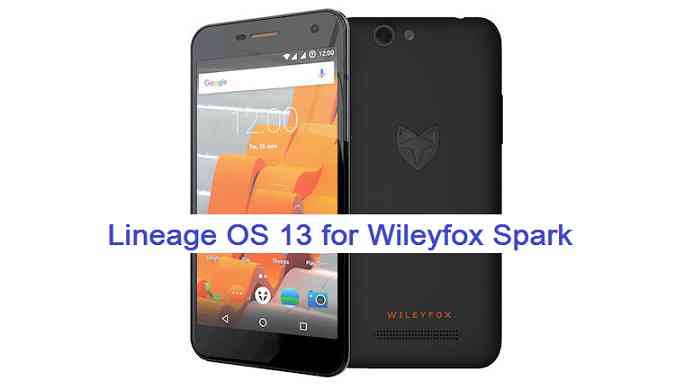
Stay tuned or Subscribe to the Redmi 5 Plus (vince) Lineage OS forum For other Android Pie, Android Oreo ROMs, Nougat ROMs, or other ROMs and all other device specific topics.Android Marshmallow ROM, LineageOS 13 for Spark/Spark Plus has now arrived via an UNOFFICIAL build. If you want some more LineageOS ROMs or wanna taste the OFFICIAL LineageOS build then stay tuned to the LineageOS 13 Devices List page and LineageOS 14.1 ROM Device List. This Wileyfox Spark/Spark Plus LineageOS 13 is brought to you by developer LostName
DONATION TO DEVELOPER(S):
No donation link found for LostName.
DISCLAIMER:
THIS IS AN INITIAL TEST BUILD WHICH MAY NOT BOOT AT ALL AND EVEN IF IT BOOTS IT MAY HAVE MANY MORE BUGS THAN YOU CAN IMAGINE. HAVE A BACKUP BEFORE FLASHING THIS AND TRY AT YOUR OWN RISK. Installing a custom ROM may require the bootloader to be unlocked on Spark/Spark Plus, which may VOID your warranty and may delete all your data. Before proceeding further you may consider backup all data on the phone. You are the only person doing changes to your phone and I cannot be held responsible for the mistakes done by you.Status of LineageOS 13 for Spark/Spark Plus (porridge) Marshmallow ROM:
WHAT’S WORKING:
– Everything works (See the comment by mrffitch)KNOWN ISSUES:
– Nothing
REQUIRED LINKS AND FILES FOR LineageOS 13 for Spark/Spark Plus MARSHMALLOW CUSTOM ROM:
- OFFICIAL TWRP download link | TWRP link by LostName for Wileyfox Spark/Spark Plus
– Here is: Custom Recovery Installation Guide for Spark/Spark Plus
– This TWRP recovery guide requires an unlocked bootloader on the Spark/Spark Plus (porridge). - ROM Download Link of Spark/Spark Plus LineageOS 13 ROM (porridge)
- LineageOS 13 GApps download link for Wileyfox Spark/Spark Plus LineageOS 13 Marshmallow ROM
Root binary is NOT inbuilt in LineageOS 13, so you may need a separate SuperSu package or LineageOS su binary to install to gain ROOT access. Here is How to Enable ROOT on LineageOS 13
If there is no in-built ROOT or it does not work for some reason then you can try flashing SuperSU zip using recovery to gain ROOT access.HOW TO INSTALL/DOWNLOAD/FLASH/UPDATE Spark/Spark Plus LineageOS 13 MARSHMALLOW CUSTOM ROM:
Follow this if you are flashing LineageOS 13 for Spark/Spark Plus (porridge) for the first time, or coming from another ROM:
Points to NOTE:
– Try to avoid restoring apps backup using Titanium Backup. It may break things up.
– Don’t restore system data using Titanium Backup! It will definitely break the current installation.
– It is also discouraged to Restoring Apps + Data using Titanium Backup.- Download and Copy the GApps and LineageOS 13 for Spark/Spark Plus ROM ZIP to your phone.
- Boot into Recovery. Make sure to have a Custom recovery like CWM or TWRP or any other custom recovery. If not then follow the Custom Recovery Installation Guide for Spark/Spark Plus (porridge) (it’s a generic guide which will work for TWRP as well as CWM recovery or any other recovery)
- Wipe data factory reset, Cache partition, Dalvik Cache and Format the System partition.
– Here is a guide explaining how to wipe data using TWRP recovery.This will delete all your data on your phone. You may consider complete backup of your phone data or take a NANDROID backup of the current ROM
– How to backup all data on your Android Device
– how to take NANDROID backup using TWRP recovery - First flash the Wileyfox Spark/Spark Plus LineageOS 13 ROM ZIP from device. Then flash the GApps zip from your device memory.
– Here is a post explaining how to install LineageOS. - DO NOT REBOOT yet. Then flash the LineageOS 13 GApps package.
– Here is a post explaining how to flash LineageOS 13 GApps using TWRP recovery. - Reboot and Enjoy the Marshmallow LineageOS 13 ROM for Spark/Spark Plus (porridge).
Upgrading from earlier version of Wileyfox Spark/Spark Plus LineageOS 13 (porridge):
- Copy the latest LineageOS 13 for Spark/Spark Plus ROM ZIP file to your phone.
- Boot into Recovery.
- Flash the latest LineageOS ROM ZIP from your phone.
– Here is a post explaining how to install LineageOS. - Then flash the LineageOS 13 Marshmallow GApps package.
– Here is a post explaining how to flash GApps using TWRP recovery. - Reboot and Enjoy
Complete the initial setup and enjoy Android Marshmallow with LineageOS 13 for Spark/Spark Plus (porridge). After the installation of Wileyfox Spark/Spark Plus LineageOS 13 ROM (porridge) you may want to enable ROOT access on your phone and here is how you can do that:
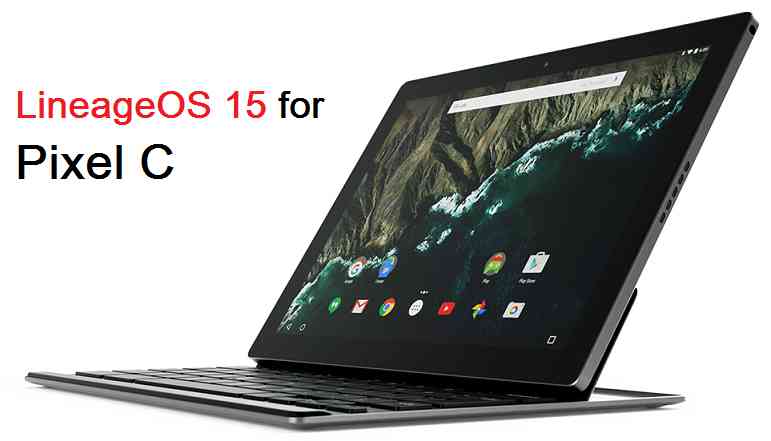
How to Enable ROOT on LineageOS 13.Stay tuned or Subscribe to the Wileyfox Spark/Spark Plus (porridge) LineageOS forum For other Android Custom ROMs, LineageOS 13 ROMs, other ROMs and all other device specific topics.Android Oreo 8.0 ROM, LineageOS 15 for Pixel C has now arrived via an UNOFFICIAL build. If you want the OFFICIAL LineageOS update or some more Android Oreo ROMs then stay tuned to the Lineage OS 15 ROMs page or the AOSP Android Oreo devices list page. This LineageOS 15 for Pixel C (dragon) is brought to you by developer followmsi.
DONATION TO DEVELOPER:
Donation link not found for followmsi.
DISCLAIMER:
THIS IS A BETA ROM AND MAY HAVE VERY MINOR BUGS. HAVE A BACKUP BEFORE FLASHING THIS LINEAGEOS ROM AND TRY AT YOUR OWN RISK. Installing a custom ROM on a Pixel C (dragon) requires the bootloader to be unlocked on the Pixel C (dragon) phone, which may VOID your warranty and may delete all your data. Before proceeding further you may consider backup all data on the phone. You are the only person doing changes to your phone and I cannot be held responsible for the mistakes done by you..content_layout_width { width: 270px; }
@media(min-width: 800px) { .content_layout_width { width: 500px; } }Content structure:
Status of Lineage OS 15 for Pixel C Oreo 8.0 Custom ROM:
WHAT’S WORKING:
– EverythingKNOWN ISSUES:
– No such known issues
REQUIRED LINKS AND FILES FOR LineageOS 15 for Pixel C OREO CUSTOM ROM:
- TWRP recovery link for Pixel C (dragon)
– Here is theTWRP update guide for the Pixel C. This TWRP recovery guide requires an unlocked bootloader on the Pixel C.
- ROM Download link of Lineage OS 15 for Pixel C
- LineageOS 15 GApps download link for LineageOS 15 for Pixel C Oreo 8.0 ROM (Download the stock ARM64 GApps)
Root binary is NOT inbuilt in Lineage OS 15, so you may need a separate SuperSu package or LineageOS su binary to install to gain ROOT access. Here is Lineage OS 15.1 Rooting guide
If there is no in-built ROOT or it does not work for some reason then you can try SuperSU rooting guide to enable ROOT access.
HOW TO INSTALL/DOWNLOAD/FLASH/UPDATE Lineage OS 15 FOR Pixel C OREO CUSTOM ROM:
Follow this if you are flashing LineageOS 15 for Pixel C for the first time, or coming from another ROM:
Points to NOTE:
– Try to avoid restoring apps backup using Titanium Backup. It may break things up.
– Don’t restore system data using Titanium Backup! It will definitely break the current installation.
– It is also discouraged to Restoring Apps + Data using Titanium Backup.- Download and Copy the GApps and LineageOS 15 for Pixel C Oreo ROM ZIP to your phone.
- Boot into Recovery. Make sure to have a Custom recovery like CWM or TWRP or any other custom recovery. If not then follow the Custom Recovery Installation Guide for Pixel C (it’s a generic guide which will work for TWRP as well as CWM recovery or any other recovery)
- Wipe data factory reset, Cache partition, Dalvik Cache and Format the System partition.
– Here is a guide explaining how to wipe data using TWRP recovery.This will delete all your data on your phone. You may consider complete backup of your phone data or take a NANDROID backup of the current ROM
– How to backup all data on your Android Device
– how to take NANDROID backup using TWRP recovery - First flash the Lineage OS 15 for Pixel C Oreo ROM ZIP from device. Then flash the GApps zip from your device memory.
– Here is a post explaining how to install Lineage OS - Then reboot into recovery (don’t skip this) and flash the Gapps for LineageOS 15 package.
– Here is a post explaining how to flash GApps using TWRP recovery. - Reboot and Enjoy the Oreo 8.0 LineageOS 15 ROM for Pixel C.
Upgrading from earlier version of Lineage OS 15 for Pixel C (dragon):
- Copy the latest Pixel C Lineage 15 ROM ZIP file to your phone.
- Boot into Recovery.
- Flash the latest CM ROM ZIP from your phone.
– Here is a post explaining how to install LineageOS - Then flash the Lineage 15 Oreo GApps package.
– Here is a post explaining how to flash GApps using TWRP recovery. - Reboot and Enjoy
Complete the initial setup and enjoy Android Oreo 8.0 with Lineage OS 15 for Pixel C. After the installation of LineageOS 15 for Pixel C you may want to enable ROOT access on your phone and here is how you can do that:
How to ROOT for LineageOS 15.1.Stay tuned or Subscribe to the Pixel C (dragon) forum For other Android Oreo, Nougat ROMs, LineageOS 15 ROMs, other ROMs and all other device specific topics.If you have found any BUG or any issues with the ROM , then following is the development thread at XDA.
LineageOS 14.1 for Lenovo P2 (kuntao) has arrived via an unofficial build. If you want the OFFICIAL update or some more Lineage ROMs then stay tuned to the LineageOS 14.1 page or the latest LineageOS 15 Android O devices list page. This Lenovo P2 LineageOS 14.1 (kuntao) is brought to you by FireLord.
DONATION TO DEVELOPER(S):
If you like this ROM then do consider for a contribution to FireLord:
Donate to FireLordDISCLAIMER:
THIS IS AN INITIAL BUILD WHICH HAS FEW BUGS. HAVE A BACKUP OF THE CURRENT ROM BEFORE FLASHING THIS ROM AND TRY AT YOUR OWN RISK. Installing a custom ROM on a Lenovo P2 (kuntao) requires the bootloader to be unlocked on the Lenovo P2 (kuntao) phone, which may VOID your warranty and may delete all your data. Before proceeding further you may consider backup all data on the phone. You are the only person doing changes to your phone and I cannot be held responsible for the mistakes done by you.Status of LineageOS 14.1 for Lenovo P2 (kuntao), Nougat 7.1 ROM:
WHAT’S WORKING:
– Wifi
– Bluetooth
– Camera
– RIL (Calls, SMS, Data)
– Video Playback
– Audio
– Camcorder
– HDR may be broken on third party apps
– VoLTE
– GPS
– NFC
– Fingerprint
– Fast chargerKNOWN ISSUES:
– LEDs
– OneKey
– FP gestures
– Permissive SELinux
REQUIRED LINKS AND FILES FOR LineageOS 14.1 for Lenovo P2 NOUGAT CUSTOM ROM:
- TWRP for Lenovo P2 (kuntao)
– Here is theTWRP update guide for the Lenovo P2 (kuntao). This TWRP recovery guide requires an unlocked bootloader on the Lenovo P2 (kuntao)
- ROM Download link of Lenovo P2 LineageOS 14.1 (kuntao)
- LineageOS Nougat GApps download link for Lenovo P2 LineageOS 14.1 Nougat 7.1 ROM
Root binary is NOT inbuilt in LineageOS 14.1, so you may need a separate SuperSu package or LineageOS su binary to install to gain ROOT access. Here is LineageOS Rooting guide
If there is no in-built ROOT or it does not work for some reason then you can try SuperSU rooting guide to enable ROOT access.HOW TO INSTALL/DOWNLOAD/FLASH/UPDATE Lenovo P2 LineageOS 14.1 NOUGAT CUSTOM ROM:
Follow this if you are flashing LineageOS 14.1 for Lenovo P2 (kuntao) for the first time, or coming from another ROM:
Points to NOTE:
– Try to avoid restoring apps backup using Titanium Backup. It may break things up.
– Don’t restore system data using Titanium Backup! It will definitely break the current installation.
– It is also discouraged to Restoring Apps + Data using Titanium Backup.- Boot into Recovery. Make sure to have a Custom recovery like CWM or TWRP or any other custom recovery. If not then follow the Custom Recovery Installation Guide for Lenovo P2 (kuntao) (it’s a generic guide which will work for TWRP as well as CWM recovery or any other recovery)
- Wipe data factory reset, Cache partition, Dalvik Cache and Format the System partition.
– Here is a guide explaining how to wipe data using TWRP.This will delete all your data on your phone. You may consider complete backup of your phone data or take a NANDROID backup of the current ROM
– backup all data on your Android phone
– Take NANDROID backup using TWRP recovery - Then download and Copy the GApps and LineageOS 14.1 for Lenovo P2 ROM ZIP to your phone.
- First flash the Lenovo P2 LineageOS 14.1 ROM ZIP from device.
– Here is a post explaining how to flash a custom ROM using TWRP recovery. - DO NOT REBOOT YET. Now flash the LineageOS 14.1 GApps package.
– Here is a post explaining how to flash GApps using TWRP recovery. - Reboot and Enjoy the Nougat 7.1 LineageOS 14.1 ROM for Lenovo P2 (kuntao).
Upgrading from earlier version of LineageOS 14.1 for Lenovo P2 (kuntao):
- Copy the latest LineageOS 14.1 for Lenovo P2 ROM ZIP file to your phone.
- Boot into Recovery.
- Flash the latest LineageOS ROM ZIP from your phone.
– Here is a post explaining how to flash a custom ROM using TWRP recovery. - Then flash the Android Nougat GApps package.
– Here is a post explaining how to flash GApps using TWRP. - Reboot and Enjoy
Complete the initial setup and enjoy Android Nougat 7.1 with LineageOS 14.1 for Lenovo P2 (kuntao). After the installation of Lenovo P2 LineageOS 14.1 (kuntao) you may want to enable ROOT access on your phone and here is how you can do that:
How to ROOT LineageOS 14.1.Stay tuned or Subscribe to the Lenovo P2 (kuntao) LineageOS forum For other Android Nougat ROMs, LineageOS 14.1 ROMs, other ROMs and all other device specific topics.If you have any BUGs to report or have any issues to discuss, then here is the dev thread for this ROM.
A working mod of Google Camera or GCam for Realme 3i is now available to download. This GCam for Realme 3i is brought to you by Arnova8G2.
Realme 3i GCam Android compatibility
This Google camera (GCam) for Realme 3i is based on 6.1.013 base version which is brought to you by Arnova8G2. This GCam is for a Realme 3i device running on Android Pie.

Status of this Realme 3i Google Camera APK:
WHAT’S WORKING:
– HDR+
– Slow motion
– Night sightKNOWN ISSUES:
– The UI lags a bit[su_note note_color=”#D8F1C6″ text_color=”#769958″ radius=”3″ class=”” id=””]
Download Google Camera 6.1 for Realme 3i:
Google Camera 6.1.013 for Realme 3i
Don’t bother about Camera2 API, as it is enabled by default on devices shipped with Android Oreo or later.
NOTE: Comment in a reply if some GCam has some issues or not working at all.
[/su_note]How to Install GCam on Realme 3i?
- Download one of the GCam apk for Realme 3i from the above download link
- To install apps from a third party app other than Play Store you need to enable app install from Unknown Sources on your Android device.
For Android Oreo or Pie version, enable Install Unknown Apps from the app from which you are going to install the Google Camera APK.
For example: if you have downloaded the Google Camera apk file on Google chrome or firefox browser on your phone.
Or you have downloaded and copied the apk file to the file browser and you want to install it from there.Go to Settings > Apps & notifications > Open the app (Chrome, Firefox or file manager app etc) > Install unknown apps and enable Allow from this source
See the below screenshots that enables to install unknown apps on Oreo for Chrome app (you need to enable on the app from where you want to install the apk):
- Once enabled, click on the app to install.
- Go to App settings and Clear data.
- Start the Google camera app and enjoy ultimate mobile photography on Realme 3i.
[su_note note_color=”#D7E3F4″ text_color=”#728095″ radius=”3″ class=”” id=””]It is possible that this is not the only Google camera mod that works on Realme 3i. There could be other GCam mods out there that may just work fine on the phone.[/su_note]
Try other Realme 3i GCam APK
– Google Camera APK download page for specific Android phones
– Google Camera by Arnova8G2
– Google Camera by San1tyThat’s all for the Realme 3i’s Google camera. Stay tuned to this article for more updates on getting a stable or other latest updates of GCam for Realme 3i.
New features are keep on coming on the GCam app and hence there could be many versions of these ported apps for Realme 3i. Below forum will have all available working Google Camera port or Realme 3i.
Stay tuned or Subscribe to the Realme 3i forum For other Google Camera, Custom ROMs and all other device specific topics.